The first step of any journey is the hardest part. Clichéd, but true. The first step in using Linux is to install it, and for many folks that step is the most intimidating. It doesn’t have to be — most Linux distributions are easy to install, if you know what to expect. Here’s how to prep for an install and get on with the journey.
Linux will run on almost any standard laptop or personal computer, and on quite a few less standard machines as well. For the purpose of this guide, I’m only going to cover standard x86/x86-64 hardware. If you have an older Mac with a PowerPC processor, or another type of machine, it’s probably possible to install Linux — but it will take a bit more work and you’ll have to be choosy about the distribution you choose.
Pre-install Checklist
First, you need to decide which Linux distribution am I going to run first? and get the ISO image for that distribution. What’s an ISO image? This is slang for a type of file that contains a DVD or CD “image,” that can be burned directly to blank CD or DVD media.
You might want to read Brian Proffitt’s piece on the seven best Linux distributions to get a good overview. I’m going to suggest that you start with one that isn’t on Brian’s list, Linux Mint.
Linux Mint is based on Ubuntu, but includes a few enhancements and components like Adobe Flash that you will probably want down the line. It’s also very easy to install, and easy to use. The default selection of software is good for most users, and the most recent release (Linux Mint 9) will be supported for three years on the desktop. You can upgrade sooner, of course — a new release of Mint comes out roughly every six months, but the Linux Mint 9 release will be receiving updates through 2013 on the desktop.
Next, you need a couple of things: the ISO image you’re going to use for the install, and a blank disc. If you have a more recent machine, you should choose a 64-bit CD image. Most new AMD and Intel CPUs for desktop and laptops are 64-bit, though they’ll also work with the 32-bit images. The main difference is that the 32-bit OSes take some tweaking to support more than 3GB of RAM. Newer netbooks with Atom CPUs take 32-bit, but you’re better off with a netbook distribution for those. We’ll tackle that in a separate piece.
Before that, though, you’re going to want to back up your data on the computer you’re going to install Linux on. This is assuming you’re going to dual-boot Linux with Windows. You can also install Linux on an Intel-based Mac, but that’s a slightly more complex procedure. Either way, the point is that unless you’re putting Linux on a computer by itself, you need to back up your data.
If you’re using Windows 7, you should be able to burn the CD without installing any additional software. When the ISO is downloaded, just right-click on the image and then select Burn disc image. You’ll see a dialog with the option to burn the disc and then all you need to do is wait for it to finish. 
Now it’s time to reboot and start the install!
Installation Walkthrough
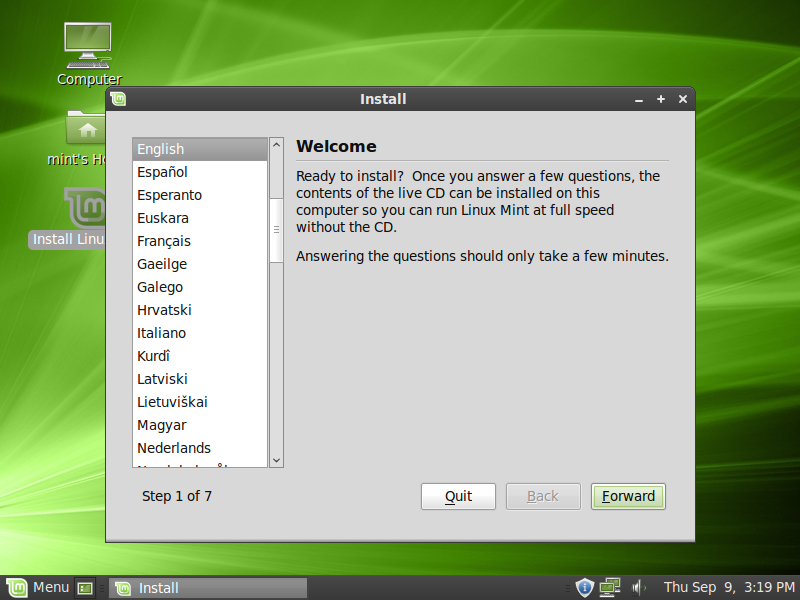
The Mint installer has six steps. It says seven at the bottom of the installer, but skips one.
You should see a welcome screen, just choose the language that you want to install in (English is the default, but not the only choice). Then you’ll want to set up your time zone and keyboard layout. None of that should be too difficult.
The only “difficult” part of the install is partitioning. This is where you tell the installer how much disk space it can have, and how much is going to be left to the existing OS. When you get a computer with an operating system already installed, the disk has been partitioned and formatted already. Usually this means Windows is installed on an NTFS partition (the native Windows filesystem for Windows XP, Vista, and 7) and you’ll have a single partition. Linux will require at least two partitions, one for data and one for “swap,” which is what Linux uses for virtual memory. (If that sounds like gibberish, don’t worry — it’s not a detail you need to know to use Linux day to day.)
Mint should suggest a sane default with the option of keeping your existing Windows install and giving part of the disk to Linux. Unless you’re feeling adventurous, I recommend avoiding manual partitioning. Choose the “Install them side by side, choosing between them each at startup option, unless you’re ready to go straight to Linux.
The next step requires you to fill out your user information and give the computer a name. Make sure you select a good password! You have the option of logging in without providing a password, but that’s not recommended. Unless no one else has access to your computer, it’s not really advisable to go without a password. If you’re extra-cautious, Mint gives the option of encrypting your home directory too. This means that the data under your home directory will be encrypted, so even if someone has physical access to your computer, it would be nearly impossible for them to view your data without your password. This will cause a small performance hit, but not enough to worry about unless you have a very old computer.
Click forward again, and you just have to wait for the files to copy. After that’s done, you’ll need to reboot and you can start using Linux! Wasn’t that easy?
After the Install
You’ve installed Linux. Now what?. Take some time to become familiar with the OS and look at the user guide for your chosen distro.
With Linux Mint, you’ll usually launch your software from the Mint Menu in the lower left-hand corner of the screen. It’s also possible to run a program by typing Alt-F2 and typing the name of the application you want to run, like firefox. Linux is highly configurable, so you can re-arrange your system to use a different menu bar or dock if you like — almost anything is possible. But try the default layout for a bit and see how that works for you.
The default software is a good start, but you might want to install more. The easiest way to do that is to search the packages available with your distro. With Linux Mint, you can find new applications using the Software Center. If you know the name of the package you want to install, just use the search box in the right-hand corner. If not, you can browse the categories and try out some of the choices. Everything in the Software Center is available to download for free, so as long as you have disk space, you can try all the software you want.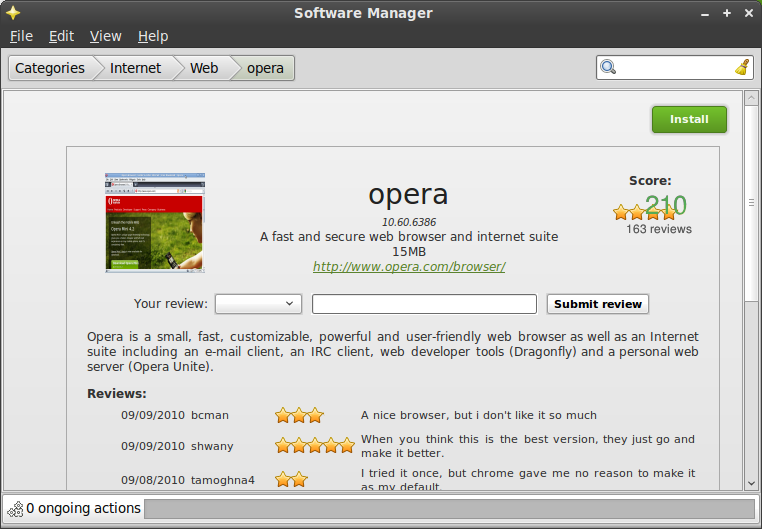
Like anything else, it takes a while to become familiar with Linux. Some folks try Linux and give up very quickly the first time they run into an obstacle — that’s a major mistake. You’ll probably run into one or two things that don’t make sense right away or experience problems, but don’t panic and don’t give up!
You can find plenty of support to get started with Linux. Start with the Linux.com Forums and answers section, of course, and the forums for the specific distribution that you’re using as well.
It might take a while to become totally comfortable with Linux, but if you stick with it, you’ll get there faster than you think. It won’t be long before you wonder why you didn’t start sooner!
