
Home Blog Page 2820

system76 Pangolin Performance part 2 : First Contact


First contact

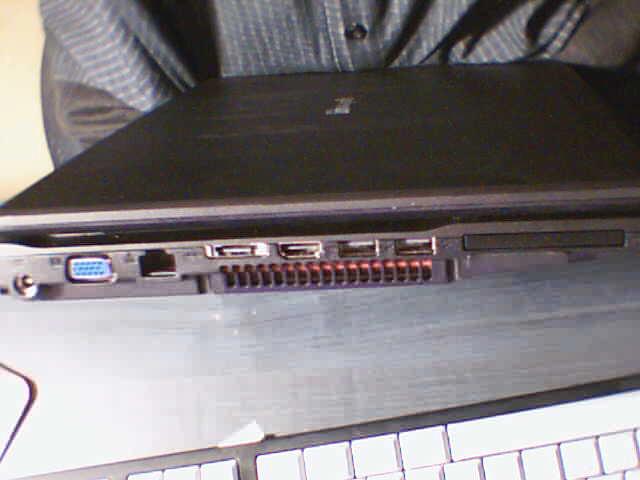
The right side of the laptop, showing the various ports available

I was a bit surprised by Ubuntu’s splash screen – it was in very low resolution and the logo was surrounded by some weird green artifacts. I was expecting graphic glitches – the laptop came with an ATI video card and I have yet to see one that works well in Linux Not that you can’t make them work, but the drivers are usually a mess to configure. Either you get feature X with the open source driver and forget about feature Y, or you get feature Y with the proprietary driver and forget about feature X. A Kobayashi Maru scenario, of sorts.

After the weird splash screen and a rather simple setup wizard, I was in the GNOME desktop. Everything was working fine, but the webcam wasn’t working. I later discovered that it was because of a hardware switch. The button is on the keyboard alright, but there is no visual indicators of the webcam’s status, which is kind of weird. Anyway, moving on.

On to Fedora

After a rather successful first boot (never mind the boot graphic glitch), it was time to mess it up. I already had a Fedora 13 Live CD ready just waiting to be put into the disc drive and a OpenSUSE one in Transmission. I wanted to see how the laptop handled different distributions.

Fedora’s installation went smooth. I chose the KDE version to add some spice to the experience. The display driver was working fine and the splash screen appeared correctly. However, I had no WiFi connection. I searched around for a solution, and I just had to download the driver from Realtek and compile it (I understand that compiling a driver ain’t something a user wants to go through – but I knew that some problems could appear by changing distros). After a little reboot, everything was working fine, until I unplugged the computer. I had about 50 minutes of battery life, on “powersave”.

I knew that the computer wouldn’t be a big battery saver, but 50 minutes seemed a bit abnormal. I checked the power management panel in KDE to learn that CPU frequency scaling was not working because the hardware wasn’t correctly detected.

That’s where me and Fedora parted ways. I can have hitches on the network card, sound card or even graphic card, but when it comes to power management, I don’t want to mess around. Especially not on a laptop. My OpenSUSE DVD download wasn’t quite finished when I went back to my trusty desktop tower. I then had the idea of trying Kubuntu instead. I had a lot of confidence in OpenSUSE, but having worked with Ubuntu and Kubuntu for a couple of years, I felt more comfortable to go back to *buntu land.

Back home

It was also a matter of drivers. I know that drivers can be installed separately, should there be any need to do so. I haven’t tried OpenSUSE, but it would probably have worked – and should it have had some problems, nothing would be impossible to fix. However, system76 provides the necessary drivers themselves inside a deb repository of their own.

Laziness kicked in and I fired the installation of Kubuntu 10.04, adding the system76 software repository myself in kpackagekit. That is when I discovered that the fglrx driver was somewhat messing everything up. It was not installed by default so the open source driver was used. The splash screen was beautiful and the desktop compositing was working. However, when I activated the fglrx driver, the splash screen went low resolution and compositing was messed up.

After I reverted everything to the original configuration, everything was up and running. I had a couple of hitches with network management. I cannot determine if my network problems are due to the WiFi card or just the software acting crazy – I’ll have to read on the subject. Personally, I had very… varied experiences with networkmanager and its derivatives (it is kind of my PulseAusio, for those who had problems with that piece of software).

First impressions

When I first saw the laptop, I really liked what I saw. It’s dark grey, clean, no stickers (I must admit, I added the bundled “Powered by Ubuntu” sticker on it, for the heck of it), no fuss. Its simplicity is just beautiful. However, it’s not perfect. I found the LED status lights (num lock, WiFi, hard drive, battery…) awkwardly placed, not to mention the absence of a webcam activity indicator.
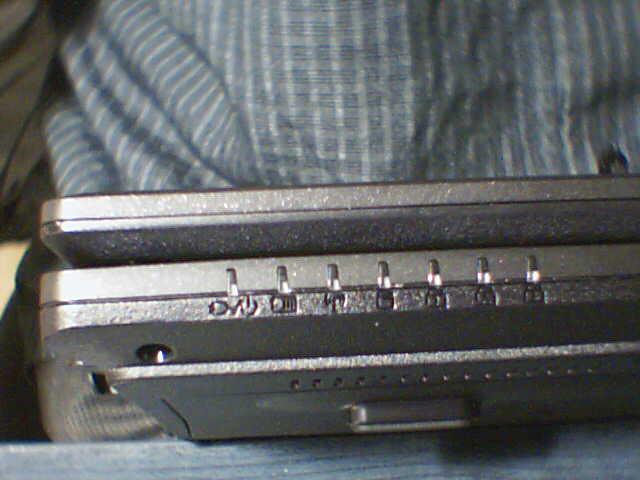
Front view of the laptop, showing the LED status lights

The keyboard is marvelous. It’s close in layout to what you’d have on a full size keyboard and it works like a charm, not to mention the presence of a numerical pad. The keys on the keyboard feel good, despite producing a somewhat “cheap” plastic-ish sound. I still have to familiarize myself with the touch pad. The pad is studded with very small dots forming a grid on its surface, providing an interesting tactile feedback, especially when searching for the scroll zone, which is all smooth. However, the cursor sometimes jumps from one place to the other without apparent reason – adjusting the pad’s sensitivity seems to correct the problem.
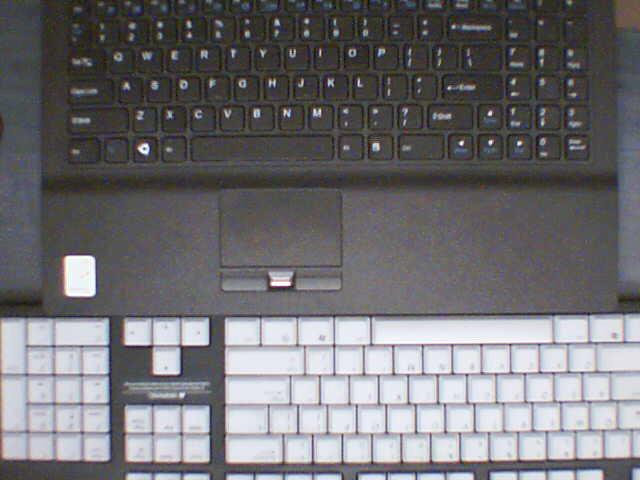
A comparison of the laptop's keyboard and a standard size keyboard

The laptop has a fingerprint reader. It is not “working” by default and I have no plans to configure it. I haven’t searched the documentation to activate this gadget yet. There is documentation on system76’s wiki to use the biometrics stuff in Ubuntu. Anyway, it should be viewed as a extra when buying the laptop. system76’s Web site mentions that it is in a beta state.

I had a non negligible amount of trouble running Kubuntu. However, I don’t think it’s related to the laptop but more the distribution being a bit unstable. Everything is configured, but sometimes, I fire up Kubuntu, I see the splash screen, enter my hard drive password and then it’s all black. Curiously, I can adjust luminosity and press the power button to see the shutdown process activate in a terminal. Maybe it’s KDM related, maybe it’s a driver, I do not know. I’ll have to work with it for a longer period of time.

All in all, I love the laptop. My first impressions may give you the idea that it’s buggy – consider that I didn’t give the laptop much chance. First thing I did was to replace Ubuntu with a completely different distro without prior search on the hardware, then got back to Kubuntu with a semi-manual installation of system76’s drivers. Despite all this, the laptop managed to work pretty well.

The Pangolin Performance is a fine machine. I have yet to do some “real work” on it, but up to now, it exceeded my expectations. It shows that it was built for Linux : the multimedia keys works, brightness adjustments works smoothly and power management is working fine. Not to mention that all the hardware is working. It may seem obvious, but these are the little things that I usually expect not to work when installing a GNU/Linux distro on a laptop built for Windows. And these little things, they work on the Pangolin Performance.

Now how will the laptop fare in the long run? Time will tell. It would be premature for me to declare right now that the Pangolin Performance is a great machine and a safe bet – I haven’t played with it enough. But if you look for a Linux laptop, system76 is definitely worth considering.

Manage Linux Downloads with wget

Firefox, Chrome, and other browsers do an acceptable job of downloading a single file of reasonable size. But I don’t like to trust a browser to grab ISO images and other files that are hundreds of megabytes, or larger. For that I prefer to turn to wget. You’ll find that using wget provides some significant advantages over grabbing files with your browser.

First of all, there’s the obvious — if your browser crashes or you need to restart for some reason, you don’t lose the download. Firefox and Chrome have been fairly stable for me lately, but it’s not unheard of for them to crash. That’s a bit of a bummer if they’re 75% of the way (or 98%) through downloading a 3.6GB ISO for the latest Fedora or openSUSE DVD.

It’s also inconvenient when I want to download a file on a server. For example, if I’m setting up WordPress on a remote system I need to be able to get the tarball with the latest release on the server. It seems silly to copy it to my desktop and then use scp to upload it to the server. That’s twice the time (at least). Instead, I use wget to grab the tarball while I’m SSH’ed into the server and save myself a few minutes.

Finally, wget is scriptable. If you want to scrape a Web site or download a file every day at a certain time, you can use wget as part of a script that you call from a cron job. Hard to do that with Firefox or Chrome.

Get Started with wget

Most Linux distributions should have wget installed, but if not, just search for the wget package. Several other packages use or reference wget, so you’ll probably get several results — including a few front-ends for wget.

Let’s start with something simple. You can download files over HTTP, FTP, and HTTPS with wget, so let’s say you want to get the hot new Linux Mint Fluxbox edition. Just copy the URL to the ISO image and pass it to wget like so:

wget http://ftp.mirrorsite.net/pub/linuxmint/stable/9/linuxmint-9-fluxbox-cd-i386.iso

Obviously, you’d replace “mirrorsite” with a legitimate site name, and the path to the ISO image with the correct path.

What about multiple files? Here’s where wget really starts showing its advantages. Create a text file with the URLs to the files, one per line. For instance, if I wanted to copy the CD ISO images for Fedora 14 alpha, I’d copy the URLs for each install ISO to a text file like this:

http://mirrorsite.net/pub/fedora/14/cd1.iso

http://mirrorsite.net/pub/fedora/14/cd2.iso

http://mirrorsite.net/pub/fedora/14/cd3.iso

You get the idea. Save the file as fedoraisos.txt or similar and then tell wget to download all of the ISO images:

wget -i fedoraisos.txt

Now wget will start grabbing the ISOs in order of appearance in the text file. That might take a while, depending on the speed of your Net connection, so what happens if the transfer is interrupted? No sweat. If wget is running, but the network goes down, it will continue trying to fetch the file and resume where it left off.

But what if the computer crashes or you need to stop wget for some other reason? The wget utility has a “continue” option (-c) that can be used to resume a download that’s been interrupted. Just start the download using the -c option before the argument with the file name(s) like so:

wget -c ftp://mirrorsite.net/filename.iso

If you try to resume a download after wget has been stopped, it will usually start from scratch and save to a new file with a .1 after the main filename. This is wget trying to protect you from “clobbering” a previous file.

Mirroring and More

You can also use wget to mirror a site. Using the --mirror option, wget will actually try to suck down the entire site, and will follow links recursively to grab everything it thinks is necessary for the site.

Unless you own a site and are trying to make a backup, the --mirror site might be a bit aggressive. If you’re trying to download a page for archival purposes, the -p option (page) might be better. When wget is finished, it will create a directory with the site name (so if you tried Linux.com, it’d be linux.com) and all of the requisite files underneath. Odds are when you open the site in a browser it won’t look quite right, but it’s a good way to get the content of a site.

Password protected sites are not a problem, as wget supports several options for passing the username and password to a site. Just use the --user and --password options, like so: wget --user=username --password=password ftp://mirrornet.net/filename.file where the user name and password are replaced with your credentials. You might want to specify this from a script if you’re on a shared system, lest other users see the username and password via top, ps or similar.

Sometimes a site will deny access to non-browser user agents. If this is a problem, wget can fake the user agent string with --user-agent=agent-string.

If you don’t have the fastest connection in the world, you might want to throttle wget a bit so it doesn’t consume your available bandwidth or hammer a remote site if you are on a fast connection. To do that, you can use the --limit-rate option, like this:

wget --limit-rate=2m http://filesite.net/filename.iso

That will tell wget to cap its downloads at 2 megabytes, though you can also use k to specify kilobytes.

If you’re grabbing a bunch of files, the -w (wait) option can pause wget between the files. So wget -w=1m will pause wget one minute between downloads.

There’s a lot more to wget, so be sure to check the man page to see all the options. In a future tutorial, we’ll cover using wget for more complex tasks and examining HTTP responses from Apache.

Second alpha for Python 3.2 arrives

A second Python 3.2 alpha brings numerous bug fixes, enhancements and an implementation of PEP 391

Read more at The H

Happy 3rd Birthday To AMD’s Open-Source Strategy

It was three years ago on this day that we were the first to detail AMD’s open-source strategy. Yep, it’s only been three years since AMD became public with pushing out NDA-free GPU documentation and register specifications, open-source code for the xf86-video-ati and Mesa drivers, and employed a small set of developers to contribute towards their open-source Linux stack. It was also three years ago from this month that the now deceased RadeonHD driver was launched…


Read more at Phoronix

Open source Plex media center to run on LG TVs

The Plex developers have announced a new partnership with LG Electronics to bring their open source media centre to LG HDTVs and confirmed that a Windows version will be available “later this year”

Read more at The H

Rails 2.3.9 extends bridge to Rails 3

The Ruby web framework’s older edition gets an update to further ease the transition to the recently released Rails 3.

Read more at The H

Start of feature cull for Firefox 4

Mozilla has confirmed that it has started culling features for version 4.0 of its open source Firefox web browser; the Account Manager feature – announced in April of this year – has now been dropped from the major browser update

Read more at The H

Looking At The OpenCL Performance Of ATI & NVIDIA On Linux

Recently we provided the first Linux-based review of the NVIDIA GeForce GTX 460 graphics card. Overall, this Fermi-based graphics card was a great performer for selling around $200 USD and is complemented by great video playback capabilities with VDPAU acceleration and great proprietary driver support. In that review we primarily looked at the OpenGL performance under Linux, but with NVIDIA’s Fermi architecture bringing great GPGPU advancements for CUDA and OpenCL users too, in this article we are looking more closely at the Open Computing Language performance of this GF104 graphics card as well as other NVIDIA and ATI graphics cards.


Read more at Phoronix

P2P Hopping Protocol


In the last week, I started working on the last big missing infrastructure piece of the mesh networking peer-to-peer network. A way to send messages between may two nodes in the peer-to-peer network. Each node communicates with at most 20 neighboring nodes, this is useful to form a mesh, but it only gets interesting is you can route messages by hopping from node to node. Now, each node’s identifier is a long hash of the nodes public certificate.

A key question is how do your route over a peer-to-peer network a message from one node to another with only the hash of the source and target nodes. None of the nodes have a general routing table or a full view of the network topology. Still, we can route the message from hop-to-hop by, at each hop, reducing the “distance” between the message and its destination. The distance is measured not is physical or network distance, but in the difference between a node identifier and the target of the message. In any case, it works quite well.

Read more at Intel OSS Blogs

New Android 2.2 build leaks out for Nexus One, minor improvements noted

Well, well — what have we here? Word on the street has it that we’re looking at a new, unreleased (officially, anyway) Froyo build for Google’s now-tough-to-locate Nexus One. The open source community has yet again uncovered what looks to be a real gem, with this fresh Android 2.2 version (FRG33) promising minor bug fixes, improved WiFi performance and speed improvements from top to bottom. There’s obviously no Google-approved changelog to prove anything one way or another, but you can give that source link a look if you’re feeling froggy. Just don’t blame us when you suddenly can’t access the Android Market, or your world otherwise implodes.
 
Read more at Engadget Mobile