How To Set Up Apache2 With mod_fcgid And PHP5 On Ubuntu 10.04
This tutorial describes how you can install Apache2 with mod_fcgid and PHP5 on Ubuntu 10.04. mod_fcgid is a compatible alternative to the older mod_fastcgi. It lets you execute PHP scripts with the permissions of their owners instead of the Apache user.
At insideHPC, we’re looking at new ways to bring you the latest on High Performance Computing. This week we’re starting a new feature called Video Sundays. In this video, the University of Louisville uses a Dell HPC cluster and visualization wall to further its research on personalized medicine.
It’s terribly difficult to get reliable statistics, as numbers tend to vary drastically depending upon whom you ask, but if you’re inclined to believe that Androidismoppingup Apple and RIM’s declining mobile mindshare in the US, you’ll find nothing but corroboration from Quantcast. The analytics firm reckons a full one-quarter of mobile web traffic stateside comes from devices running Google’s OS, though it’s important to know that the iOS tallies apparently don’t include the web-friendly iPad. You also might want to note that this is mobile web traffic here — these days, we spend an increasing amount of our internet time in apps — and since we’re on a roll with the disclaimers, let’s just add that these numbers have nothing to do with a company’s financial success. Nokia can attest to that.
As far back as I can remember, I have been a Windows user. I can clearly recall using Windows 3.0 on one of my mother’s engineering computers in the early nineteen-nineties, or browsing the Internet for the first time in Internet Explorer. This pattern of Microsoft loyalty continued unabated with only minor dabbles into the world of Macintosh in secondary school into my current college career at Central Michigan University.
Microsoft Vista changed everything for me. A sub-par operating system from a hardware and software standpoint, Vista was worthy more for a laugh than a laptop. On the other hand, I frankly could not afford to purchase any of Apple’s computers, nor was I pleased when reviewing the technical specifications of said computers in relation to what I would be paying for.
The choices before me were as follows; purchase broken Windows or an over-priced Apple. I made my choice, and I’ve never been happier using a computer.
With all of this being said, you may be wondering which operating system I use, Windows or Apple?
I use neither; I am an Ubuntu Linux user.
Before I continue, I must break down what constitutes Ubuntu Linux, as this may be the first time you have ever encountered these terms.
According to information from the Linux (pronounced “lih-nucks”) Online! website, Linux.org, Linux was originally created in 1991 by a Finnish college student named Linus Torvald. The software was unveiled in the early 1990’s with the arrival of the first Linux Kernel, which forms the elemental basis of how everything works within this or any other operating system. Since this new operating system was released under the GNU (pronounced “guh-new”) General Public License, every aspect of the content’s source code could be altered and acquired by anyone, anywhere free of charge. This ability to freely edit and distribute content is referred to as “open-source,” with a popular example of an open-source program being Mozilla Firefox.
Based upon the aforesaid original Linux kernel is the Ubuntu (pronounced as “ew-bun-too”) operating system, which is also free and open-source. The phrase “Ubuntu” is roughly translated as “humanity towards others” from the Bantu languages of southern Africa. The word choice creates an apt description for software made by community members for global communities. As stated on the Ubuntu Linux website, (ubuntu.com), the operating system will always be freely available for use on any type of computer. Furthermore, you can even try out a fully-functional copy of Ubuntu on a “Live” disc prior to installation.
You may be asking yourself, “Open-source sounds great, but what about content?”
The next time you see me on campus or at a convention with my laptop, I’d be more than happy to show you the eye-catching Desktop Cube I use to navigate my four separate desktops. Or, when I switch to Expo mode and navigate between my other 4 desktops with the click of a button. My computer, like other Linux machines, does not crash nor does it suffer from malware such as trojans, viruses or worms due to how the kernel handles security. This is exactly the reason why most servers which power the Internet use Linux instead of Windows, and to a lesser extent, Mac.
Much has been said by devout users of Windows and Macintosh regarding benefits of exclusive proprietary applications on either system. Mozilla Firefox web browser, VLC multimedia player (similar to Windows Media Player) and the OpenOffice.org productivity suite (the Linux equivalent to Microsoft Office, Word, Excel, etc.) are just three examples of free open-source programs found on Linux systems. Concurrently, they are also largely available for use on all computers, Windows and Mac, on campus here at Central Michigan University. Need an iTunes alternative for managing your music collection? I use Rhythmbox. Love 3D modeling and digital animation? Try Blender. Are you a gamer? I highly recommend playing Nexuiz (soon, Xonotic).
If you can not immediately find a program you wish to use, you can get in contact with other users who are just as interested in creating content as you are; others such as the members of online forums such as Ubuntu Forums or here on linux.com. With a healthy mixture of programmers and imagination, before you know it, you will have a fully customizable and free program for anyone to enjoy.
Imagination, freedom and helping others; welcome to the world of Linux.
Are you still using the Winlist (or a reasonable facsimile) in order to switch from one working window to another? How old school! If you are still clicking minimized buttons in a panel to restore your minimized windows it is time you were drawn into the here and now. Thanks to Compiz you have better, slicker, and more efficient ways to switch from one application to another. Take a look at Compiz Switchers, and you’ll never want to go back to the boring old panel buttons!
Compiz offers several Switchers to choose from:
Static Application Switcher
Ring Switcher
Shift Switcher
Which one of these you choose will depend upon your taste. But each of the above tackles the same task: To help the user quickly (and easily) switch to a different application by cycling through all of those currently running. It’s so much quicker than taking your hands off the keyboard, reaching for your mouse, clicking around, and putting your hands back on your keyboard.
So, how do you use these tools? The first step is to enable them within the CompizConfig Settings Manager. Follow these steps:
Hit Alt-F2.
In the run box enter ccsm and hit enter.
When CCSM opens scroll down to the Window Management section.
Enable the switcher you want to use by making sure the associated check box is clicked (you can just enable all of them in order to try them all out. You will, however, have to modify the key combinations for either the Ring or Shift switcher as they will conflict).
That’s it. Now let’s take a look at how you use them.
Usage
Each of the switchers uses a different key combination to work, but all of them work using the same theory:
You hit two keys and advance through the cycle of open windows by keeping the first key pressed and hitting the second key until you get to the window you want. When the switcher lands on the window you want to use simply release the keys. Additionally you can move backwards through the cycle of open windows by adding the Shift key to the combination.
Now, let’s take a look at the different switchers and how their respective key combinations.
Static Switcher
By default, the key combination for the Static Switcher is Alt-Tab for forward and Alt-Shift-Tab for reverse motion. Of course you can alter the combination for the Static Switcher (or any of the switchers) from the CompizConfig Settings Manger. To do this click Static Switcher and then change Next Window and Previous Window combinations associated with the Keyboard (not the mouse). Figure 1 shows the Static Switcher in action.
Ring Switcher
The Static Switcher is the more pedestrian of the switchers. The Ring Switcher takes us more into the realm of Compiz. Figure 2 shows the Ring Switcher in action. To use this particular switcher the key combination is Super-Tab and the reverse is Super-Shift-Tab.
If you want to have all three switchers available for you, as I mentioned earlier, you will have to modify the key combination for either the Static or Ring switcher. I always edit the Ring Switcher combination to use Ctrl-Tab and Ctrl-Shift-Tab and leave the Shift Switcher set up with the default.
Shift Switcher
This particular switcher is my favorite. It might remind you a bit of iPhone / iTunes Cover Flow interface. To use the Shift Switcher hit the combination Super-Tab and to use it in reverse, as you would expect, hit Super-Shift-Tab. NOTE: The “Super” key is often referred to as the “Windows” key.
Figure 3 shows the Shift Switcher in action.
How far can you take Compiz?
As you might expect, Compiz is an amazing tool that allows the Linux desktop to be pushed further than any desktop to date. Have you found a cool Compiz trick that you love to employ on your desktop? If so, share it with your fellow Linux.com readers!
The KDE PIM Team has asked users to help test the third beta version of the KDE PIM Suite, whose components use the new Akonadi framework for storing data
Martin Gräßlin, the KDE developer known for working on KWin and working on advanced features like OpenGL 3.x compositing in KDE 4.7, has written a new blog post in which he details some of the driver issues currently being experienced by some users of the recently released KDE 4.5 desktop…
Last weekend, we looked at how to enable your Web site to accept OpenID logins. But accepting OpenID authentication is only half of the issue — if you care about online privacy and identity, the chances are that you will want to control your own OpenID. Fortunately, setting up your site to serve as an OpenID provider is not that difficult — and makes a great weekend project.
Given how many commercial and free public services already act as OpenID providers, some might wonder why you would want to serve as your own identity provider. For many individuals, it is just a desire to define one’s own identity. A domain that you own has more individuality than google.com/profiles/somelongalphanumericstring, and if the URL you use as your OpenID is a blog or personal site, wherever it appears online will direct people back to the content that you want them to see and associate with you. Others (particularly in the Linux and free software realm) may begrudgingly have an OpenID from a proprietary service, but don’t want to publicly seem affiliated to it, or don’t trust its long-term stability and/or non-evilness.
Beyond the individual, though, if your site is a Web service, community group, or project, you may wish to configure your server to provide OpenIDs for your users simply to give them the opportunity to use your branding as their primary identity. Your business may want to provide OpenIDs for its employees, so that they can interact with customers and clients online without using their private, home IDs.
Finally, there is no rule that says you must or even should stick to only one OpenID yourself. It might make sense for an Ubuntu packager to use his or her Launchpad OpenID on all open source sites and forums, but self-provided OpenID to promote and tie in to the family’s lucrative kitten-grooming business. Choice is good.
Delegation
By far, the simplest way to take control of your own OpenID is with the OpenID specification’s delegation support. Any particular OpenID is, itself, a URI. With a commercial service, you are stuck with whatever URI the provider dictates to you, such as http://www.flickr.com/photos/willis for Flickr. On your own server, however, you can select any URI that you control to function as your OpenID.
With OpenID delegation, rather than running a full implementation of the OpenID provider service at the URI you choose, you can include special header links that associate the URI with some other “upstream” OpenID. Whenever you sign in to an OpenID-accepting site, the OpenID consumer will trace back the header links to the delegated OpenID provider, and ask you to authenticate there.
Once you are authenticated, though, you are signed in to the OpenID consumer site under the URI that you control. In other words, the OpenID delegation process is all behind the scenes as far as the public is concerned. You could start off delegating your OpenID to your Google Account, then switch it to Yahoo on a whim, and no one will know.
The HTML syntax is simple, but it does differ between sites that use OpenID 1.1 and OpenID 2.0. The old version of the protocol required two <link> elements: one to point to the delegated upstream server, and one that specified which upstream URI was your OpenID. For example:
If you simply want to create a static page to serve as your OpenID, all you need to do is place the four <link> elements in the document <head>, and you will be set for both generations of OpenID-consuming sites. The rest of the page contents are entirely unaffected. Just remember that the OpenID is specific to a particular URI, say blog.jimrockford.com; make sure you don’t generate the <link> elements on every page at the domain.
The truth is, the hardest part about delegation is tracking down the correct server/provider and delegate/local_id URIs for your upstream OpenID provider. Most don’t make them easy to find, since so few customers seem to care.
If your site runs a CMS (and you therefore cannot tweak pages’ <head> sections without breaking things), or if you simply faint at the site of straight HTML, you may prefer to install a delegation plugin or extension to do all of the heavy lifting for you.
WordPress users can find several OpenID-related plugins, although, as always, freshness and compatibility are of concern. The simplest up-to-date option is OpenID Delegation, originally written by Eran Sandler and updated for OpenID 2.0 by Rich Laager.
Will Daniels has similarly adapted and enhanced abandoned code from a much older Joomla extension to work with the OpenID 2.0 syntax. His version is called System – OpenID Delegation.
Drupal users have it the easiest of all; no special plugin is required. You can simply follow the OpenID delegation how-to for instructions on adding a block containing the right <link> elements. There is a separately maintained module called OpenID URL available too, if that suits you better.
The advantage of using a plugin or module is that it can give you a simpler interface for switching to a different OpenID delegate if you first choice enters bankruptcy protection or goes sour and starts suing open source projects. On the down side, if the author stops updating the code, you could get tripped up by version incompatibility and be stuck editing the HTML by hand anyway.
Forget Delegation and Carve Out Your Own Identity
As convenient as it is for many people, delegation is not the only option. You can run your own OpenID provider, too, meaning that you maintains all of the user accounts and handle the entire authentication process. It might be overkill for individuals, but for projects and businesses, having a centralized system is easier to maintain and to troubleshoot.
There are not as many plugin and extension solutions that implement an entire OpenID identity-provider service, but there are a few. The WordPress OpenID plugin mentioned last week as a consumer can also act as a provider, with an OpenID for each user account. DjangoID is a multi-user OpenID provider for the Django framework, and there is a Python plugin for the PyBlosxom blogging platform.
Beyond the plugins, there are several standalone OpenID provider systems written in various languages. On the lightweight end of the spectrum, SimpleID is a PHP-based OpenID provider aimed at working for small sites. The Ruby application local-openid is similarly designed for single-user environments.
Moving up in size, Prairie and Community-ID are both multi-user OpenID providers written in PHP. Packetizer’s OpenID Server is a multi-user standalone system written in Perl. SamƒÅdhi is written in Python, and designed to run on the TurboGears framework. There are several Java-based provider packages, all of which seem to target large-scale deployments. WSO2 Identity Solution and Crowd are two of the better known.
Finally, as was the last word on OpenID consumers last week, if you just cannot find a ready made identity provider for your platform of choice, you can implement your own using one of the many OpenID libraries. Here again, the best place to start a new search for code is at the OpenID project’s official wiki. In addition to the Libraries page referred to in the previous weekend project, consult the Run your own identity server page, which has some overlap, but also several distinct projects. As always, caveat wiki-er; several lower-level OpenID frameworks that were popular a few years ago are still widely referenced, but abandonware.
Identity Heft
Whether you delegate from a static HTML bio page, run a flexible plugin on your blog, or administer a complete OpenID providing solution, your identity is now your own. But to really take advantage of that power, don’t simply use your domain’s base URI as your OpenID and confront visitors with an enigmatic empty page informing them that Apache was installed successfully. Instead, give the public some content — just do it in an OpenID-friendly way. Rather than linking to your Facebook profile, mark up public information about yourself in hCard format. Rather than an old-fashioned blogroll, use XFN. Maybe even add a basic profile with Webfinger, or simply tell everyone what you are doing with your Linux box next weekend.
Connect is supposed to become the central user database for the openSUSE project. Sounds bland, don”t it? But you know the Boosters, everything we do comes with a grain of spice and Connect is no different. The spice here are a lot of nifty social network features like user profiles, friending, groups, an event calendar and possibly more. Thats possible because on top of the user database we use a Free Software social network framework called Elgg. Elgg will help us to go a step further in one of the most important areas of the openSUSE project: Connecting our community. We do a very good job connecting code at the moment but there is no central place for openSUSE users to mingle, form relationships and meet collaborators.
Try it!
Did we whet your appetite? Want to try it? No problem, just head over to our beta instance http://connect.opensuse.org and login as user geeko with the password opensuse to try it out. Make some friends, create a group or run a poll. This instance is regularly deployed with the newest code from our git repository so you will always get the latest and greatest. But please don’t forget that this is a beta If you encounter any problems, guess what, make a bugreport in our bugzilla!
Help out!
Or how about you get your hands dirty? So far our experience with Elgg is wonderful. It’s a tidy, extensible and well designed piece of software. The community is very helpful and there is a lot (if not to say a butt-load) of functionality available. And if something is not there already we have found that we can easily add it. You could too you know? Elgg runs on a combination of Apache, MySQL and the PHP scripting language and as this is the most popular web server environment in the world we hope we can attract more people to help to fit Elgg to openSUSE’s needs. And on top of that it’s really easy to hack on it! The changes we did so far at the HackMeck and the last couple of weeks are self-contained in plugins that extend the basic functionality. The powerful data model and view system of Elgg make it possible to change it to openSUSE’s needs without ever touching the core functions. So if you are interested in helping, get to know Elgg and then get in contact with the openSUSE Boosters.
We hope you will enjoy this new openSUSE tool. And remember: Have a lot of fun…

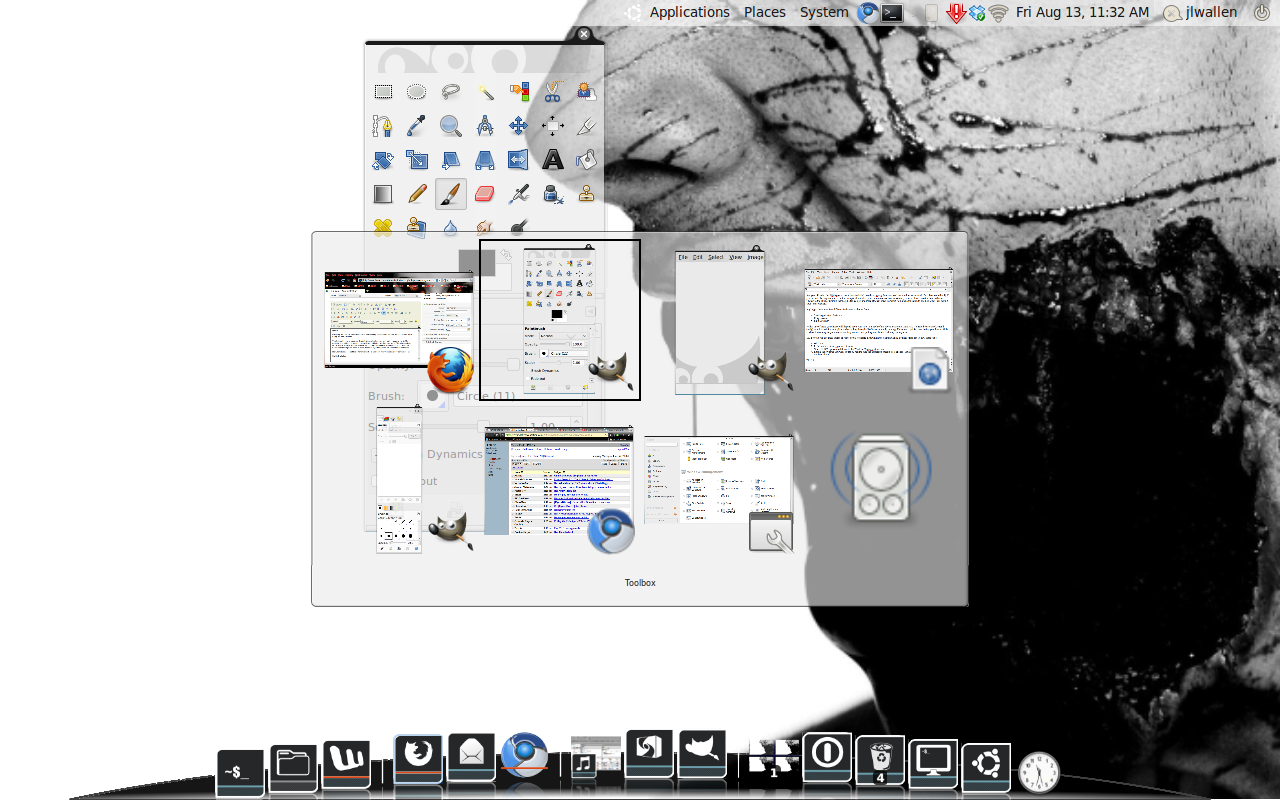 By default, the key combination for the Static Switcher is Alt-Tab for forward and Alt-Shift-Tab for reverse motion. Of course you can alter the combination for the Static Switcher (or any of the switchers) from the CompizConfig Settings Manger. To do this click Static Switcher and then change Next Window and Previous Window combinations associated with the Keyboard (not the mouse). Figure 1 shows the Static Switcher in action.
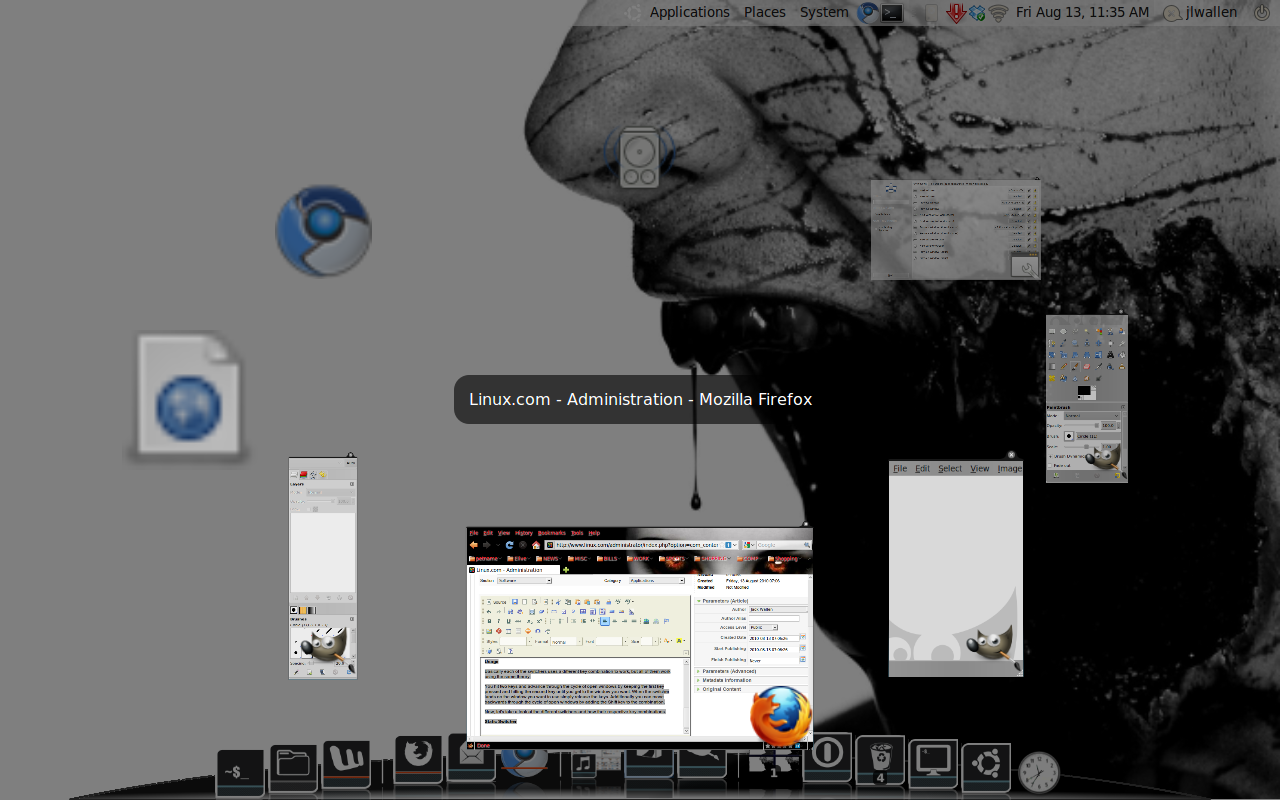 The Static Switcher is the more pedestrian of the switchers. The Ring Switcher takes us more into the realm of Compiz. Figure 2 shows the Ring Switcher in action. To use this particular switcher the key combination is Super-Tab and the reverse is Super-Shift-Tab.
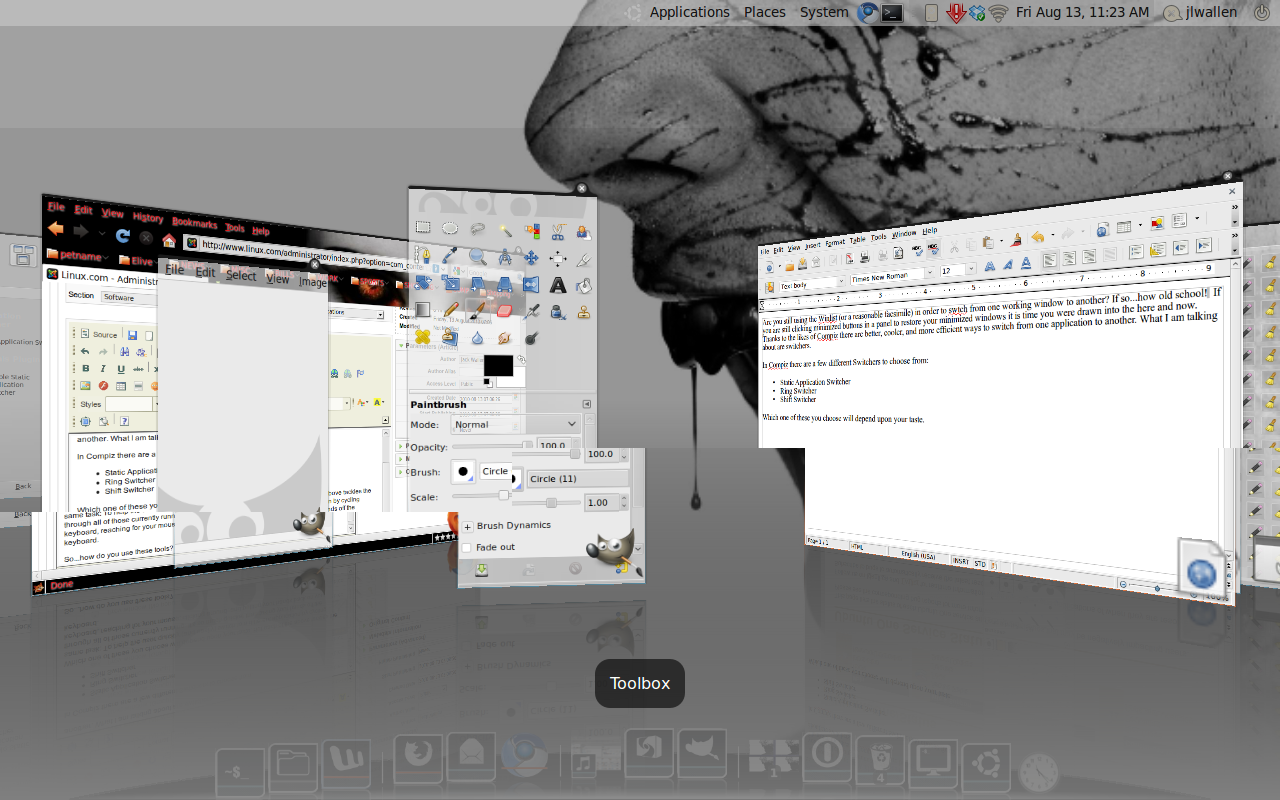 Figure 3 shows the Shift Switcher in action.