
GNOME and KDE may be the first desktops that come to mind when you think of the Linux desktop, but they’re not the only ones. From the overly minimalistic Rat Poison window manager to the eye candy of the Enlightenment E17 desktop, Linux has just about every type of desktop you can imagine. Want a desktop that’s lean and resource friendly without giving up features? It’s time to take a look at Xfce.
For many users, the major desktops feel a little bloated. Fast hardware is cheaper than ever, but performance is still king on the Linux desktop. The ideal desktop is somewhere in the middle ground, between overly minimalistic and overly bloated. Xfce is right at the center of the Venn Diagram of features vs. speed. It’s lightning fast and still offers most of the features users have grown accustomed to. The problem? Most new users, and even some experienced Linux users, aren’t familiar with Xfce.
So let’s take a tour of Xfce and get acquainted. I’ll show you how to install Xfce4, and demonstrate some of the main features. And when all is said and done you will want to try Xfce4. So, without further adieu… on to the desktop.
Features
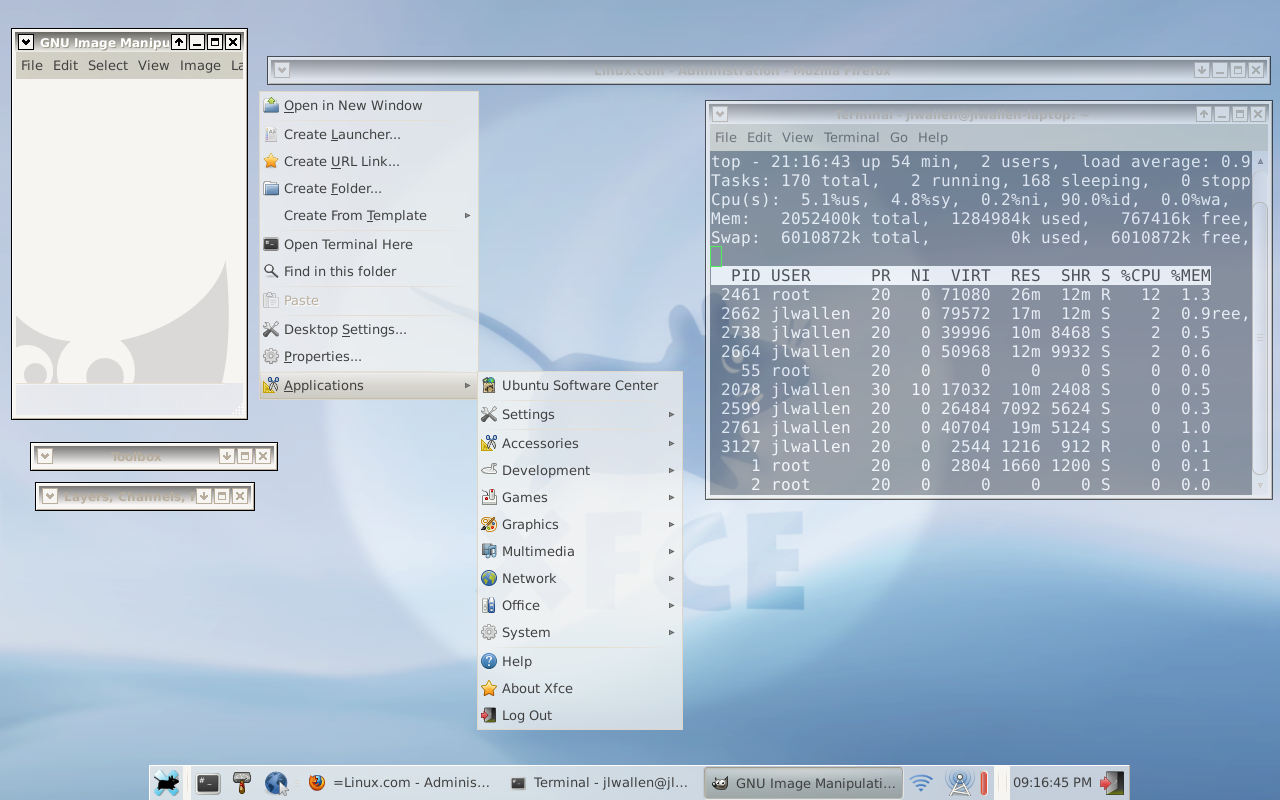 Before we get to the installation, let’s take a look at some of the features that Xfce4 has to offer. Figure 1 shows the Xfce4 desktop (and many of its features) in action. The list of features looks a little like:
- Fast.
- Lightweight.
- Configurable panel (with numerous plugins).
- Clickable icons.
- Standards-compliant window manager.
- Composite manager.
- Control panel-like settings manager.
- File manager.
- Session manager.
- Common applications (such as iCal-based calendar CD/DVD Burning application).
- Start and desktop menus.
And much more. And now, let’s install Xfce.
Installation
The installation for Xfce4 is simple. Open up your Add/Remove Software tool, do a search for “xfce” (no quotes), and mark the following for installation:
- xfce-utils
- xfce4-taskmanager
- xfce4-settings
- xfce4-session
- xfce4-panel
- xfce4-notifyd
- xfce4-icon-theme
- xfce4-doc
- libxfcegui4
- libxfce4util
- libxfce4menu
You might also find a few extras that are appealing or that you might need/want to use. You can include those with your installation. Depending upon the current state of your installation, the Add/Remove Software tool might have to add a few dependencies for this installation. Allow these dependencies to be installed.
When you have everything marked for installation click Apply to begin the process. After the installation is complete log out and log back in, selecting Xfce4 as your desktop. When you log in you will be greeted with the Xfce4 desktop with icons, wallpaper, and panel. You are ready to start rocking this outstanding alternative desktop.
Configuration
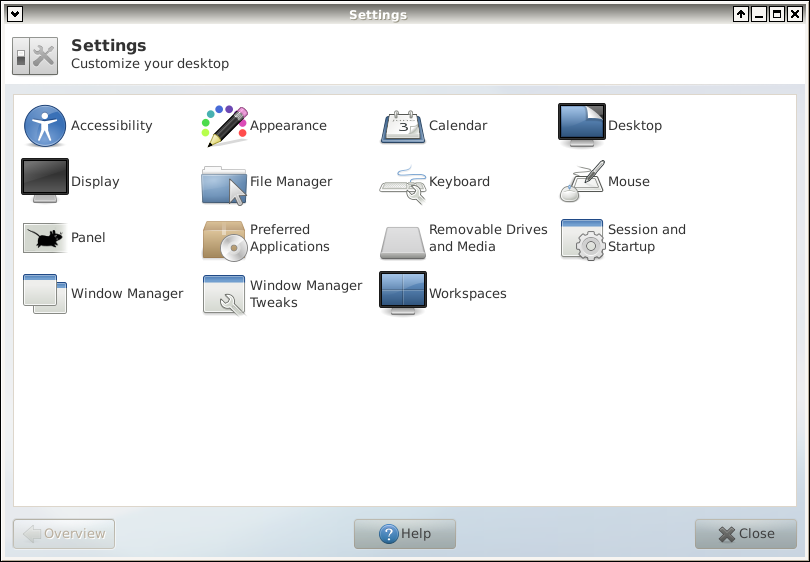 Of course one of the first things you will want to do is to configure your desktop. Let’s take a look at how this is done. First we’ll take a look at the primary configuration location…the Settings Manager. To get to this click Start > Settings > Xfce4 Settings Manager to open up the Xfce4 configuration tool. When the tool opens you will immediately see how powerful this tool is (see Figure 2).
Many of these items should be fairly self-explanatory. The one that might not be quite so obvious is the Window Manager Tweaks. In this section (see Figure 3) you can set up the following:
- Window cycling: Hitting ALT-Tab cycles through all of your open windows.
- Window focus: Click to focus or focus follows mouse as well as autoraise.
- Accessibility: How you access open windows.
- Workspaces: How you access different workspaces.
- Placement: Configure Smart placement (Where you want windows to open on the desktop).
- Compositor: Configure desktop effects such as transparency.
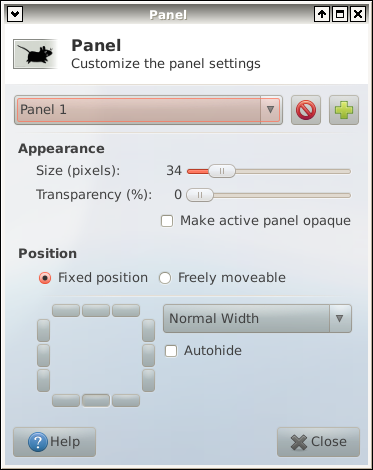 There are two ways you can get to the Panel configuration window. You can do so either from the Setting Manager window or you can right-click on an empty spot on the panel and select Customize Panel. The Panel Customization Window (shown in Figure 3) allows you to configure the size, placement, width, transparency, and autohide. You can even add new panels from this window.
To add a new panel click “+” button and a new panel will appear. This panel will be a freely moveable panel which means you can place it where you want. You will also notice the panel you just created doesn’t actually do anything. You will first need to add items to this panel. To do this right-click the panel and select Add New Items. In this new window you can scroll through the various types of items that are available. You will find plenty of items such as:
- Launchers.
- Action buttons.
- Monitors.
- Clipboards.
- Clocks.
- Tools.
And much, much more.
Once way I like to use panels is to add a battery monitor (for a laptop) or other sensors, place them somewhere on the desktop, and then adjust the transparency so they panel is just noticeable enough to be seen but not enough to be in the way. This gives the Xfce4 desktop a pseudo desktop widget.
Add some eye candy
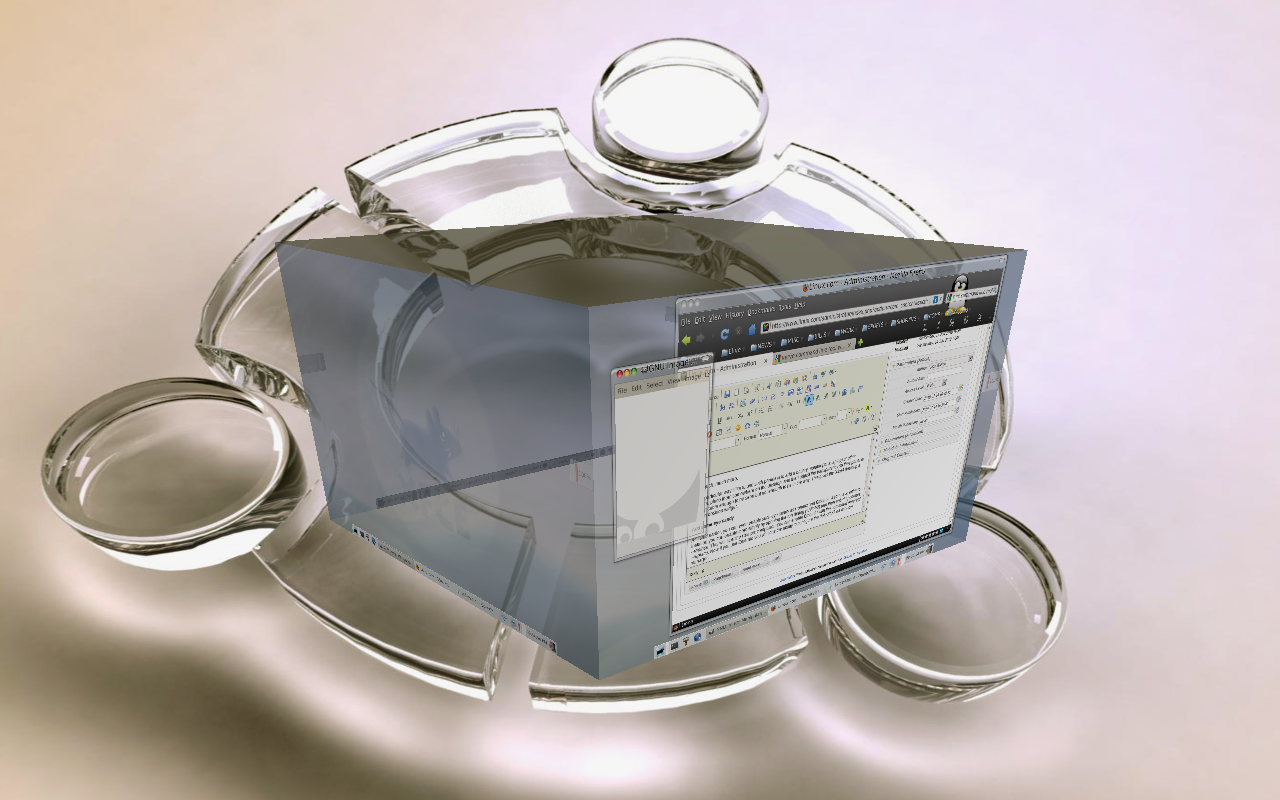 As I said earlier, you can even enable such eye candy as Compiz and Emerald. If you have either/or installed you can enable them simply by opening the run dialog (ALT-F2) and then entering compiz –replace. This will start the Compiz compositor. You can enable Emerald with the command emerald –replace. Now if you use Emerald you will lose the ability to configure the default Xfce4 window manager. Figure 4 shows Xfce4 with Compiz enabled.
Final Thoughts
Although some might see Xfce4 as too old-school, I hope this overview has changed your mind about this lightweight, flexible, user-friendly, not-so-old-school Linux desktop.