Home Blog Page 2848

OSD-Lyrics Turns Your Linux Media Player into a Karaoke Machine

Linux: We’ve featured an open source SingStar-like karaoke game before, but if you’re looking for something a bit simpler, OSD-Lyrics automatically downloads and displays lyrics for a ton of popular Linux media players. More »

Read more at Lifehacker

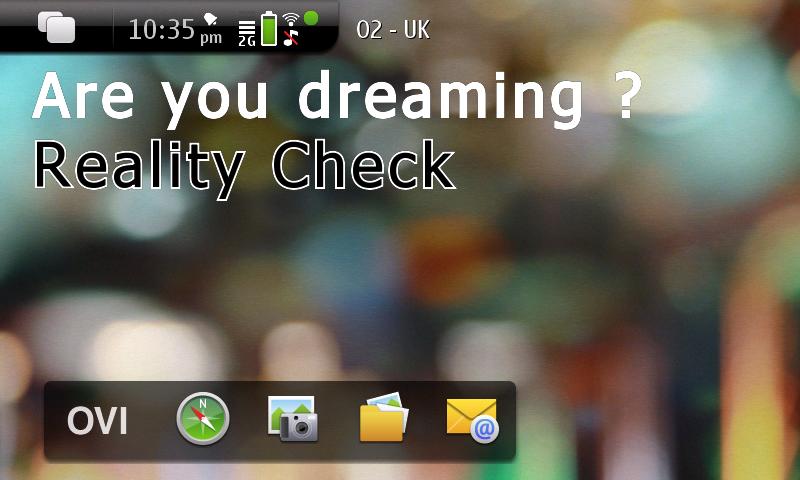
N900 desktop widget (lucid dreaming reality check)

I Am sure many people have now seen inception and are at least aware of lucid dreaming, all though it did not go into the concept of reality checking the basic premises is simple to make you ask the question are you dreaming and to actually become aware that your dreaming.

Reality checking basically works by using some limitations of your mind while dreaming, while you are asleep dreaming your mind is creating an entire world for you to exist in, however only one hemisphere of your brain is engaged in this activity and it has limitations, things like reading are next to impossible because they use the other hemisphere of your brain and looking at something like your hand then away and looking at your hand again will make it look deformed because your mind lags and can not reproduce the scene fast enough, think of it as rendering lag on a computer.

This app was written to remind you todo a reality check by looking at your hand in the day looking away and then back again, by doing this repeatedly it should happen in a dream and because your asking the question are you dreaming and seeing your hand deform you will realise your dreaming, and either wake up in panic or take control of your dream.

The app is written in gtk for the maemo hildon desktop for the n900, it simply puts a widget on your desktop which asks are you dreaming and vibrates the phone at a set interval so you remember to do a reality check, it renders the text using cairo and uses gtk for the applications settings, and about dialog boxes.

First we need a few dependencies from the command line on your phone install pythonhildon-desktop and hildon-desktop-python-loader using the commands below.

apt-get install hildon-desktop-python-loader
apt-get install pythonhildon-desktop

After this we can create a .desktop file which will allow the application to be added from the phones widget menu save the code below in a file in called /usr/share/applications/hildon-home/realitycheck.desktop you can view other files in this folder to see what they contain.

[Desktop Entry]
Name=Reality Check
Comment=Reality Check, uced to help induce a lucid dreaming and simply vibrates to remind you to do a reality check
Type=python
X-Path=realitycheck.py
X-Multiple=true

Now for the main program, all the code is included in one file which should be placed in /usr/lib/hildon-desktop/realitycheck.py the code is below copy and paste it into the file you just created it can also be run manually by running python realitycheck.py then check you desktop for the application.

import os
import gtk
import glib
import osso #high end interface to dbus
import cairo#vector graphic drawing library
import hildon
import hildondesktop
from gtk import Window, Button, Widget, Image

#apt-get install hildon-desktop-python-loader
#apt-get install pythonhildon-desktop
#apt-get install hildon-desktop-python-loader
class realityCheckWidget(hildondesktop.HomePluginItem):
#applications settings
config_path='/home/user/.realitycheck'
vibrate=True
vibrateRepeat=15

def __init__(self):
hildondesktop.HomePluginItem.__init__(self)
self.load()

#enable the settings button, and function to call on click
self.set_settings(True)
self.connect("show-settings", self.show_options)

#the vibrate timeout callback
if self.vibrate==True:
self.timeout_handler = glib.timeout_add_seconds(60*self.vibrateRepeat, self.vibratePhone)

#request size of area to render text into.
self.set_size_request(660,200)

#draw scene def draw_cairo(self, cr): # This currently doesn't work
#set cairo surface for drawing we require an alpha layer
cr.set_source_rgba(1.0, 1.0, 1.0, 0.0)
cr.set_operator(cairo.OPERATOR_SOURCE)
cr.paint()

#choose font and style ie bold italic
cr.select_font_face("tahoma", cairo.FONT_SLANT_NORMAL, cairo.FONT_WEIGHT_BOLD);
#set the font size
cr.set_font_size(60);

#font colour, position and text
cr.set_source_rgb(65535,65535,65535)
cr.move_to(20, 50);
cr.show_text("Are you dreaming ?");

#second line of text use text path so we can have a fill and stroke
cr.set_source_rgb(0,0,0)
cr.move_to(20, 120);
cr.text_path("Reality Check")
cr.fill_preserve()
cr.set_source_rgb(65535,65535,65535)
cr.stroke()

#default option selection
def show_options(self, widget):
APP_TITLE="Reality Check"
dialog = gtk.Dialog("Reality Check Options", None, gtk.DIALOG_DESTROY_WITH_PARENT)

#add settings button to dialog
settings_button = hildon.Button(gtk.HILDON_SIZE_HALFSCREEN_WIDTH | gtk.HILDON_SIZE_FINGER_HEIGHT, hildon.BUTTON_ARRANGEMENT_VERTICAL)
settings_button.set_text("Settings", "Change the frequency")
settings_button.set_alignment(0,0,0,0)
settings_button.connect('clicked', self.show_settings)
#add license button to dialog
about_button = hildon.Button(gtk.HILDON_SIZE_HALFSCREEN_WIDTH | gtk.HILDON_SIZE_FINGER_HEIGHT, hildon.BUTTON_ARRANGEMENT_VERTICAL)
about_button.set_text("About", "More about Author, Copyright and License")
about_button.set_alignment(0,0,0,0)
about_button.connect("clicked", self.show_about)

#pad the buttons into a box for nice alignment
hboxRow = gtk.HBox()
hboxRow.pack_start(settings_button, True, True, 0)
hboxRow.pack_start(about_button, True, True, 0)

#add button row to the dialog and display it
dialog.vbox.pack_start(hboxRow, True, True, 0) dialog.show_all()
dialog.run()
dialog.destroy()

#Setup the settings UI , store changed parameters def show_settings(self, widget):
#create a dialog and attach our buttons to the dialog
dialog = gtk.Dialog("Settings", None, gtk.DIALOG_DESTROY_WITH_PARENT | gtk.DIALOG_NO_SEPARATOR)
btnSave = dialog.add_button(gtk.STOCK_SAVE, gtk.RESPONSE_OK)

main_vbox = gtk.VBox()
ts = hildon.TouchSelector()
ts.add(main_vbox)

#create the options and labels btn1mins = hildon.GtkRadioButton(gtk.HILDON_SIZE_HALFSCREEN_WIDTH | gtk.HILDON_SIZE_FINGER_HEIGHT, None)
btn1mins.set_label("15 Mins")
btn1mins.set_mode(False)

btn2mins = hildon.GtkRadioButton(gtk.HILDON_SIZE_HALFSCREEN_WIDTH | gtk.HILDON_SIZE_FINGER_HEIGHT, btn1mins)
btn2mins.set_label("30 Mins")
btn2mins.set_mode(False)

btn3mins = hildon.GtkRadioButton(gtk.HILDON_SIZE_HALFSCREEN_WIDTH | gtk.HILDON_SIZE_FINGER_HEIGHT, btn1mins)
btn3mins.set_label("1 Hours")
btn3mins.set_mode(False)

btn4mins = hildon.GtkRadioButton(gtk.HILDON_SIZE_HALFSCREEN_WIDTH | gtk.HILDON_SIZE_FINGER_HEIGHT, btn1mins)
btn4mins.set_label("2 Hours")
btn4mins.set_mode(False)

#toggle vibrate on and off
btnVibrate = hildon.GtkToggleButton(gtk.HILDON_SIZE_HALFSCREEN_WIDTH | gtk.HILDON_SIZE_FINGER_HEIGHT)
btnVibrate.set_label("Vibrate")
btnVibrate.set_mode(False)

#what options are currently set, highlight the currently active options
if self.vibrateRepeat == 15:
btn1mins.set_active(True)
elif self.vibrateRepeat == 30:
btn2mins.set_active(True)
elif self.vibrateRepeat == 60:
btn3mins.set_active(True)
elif self.vibrateRepeat == 120:
btn4mins.set_active(True)
else:
btn1mins.set_active(True) #Fallback

if self.vibrate==True:
btnVibrate.set_active(True)

#pack the buttons into a horizontal box
hBoxLayout = gtk.HBox()
hBoxLayout.pack_start(btn1mins, True, True, 0)
hBoxLayout.pack_start(btn2mins, True, True, 0)
hBoxLayout.pack_start(btn3mins, True, True, 0)
hBoxLayout.pack_start(btn4mins, True, True, 0)
hBoxLayout.pack_end(btnVibrate, True, True, 0)
main_vbox.pack_start(hBoxLayout, True, True, 10)

dialog.vbox.add(ts)
dialog.show_all()
response = dialog.run()
#Parse the updated settings
if response == gtk.RESPONSE_OK:

camera_buttons = btn1mins.get_group()
self.vibrate=btnVibrate.get_active()
for button in camera_buttons:

selected = button.get_active()
if selected == True:
label=button.get_label()
if label=='15 Mins':
self.vibrateRepeat=15
if label=='30 Mins':
self.vibrateRepeat=30
if label=='1 Hours':
self.vibrateRepeat=60
if label=='2 Hours':
self.vibrateRepeat=120

#clear vibrate event and rest if we need to
glib.source_remove(self.timeout_handler)
if self.vibrate==True:
self.timeout_handler = glib.timeout_add_seconds(60*self.vibrateRepeat, self.vibratePhone)

dialog.destroy()
self.save()
#Show the about dialog
def show_about(self, widget):
dialog = gtk.AboutDialog()
dialog.set_title("About")
dialog.set_name('Reality Check')
dialog.set_version('1.0')
dialog.set_copyright("Copyright 2010 Oliver Marks")
dialog.set_authors(["Oliver Marks ",""])
dialog.set_comments("All logos and trademarks are property of their respective owners and are used for informational purposes only.")
dialog.set_license("""This program is free software: you can redistribute it and/or
modify it under the terms of the GNU General Public License as published by the Free Software Foundation, either version 3 of
the License, or (at your option) any later version.

This program is distributed in the hope that it will be useful,
but WITHOUT ANY WARRANTY; without even the implied warranty of MERCHANTABILITY or FITNESS FOR A PARTICULAR
PURPOSE. See the GNU General Public License for more details.

You should have received a copy of the GNU General Public License along with this program. If not, see
.""")
dialog.set_wrap_license(True)
#display the license information dialog dialog.show_all()
dialog.run()
dialog.destroy()
#save settings file
def save(self):
fp = open(self.config_path,'w')
if self.vibrate==True:
fp.write('vibrate:on ')
else:
fp.write('vibrate:off ')
fp.write('mins:'+str(self.vibrateRepeat)+" ")
fp.close()

#load settings file
def load(self):
if not os.path.exists(self.config_path):
fp=open(self.config_path,'w')
fp.write('')
fp.close()

fp = open(self.config_path)
for line in fp.readlines():
sp=line.strip(' ').split(':')

if sp[0]=='vibrate':
if sp[1]=='on':
self.vibrate=True
else:
self.vibrate=False

if sp[0]=='mins':
self.vibrateRepeat=int(sp[1])
fp.close()

#draw scene when re recieve an expose event ie the scene needs redrawing
def do_expose_event(self, event):
cr = self.window.cairo_create()
cr.rectangle(event.area.x, event.area.y,event.area.width, event.area.height)
cr.clip()
self.draw_cairo(cr)

#setup screen so we can draw on it with cairo
def do_realize(self):
screen = self.get_screen()
self.set_colormap(screen.get_rgba_colormap())
self.set_app_paintable(True)
hildondesktop.HomePluginItem.do_realize(self)

#this code will cause the led on the phone to flash
def led_flash(self):
_ENABLE_LED = 'req_led_pattern_activate'
_DISABLE_LED = 'req_led_pattern_deactivate'
_LED_PATTERN = 'PatternCommunicationIM'
rpc.rpc_run(_MCE_SERVICE, _MCE_REQUEST_PATH,_MCE_REQUEST_IF,_ENABLE_LED,rpc_args=(_LED_PATTERN,"",""),use_system_bus=True)
return True

#cause the phone to vibrate
def vibratePhone(self):
osso_c = osso.Context("osso_test_app", "0.0.1", False)

_MCE_SERVICE = 'com.nokia.mce'
_MCE_REQUEST_PATH = '/com/nokia/mce/request'
_MCE_REQUEST_IF = 'com.nokia.mce.request'

_VIBRATE = 'req_vibrator_pattern_activate'
_VIBRATE_PATTERN= 'PatternChatAndEmail'


rpc = osso.Rpc(osso_c)

rpc.rpc_run(_MCE_SERVICE, _MCE_REQUEST_PATH,_MCE_REQUEST_IF,_VIBRATE,rpc_args=(_VIBRATE_PATTERN,"",""),use_system_bus=True)
return True

hd_plugin_type = realityCheckWidget


# Allow the widget to run on its own, without the hildon desktop loader
if __name__ == "__main__":
import gobject
gobject.type_register(realityCheckWidget)
obj = gobject.new(realityCheckWidget, plugin_id="plugin_id")
obj.show_all()
gtk.main()

Below is a screen shot of the final app running on my n900 phone, hopefully a nice little example of writing an app for the phone and shows how similar the apps are to writing standard gnome applications.

Starting large-scale deployment

Here I going to describe our experience in a large-scale FOSS deployment in our region. And first I show you the task.

The task is to deploy Linux and a pack of FOSS programs in the schools, here in Nizhny Novgorod region, Russia. Nizhny novgorod region have a population of 3.5 m, and the Nizhny Novgorod itself have a population of 1.3 m. There are 1392 schools in Nizhny Novgorod region (more than 200 in Nizhny Novgorod), and even more objects — like sport schools, youth clubs, training centers. Every school have at least 12 computers, plus some administer tasks — director, school management and so on. Special object usually have less than 5 computers.

So, today we estimate, that we need to deploy more than 35000 computers untill the end of the year.

We started a pilot project with the help of the Nizhny Novgorod Linux Users Group. Today they alreadey deployed FOSS programs in 14 schools of Nizhny Novgorod. Not bad start, but next week we are going to make a real breakthru — we made an agreement to install the software on more than 40 schools of Dzerzhinsk, a city near Nizhny Novgorod (~250k people).

We are use a special developed ALT Linux distribution, which was intended to be installed in schools and contain all needed programs, including an amazing iTalc software class management tool.

The main problem of the project is that the school teachers are not well-trained to use Linux. I can’t say that they are resisting to use it at all, but some of they are. We are working on this problem too — and going to make our own special training course with support of Nizhny Novgorod Education Development Institute.

Follow this blog to know more.

Weekend Project: Secure Instant Messaging with Off The Record

Instant messaging, just like email or VoIP traffic, needs to be secure from eavesdroppers, man-in-the-middle attackers, and other security threats. Many IM clients can tunnel messages over transport layer security (TLS) to provide encryption, including XMPP (a.k.a. Jabber), IRC, and the OSCAR protocol used by AIM. TLS provides authentication and encryption at a low level, but a considerably secure solution for IM is a protocol called Off The Record (OTR). Pull up a chair and secure your instant messaging today.

What OTR does and why you care

Although there is not anything wrong per se with TLS encryption, it works best for a connection-oriented, ongoing stream of data. OTR provides better security by fitting into the asynchronous, single-message-at-a-time communication model used by IM. Unlike PGP, it does not require the users to already have a public/private key pair to be retrieved and verified in an outside channel.

With the OTR protocol, when both participants in a conversation agree to start an OTR session, the clients set up an encrypted channel with Diffie-Hellman key exchange, then perform a mutual authentication routine inside that channel to verify each other’s identity. After the setup, a new key exchange is performed on every message sent, based on incrementing the previously acknowledged key. The participants can independently verify each other’s identity using the “Socialist Millionaires’ Protocol” (SMP) which allows mutual verification without exchanging private data.

The multiple key exchanges provide “perfect forward secrecy” — meaning that compromising one key does not let an attacker decrypt your previous conversations. This is one of OTR’s big advantages over TLS-like encryption alone. The other advantage is “deniable authentication.” Because a shared secret is sent with each message in addition to the keys, an attacker that steals a key and decrypts a message could use the information contained within to fake the entire message.

That might not seem like a security feature at first glance, but consider how it would work in practice: some attacker announces that he or she has intercepted and decrypted a message between you and your secret contact. But because the decrypted message itself contains enough information to forge the message, there is no way for the attacker to prove it is authentic and not a complete fabrication from the ground up. You may be lying when you deny its authenticity, of course, but the point is that the alleged decrypted message cannot ever be proven to be authentic — unlike, say, an email that you signed with your PGP key.

OTR support under Linux

The best thing about OTR, though, is that the vast majority of the cryptographic setup is done automatically, without the need for the user to take a careful sequence of steps. The OTR project releases a library, libotr, that IM clients can use to encrypt messages sent over any protocol: AIM, XMPP, ICQ; you name it. Furthermore, the signal that one OTR client uses to wake up another is a sequence of whitespace characters that will go unnoticed by chat clients that do not support OTR at all, but can start an OTR conversation seamlessly between clients that do.

There are two desktop Linux IM clients that feature built-in support for OTR: the multi-protocol KDE application Kopete, and the console XMPP client mcabber. Both are common packages shipped with desktop Linux distributions. Kopete’s OTR support is provided by a plugin which is included with the default package, but must be turned on in the Settings -> Configure dialog. You can choose between requiring OTR, initiating OTR whenever the other party supports it, manually initiating OTR only, or never using OTR.

The mcabber client runs in text mode, but is a full-fledged XMPP client in every respect. You initiate an OTR connection with the command /otr start contactname, and set your OTR policy with /otrpolicy default followed by either plain, manual, opportunistic, or always. You can set a specific policy for a particular contact by substituting that contact’s name in place of “default.”

In addition to these desktop Linux clients, Android users can take a look at OtRChat, a special XMPP client built specifically for OTR usage.

OTR for Pidgin

In addition to libotr, the OTR project itself maintains the OTR-enabling plugin for the most popular Linux desktop client, Pidgin. It may or may not be available through official Apt or RPM package repositories, but if it is not, you can always grab the latest release from the OTR site, which hosts builds for Pidgin’s Windows port in addition to Linux. The Pidgin OTR plugin integrates a bit more deeply than some of the others, so it is worth a closer look.

You enable the OTR plugin from the Tools -> Plugins dialog box. When activated, choose “Configure Plugin” at the bottom of the window to bring up the OTR settings. As with Kopete, you can select OTR policy with simple checkboxes; the Pidgin plugin’s labels are a bit clearer with regard to what the settings do, e.g., “Automatically initiate private messaging” rather than “Opportunistic.” The config screen allows you to generate private keys for each Pidgin account, but doing so is not required, because the plugin will generate keys on an as-needed basis. You can also examine a list of keys you have seen from OTR conversations with your buddies, verify them with SMP, or forget them if you fear they may have been compromised.

When activated, the plugin adds an OTR menu to Pidgin’s conversation window. The “Start private conversation” option, obviously, initiates an OTR session request with the other party. During an IM session, the menu displays one of four possible OTR states: “Not private” — meaning OTR is not in progress, “Private” — meaning an OTR session is in full swing, “Unverified” — meaning you have started an OTR session with the other party but have not performed an SMP authentication, and “Finished” — meaning the other party has closed the OTR session, and you must do so as well to return to normal chat mode. The last state is important; by blocking you from sending messages until you deactivate OTR on your end, the system prevents you from accidentally spilling the beans on a channel that you mistakenly think is secured.

The Pidgin plugin also adds a right-click context menu item to the Buddy List, allowing you to set per-buddy OTR preferences. Be careful, though, because the selection you make is not listed anywhere else in the interface, so it is possible to forget per-buddy policies if you customize too many of them. Both the plugin configuration dialog and the per-buddy OTR settings window allow you to specify that OTR conversations not be logged. If selected, this will override all other Pidgin logging settings that might apply to the conversation.

OTR for IRC

When the public at large thinks about IM, they probably think about services run by big corporate players, such as AIM or Google Talk. In the geek community, however, IRC is still a communications standby — in fact, you can hardly call yourself an open source project with your head held high if you don’t have an IRC channel.

So it should come as no surprise that there are open source OTR tools built for use with IRC. Because the OTR protocol only handles one-to-one communication, it can only be used to secure a private chat session, not an entire channel, but those private messages can be reliably encrypted just like anything sent over XMPP or another system.

IRC OTR is made possible by the developers of the Bitlbee open source IRC-to-IM gateway application, but it does not require running Bitlbee to work. At irssi-otr.tuxfamily.org you will find OTR plugins for both Irssi and for XChat. The XChat plugin is loaded at startup automatically; in Irssi you must type /load otr to load it instead.

In both applications, the plugin does not add menus or other GUI elements to the client, just additional IRC commands. You initiate an OTR conversation by typing ?OTR? to your buddy. The first time you so do, the plugin will generate a key for you, which could take some time, but on subsequent runs that is not a concern. The IRC plugin is semi-manual in its OTR policy; the ?OTR? command sends the special whitespace sequence to the other party, so you must execute it to initiate a conversation. On the other hand, when you receive the whitespace OTR trigger, the IRC plugin responds automatically.

While chatting, you can type /otr auth to trigger an SMP authentication sequence, and /otr finish to terminate the session. You can also set per-contact OTR policy with a list of “nick@server policy” pairs using the otr_policy variable.

The only real caveat to using OTR over IRC is that some IRC servers have the nasty habit of stripping out whitespace from messages, which undermines the automatic OTR setup “handshake.” The IRC plugin developers assure users that this is only a problem when you use the “opportunistic” policy setting, and that manual OTR triggers are handled correctly.

Extra credit: other clients!

Listed above are just five Linux instant messaging clients, and that simply isn’t enough. Unfortunately, it looks as if the developers of the Empathy client, which is slated to replace Pidgin as the default IM application in future Ubuntu releases, have long been unwilling to add support for OTR to the code because they believe encryption should be built in to the IM protocol itself, and because Empathy has no plugin system, a third-party add-on is out of the question. Luckily, work on this may have finally started progressing, so there is hope.

In the mean time, there are still several other IM and chat applications that could use an OTR plugin of their own. That includes XChat-GNOME, which as of now cannot run the existing XChat OTR plugin, many of the single protocol IM clients (Gajim, Emesene, KMess, etc.), and most if not all of the voice-chat programs that include SIP chat functionality as a second communications option.

Why not pick up your favorite IM app, and see about integrating off-the-record security through libotr? Remember, despite what the name suggests, OTR offers security for all instant messaging users, not just reporters breaking the next Earth-shattering story.

How to kill a dinosaur in 3 easy steps

In 2000 the punk rock band NOFX released an album called Pump Up The Valuum. When I first heard the CD, I immediately took to the song “Dinosaurs Will Die.” (Warning–contains explicit lyrics) Shortly thereafter I got into the open source movement, and I cannot count how many times the lyrics from that song have stuck out in my head.
 
Read more at OpenSource.com

Open Source Contributor Agreements: Purpose and Scope

Contributor Agreements, also known as Contributor License Agreements (CLA), are increasingly being adopted by open source projects. This article explains the purpose of these Contributor Agreements.

When a contribution is made to an open source project, there is an implicit assumption (and sometimes explicit consent) that the contribution (code, translation, artwork, etc) may be incorporated into the project and distributed under the license the project is using. However, many conditions of the contribution are not explicitly called out. The purpose of Contributor Agreements is to make the terms under which contributions are made explicit, thereby protecting the project, the users of the software and often also the contributors.

Read more at FOSSBazaar

More computing in a big metal box

After years of no one wanting (or willing) to talk about their trailer sales, HP now has two releases pretty close together. Maybe this means that there is something here after all. Everyone with a container offering has always said to me that the sales cycles are much longer than systems sales cycles, because a container is more like a datacenter than a system. Maybe that wasn’t just marketing hoohah.

Following close on the heels of the iVEC deployment in Australia, Purdue has announced that it, too, has signed up to put part of its computing resources in a trailer

Read more at insideHPC

Linux Gaming Projects That Need a Little TLC (or How You Can Contribute)


My favorite PC game of all time was Interstate ’76. It was really unique in its gameplay and has the best soundtrack for a game ever, featuring 70’s funk, where I would pop in the cd on my computer just to play the music. more>>

 
Read more at Linux Journal

qooxdoo 1.2 JavaScript framework released

The qooxdoo developers have issued version 1.2 and version 1.1.1 of their Ajax GUI framework, fixing a number of bugs and adding several new features in the 1.2 branch

Read more at The H

This Is Your Brain on Linux Desktop

 This is your brain. This is your brain on Linux Desktop. It is a good thing. To borrow and twist the old “brain on drugs” PSA, your brain on Linux Desktop could be one of the best things that could happen to you for your computer fix. Linux Desktop continues its ascent into users’ collective consciousness with great graphics, powerful applications, and seamless interfaces. Linux Desktop frees your brain to think about the work (or the fun) at hand. Imagine — transparent computing, and it’s free!

Read more at LinuxInsider