
Those who monitor their Cisco IE3000 switch via SNMP potentially open the door to attackers in local networks
Read more at The H
This September, a new desktop will be unveiled to the world in the form of GNOME 3. This desktop will change the way people view, work with, and think of the desktop. It’s different, it’s intuitive, and it follows the current evolution of what the desktop should be. But best of all, it’s all about Linux.
Back in 2008 a few of the GNOME developers met and came to the conclusion that there was a lack of excitement surrounding GNOME and the Linux desktop. They needed a new vision. From that, and after a few years, that vision started to develop into a working, solid desktop that will be the new branch of GNOME this year.
But what will it look like? How will it work? Can we try it now?
Let’s answer those questions.
A New Philosophy
The GNOME development team didn’t just decide to make a new panel, or change the menus or window decorations on you. Instead they decided to look at the desktop in a completely new way. Now, you will think in terms of how you start an activity and how you switch between activities. The old desktop metaphor? Gone. Instead of a start button, you now have an Activity Window. Instead of a pre-configured set of desktop applications, you can create them as needed (and easily). Windows are moved between desktops easily and started in specific desktops with even more ease. GNOME 3 will also handle searching much better, as it will be integrated into the shell. So a user can quickly search for anything on their machine from the Activity Window.
GNOME 3 does everything it can to help you be productive. To do this it strives to keep everything out of your way, unless needed. So now…let’s see what this will look and feel like.
The Desktop
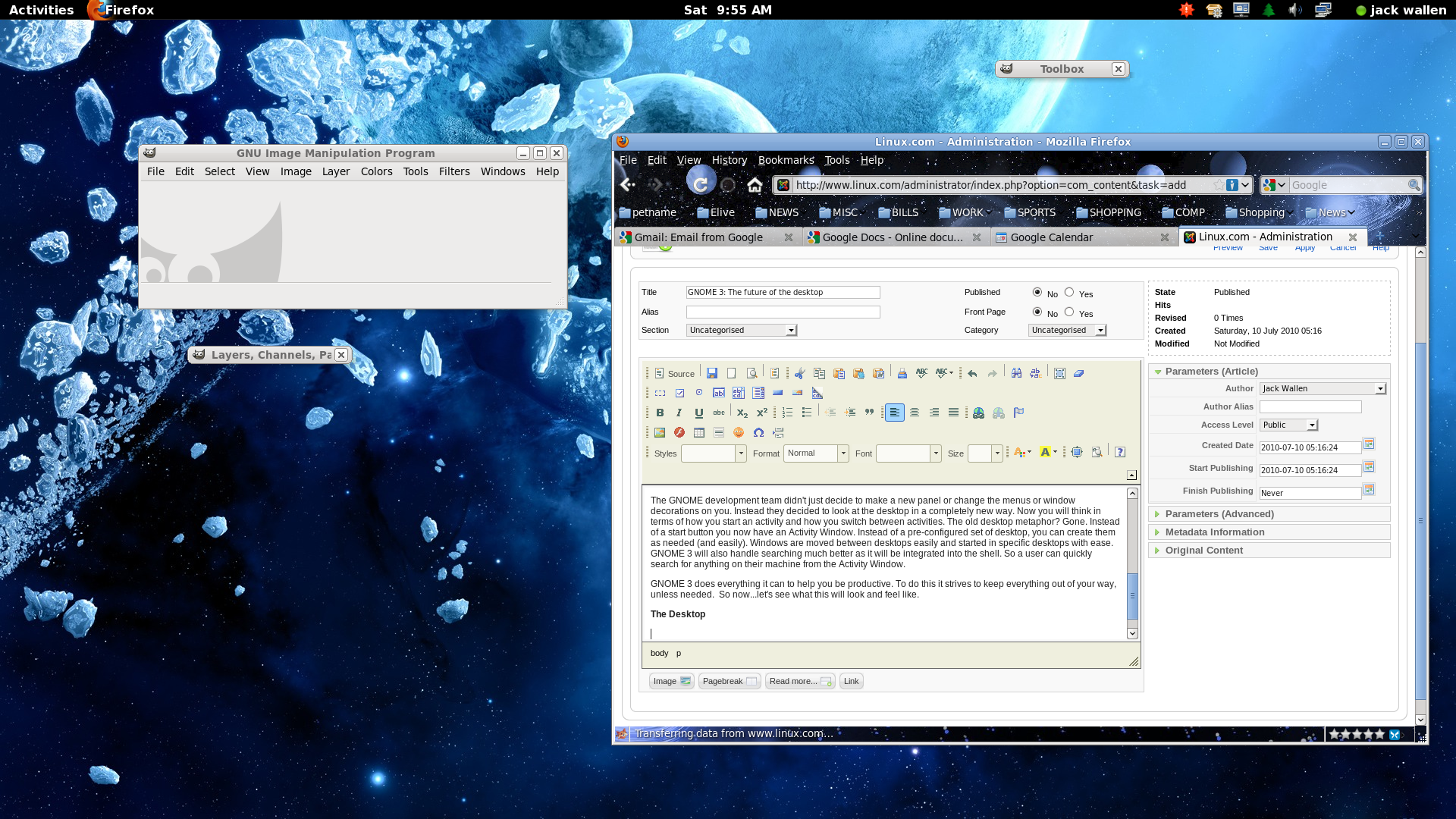 The default desktop (see Figure 1) might not look that astounding to you. You see a wallpaper, open applications, what seems like a taskbar and a notification area. Don’t be fooled, as those items are not what you think they are.
For instance: What you see in the upper right corner is the Activities hot spot that opens the Activities Window. There are actually three ways to open the Activities Window:
1. Move the cursor to the upper left corner until the window opens.
2. Click on the Activities link in the upper left corner.
3. Click the Super key (often referred to as the “Windows” key).
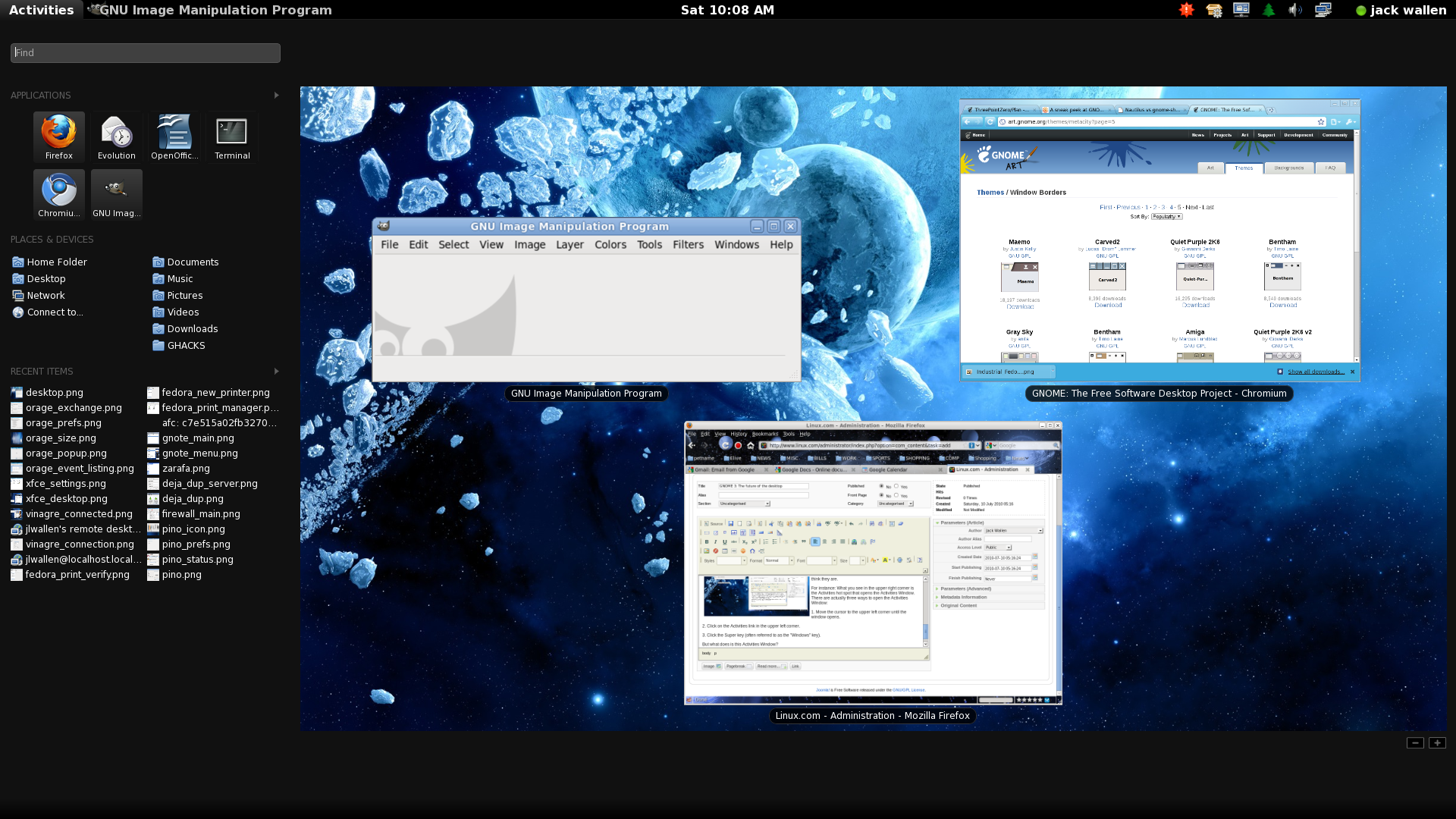 But what does this Activities Window look like? And how does it work? Let’s examine it first-hand. Figure 2 shows the Activities Window “in action.” What happens is, when you activate this window the “desktop” will shrink, giving way to the Activities Window. In this window you will see five sections:
Find: This is where you can search for anything. It’s similar to GNOME Do in that you can do a search for either an application or a file you were working on.
Applications: This is the list of all the applications installed on your machine.
Favorites: These are applications that you use most often. We’ll chat about adding to this list momentarily.
Places and devices: All the important folders and devices you have on your machine.
Recent items: The list of the recent items (documents, images, etc) you have worked on.
Now let’s say you want open up an application. You can do this a number of ways:
 Find and start: When you open up the Activity Window, immediately enter the name of the application you want to run. More than likely, before you finish typing, the application will appear in a list below the text area. You can hit enter (when you see the application) and it will open.
Favorites: If you see your application in the favorites, just click it and it will start.
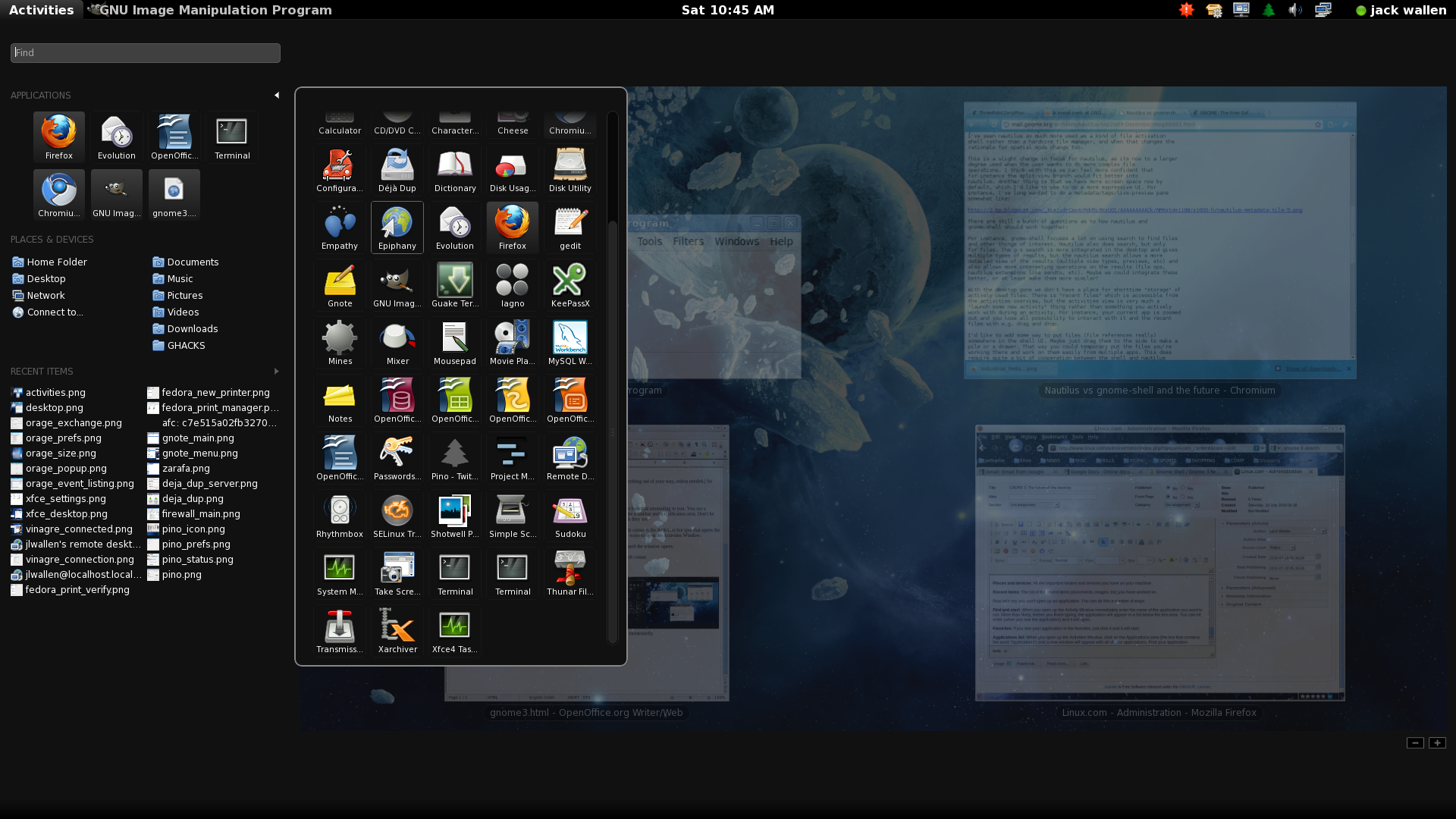
Applications list: When you open up the Activities Window, click on the Applications area (the line that contains the word “Applications”) and a new window will appear (see Figure 3) with all of your applications. Find your application, click it, and watch it open.
But what about those favorites? How do you add applications to that list? That, my friends, is very simple. When you have an application open, initiate the Activities Window, find your open application icon in the favorites section, right click the icon, select Add to Favorites, and the icon will remain their (even when the application is closed).
Workspaces
As I mentioned earlier, workspaces can be added or removed on the fly. This makes it so easy to expand your desktop as you need it. To add or remove a workspace to your desktop initiate the Activities Window and look for the “+” and “”-” symbols near the bottom right corner. To add a workspace click the “+” symbol and to remove one click the “-” symbol.
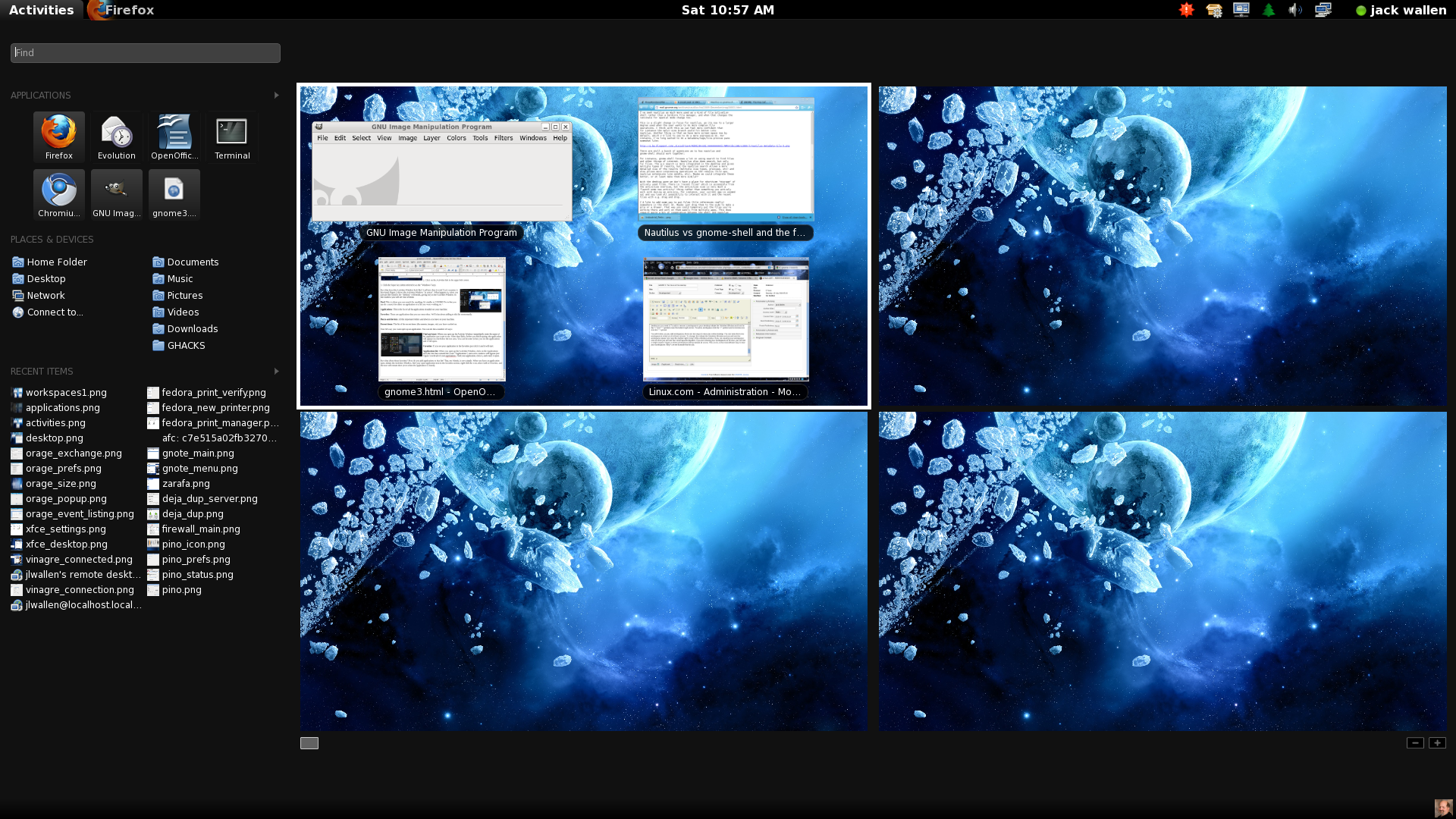 You will notice, as you add workspaces, there are two ways to view your entire desktop. You can view them one workspace at a time or all of them at once. To change this, initiate the Activities Window and you will see the workspace viewer icon near the bottom right corner of the Activities window. If you are viewing your workspaces one at a time you will see four small squares together. If you are viewing your workspaces all at once, you will see a single square. Figure 4 shows workspaces being viewed all at one. This, to me, is the most efficient way to view your workspaces. Why? Let me illustrate that for you.
Let’s say you have four workspaces and you want one workspace dedicated to writing. So you want to open OpenOffice Writer in workspace number 2 (upper right workspace). All you have to do is open the Activities Window and click and drag the OpenOffice Writer icon to the desired workspace. Or, say you already have an application open and you want to move it to another workspace. Simple. Open up the Activities window and click and drag the open window to the desired workspace.
I hope you can see that GNOME 3 looks to be all about efficiency.
Installation
So…you want to give it a try? All you need to do is open up your Add/Remove Software tool, search for “gnome-shell” (no quotes), mark it for installation, and click Apply. I have had zero difficulty getting this installed on Ubuntu 10.04 and Fedora 13.
Final Thoughts
GNOME 3 has me excited about the desktop. That says a lot, because I have been through the gamut of desktops and back again. I have experienced every Linux desktop that has been available, and GNOME 3 proves there is still plenty of innovation left in the Linux desktop community.
I hope you are looking forward to September 2010 as much as I am. Although I have already been using this desktop for some time now and even in its “infancy,” GNOME 3 is an impressive piece of work.
HTML 5 is a very hyped technology, but with good reason. It promises to be a technological tipping point for bringing desktop application capabilities to the browser. In this five-part series, you will take a closer look at several new technologies that are part of HTML5, that can have a huge impact on mobile Web application development.
Part 1: Combine HTML5, geolocation APIs, and Web services to create mobile mashups
Part 2: Unlock local storage for mobile Web applications with HTML5
Part 3: Make mobile Web applications work offline with HTML5
Part 4: Using Web Workers to speed up your mobile Web applications
Part 5: Develop new visual UI features in HTML 5