We need to confront container documentation as the crucial, non-trivial problem that it is.
TL;DR — As far as I can tell, there’s currently no way of providing documentation for specific containers that we could fairly call canonical, “best practice,” or even all that widely used. This blog post suggests some currently available (but sadly not-great) workarounds but also points to what I think could be a fundamentally better path.
…The result is that questions like these virtually never have readily available, no-Google-involved answers:
How do I run this thing? Should I run a specific executable?
What’s the “blessed” way to run it?
Which ports should I use?
How do I debug it or run its in-container test suites?
Sometimes the problem is that no one has provided answers to these questions anywhere. More often, in my experience, the answers are out there but suffer from a really fundamental discoverability gap.
As you may already know, we use mv command to rename or move files and directories in Unix-like operating systems. But, the mv command won’t support renaming multiple files at once. It can rename only one file at a time. Worry not. There are few other utilities available, especially for batch renaming files. In this tutorial, we are going to learn to rename multiple files at once in six different methods. All examples provided here are tested in Ubuntu 18.04 LTS, however they should work on any Linux operating systems. Let’s get started!
Rename Multiple Files At Once In Linux
There could be many commands and utilities to a rename bunch of files. As of writing this, I know the following methods only. I will keep updating the list if I come across any method in future.
Method 1 – Using mmv
The mmv utility is used to move, copy, append and rename files in bulk using standard wildcards in Unix-like operating systems. It is available in the default repositories of Debian-based systems. To install it on Debian, Ubuntu, Linux Mint, run the following command:
There are so many reasons to enjoy the Linux desktop. One reason I often state up front is the almost unlimited number of choices to be found at almost every conceivable level. From how you interact with the operating system (via a desktop interface), to how daemons run, to what tools you use, you have a multitude of options.
The same thing goes for web browsers. You can use anything from open source favorites, such as Firefox and Chromium, or closed sourced industry darlings like Vivaldi and Chrome. Those options are full-fledged browsers with every possible bell and whistle you’ll ever need. For some, these feature-rich browsers are perfect for everyday needs.
There are those, however, who prefer using a web browser without all the frills. In fact, there are many reasons why you might prefer a minimal browser over a standard browser. For some, it’s about browser security, while others look at a web browser as a single-function tool (as opposed to a one-stop shop application). Still others might be running low-powered machines that cannot handle the requirements of, say, Firefox or Chrome. Regardless of the reason, Linux has you covered.
Let’s take a look at five of the minimal browsers that can be installed on Linux. I’ll be demonstrating these browsers on the Elementary OS platform, but each of these browsers are available to nearly every distribution in the known Linuxverse. Let’s dive in.
GNOME Web
GNOME Web (codename Epiphany, which means “a usually sudden manifestation or perception of the essential nature or meaning of something”) is the default web browser for Elementary OS, but it can be installed from the standard repositories. (Note, however, that the recommended installation of Epiphany is via Flatpak or Snap). If you choose to install via the standard package manager, issue a command such as sudo apt-get install epiphany-browser -y for successful installation.
Epiphany uses the WebKit rendering engine, which is the same engine used in Apple’s Safari browser. Couple that rendering engine with the fact that Epiphany has very little in terms of bloat to get in the way, you will enjoy very fast page-rendering speeds. Epiphany development follows strict adherence to the following guidelines:
Simplicity – Feature bloat and user interface clutter are considered evil.
Standards compliance – No non-standard features will ever be introduced to the codebase.
Software freedom – Epiphany will always be released under a license that respects freedom.
Minimal preferences – Preferences are only added when they make sense and after careful consideration.
Target audience – Non-technical users are the primary target audience (which helps to define the types of features that are included).
GNOME Web is as clean and simple a web browser as you’ll find (Figure 1).
Figure 1: The GNOME Web browser displaying a minimal amount of preferences for the user.
The GNOME Web manifesto reads:
A web browser is more than an application: it is a way of thinking, a way of seeing the world. Epiphany’s principles are simplicity, standards compliance, and software freedom.
Netsurf
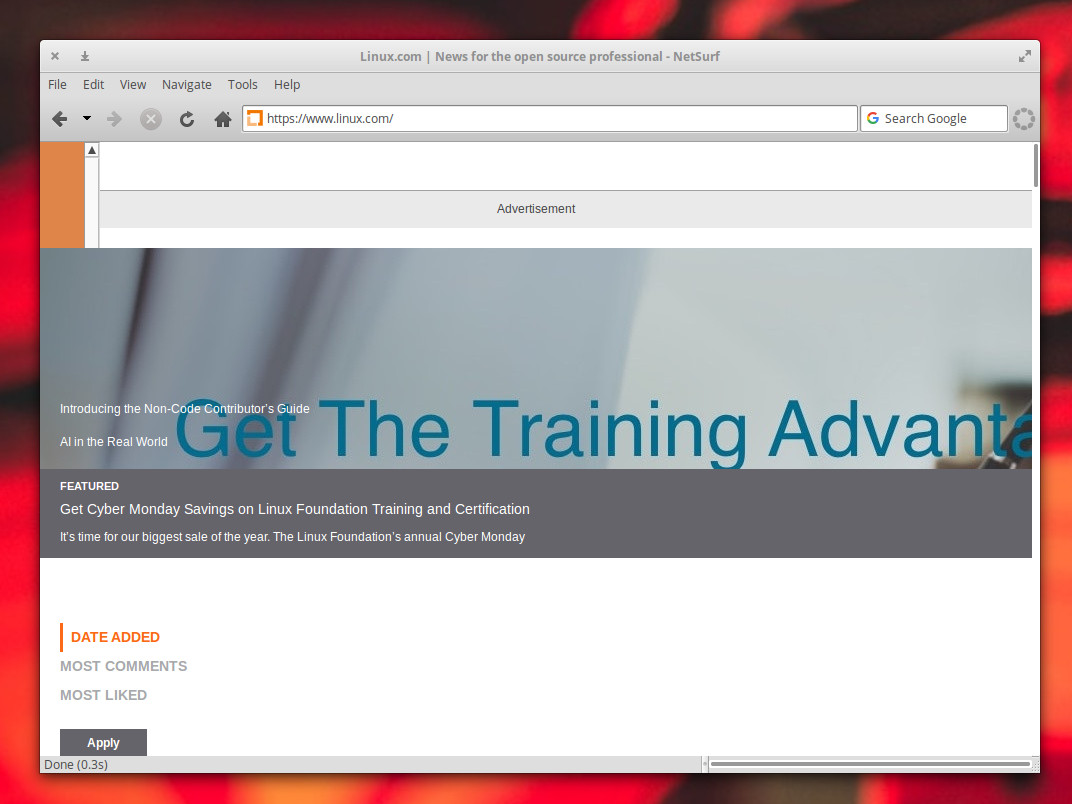
The Netsurf minimal web browser opens almost faster than you can release the mouse button. Netsurf uses its own layout and rendering engine (designed completely from scratch), which is rather hit and miss in its rendering (Figure 2).
Figure 2: Netsurf (mis)rendering the Linux.com site.
Although you might find Netsurf to suffer from rendering issues on certain sites, understand the Hubbub HTML parser is following the work-in-progress HTML5 specification, so there will be issues popup now and then. To ease those rendering headaches, Netsurf does include HTTPS support, web page thumbnailing, URL completion, scale view, bookmarks, full-screen mode, keyboard shorts, and no particular GUI toolkit requirements. That last bit is important, especially when you switch from one desktop to another.
For those curious as to the requirements for Netsurf, the browser can run on a machine as slow as a 30Mhz ARM 6 computer with 16MB of RAM. That’s impressive, by today’s standard.
QupZilla
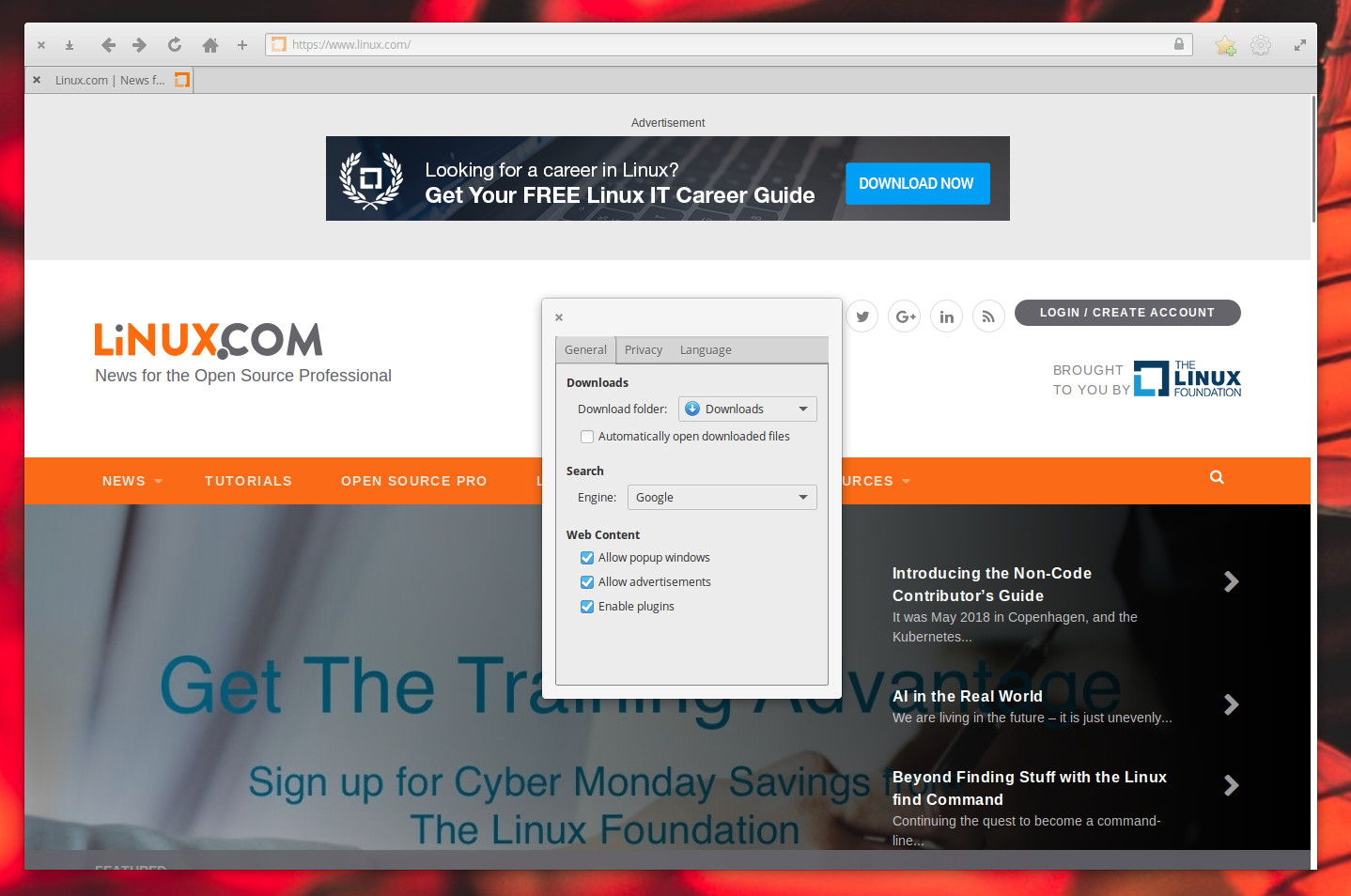
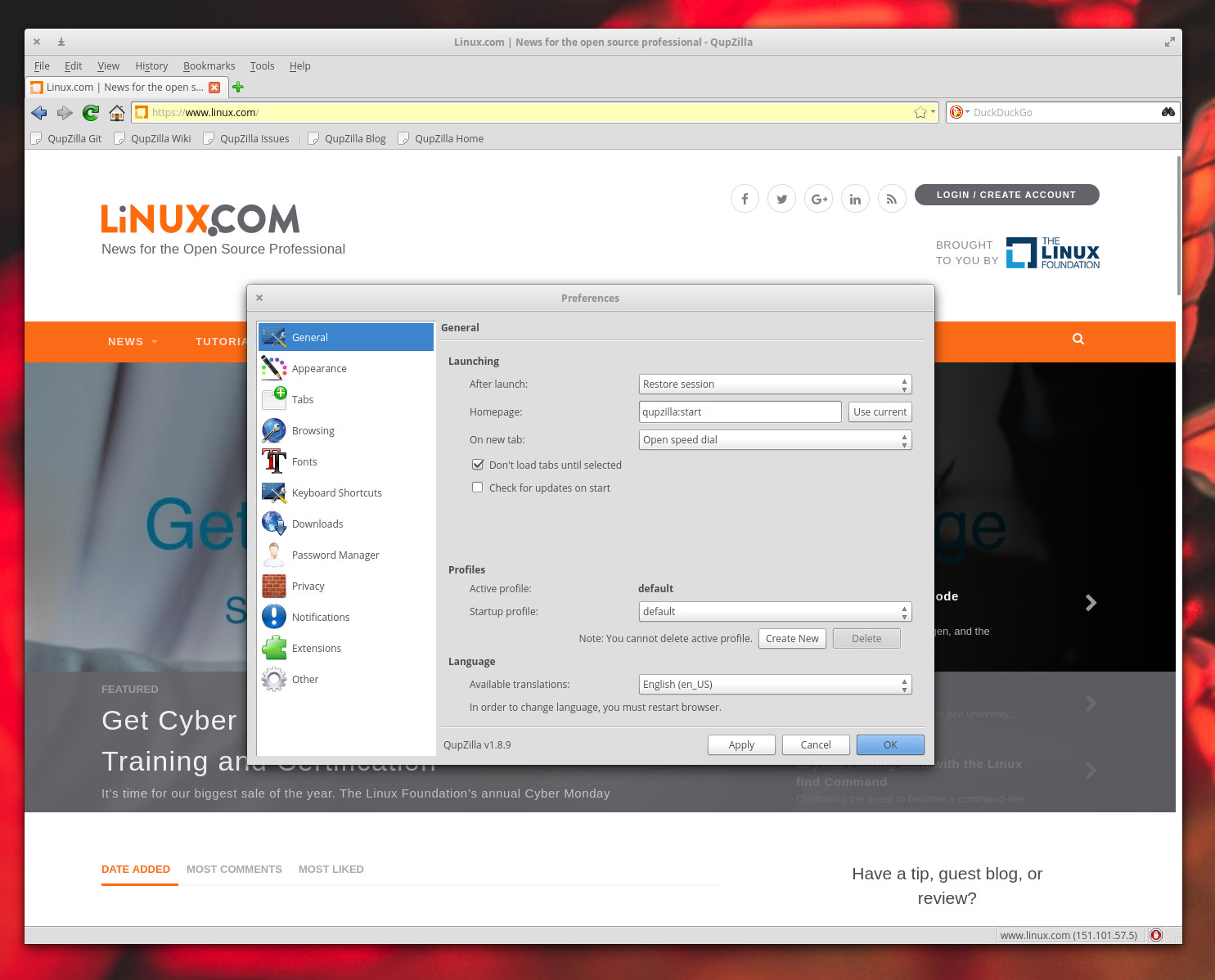
If you’re looking for a minimal browser that uses the Qt Framework and the QtWebKit rendering engine, QupZilla might be exactly what you’re looking for. QupZilla does include all the standard features and functions you’d expect from a web browser, such as bookmarks, history, sidebar, tabs, RSS feeds, ad blocking, flash blocking, and CA Certificates management. Even with those features, QupZilla still manages to remain a very fast lightweight web browser. Other features include: Fast startup, speed dial homepage, built-in screenshot tool, browser themes, and more. One feature that should appeal to average users is that QupZilla has a more standard preferences tools than found in many lightweight browsers (Figure 3). So, if going too far outside the lines isn’t your style, but you still want something lighter weight, QupZilla is the browser for you.
Figure 3: The QupZilla preferences tool.
Otter Browser
Otter Browser is a free, open source attempt to recreate the closed-source offerings found in the Opera Browser. Otter Browser uses the WebKit rendering engine and has an interface that should be immediately familiar with any user. Although lightweight, Otter Browser does include full-blown features such as:
Passwords manager
Add-on manager
Content blocking
Spell checking
Customizable GUI
URL completion
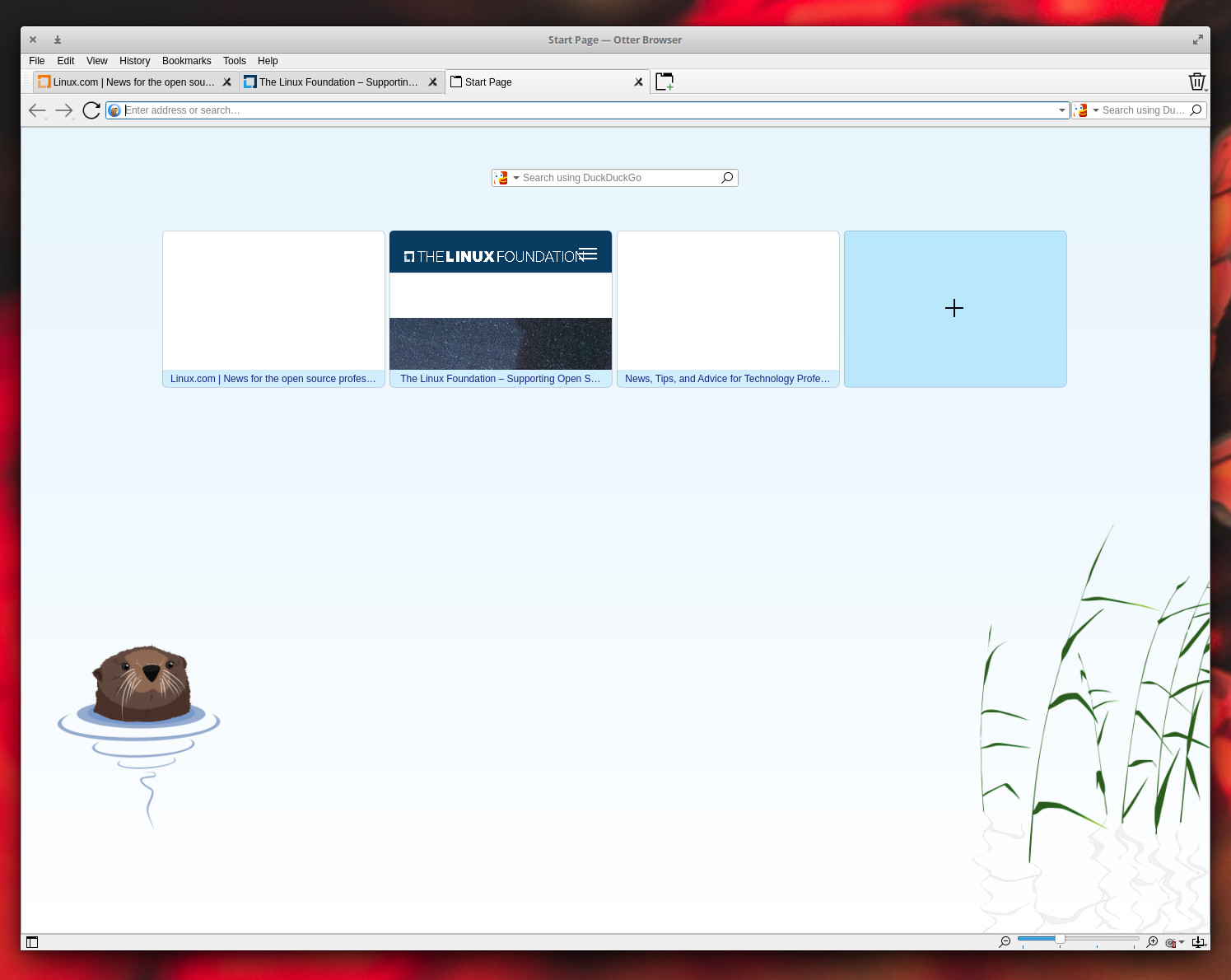
Speed dial (Figure 4)
Bookmarks and various related features
Mouse gestures
User style sheets
Built-in Note tool
Figure 4: The Otter Browser Speed Dial tab.
Otter Browser can be run on nearly any Linux distribution from an AppImage, so there’s no installation required. Just download the AppImage file, give the file executable permissions (with the command chmod u+x otter-browser-*.AppImage), and then launch the app with the command ./otter-browser*.AppImage.
Otter Browser does an outstanding job of rendering websites and could function as your go-to minimal browser with ease.
Lynx
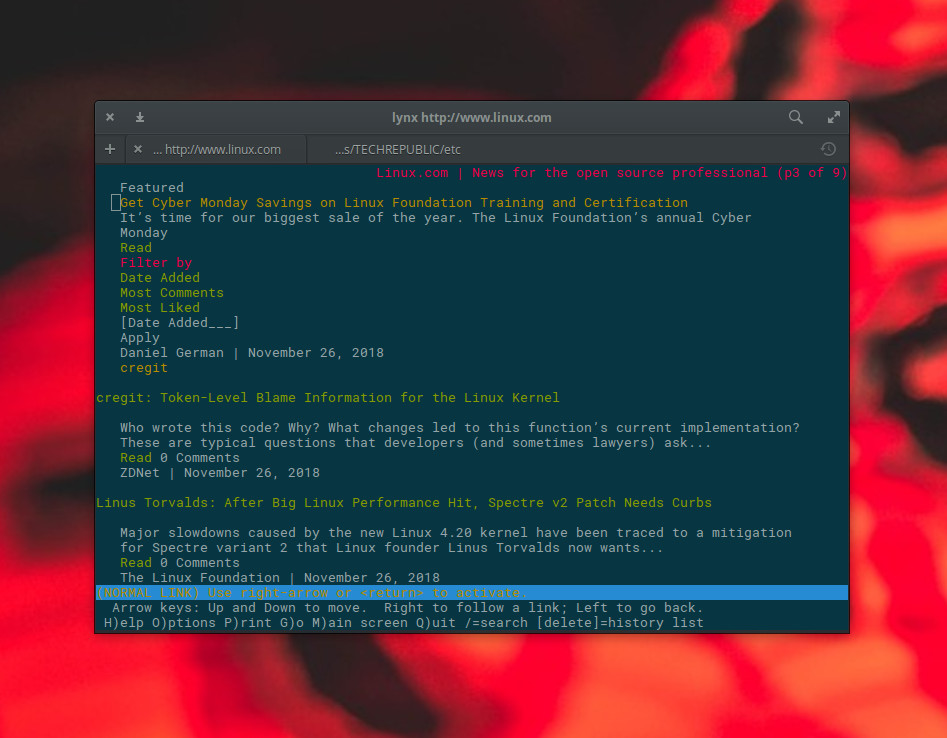
Let’s get really minimal. When I first started using Linux, back in ‘97, one of the web browsers I often turned to was a text-only take on the app called Lynx. It should come as no surprise that Lynx is still around and available for installation from the standard repositories. As you might expect, Lynx works from the terminal window and doesn’t display pretty pictures or render much in the way of advanced features (Figure 5). In fact, Lynx is as bare-bones a browser as you will find available. Because of how bare-bones this web browser is, it’s not recommended for everyone. But if you happen to have a gui-less web server and you have a need to be able to read the occasional website, Lynx can be a real lifesaver.
Figure 5: The Lynx browser rendering the Linux.com page.
I have also found Lynx an invaluable tool when troubleshooting certain aspects of a website (or if some feature on a website is preventing me from viewing the content in a regular browser). Another good reason to use Lynx is when you only want to view the content (and not the extraneous elements).
Plenty More Where This Came From
There are plenty more minimal browsers than this. But the list presented here should get you started down the path of minimalism. One (or more) of these browsers are sure to fill that need, whether you’re running it on a low-powered machine or not.
Learn more about Linux through the free “Introduction to Linux” course from The Linux Foundation and edX.
But did you know there are seven different “flavors” of Ubuntu?*
I’ll briefly explain the kind of user each Ubuntu version is designed for, what differentiates them and what you can expect from each distribution’s desktop environment (basically its look and feel). It’s not an exhaustive deep dive on each one; hopefully just enough to get you pointed adventurously in the right direction.
Sometimes when we think about open source, we focus on the code and forget that there are other equally important ways to contribute. Nithya Ruff, Senior Director, Open Source Practice at Comcast, knows that contributions can come in many forms. “Contribution can come in the form of code or in the form of a financial support for projects. It also comes in the form of evangelizing open source; It comes in form of sharing good practices with others,” she said.
Comcast, however, does contribute code. When I sat down with Ruff at Open Source Summit to learn more, she made it clear that Comcast isn’t just a consumer; it contributes a great deal to open source. “One way we contribute is that when we consume a project and a fix or enhancement is needed, we fix it and contribute back.” The company has made roughly 150 such contributions this year alone.
Comcast also releases its own software as open source. “We have created things internally to solve our own problems, but we realized they could solve someone else’s problem, too. So, we released such internal projects as open source,” said Ruff.
Bio-Linux was introduced and detailed in a Nature Biotechnology paper in July 2006. The distribution was a group effort by the Natural Environment Research Council in the UK. As the creators and authors point out, the analysis demands of high-throughput “-omic” (genomic, proteomic, metabolomic) science has necessitated the development of integrated computing solutions to analyze the resultant mountains of experimental data.
From this need, Bio-Linux was born. The distribution, according to its creators, serves as a “free bioinformatics workstation platform that can be installed on anything from a laptop to a large server.” The current distro version, Bio-Linux 8, is built on an Ubuntu 14.04 LTS base. Thus, the general look and feel of Bio-Linux is similar to that of Ubuntu.
In my own work as a research immunologist, I can attest to both the need for and success of the integrated software approach in Bio-Linux’s design and development. Bio-Linux functions as a true turnkey solution to data pipeline requirements of modern science. As the website mentions, Bio-Linux includes more than 250 pre-installed software packages, many of which are specific to the requirements of bioinformatic data analysis.
We recently hosted a webinar about deploying Hyperledger Fabric on Kubernetes. It was taught by Alejandro (Sasha) Vicente Grabovetsky and Nicola Paoli from AID:Tech.
The webinar contained a detailed, step-by-step instruction showing exactly how to deploy Hyperledger Fabric on Kubernetes. For those who prefer reading to watching, we have prepared a condensed transcript with screenshots that will take you through the process that has been adapted to recent updates in the Helm charts for the Orderers and Peers.
Are you ready? Let’s dive in!
What we will build
Fabric CA
First, we will deploy a Fabric Certificate Authority (CA) serviced by a PostgreSQL database for managing identities.
Fabric Orderer
Then, we will deploy an ordering service of several Fabric ordering nodes communicating and establishing consensus over an Apache Kafka cluster. The Fabric Ordering service provides consensus for development (solo) and production (Kafka) networks.
Fabric Peer
Finally, we will deploy several Peers and connect them with a channel. We will bind them to a CouchDB database.
The sudo command is very handy when you need to run occasional commands with superuser power, but you can sometimes run into problems when it doesn’t do everything you expect it should. Say you want to add an important message at the end of some log file and you try something like this:
OK, it looks like you need to employ some extra privilege. In general, you can’t write to a system log file with your user account. Let’s try that again with sudo.
…The sudo command is meant to allow you to easily deploy superuser access on an as-needed basis, but also to endow users with very limited privileged access when that’s all that is required.
More than 45,000 Internet routers have been compromised by a newly discovered campaign that’s designed to open networks to attacks by EternalBlue, the potent exploit that was developed by, and then stolen from, the National Security Agency and leaked to the Internet at large, researchers said Wednesday.
The new attack exploits routers with vulnerable implementations of Universal Plug and Play to force connected devices to open ports 139 and 445, content delivery network Akamai said in a blog post. As a result, almost 2 million computers, phones, and other network devices connected to the routers are reachable to the Internet on those ports. While Internet scans don’t reveal precisely what happens to the connected devices once they’re exposed, Akamai said the ports—which are instrumental for the spread of EternalBlue and its Linux cousin EternalRed—provide a strong hint of the attackers’ intentions.
The attacks are a new instance of a mass exploit the same researchers documented in April. They called it UPnProxy because it exploits Universal Plug and Play—often abbreviated as UPnP—to turn vulnerable routers into proxies that disguise the origins of spam, DDoSes, and botnets.
The most fundamental question you have to ask is what kind of terminal are you talking to. The answer is in the $TERM environment variable and if you ask your shell to print that variable, you’ll see what it thinks you are using: echo $TERM.
For example, a common type is vt100 or linux console. This is usually set by the system and you shouldn’t change it unless you have a good reason. In theory, of course, you could manually process this information but it would be daunting to have to figure out all the way to do something like clear the screen on the many terminals Linux understands.
That’s why there’s a terminfo database. On my system, there are 43 files in /lib/terminfo (not counting the directories) for terminals with names like dumb, cygwin, ansi, sun, and xterm. Looking at the files isn’t very useful since they are in a binary format, but the infocmp program can reverse the compilation process. Here’s part of the result of running infocmp and asking for the definition of a vt100: