Home Blog Page 313

Run and Scale a Distributed Crossword Puzzle App with CI/CD on Kubernetes (Part 3)

In Part 2 of our series, we deployed a Jenkins pod into our Kubernetes cluster, and used Jenkins to set up a CI/CD pipeline that automated building and deploying our containerized Hello-Kenzan application in Kubernetes.

In Part 3, we are going to set aside the Hello-Kenzan application and get to the main event: running our Kr8sswordz Puzzle application. We will showcase the built-in UI functionality to scale backend service pods up and down using the Kubernetes API, and also simulate a load test. We will also touch on showing caching in etcd and persistence in MongoDB.

Before we start the install, it’s helpful to take a look at the pods we’ll run as part of the Kr8sswordz Puzzle app:

  • kr8sswordz – A React container with our Node.js frontend UI.

  • puzzle – The primary backend service that handles submitting and getting answers to the crossword puzzle via persistence in MongoDB and caching in ectd.

  • mongo – A MongoDB container for persisting crossword answers.

  • etcd – An etcd cluster for caching crossword answers (this is separate from the etcd cluster used by the K8s Control Plane).

  • monitor-scale – A backend service that handles functionality for scaling the puzzle service up and down. This service also interacts with the UI by broadcasting websockets messages.

We will go into the main service endpoints and architecture in more detail after running the application. For now, let’s get going!

Read all the articles in the series:
 

3di6imeKV7hPtEx3cDcZM3dUG6aW4CWOPmdGOIFA

This tutorial only runs locally in Minikube and will not work on the cloud. You’ll need a computer running an up-to-date version of Linux or macOS. Optimally, it should have 16 GB of RAM. Minimally, it should have 8 GB of RAM. For best performance, reboot your computer and keep the number of running apps to a minimum.

Running the Kr8sswordz Puzzle App

First make sure you’ve run through the steps in Part 1 and Part 2, in which we set up our image repository and Jenkins pods—you will need these to proceed with Part 3 (to do so quickly, you can run the part1 and part2 automated scripts detailed below). If you previously stopped Minikube, you’ll need to start it up again. Enter the following terminal command, and wait for the cluster to start:

minikube start

You can check the cluster status and view all the pods that are running.

kubectl cluster-info

kubectl get pods --all-namespaces
Make sure the registry and jenkins pods are up and running. 
goO2T3gv5m_ehnoPadbP8Eww76Kgh9oUzsSGD7v9

So far we have been creating deployments directly using K8s manifests, and have not yet used Helm. Helm is a package manager that deploys a Chart (or package) onto a K8s cluster with all the resources and dependencies needed for the application. Underneath, the chart generates Kubernetes deployment manifests for the application using templates that replace environment configuration values. Charts are stored in a repository and versioned with releases so that cluster state can be maintained.

Helm is very powerful because it allows you to templatize, version, reuse, and share the deployments you create for Kubernetes. See https://hub.kubeapps.com/ for a look at some of the open source charts available. We will be using Helm to install an etcd operator directly onto our cluster using a pre-built chart.

1. Initialize Helm. This will install Tiller (Helm’s server) into our Kubernetes cluster.

helm init --wait --debug; kubectl rollout status deploy/tiller-deploy -n kube-system

2. We will deploy an etcd operator onto the cluster using a Helm Chart.  

helm install stable/etcd-operator --version 0.8.0 --name etcd-operator --debug --wait
goO2T3gv5m_ehnoPadbP8Eww76Kgh9oUzsSGD7v9

An operator is a custom controller for managing complex or stateful applications. As a separate watcher, it monitors the state of the application, and acts to align the application with a given specification as events occur. In the case of etcd, as nodes terminate, the operator will bring up replacement nodes using snapshot data.

3. Deploy the etcd cluster and K8s Services for accessing the cluster.

kubectl  create -f manifests/etcd-cluster.yaml

kubectl  create -f manifests/etcd-service.yaml

You can see these new pods by entering kubectl get pods in a separate terminal window. The cluster runs as three pod instances for redundancy.

4. The crossword application is a multi-tier application whose services depend on each other. We will create three K8s Services so that the applications can communicate with one another.

kubectl apply -f manifests/all-services.yaml

5. Now we’re going to walk through an initial build of the monitor-scale application.

docker build -t 127.0.0.1:30400/monitor-scale:`git rev-parse 
 --short HEAD` -f applications/monitor-scale/Dockerfile 
 applications/monitor-scale
goO2T3gv5m_ehnoPadbP8Eww76Kgh9oUzsSGD7v9

To simulate a real life scenario, we are leveraging the github commit id to tag all our service images, as shown in this command (git rev-parse –short HEAD).

6. Once again we’ll need to set up the Socat Registry proxy container to push the monitor-scale image to our registry, so let’s build it. Feel free to skip this step in case the socat-registry image already exists from Part 2 (to check, run docker images).

docker build -t socat-registry -f applications/socat/Dockerfile 
 applications/socat

7. Run the proxy container from the newly created image.

docker stop socat-registry; docker rm socat-registry; docker run 
 -d -e "REG_IP=`minikube ip`" -e "REG_PORT=30400" --name 
 socat-registry -p 30400:5000 socat-registry
goO2T3gv5m_ehnoPadbP8Eww76Kgh9oUzsSGD7v9

This step will fail if local port 30400 is currently in use by another process. You can check if there’s any process currently using this port by running the command

lsof -i :30400

8. Push the monitor-scale image to the registry.

docker push 127.0.0.1:30400/monitor-scale:`git rev-parse --short HEAD`

9. The proxy’s work is done, so go ahead and stop it.

docker stop socat-registry

10. Open the registry UI and verify that the monitor-scale image is in our local registry.

minikube service registry-ui
_I4gSkKcakXTMxLSD_qfzVLlTlfLiabRf3fOZzrm

11. Monitor-scale has the functionality to let us scale our puzzle app up and down through the Kr8sswordz UI, therefore we’ll need to do some RBAC work in order to provide monitor-scale with the proper rights.

kubectl apply -f manifests/monitor-scale-serviceaccount.yaml
ANM4b9RSNsAb4CFeAbJNUYr6IlIzulAIb0sEvwVJ

In the manifests/monitor-scale-serviceaccount.yaml you’ll find the specs for the following K8s Objects.

Role: The custom “puzzle-scaler” role allows “Update” and “Get” actions to be taken over the Deployments and Deployments/scale kinds of resources, specifically to the resource named “puzzle”. This is not a ClusterRole kind of object, which means it will only work on a specific namespace (in our case “default”) as opposed to being cluster-wide.

ServiceAccount: A “monitor-scale” ServiceAccount is assigned to the monitor-scale deployment.

RoleBinding: A “monitor-scale-puzzle-scaler” RoleBinding binds together the aforementioned objects.

12. Create the monitor-scale deployment and the Ingress defining the hostname by which this service will be accessible to the other services.

sed 's#127.0.0.1:30400/monitor-scale:$BUILD_TAG#127.0.0.1:30400/
 monitor-scale:'`git rev-parse --short HEAD`'#' 
 applications/monitor-scale/k8s/deployment.yaml | kubectl apply -f -
goO2T3gv5m_ehnoPadbP8Eww76Kgh9oUzsSGD7v9

The sed command is replacing the $BUILD_TAG substring from the manifest file with the actual build tag value used in the previous docker build command. We’ll see later how Jenkins plugin can do this automatically.

13. Wait for the monitor-scale deployment to finish.

kubectl rollout status deployment/monitor-scale

14. View pods to see the monitor-scale pod running.

kubectl get pods

15. View services to see the monitor-scale service.

kubectl get services

16. View ingress rules to see the monitor-scale ingress rule.

kubectl get ingress

17. View deployments to see the monitor-scale deployment.

kubectl get deployments

18. We will run a script to bootstrap the puzzle and mongo services, creating Docker images and storing them in the local registry. The puzzle.sh script runs through the same build, proxy, push, and deploy steps we just ran through manually for both services.

scripts/puzzle.sh

19. Check to see if the puzzle and mongo services have been deployed.

kubectl rollout status deployment/puzzle
kubectl rollout status deployment/mongo

20. Bootstrap the kr8sswordz frontend web application. This script follows the same build proxy, push, and deploy steps that the other services followed.

scripts/kr8sswordz-pages.sh

21. Check to see if the frontend has been deployed.

kubectl rollout status deployment/kr8sswordz

22. Check to see that all the pods are running.

kubectl get pods

23. Start the web application in your default browser.

minikube service kr8sswordz

Giving the Kr8sswordz Puzzle a Spin

Now that it’s up and running, let’s give the Kr8sswordz puzzle a try. We’ll also spin up several backend service instances and hammer it with a load test to see how Kubernetes automatically balances the load.   

1. Try filling out some of the answers to the puzzle. You’ll see that any wrong answers are automatically shown in red as letters are filled in.

2. Click Submit. When you click Submit, your current answers for the puzzle are stored in MongoDB.

EfPr45Sz_JuXZDzxNUyRsfXnKCis5iwRZLGi3cSo

3. Try filling out the puzzle a bit more, then click Reload once. This will perform a GET which retrieves the last submitted puzzle answers in MongoDB.

Did you notice the green arrow on the right as you clicked Reload? The arrow indicates that the application is fetching the data from MongoDB. The GET also caches those same answers in etcd with a 30 sec TTL (time to live). If you immediately press Reload again, it will retrieve answers from etcd until the TTL expires, at which point answers are again retrieved from MongoDB and re-cached. Give it a try, and watch the arrows.

4. Scale the number of instances of the Kr8sswordz puzzle service up to 16 by dragging the upper slider all the way to the right, then click Scale. Notice the number of puzzle services increase.

goO2T3gv5m_ehnoPadbP8Eww76Kgh9oUzsSGD7v9

If you did not allocate 8 GB of memory to Minikube, we suggest not exceeding 6 scaled instances using the slider.

r5ShVJ4omRX9znIrPLlpBCwatys2yjjdHA2h2Dlq

In a terminal, run kubectl get pods to see the new replicas.

5. Now run a load test. Drag the lower slider to the right to 250 requests, and click Load Test. Notice how it very quickly hits several of the puzzle services (the ones that flash white) to manage the numerous requests. Kubernetes is automatically balancing the load across all available pod instances. Thanks, Kubernetes!

P4S5i1UdQg6LHo71fTFLfHiZa1IpGwmXDhg7nhZJ

​6. Drag the middle slider back down to 1 and click Scale. In a terminal, run kubectl get pods to see the puzzle services terminating.

g5SHkVKTJQjiRvaG-huPf8aJmLWS19QGlmqgn2OI

7. Now let’s try deleting the puzzle pod to see Kubernetes restart a pod using its ability to automatically heal downed pods

a. In a terminal enter kubectl get pods to see all pods. Copy the puzzle pod name (similar to the one shown in the picture above).

 b. Enter the following command to delete the remaining puzzle pod. 
kubectl delete pod [puzzle podname]

c. Enter kubectl get pods to see the old pod terminating and the new pod starting. You should see the new puzzle pod appear in the Kr8sswordz Puzzle app.

What’s Happening on the Backend

We’ve seen a bit of Kubernetes magic, showing how pods can be scaled for load, how Kubernetes automatically handles load balancing of requests, as well as how Pods are self-healed when they go down. Let’s take a closer look at what’s happening on the backend of the Kr8sswordz Puzzle app to make this functionality apparent.  

Kr8sswordz.png

1. pod instance of the puzzle service. The puzzle service uses a LoopBack data source to store answers in MongoDB. When the Reload button is pressed, answers are retrieved with a GET request in MongoDB, and the etcd client is used to cache answers with a 30 second TTL.  

2. The monitor-scale pod handles scaling and load test functionality for the app. When the Scale button is pressed, the monitor-scale pod uses the Kubectl API to scale the number of puzzle pods up and down in Kubernetes.

3. When the Load Test button is pressed, the monitor-scale pod handles the loadtest by sending several GET requests to the service pods based on the count sent from the front end. The puzzle service sends Hits to monitor-scale whenever it receives a request. Monitor-scale then uses websockets to broadcast to the UI to have pod instances light up green.

4. When a puzzle pod instance goes up or down, the puzzle pod sends this information to the monitor-scale pod. The up and down states are configured as lifecycle hooks in the puzzle pod k8s deployment, which curls the same endpoint on monitor-scale (see kubernetes-ci-cd/applications/crossword/k8s/deployment.yml to view the hooks). Monitor-scale persists the list of available puzzle pods in etcd with set, delete, and get pod requests.

goO2T3gv5m_ehnoPadbP8Eww76Kgh9oUzsSGD7v9

We do not recommend stopping Minikube (minikube stop) before moving on to do the tutorial in Part 4. Upon restart, it may create some issues with the etcd cluster.

Automated Scripts

If you need to walk through the steps we did again (or do so quickly), we’ve provided npm scripts that will automate running the same commands in a terminal.  

1. To use the automated scripts, you’ll need to install NodeJS and npm.

On Linux, follow the NodeJS installation steps for your distribution. To quickly install NodeJS and npm on Ubuntu 16.04 or higher, use the following terminal commands.

 a. curl -sL https://deb.nodesource.com/setup_7.x | sudo -E bash -
 b. sudo apt-get install -y nodejs

On macOS, download the NodeJS installer, and then double-click the .pkg file to install NodeJS and npm.

2. Change directories to the cloned repository and install the interactive tutorial script:

 a. cd ~/kubernetes-ci-cd
 b. npm install

3. Start the script

npm run part1 (or part2, part3, part4 of the blog series)

4. Press Enter to proceed running each command.

Up Next

Now that we’ve run our Kr8sswordz Puzzle app, the next step is to set up CI/CD for our app. Similar to what we did for the Hello-Kenzan app, Part 4 will cover creating a Jenkins pipeline for the Kr8sswordz Puzzle app so that it builds at the touch of a button. We will also modify a bit of code to enhance the application and enable our Submit button to show white hits on the puzzle service instances in the UI.  

Curious to learn more about Kubernetes? Enroll in Introduction to Kubernetes, a FREE training course from The Linux Foundation, hosted on edX.org.

This article was revised and updated by David Zuluaga, a front end developer at Kenzan. He was born and raised in Colombia, where he studied his BE in Systems Engineering. After moving to the United States, he studied received his master’s degree in computer science at Maharishi University of Management. David has been working at Kenzan for four years, dynamically moving throughout a wide range of areas of technology, from front-end and back-end development to platform and cloud computing. David’s also helped design and deliver training sessions on Microservices for multiple client teams.

4-Phase Approach for Taking Over Large, Messy IT Systems

Everyone loves building shiny, new systems using the latest technologies and especially the most modern DevOps tools. But that’s not the reality for lots of operations teams, especially those running larger systems with millions of users and old, complex infrastructure.

It’s even worse for teams taking over existing systems as part of company mergers, department consolidation, or changing managed service providers (MSPs). The new team has to come in and hit the ground running while keeping the lights on using a messy system they know nothing about.

We’ve spent a decade doing this as a large-scale MSP in China, taking over and managing systems with 10 million to 100 million users, usually with little information. This can be a daunting challenge, but our four-phase approach and related tools make it possible. If you find yourself in a similar position, you might benefit from our experience.

Read more at OpenSource.com

Anaxi App Shows the State of Your Software Project

If you work within the world of software development, you’ll find yourself bouncing back and forth between a few tools. You’ll most likely use GitHub to host your code, but find yourself needing some task/priority software. This could be GitHub itself or other ones like Jira. Of course, you may also find yourself collaborating on several tools, like Slack, and several projects. Considering that it’s already hard to keep track of the progress on one of your projects, working across several of them becomes a struggle. This problem gets worse as you move up the ranks of management where it becomes increasingly difficult to assimilate and rationalize all of this information. To help combat this, Anaxi was created to help give you all the information on the state and progress of your projects in one single interface.

Why measure dev progress?

According to LinkedIn data, there are currently over 3,000 software engineers employed on average at Fortune 4,000 companies. So, how do those companies measure the progress of their software projects and the performance of their teams? After all, you can’t manage what you don’t measure, so the best of them will manually compute portions of this data on a weekly basis. This turns into a tedious and time-consuming task. In fact, this directly impacts your bottom line. Anaxi cuts out this task and may significantly improve software development efficiency within organizations. Teams will know the impact of any process change, which task they should focus on, and whether or not to anticipate any bottlenecks. This also helps reduce the loss in revenue due to shipping critical issues. According to Tricentis, there was a total of $1.7T loss in revenue in 2017 alone due to software failures and poor bug prioritization.

What is Anaxi?

Anaxi currently offers a free iPhone app that provides the full picture of your GitHub projects to help you understand and manage them better. Anaxi has a lot of features based on what they call reports. Reports are lists of issues or pull requests that you can filter as you see fit using labels, state, milestone, authors, assignees, and more. This allows you to monitor those critical bugs or see the progress of your team’s work. For each project, you can select the people on your team so you can easily see what each person is doing and help where help is needed most. It can also be used to keep track of your own work and priorities, and because it’s an iPhone app, it grants quick access to issues and pull requests that have been assigned. There’s also a customizable color indicator for report deadlines that will help you prioritize what to work on.

How to set up the app

First, you’ll need an iPhone and access to the app store. Go into the App Store and download it. Once you open the app, the landing page will appear.

65oqrPLAq7UaPC1LpOw6FXI5GZ6mEgLr1_MUE9Wm

To get started, press on the Connect GitHub button on the bottom of the screen and enter your GitHub credentials. Next, you’ll be asked to select projects that you want to monitor. Anaxi will automatically select some projects. There is a button you can press to edit this list at the bottom that allows you to add or remove projects from this list. If you forget a project, or realize that you don’t want to monitor a project anymore, you can change it once the initial setup is over.

DexG3Wh2YvwVFjs6u58Dstvj515wF7TrWDO0t6v3

When you have your projects selected, hit the Next button. It’s time to select your team. Anaxi will start by automatically selecting people that you interact with the most with for the projects you selected. Just like the previous step, you can edit this list by pressing the button at the bottom and you can add or remove team members later.

wGqp_gzsPVeIqoZxye6XlANIDpCdmJFzwFKRveEe

Next, you will be prompted to help set up the reports for your projects. Anaxi will also start by automatically choosing labels that are most used, but you can customize which labels you want to monitor by clicking the button at the bottom of each project. Later on, you can create more tailored reports by adding issue or pull request reports when inside of a project folder.

3j6EUiM-LMnOtNOJbpf-jAC4v9PCJ3Y918avzAC9

Now, Anaxi is set up and a view of reports appears. Mine are all green because I don’t have any activity on my selected projects. From this menu, you can see which projects have pull requests at the top. Clicking on these will pull up open tickets on these projects. If you scroll down, you can see all the pull requests and issues that are assigned to you and your team. Then you can see individual views near the bottom for all of your projects. The order of these can be changed at any time by hitting the edit button in the top right and dragging the folders around.

X1IJT672xy31lkj3_jp32LKg1oIthwhU4ju_9tEyfKEbYkA6-9VWq-L64UkV4iYcEMn8OwGfC479ynFPsoct3rYoAsfB5fxMSUP6BokKGNq0py35FvqZstKv

Let’s choose an open-source project and see what it looks like when more people are working together and there are more issues and pull requests. For this example, let’s use kubernetes/kubernetes. As you can see below, Anaxi created a report for the new project, and added it to the current full report that already existed. Now that there is a more active GitHub project present in my reports, we can see the full extent of Anaxi in action.

y3Btj41pWjZ4HYjyk8ijrVH1h_ny0AveRyeLw_r11n2BhEKWd8bxu6cWUhzQI96FWXGaUMYmyQBPJABNkUzQQqJmztRKLDjJq-HagoI3mWu8mX0-uJdvtC70

To edit any part of the reports, simply click on that section, and then click on the edit button in the top right. Once there, you can change filters and if you scroll to the bottom, you can change the values for when an aspect of a report displays green, yellow or red.

My experience

After using Anaxi for a little while, scrolling through my GitHub Projects doesn’t feel like a chore anymore. It’s easy to choose one project and see everything that I want to see. One thing that was slightly bothersome is every time you click on a project, it has to read the GitHub API instead of holding on to it. This results in some wait time when you are trying to switch back and forth between multiple projects in quick succession, but that’s the only downside I’ve seen so far. Changing the colors or filters on aspects of reports is surprisingly easy and intuitive. Another thing I like is that you can create a due date for a certain issue or pull request. This is great when you want to build in dates into your projects. I feel like this would really help me when I want to prioritize certain things, instead of creating Google Calendar notifications, I can do this on the project directly.

So far, I haven’t worked on any project that’s been bigger than 4 people, so it hasn’t helped me that much… yet. As I move forward in my career and work on projects with more and more people and deadlines, I feel like Anaxi will become a go-to product for me. The ability to see everything so easily and the customizability really draws me in and makes me love the product and see myself using it in the future.

What’s coming next

Anaxi currently offers an iPhone app, but don’t fret if you are a web user. The plan for Anaxi is to work on integration with Jira next to help with the technology gap between managing project and managing code. After that is completed, they are planning on creating a web app, followed by Android, and ending with native desktop apps.

This article was produced in partnership with Holberton School.

LLVM 7 Improves Performance Analysis, Linking

The compiler framework that powers Rust, Swift, and Clang offers new and revised tools for optimization, linking, and debugging.

The developers behind LLVM, the open-source framework for building cross-platform compilers, have unveiled LLVM 7. The new release arrives right on schedule as part of the project’s cadence of major releases every six months.

LLVM underpins several modern language compilers including Apple’s Swift, the Rust language, and the Clang C/C++ compiler. LLVM 7 introduces revisions to both its native features and to companion tools that make it easier to build, debug, and analyze LLVM-generated software.

Read more at InfoWorld

Convert Screenshots of Equations into LaTeX Instantly With This Nifty Tool

Mathpix is a nifty little tool that allows you to take screenshots of complex mathematical equations and instantly converts it into LaTeX editable text.

LaTeX editors are excellent when it comes to writing academic and scientific documentation.

There is a steep learning curved involved of course. And this learning curve becomes steeper if you have to write complex mathematical equations.

Mathpix is a nifty little tool that helps you in this regard.

Read more at ItsFOSS

Spinnaker: The Kubernetes of Continuous Delivery

Comparing Spinnaker and Kubernetes in this way is somewhat unfair to both projects. The scale, scope, and magnitude of these technologies are different, but parallels can still be drawn.

Just like Kubernetes, Spinnaker is a technology that is battle tested, with Netflix using Spinnaker internally for continuous delivery. Like Kubernetes, Spinnaker is backed by some of the biggest names in the industry, which helps breed confidence among users. Most importantly, though, both projects are open source, designed to build a diverse and inclusive ecosystem around them.

Frankenstein’s Monster

Continuous Delivery (CD) is a solved problem, but it has been a bit of a Frankenstein’s monster, with companies trying to build their own creations by stitching parts together, along with Jenkins. “We tried to build a lot of custom continuous delivery tooling, but they all fell short of our expectation,” said Brandon Leach, Sr. Manager of Platform Engineering at Lookout.

“We were using Jenkins along with tools like Rundeck, but both had their own set of problems. While Rundeck didn’t have a first-class deployment tool, Jenkins was becoming a nightmare and we ended up moving to Gitlabs,” said Gard Voigt Rimestad of Schibsted, a major Norwegian media group.

Netflix created a more elegant way for continuous delivery called Asgard, open sourced in 2012, which was designed to run Netflix’s own workload on AWS. Many companies were using Asgard, including Schibsted, and it was gaining momentum. But it was tied closely to the kind of workload Netflix was running with AWS. Bigger companies who liked Asgard forked it to run their own workloads. IBM forked it twice to make it work with Docker containers.

IBM’s forking of Asgard was an eye-opening experience for Netflix. At that point, Netflix had started looking into containerized workloads, and IBM showed how it could be done with Asgard.

Google was also planning to fork Asgard to make it work on Google Compute Engine. By that time, Netflix had started working on the successor to Asgard, called Spinnaker. “Before Google could fork the project, we managed to convince Google to collaborate on Spinnaker instead of forking Asgard. Pivotal also joined in,” said Andy Glover, shepherd of Spinnaker and Director of Delivery Engineering at Netflix. The rest is history.

Continuous popularity

There are many factors at play that contribute to the popularity and adoption of Spinnaker. First and foremost, it’s a proven technology that’s been used at Netflix. It instills confidence in users. “Spinnaker is the way Netflix deploys its services. They do things at the scale we don’t do in AWS. That was compelling,” said Leach.

The second factor is the powerful community around Spinnaker that includes heavyweights like Microsoft, Google, and Netflix. “These companies have engineers on their staff that are dedicated to working on Spinnaker,” added Leach.

Governance

In October 2018, the Spinnaker community organized its first official Spinnaker Summit in Seattle. During the Summit, the community announced the governance structure for the project.

“Initially, there will be a steering committee and a technical oversight committee. At the moment Google and Netflix are steering the governance body, but we would like to see more diversity,” said Steven Kim, Google’s Software Engineering Manager who leads the Google team that works on Spinnaker.  The broader community is organized around a set of special interest groups (SIGs) that enable users to focus on particular areas of interest.

“There are users who have deployed Spinnaker in their environment, but they are often intimidated by two big players like Google and Netflix. The governance structure will enable everyone to be able to have a voice in the community,” said Kim.

At the moment, the project is being run by Google and Netflix, but eventually, it may be donated to an organization that has a better infrastructure for managing such projects. “It could be the OpenStack Foundation, CNCF, or the Apache Foundation,” said Boris Renski, Co-founder and CMO of Mirantis.

I met with more than a dozen users at the Summit, and they were extremely bullish about Spinnaker. Companies are already using it in a way even Netflix didn’t envision. Since continuous delivery is at the heart of multi-cloud strategy, Spinnaker is slowly but steadily starting to beat at the heart of many companies.

Spinnaker might not become as big as Kubernetes, due to its scope, but it’s certainly becoming as important. Spinnaker has made some bold promises, and I am sure it will continue to deliver on them.

Kali Linux for Vagrant: Hands-On

What Vagrant actually does is provide a way of automating the building of virtualized development environments using a variety of the most popular providers, such as VirtualBox, VMware, AWS and others. It not only handles the initial setup of the virtual machine, it can also provision the virtual machine based on your specifications, so it provides a consistent environment which can be shared and distributed to others.

The first step, obviously, is to get Vagrant itself installed and working — and as it turns out, doing that requires getting at least one of the virtual machine providers installed and working. In the case of the Kali distribution for Vagrant, this means getting VirtualBox installed.

Fortunately, both VirtualBox and Vagrant are available in the repositories of most of the popular Linux distributions. I typically work on openSUSE Tumbleweed, and I was able to install both of them from the YAST Software Management tool. I have also checked that both are available on Manjaro, Debian Testing and Linux Mint. I didn’t find Vagrant on Fedora, but there are several articles in the Fedora Developer Portal which describe installing and using it.

Read more at ZDNet

Set Up a CI/CD Pipeline with a Jenkins Pod in Kubernetes (Part 2)

In Part 1 of our series, we got our local Kubernetes cluster up and running with Docker, Minikube, and kubectl. We set up an image repository, and tried building, pushing, and deploying a container image with code changes we made to the Hello-Kenzan app. It’s now time to automate this process.

In Part 2, we’ll set up continuous delivery for our application by running Jenkins in a pod in Kubernetes. We’ll create a pipeline using a Jenkins 2.0 Pipeline script that automates building our Hello-Kenzan image, pushing it to the registry, and deploying it in Kubernetes. That’s right: we are going to deploy pods from a registry pod using a Jenkins pod. While this may sound like a bit of deployment alchemy, once the infrastructure and application components are all running on Kubernetes, it makes the management of these pieces easy since they’re all under one ecosystem.

With Part 2, we’re laying the last bit of infrastructure we need so that we can run our Kr8sswordz Puzzle in Part 3.

Read all the articles in the series:
 

RyHz4CL2OgRH4G8M7BLPxwZ7MMAZh-DpmmEuXBoa

This tutorial only runs locally in Minikube and will not work on the cloud. You’ll need a computer running an up-to-date version of Linux or macOS. Optimally, it should have 16 GB of RAM. Minimally, it should have 8 GB of RAM. For best performance, reboot your computer and keep the number of running apps to a minimum.

Creating and Building a Pipeline in Jenkins

Before you begin, you’ll want to make sure you’ve run through the steps in Part 1, in which we set up our image repository running in a pod (to do so quickly, you can run the npm part1 automated script detailed below).

If you previously stopped Minikube, you’ll need to start it up again. Enter the following terminal command, and wait for the cluster to start:

minikube start

You can check the cluster status and view all the pods that are running.

kubectl cluster-info

kubectl get pods --all-namespaces

Make sure that the registry pod has a Status of Running.

We are ready to build out our Jenkins infrastructure.

Remember, you don’t actually have to type the commands below—just press Enter at each step and the script will enter the command for you!

1. First, let’s build the Jenkins image we’ll use in our Kubernetes cluster.

docker build -t 127.0.0.1:30400/jenkins:latest 

 -f applications/jenkins/Dockerfile applications/jenkins

2. Once again we’ll need to set up the Socat Registry proxy container to push images, so let’s build it. Feel free to skip this step in case the socat-registry image already exists from Part 1 (to check, run docker images).

docker build -t socat-registry -f applications/socat/Dockerfile applications/socat

3. Run the proxy container from the image.

docker stop socat-registry; docker rm socat-registry; 

 docker run -d -e "REG_IP=`minikube ip`" -e "REG_PORT=30400" 

 --name socat-registry -p 30400:5000 socat-registry
n-z3awvRgVXCO-QIpllgiqXOWtsTeePM62asXPD5

This step will fail if local port 30400 is currently in use by another process. You can check if there’s any process currently using this port by running the command

lsof -i :30400

4. With our proxy container up and running, we can now push our Jenkins image to the local repository.

docker push 127.0.0.1:30400/jenkins:latest

You can see the newly pushed Jenkins image in the registry UI using the following command.

minikube service registry-ui

5. The proxy’s work is done, so you can go ahead and stop it.

docker stop socat-registry

6. Deploy Jenkins, which we’ll use to create our automated CI/CD pipeline. It will take the pod a minute or two to roll out.

kubectl apply -f manifests/jenkins.yaml; kubectl rollout status deployment/jenkins

Inspect all the pods that are running. You’ll see a pod for Jenkins now.

kubectl get pods
_YIHeGg141vkuJmdJZBO0zN2s3pjLdDMgo5pfQFe

Jenkins as a CD tool needs special rights in order to interact with the Kubernetes cluster, so we’ve setup RBAC (Role Based Access Control) authorization for it inside the jenkins.yaml deployment manifest. RBAC consists of a Role, a ServiceAccount and a Binding object that binds the two together. Here’s how we configured Jenkins with these resources:

Role: For simplicity we leveraged the pre-existing ClusterRole “cluster-admin” which by default has unlimited access to the cluster. (In a real life scenario you might want to narrow down Jenkins’ access rights by creating a new role with the least privileged PolicyRule.)

ServiceAccount: We created a new ServiceAccount named “Jenkins”. The property “automountServiceAccountToken” has been set to true; this will automatically mount the authentication resources needed for a kubeconfig context to be setup on the pod (i.e. Cluster info, User represented by a token and a Namespace).

RoleBinding: We created a ClusterRoleBinding that binds together the “Jenkins” serviceAccount to the “cluster-admin” ClusterRole.

Lastly, we tell our Jenkins deployment to run as the Jenkins ServiceAccount.

n-z3awvRgVXCO-QIpllgiqXOWtsTeePM62asXPD5

Notice our Jenkins deployment has an initContainer. This is a container that will run to completion before the main container is deployed on our pod. The job of this init container is to create a kubeconfig file based on the provided context and to share it with the main Jenkins container through an “emptyDir” volume.

7. Open the Jenkins UI in a web browser.

minikube service jenkins

8. Display the Jenkins admin password with the following command, and right-click to copy it.

kubectl exec -it `kubectl get pods --selector=app=jenkins 

--output=jsonpath={.items..metadata.name}` cat 

/var/jenkins_home/secrets/initialAdminPassword

9. Switch back to the Jenkins UI. Paste the Jenkins admin password in the box and click Continue. Click Install suggested plugins. Plugins have actually been pre-downloaded during the Jenkins image build, so this step should finish fairly quickly.

RyHz4CL2OgRH4G8M7BLPxwZ7MMAZh-DpmmEuXBoa

One of the plugins being installed is Kubernetes Continuous Deploy, which allows Jenkins to directly interact with the Kubernetes cluster rather than through kubectl commands. This plugin was pre-downloaded with the Jenkins image build.  

10. Create an admin user and credentials, and click Save and Continue. (Make sure to remember these credentials as you will need them for repeated logins.)

s7KGWbFBCOau5gi7G05Fs_mjAtBOVNy7LlEQ4wTL

11. On the Instance Configuration page, click Save and Finish. On the next page, click Restart (if it appears to hang for some time on restarting, you may have to refresh the browser window). Login to Jenkins.

12. Before we create a pipeline, we first need to provision the Kubernetes Continuous Deploy plugin with a kubeconfig file that will allow access to our Kubernetes cluster. In Jenkins on the left, click on Credentials, select the Jenkins store, then Global credentials (unrestricted), and Add Credentials on the left menu

13. The following values must be entered precisely as indicated:

  • Kind: Kubernetes configuration (kubeconfig)

  • ID: kenzan_kubeconfig

  • Kubeconfig: From a file on the Jenkins master

  • File: /var/jenkins_home/.kube/config

Finally click Ok.

HznE6h9fOjuiv543Oqs5MqiIj0D52wSFJ44a-3An

13. We now want to create a new pipeline for use with our Hello-Kenzan app. Back on Jenkins Home, on the left, click New Item.

EdS4p4roTIfvBrg5Fz0n7sx8gTtMiXQMT7mqYqT-

Enter the item name as Hello-Kenzan Pipeline, select Pipeline, and click OK.

4If4KfHDUj8hGFn8kkaavcX9H8sboABcODIkrVL3

14. Under the Pipeline section at the bottom, change the Definition to be Pipeline script from SCM.

15. Change the SCM to Git. Change the Repository URL to be the URL of your forked Git repository, such as https://github.com/[GIT USERNAME]/kubernetes-ci-cd.

OPuG1YZM70f-TcKx-dkQQLl223gu0PudZe12eQPl

RyHz4CL2OgRH4G8M7BLPxwZ7MMAZh-DpmmEuXBoa

Note for the Script Path, we are using a Jenkinsfile located in the root of our project on our Github repo. This defines the build, push and deploy steps for our hello-kenzan application.  

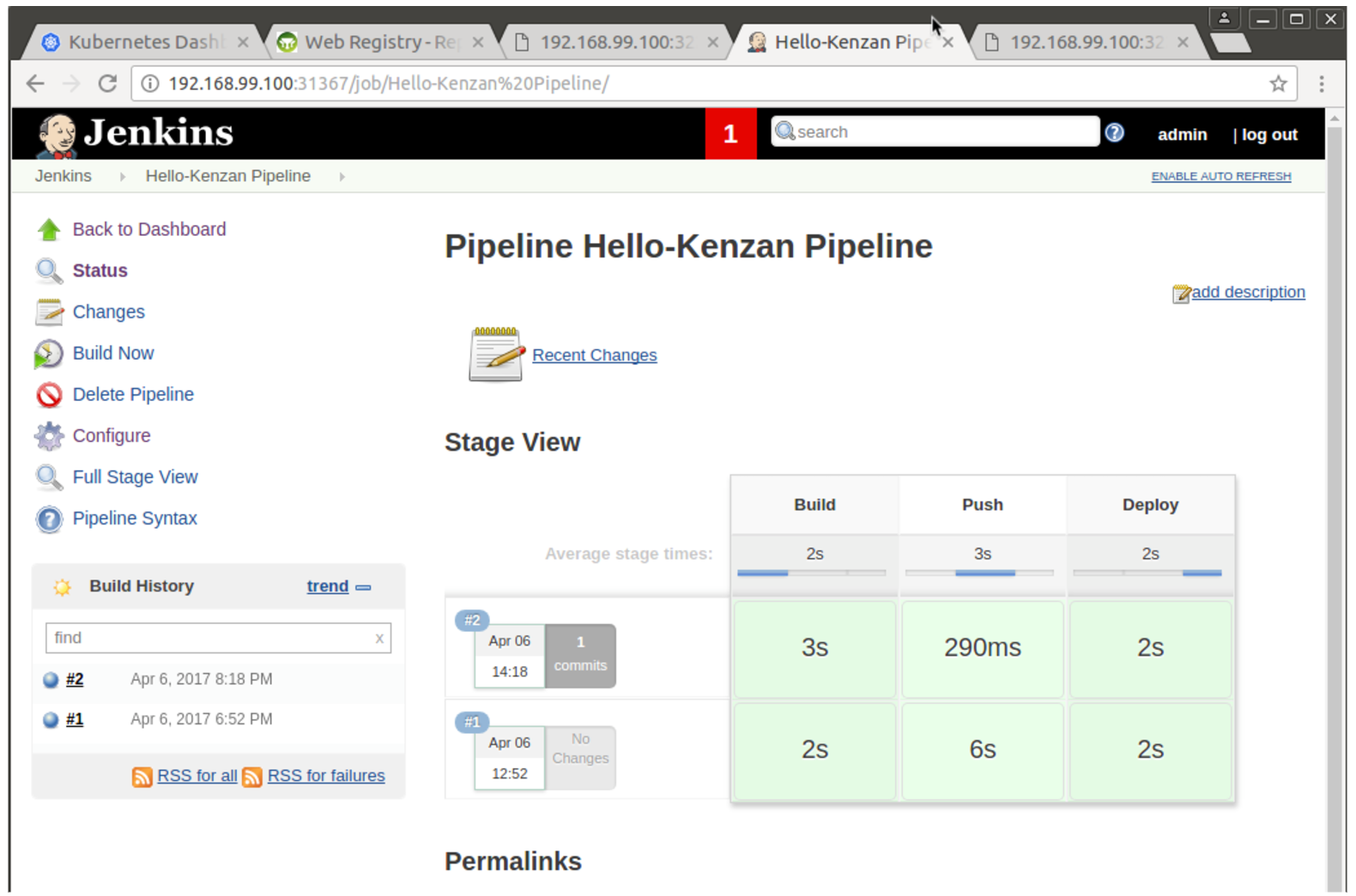
Click Save. On the left, click Build Now to run the new pipeline. You should see it run through the build, push, and deploy steps in a few seconds.

b4KTpFJ4vnNdFbTKcMxn7Yy3aFr8UTlmQBuVK6YB

16. After all pipeline stages are colored green as complete, view the Hello-Kenzan application.

minikube service hello-kenzan

You might notice that you’re not seeing the uncommitted change you previously made to index.html in Part 1. That’s because Jenkins wasn’t using your local code. Instead, Jenkins pulled the code from your forked repo on GitHub, used that code to build the image, push it, and then deploy it.

Pushing Code Changes Through the Pipeline

Now let’s see some Continuous Integration in action! try changing the index.html in our Hello-Kenzan app, then building again to verify that the Jenkins build process works.

a. Open applications/hello-kenzan/index.html in a text editor.

nano applications/hello-kenzan/index.html

b. Add the following html at the end of the file (or any other html you like). (Tip: You can right-click in nano and choose Paste.)

<p style="font-family:sans-serif">For more from Kenzan, check out our 
<a href="http://kenzan.io">website</a>.</p>

c. Press Ctrl+X to close the file, type Y to confirm the filename, and press Enter to write the changes to the file.

d. Commit the changed file to your Git repo (you may need to enter your GitHub credentials):

git commit -am "Added message to index.html"

git push

In the Jenkins UI, click Build Now to run the build again.

Jc8EnFCovLr3FfxWQxfuaeqX4VDJCHaq-mxvBIeC

18. View the updated Hello-Kenzan application. You should see the message you added to index.html. (If you don’t, hold down Shift and refresh your browser to force it to reload.)

minikube service hello-kenzan

ZyyeJWIXiqbBXfNd9MwG25_9Ewb8YmrKFTI-4zUz

And that’s it! You’ve successfully used your pipeline to automatically pull the latest code from your Git repository, build and push a container image to your cluster, and then deploy it in a pod. And you did it all with one click—that’s the power of a CI/CD pipeline.

If you’re done working in Minikube for now, you can go ahead and stop the cluster by entering the following command:

minikube stop

Automated Scripts

If you need to walk through the steps we did again (or do so quickly), we’ve provided npm scripts that will automate running the same commands in a terminal.  

1. To use the automated scripts, you’ll need to install NodeJS and npm.

On Linux, follow the NodeJS installation steps for your distribution. To quickly install NodeJS and npm on Ubuntu 16.04 or higher, use the following terminal commands.

a. curl -sL https://deb.nodesource.com/setup_7.x | sudo -E bash -

b. sudo apt-get install -y nodejs

2. Change directories to the cloned repository and install the interactive tutorial script:

a. cd ~/kubernetes-ci-cd

b. npm install

3. Start the script

npm run part1 (or part2, part3, part4 of the blog series)

​4. Press Enter to proceed running each command.

Up Next

In Parts 3 and 4, we will deploy our Kr8sswordz Puzzle app through a Jenkins CI/CD pipeline. We will demonstrate its use of caching with etcd, as well as scaling the app up with multiple puzzle service instances so that we can try running a load test. All of this will be shown in the UI of the app itself so that we can visualize these pieces in action.

Curious to learn more about Kubernetes? Enroll in Introduction to Kubernetes, a FREE training course from The Linux Foundation, hosted on edX.org.

This article was revised and updated by David Zuluaga, a front end developer at Kenzan. He was born and raised in Colombia, where he studied his BE in Systems Engineering. After moving to the United States, he studied received his master’s degree in computer science at Maharishi University of Management. David has been working at Kenzan for four years, dynamically moving throughout a wide range of areas of technology, from front-end and back-end development to platform and cloud computing. David’s also helped design and deliver training sessions on Microservices for multiple client teams.


5 Things Your Team Should Do to Make Pull Requests Less Painful

In this article we’ll go over some best practices that help ensure good pull requests. Writing good pull requests and having an effective workflow will increase a team’s productivity and minimize frustration. Although a pull request is traditionally considered the final point in the developer workflow, these best practices span the entire development process. We’ll focus on the key points that affect the quality of a pull request.

We’ll cover the importance of good user stories, code testing, code readability, writing good revision control commits, and finally, writing good pull request descriptions.

The importance of good pull requests

Having a culture of writing good pull requests within a team can make a big difference in productivity. If pull requests are small, frequent, and easy to review and test, they will result in pull requests being opened and merged quickly.

Read more at ButterCMS

4 Useful Tools to Run Commands on Multiple Linux Servers

In this article, we will show how to run commands on multiple Linux servers at the same time. We will explain how to use some of the widely known tools designed to execute repetitive series of commands on multiple servers simultaneously. This guide is useful for system administrators who usually have to check the health of multiple Linux servers everyday.

For the purpose of this article, we assume that you already have SSH setup to access all your servers and secondly, when accessing multiple servers simultaneously, it is appropriate to set up key-based password-less SSH on all of your Linux servers. This above all enhances server security and also enables ease of access.

1. PSSH – Parallel SSH

Parallel-SSH is an open source, fast and easy-to-use command line based Python toolkit for executing ssh in parallel on a number of Linux systems. It contains a number of tools for various purposes such as parallel-sshparallel-scpparallel-rsyncparallel-slurp and parallel-nuke (read the man page of a particular tool for more information).

Read more at Tecmint