Home Blog Page 328

Is the Linux 4.18 Kernel Heading Your Way?

How soon the 4.18 kernel lands on your system or network depends a lot on which Linux distributions you use. It may be heading your way or you may already be using it.

If you have ever wondered whether the same kernel is used in all Linux distributions, the answer is that all Linux distributions use the same kernel more or less, but there are several big considerations that make that “more or less” quite significant:

  1. Most distributions add or remove code to make the kernel work best for them. Some of these changes might eventually work their way back to the top of the code heap where they will be merged into the mainstream, but they’ll make the distribution’s kernel unique — at least for a while.

Read more at Network World

11.5 Factor Apps

Each time someone talks about the 12 Factor Application a weird feeling overcomes me .. Because I like the concept .. but it feels awkward .. it feels as if someone with 0 operational experience wrote it. And this devil is in a really small detail.

And that is Part III. Config … For me (and a lot of other folks I’ve talked to about this topic) , using environment variables (as in real environment variables) are just one of the worst ideas ever. Environment variables are typically set manually , or from a script that is being executed and there’s little or trace to see fast how a specific config is set.

Imagine I launch an app with an env variable X=foo , then your collegue stops that app, and launches it with X=bar. The systems integrity has not changed, no config or binaries have been changed, but the application behaviour could have completely changed.

Sure I can go in to /proc/pid/environ to find the params it was launched with … But I want to know what state the system is supposed to be in .. and have tooling around that verified that the system indeed is in that state.

Read more at Kris Buytaert’s blog

Linux for Beginners: Moving Things Around

In previous installments of this series, you learned about directories and how permissions to access directories work. Most of what you learned in those articles can be applied to files, except how to make a file executable.

So let’s deal with that before moving on.

No .exe Needed

In other operating systems, the nature of a file is often determined by its extension. If a file has a .jpg extension, the OS guesses it is an image; if it ends in .wav, it is an audio file; and if it has an .exe tacked onto the end of the file name, it is a program you can execute.

This leads to serious problems, like trojans posing as documents. Fortunately, that is not how things work in Linux. Sure, you may see occasional executable file endings in .sh that indicate they are runnable shell scripts, but this is mostly for the benefit of humans eyeballing files, the same way when you use ls --color, the names of executable files show up in bright green.

The fact is most applications have no extension at all. What determines whether a file is really program is the x (for executable) bit. You can make any file executable by running

chmod a+x some_program

regardless of its extension or lack thereof. The x in the command above sets the x bit and the a says you are setting it for all users. You could also set it only for the group of users that own the file (g+x), or for only one user, the owner (u+x).

Although we will be covering creating and running scripts from the command line later in this series, know that you can run a program by writing the path to it and then tacking on the name of the program on the end:

path/to/directory/some_program

Or, if you are currently in the same directory, you can use:

./some_program

There are other ways of making your program available from anywhere in the directory tree (hint: look up the $PATH environment variable), but you will be reading about those when we talk about shell scripting.

Copying, Moving, Linking

Obviously, there are more ways of modifying and handling files from the command line than just playing around with their permissions. Most applications will create a new file if you still try to open a file that doesn’t exist. Both

nano test.txt

and

vim test.txt

(nano and vim being to popular command line text editors) will create an empty test.txt file for you to edit if test.txt didn’t exist beforehand.

You can also create an empty file by touching it:

touch test.txt

Will create a file, but not open it in any application.

You can use cp to make a copy of a file in another location or under a new name:

cp test.txt copy_of_test.txt

You can also copy a whole bunch of files:

cp *.png /home/images

The instruction above copies all the PNG files in the current directory into an images/ directory hanging off of your home directory. The images/ directory has to exist before you try this, or cp will show an error. Also, be warned that, if you copy a file to a directory that contains another file with the same name, cp will silently overwrite the old file with the new one.

You can use

cp -i *.png /home/images

If you want cp to warn you of any dangers (the -i options stands for interactive).

You can also copy whole directories, but you need the -r option for that:

cp -rv directory_a/ directory_b

The -r option stands for recursive, meaning that cp will drill down into directory_a, copying over all the files and subdirectories contained within. I personally like to include the -v option, as it makes cp verbose, meaning that it will show you what it is doing instead of just copying silently and then exiting.

The mv command moves stuff. That is, it changes files from one location to another. In its simplest form, mv looks a lot like cp:

mv test.txt new_test.txt

The command above makes new_test.txt appear and test.txt disappear.

mv *.png /home/images

Moves all the PNG files in the current directory to a directory called images/ hanging of your home directory. Again you have to be careful you do not overwrite existing files by accident. Use

mv -i *.png /home/images

the same way you would with cp if you want to be on the safe side.

Apart from moving versus copying, another difference between mv and cpis when you move a directory:

mv directory_a/ directory_b

No need for a recursive flag here. This is because what you are really doing is renaming the directory, the same way in the first example, you were renaming the file*. In fact, even when you “move” a file from one directory to another, as long as both directories are on the same storage device and partition, you are renaming the file.

You can do an experiment to prove it. time is a tool that lets you measure how long a command takes to execute. Look for a hefty file, something that weighs several hundred MBs or even some GBs (say, something like a long video) and try copying it from one directory to another like this:

$ time cp hefty_file.mkv another_directory/
real    0m3,868s 
user    0m0,016s 
sys     0m0,887s

In bold is what you have to type into the terminal and below what time outputs. The number to focus on is the one on the first line, real time. It takes nearly 4 seconds to copy the 355 MBs of hefty_file.mkv to another_directory/.

Now let’s try moving it:

$ time mv hefty_file.mkv another_directory/
real    0m0,004s
user    0m0,000s 
sys     0m0,003s

Moving is nearly instantaneous! This is counterintuitive, since it would seem that mv would have to copy the file and then delete the original. That is two things mv has to do versus cp‘s one. But, somehow, mv is 1000 times faster.

That is because the file system’s structure, with all its tree of directories, only exists for the users convenience. At the beginning of each partition there is something called a partition table that tells the operating system where to find each file on the actual physical disk. On the disk, data is not split up into directories or even files. There are tracks, sectors and clusters instead. When you “move” a file within the same partition, what the operating system does is just change the entry for that file in the partition table, but it still points to the same cluster of information on the disk.

Yes! Moving is a lie! At least within the same partition that is. If you try and move a file to a different partition or a different device, mv is still fast, but is noticeably slower than moving stuff around within the same partition. That is because this time there is actually copying and erasing of data going on.

Renaming

There are several distinct command line rename utilities around. None are fixtures like cp or mv and they can work in slightly different ways. What they all have in common is that they are used to change parts of the names of files.

In Debian and Ubuntu, the default rename utility uses regular expressions (patterns of strings of characters) to mass change files in a directory. The instruction:

rename 's/.JPEG$/.jpg/' *

will change all the extensions of files with the extension JPEG to jpg. The file IMG001.JPEG becomes IMG001.jpg, my_pic.JPEG becomes my_pic.jpg, and so on.

Another version of rename available by default in Manjaro, a derivative of Arch, is much simpler, but arguably less powerful:

rename .JPEG .jpg *

This does the same renaming as you saw above. In this version, .JPEG is the string of characters you want to change, .jpg is what you want to change it to, and * represents all the files in the current directory.

The bottom line is that you are better off using mv if all you want to do is rename one file or directory, and that’s because mv is realiably the same in all distributions everywhere.

Learning more

Check out the both mv and cp‘s man pages to learn more. Run

man cp

or

man mv

to read about all the options these commands come with and which make them more powerful and safer to use.

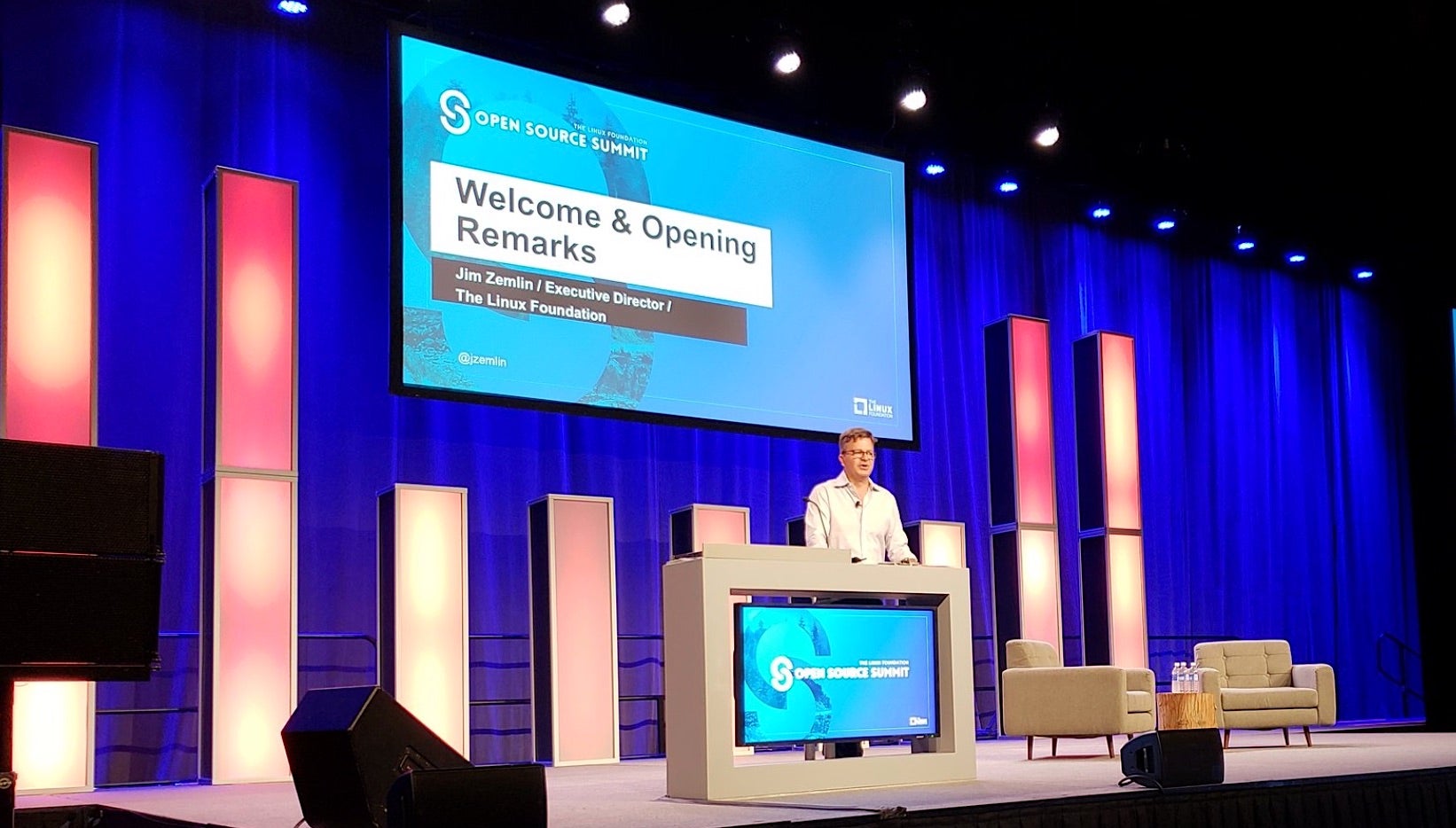
Opening Doors to Collaboration with Open Source Projects

One of the biggest benefits of open source is the ability to collaborate and partner with others on projects. Another is being able to package and share resources, something Michelle Noorali has done using Kubernetes. In a presentation called “Open Source Opening Doors,” Noorali, a senior software engineer at Microsoft, told an audience at the recent LC3 conference in China about her work on the Azure containers team building open source tools for Kubernetes and containers.

Her team needed a way to reliably scale several containerized applications and found Kubernetes to be a good solution and the open source community to be very welcoming, she said.

“In the process of deploying a lot of microservices to Kubernetes we found that we wanted some additional tooling to make it easier to share and configure applications to run in our cluster,’’ she explained. “You can deploy and scale your containerized apps by giving Kubernetes some declaration of what you want it to do in the form of a Kubernetes manifest.” However, in reality, she added, to deploy one app to a cluster you may have to write several Kubernetes manifests that utilize many resources hundreds of lines long.

Read more at The Linux Foundation

What I Wish I Knew When I First Started Speaking Internationally

Everyone has a different process and traveling habits, but here are some things I’ve learned the hard way over the seven years I’ve spoken abroad.

Tailor your talk according to your audience

I gave one of my first serious international talks in London, when I still worked at Esri. I was used to competing for attention with busy audiences on phones and laptops; I would consider a talk successful if I got just a few people to look up from their screens. I tried the same thing in the UK. I peppered the talk with short jokes and asides. Afterwards, I was pulled aside by one of the attendees: “Your talk was too flashy,” he told me, “and you spoke way too quickly. We’re not here to be distracted by phones and work like a lot of Americans. We’re here to learn and take notes.” Embarrassed, I quickly changed my slides and tried to provide an informative, in-depth presentation for the next speech. He was right. The audience took notes, and they asked many more questions at the end…

Too many speakers start by saying, “We have a lot of material to cover, so let’s get started,” before delivering a talk a messy talk that is unmemorable, unstructured and far too long. To have so much material means you have not condensed your ideas, or made them clear.

People remember better when there is less material .If I’m given a 45 minute time slot, I try to finish in 35 minutes. Sometimes a shorter speech can help the conference get back on schedule when time is running low. You can watch the tension fall away when you give people more time to think.

Read more from Amber Case at Medium

Steam For Linux Adds 1000 Perfectly Playable Windows Games In Under A Week

Six days ago there were less than 5000 games available to install and play on Steam for Linux. Following Valve’s incredible Steam Play update, which adds streamlined compatibility layers for Windows-only games, that number is potentially much, much higher. Granted, not everything works out of the gate as there’s a daunting amount of work and optimization remaining. But one fact stands tall: In less than a week the number of perfectly playable games on Steam for Linux increased by nearly 1000 titles.

Read more at Forbes

10 Virtualization Mistakes Everyone Makes

Virtualization can give anyone a headache if it’s not properly set up and thought through. Here are the top 10 mistakes and how to prevent them.

Although we often discuss virtualization as a new thing, the need for the technology is almost as old as computing itself, dating back to the 1960s. Making one system work on another system likely will always be a requirement in our industry. Virtualization is used on client PCs, servers, and clouds as well as in seemingly unrelated technologies such as gaming emulation, which is, in essence, just another form of virtualization.

On one front, virtualization makes your life easier. Yet the Matryoshka doll principle of having something sit inside another thing (and maybe sit inside yet another thing, as with nested virtualization) makes some computing tasks more complex. Complexity always means an increased potential for errors, both in practical terms and mistakes at the conceptual level. Let’s identify the common mistakes and how to avoid them. (My examples primarily use Windows but are equally applicable to virtualization on Linux.)

No. 1. Overprovisioning virtual CPUs

You just gleefully unboxed your shiny new 32-core server rack equipped with near-infinite amounts of RAM.

Read more at HPE

Netflix Cloud Security SIRT Releases Diffy: A Differencing Engine for Digital Forensics in the Cloud

The Netflix Security Intelligence and Response Team (SIRT) announces the release of Diffy under an Apache 2.0 license. Diffy is a triage tool to help digital forensics and incident response (DFIR) teams quickly identify compromised hosts on which to focus their response, during a security incident on cloud architectures.

Features

  • * Efficiently highlights outliers in security-relevant instance behavior. For example, you can use Diffy to tell you which of your instances are listening on an unexpected port, are running an unusual process, include a strange crontab entry, or have inserted a surprising kernel module.
  • * Uses one, or both, of two methods to highlight differences: 1) Collection of a “functional baseline” from a “clean” running instance, against which your instance group is compared, and 2) a “clustering” method, in which all instances are surveyed, and outliers are made obvious.
  • * Uses a modular plugin-based architecture. We currently include plugins for collection using osquery via AWS EC2 Systems Manager (formerly known as Simple Systems Manager or SSM).
  •  

Read more at Medium

DuZeru OS: As Easy as It Gets

There are seemingly countless Linux distributions on the market, each one hoping to carve out its own little niche and enjoy a growing user base. Some of those distributions have some pretty nifty tricks up their sleeves, while others are gorgeous works of art on the desktop. Still, others go to great lengths to simply be a desktop distribution capable of making Linux a simple experience, with a hint of elegance.

It’s that latter form in which DuZeru OS lives. This take on Linux is developed in Brazil and is based on the Debian stable branch. The default desktop (out of the box) is xfce 4.12.1, which helps to make DuZeru a serious contender in the lightweight Linux distribution arena.
You won’t find much information about DuZeru OS, because it’s relatively new. Nor will you find much in the way of documentation. Fortunately, that’s okay, as DuZeru OS is as straightforward a Linux distribution as you will find. The added bonus is that the developers have created a desktop that is incredibly easy on the eyes and just as easy on the mind. It’s not a challenge to install or to use. It just is.

That, in and of itself, makes reviewing such a distribution a challenge, as it doesn’t really go too far out of its way to differentiate itself from others. However, that also makes it a great contender for the average user.

Why?

Simple: Users prefer the familiar. Instead of looking to a desktop operating system which will challenge their knowledge of how their daily workflow should be, they want to hop on board and instantly know how to work. That’s where DuZeru OS shines. It’s familiar. It’s simple. Anyone could sit down with this desktop and immediately know how it works.

Let me give you a quick tour.

Installation

We’ve reached the point where the installation of most Linux distributions has become as easy as installing an app. DuZeru OS is no exception. The installation is handled in eight screens:

  1. Welcome — greetings from the developers.

  2. Location — choose your location.

  3. Keyboard — select your desired keyboard.

  4. Partitions (Figure 1) — partition your device.

  5. Users — create a user account.

  6. Summary — view the installation summary and OK the install.

  7. Install — view the installation as it occurs.

  8. Finish — you’re done. Reboot.

Figure 1: The installation of DuZeru OS is quite user-friendly.

Once installed, reboot the machine and you’ll be greeted by the DuZeru OS login (Figure 2).

Figure 2: The DuZeru OS login screen.

One really nice touch added to the login screen is the ability to configure it. Click on the menu button in the upper right corner to reveal a sidebar that allows you to set a few options for the login screen (Figure 3).

Figure 3: Configuring the DuZeru OS login screen.

The Desktop

Once you login, you’ll be greeted by a window that includes three helpful tabs (Figure 4):

  • ABOUT — An introduction to DuZeru OS.

  • TIPS — A few handy tips regarding installation, kernel installation (more on this in a bit), customizing the appearance, system settings, and system information.

  • CONTACT — How to contact the developers.

Figure 4: The handy Welcome screen includes plenty of information to get you started.

Click on the desktop menu button and you’ll find a bare minimum of applications. In fact, your first reaction will probably be that DuZeru OS is seriously lacking in default apps. You’ll find:

  • Application finder

  • Archive Manager

  • Calculator

  • Document Viewer

  • DuZeru Kernel Installer

  • FIle Manager

  • GDebi Package Installer

  • Google Chrome

  • ImageMagick

  • Log Out

  • PulseAudio Volume Control

  • Ristretto Image Viewer

  • Run Program

  • Screenshot

  • Slingscold (GNOME Dash-like application launcher)

  • Software Manager

  • Stacer

  • System Monitor

  • Terminal

  • Text Editor

  • VLC media player

  • Welcome

And that’s it.

Fortunately, DuZeru OS includes a Software Manager that should be instantly familiar to anyone. Open the tool (Figure 5), search for the software you want, and install.

Figure 5: The DuZeru Software Manager is incredibly easy to use.

Kernel Installer

This is the one area where DuZeru OS ventures away from the average user. From the desktop menu, type kernel and then click on DuZeru Kernel Install. After typing your administrative password, you will be greeted with a window explaining the different types of kernels you can download and install (Figure 6).

Figure 6: The DuZeru Kernel Installer welcome screen.

Click on the button in the bottom-right corner and you’ll see a new window (Figure 7), which allows you to select from the available kernel types (such as GENERIC and LOW LATENCY) and then install the version of that kernel type you want.

Figure 7: Installing a new kernel on DuZeru OS is quite easy.

Click the slider for the kernel you want, OK the installation, and wait for the installation to complete. When the process finishes, reboot and select the newly installed kernel.

Control Center

Open the desktop menu and click on the gear icon directly to the right of the search bar. This will open up the DuZeru Control Center, where you can configure every aspect of the operating system and even get a quick glance at system information (Figure 8).

Figure 8: The DuZeru Control Center.

From both the desktop menu and the Control Center, you can start the Stacer application. Stacer is an amazing tool that allows you to optimize your system in numerous ways (which further expands the capability of the Control Center). Within Stacer (Figure 9), you can:

  • Get a glimpse of system information

  • Manage startup applications

  • Run a system cleaner

  • Configure/manage services

  • Manage processes

  • Uninstall packages

  • View system resource usage

  • Manage apt repositories

  • Configure Stacer

Figure 9: The Stacer system optimizer.

Solid and simple Linux

DuZeru isn’t going to blow your mind it’s not that kind of distribution. What it does do is prove that simplicity on the desktop can go a long, long way to winning over new users. So if you’re looking for a solid and simple Linux distribution, that’s perfectly suited for new users, you should certainly consider this flavor of Linux.

Learn more about Linux through the free “Introduction to Linux” course from The Linux Foundation and edX.

Agenda Live for Open FinTech Forum: AI, Blockchain & Kubernetes on Wall Street

The Schedule is Now Live for Open FinTech Forum!

Join 500+ CIOs, senior technologists, and IT decision makers at Open FinTech Forum to learn the best strategies for building internal open source programs and how to leverage cutting-edge open source technologies for the financial services industry, including AI, Blockchain, Kubernetes, Cloud Native and more, to drive efficiencies and flexibility.

Featured Sessions Include:

  • Build Intelligent Applications with Azure Cognitive Service and CNTK – Bhakthi Liyanage, Bank of America
  • Smart Money Bets on Open Source Adoption in AI/ML Fintech Applications – Laila Paszti, GTC Law Group P.C.
  • Adapting Kubernetes for Machine Learning Workflows – Ania Musial & Keith Laban, Bloomberg
  • Real-World Kubernetes Use Cases in Financial Services: Lessons learned from Capital One, BlackRock and Bloomberg – Jeffrey Odom, Capital One; Michael Francis, BlackRock; Kevin Fleming, Bloomberg; Paris Pittman, Google; and Ron Miller, TechCrunch

Read more at The Linux Foundation