Home Blog Page 508

Multi-Server Samba Installation to Protect Your Network Against Outages and Network Attacks

The recent outages of AWS and the attacks on the DNS network have shown the need of distributing critical infrastructures across multiple cloud providers. This distribution is particularly important for centralized authentication services, which provide users and permissions for various services and organizational offices. Building on the last tutorial, that talked about connecting clients to cloud-based Samba 4 domain controllers, this article will explain how to extend the network by an additional Samba 4 based site server. I will lead you through the step by step process and explain the best practices of running a multi-server installation.

This guide can also be used to connect two on-premises Samba 4 installation or an on-premises installation with a cloud-based one, for example, Univention Corporate Server on Amazon.

Using a multi-server setup protects the network from the failure of a single data center and allows a continued operation even if a single server is unavailable. At the same time, using locations that are, from a network perspective, closer to your workstations, can speed up the login process and enable a more efficient usage of time.

At the same time, an incorrect setup can at best slow down the network. At the worst, it might not replicate the data correctly, and thus an outage of one server might cause an interruption of all systems.


Prerequisites

Server 1

This guide assumes that the first Samba 4 domain controller is already running without any issue.

Univention Corporate Server (UCS) provides a powerful, yet easy to use identity management solution that includes a preconfigured Samba 4. UCS’ unified user and rights management solution is based upon a domain concept that will allow you to skip some steps within this guide. If you are using this guide for a UCS-based system, the server 1 should be a UCS master or backup.

If you are planning on using a Debian or Ubuntu based system, the Samba Wiki has an excellent Getting Started Guide with all the steps needed to get the domain provisioned. The server or virtual machine will need to use a fixed IP for this guide to work flawlessly.

Server 2

We will also assume that you have set up the second server at the target location. If using UCS, it will be considerably easier to finish the installation once the VPN connection has been established. Also disable the automatic join, as we want to change some site settings.

If you are using Debian or Ubuntu, please install Samba4 from the package management system

$ sudo apt-get install samba


VPN Endpoints

For simplicity and security, this guide assumes that the VPN is running on two dedicated servers, thus reducing the load on the domain controllers. It, however, is possible to run OpenVPN on the domain controllers.

VPN Connection

Samba uses multiple ports and protocols to connect two or more servers, including LDAP, Kerberos, and DNS. Using a VPN allows reducing the number of ports and protocols exposed to the Internet to two, thus making securing the connection considerably easier. As previously, we will use OpenVPN to connect the two systems.

If not installed already, you can install it with the following command:

$ sudo apt-get install openvpn

Considering that in most cases port 1194 is used for client-server connections, this example will use 1195 for the connection, which consequently needs to be opened in the firewall.

On UCS based systems the configuration registry can be used to open the port

$ sudo ucr set security/packetfilter/udp/1195/all=ACCEPT
$ sudo service univention-firewall restart

On Debian and Ubuntu, you can manually add the port to your IP tables configuration

$ sudo iptables -A INPUT -p "udp"  --dport 1195 -j ACCEPT


Configuration

First, a secret key is needed to connect the two sites. OpenVPN can create it for you using the command 

$ sudo openvpn --genkey --secret /etc/openvpn/static.key

Both sides will need nearly identical configuration files saved in /etc/openvpn

## Topology and protocol settings
dev tun
proto udp
management /var/run/management-udp unix

## the shared secret for the connection
secret /etc/openvpn/static.key

## Encryption Cypher to use for the VPN
cipher AES-256-CBC

## Compression algorithm to use
comp-lzo

## The port on which the VPN Server should listen on
port 1195

## The address used internally by OpenVPN
ifconfig 10.255.255.10 10.255.255.11

## Route traffic to remote network
## The network should be the one, used by the remote server
route 10.200.10.0 255.255.255.0

## Additional server configuration
keepalive 10 120
persist-key
persist-tun

## Configure the logfile and the verbosity
verb 1  
mute 5
status /var/log/openvpn-status.log

For the second server, the route has to match the respectively other network and the addresses in ifconfig statement have to be switched. Additionally, the keyword remote has to be used to denote the endpoint. The full resulting config file thus looks like this:

## Topology and protocol settings
dev tun
proto udp
management /var/run/management-udp unix

## the shared secret for the connection
secret /etc/openvpn/static.key

## Encryption Cypher to use for the VPN
cipher AES-256-CBC

## Compression algorithm to use
comp-lzo

## The external DNS name or IP of the other VPN
remote vpnserver.univention.com 1195

## The address used internally by OpenVPN
ifconfig 10.255.255.11 10.255.255.10

## Route traffic to remote network
## The network should be the one, used by the remote server
route 10.200.10.0 255.255.255.0

## Additional server configuration
keepalive 10 120
persist-key
persist-tun

## Configure the logfile and the verbosity
verb 1  
mute 5
status /var/log/openvpn-status.log


Completing the Connection

Once the static key and configuration are copied to the correct location, establish the VPN connection by restarting VPN on both systems.

$ sudo service openvpn restart


Changes to Server 1

Once the VPN is established, it is time to join the second server to the domain. For this, some small changes are needed on the first server.

First, server one should use server two as the backup name server. In this case, even when there is an issue with DNS on the first server, the domain should still function correctly.

To set the name resolution on UCS execute

$ sudo ucr set nameserver2=10.200.10.11

On Debian/Ubuntu add the following line to /etc/resolve.conf

nameserver  10.200.10.11


Server 2 Join

Preparations

Similar to the server 1, server 2 should also use the other system as DNS fallback.

Again on UCS execute the following with the proper IP:

$ sudo ucr set nameserver2=10.210.237.171

On Debian/Ubuntu add the following line to /etc/resolve.conf:

nameserver  10.210.237.171

You also need to ensure that the NTP is getting the time from server 1 to guarantee that both systems have a synchronized clock.

On UCS, using the right IP, run:

$ sudo ucr set timeserver=10.210.237.171

On Debian/Ubuntu edit /etc/ntp.conf and add:

server 10.210.237.171

On a Debian or Ubuntu system, you will need to configure Kerberos before trying to join the domain. Overwrite /etc/krb5.conf with the following settings, changing the default_realm as needed:

[libdefaults]
    dns_lookup_realm = false
    dns_lookup_kdc = true
    default_realm = KORTE.UNIVENTION.COM

You can test the settings by running:

$ kinit administrator


Domain Join

Once all the previous steps have been taken, it is time to join the Samba domain, including setting a new AD-site. Sites give a preference for a certain client to prefer a particular DC or group of DCs. If no site is configured, the server will join the default site.

To define the site on UCS run:

ucr set samba4/join/site=my_secondsite

replacing my_secondsite with the actual name of your site

The last step is to execute the Univention join.

$ sudo univention-join

On Debian/Ubuntu Systems, you will need to issue the following command to join the server to a site:

$ sudo  samba-tool domain join kevin.univention.com DC -U"kevinadministrator" --dns-backend=SAMBA_INTERNAL --site=secondsite


Additional Considerations on Debian/Ubuntu

If you are using UCS, please skip this section. The UCS domain join takes care of the following two tasks.

Verify the DNS Records

Some versions of Samba 4 do not create all needed DNS records when joining a second DC. Thus you need to verify that the host record and objectGUID record have been created.

First, verify the host record with the following command on server 1:

$ host -t A server2.$(hostname -d)

Replace backup with the actual name of your server.

If you do not get a result, you can create the entry on server 1 with the following command:

$ sudo samba-tool dns add server1 $(hostname -d) server2 A 10.200.10.11
-Uadministrator

Then determine the objectGUID using the Samba database:

$ sudo ldbsearch -H /var/lib/samba/private/sam.ldb '(invocationId=*)' --cross-ncs objectguid

Results will look similar to this:

# record 1
dn: CN=NTDS Settings,CN=SERVER2,CN=Servers,CN=second,CN=Sites,CN=Configuration,DC=kevin,DC=univention,DC=com
objectGUID: 1b6f180e-5bc2-471f-a029-8c078e58c656

# record 2
dn: CN=NTDS Settings,CN=SERVER1,CN=Servers,CN=Default-First-Site-Name,CN=Sites,CN=Configuration,DC=kevin,DC=univention,DC=com
objectGUID: d7e12d36-2588-4d2c-b51c-3c762eab046b

# returned 2 records
# 2 entries
# 0 referrals

Select the entry where the DN contains the name of your server and us the objectGUID in the following command:

$ host -t CNAME 1b6f180e-5bc2-471f-a029-8c078e58c656
._msdcs.$(hostname -d)

If not found, you can add it with the following command:

$ sudo samba-tool dns add server1 _msdcs.$(hostname -d) 1b6f180e-5bc2-471f-a029-8c078e58c656 CNAME server2.$(hostname -d) -Uadministrator

Please remember to replace the server names and objectGUID in all of these commands whenever appropriate.

Sysvol Synchronization

Lastly, the group policies need to be synchronized. This job can be done in many different ways. From using a simple cron job to sophisticated multi-server synchronization. The samba wiki has an overview over the different approaches.

Conclusion

Setting up multi-location server systems can be a daunting task that requires some consideration and planning. However, the result of having a more robust and faster network is often enough to justify placing domain controllers off-site or in the cloud. Additionally, an additional cloud component in your identity management solution, no matter whether a second cloud DC or your first one, can often serve as the point to connect third-party services in a resilient manner.

The right tools, such as UCS, can accelerate many of the more complex tasks of setting up a multi-server domain. A professional and integrated domain ensures compliant and fail-safe authentication and policy services across locations and clouds, such as AWS.
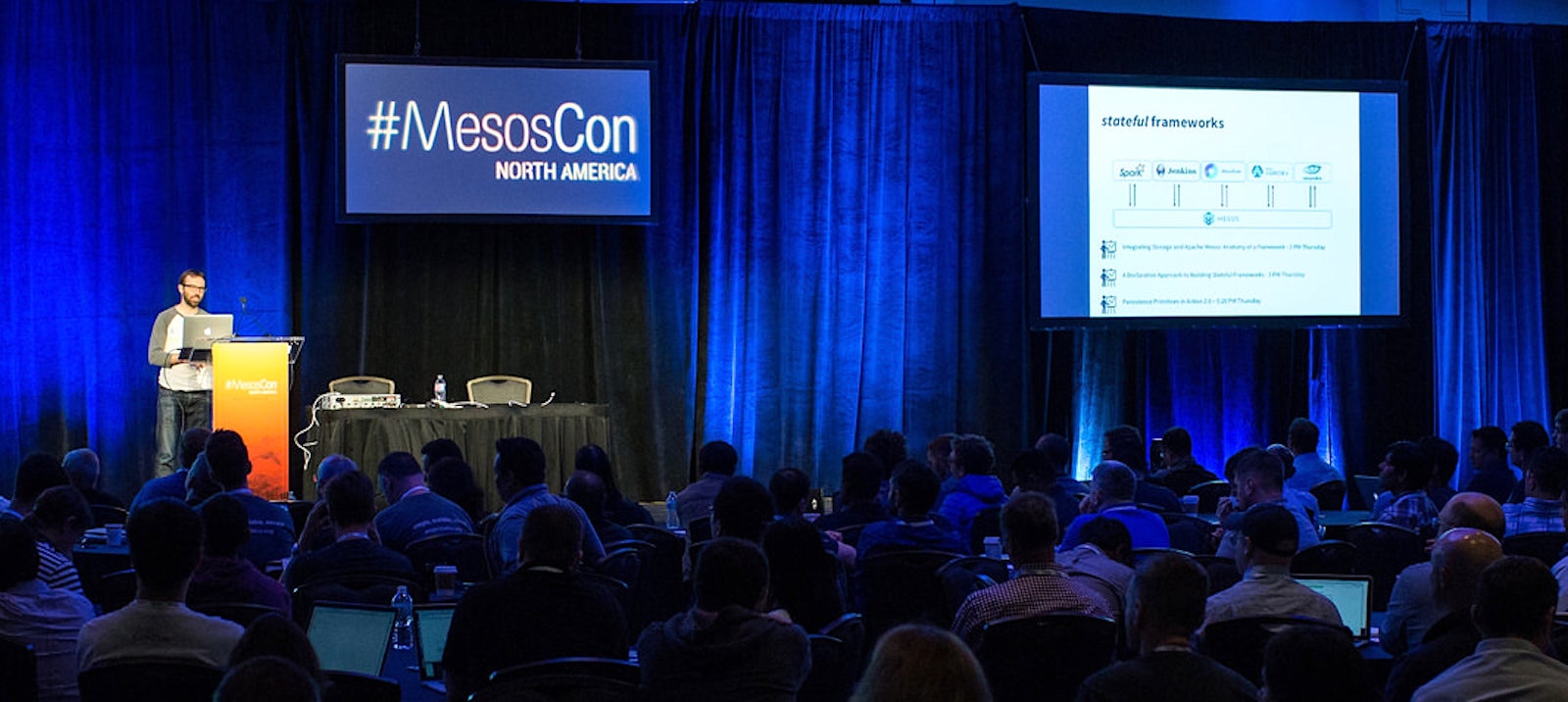

Industry Experts from Yelp, IBM, Netflix, and More Will Speak at MesosCon in Los Angeles

Conference highlights for MesosCon North America — taking place Sept. 13-15 in Los Angeles, CA — include real-world experiences and insight from companies deploying Mesos in the datacenter.

This annual conference brings together users and developers to share and learn about the Mesos project and its growing ecosystem. The conference features two days of sessions focused on the Apache Mesos Core and related technologies, as well as a one-day hackathon.  

Session highlights include:

  • How Yelp.com Runs on Mesos in AWS Spot Fleet for Fun and Profit, Kyle Anderson, Yelp

  • Distributed Deep Learning on Mesos with GPUs and Gang Scheduling, Min Cai and Alex Sergeev, Uber

  • DataStax Enterprise on DC/OS – Yes, it’s Possible; Customer Case Studies, Kathryn Erickson and Ravi Yadav, DataStax

  • Introduction to Multi-tenancy in Mesos, Jay Guo, IBM

  • Real time event processing and handling stateful applications on Mesos, Balajee Nagarajan and Venkatesh Sivasubramanian, GE Digital

  • OpenWhisk as a Mesos Framework, Tyson Norris, Adobe

  • Practical container scheduling: juggling optimizations, guarantees, and trade-offs at Netflix, Sharma Podila, Netflix

  • Fault tolerant frameworks – making use of CNI without docker, Aaron Wood, Verizon

You can view the full schedule of sessions and activities and save $200 when you register by July 25. Register Now!

Remote Sessions Over IPv6 with SSH, SCP, and Rsync

Our familiar old file-copying friends SSH, SCP, and Rsync are all IPv6-ready, which is the good news. The bad news is they have syntax quirks which you must learn to make them work. Before we get into the details, though, you might want to review the previous installments in our meandering IPv6 series:

SSH and SCP

Like all good Linux admins, you know and use SSH and SCP. Both have some differences and quirks for IPv6 networks. These quirks are in the remote addresses, so once you figure those out, you can script SSH and SCP just like you’re used to, and use public key authentication.

By default, the sshd daemon listens for both IPv4 and IPv6 protocols. You can see this with netstat:

$ sudo netstat -pant|grep sshd
tcp   0  0 0.0.0.0:22  0.0.0.0:*  LISTEN   1228/sshd       
tcp6  0  0 :::22       :::*       LISTEN   1228/sshd

You may disable either one with the AddressFamily setting in sshd_config. This example disable IPv6:

AddressFamily inet

The default is any. inet6 means IPv6 only.

On the client side, logging in over IPv6 networks is the same as IPv4, except you use IPv6 addresses. This example uses a global unicast address in the private LAN address range:

$ ssh carla@2001:db8::2

Just like IPv4, you can log in, run a command, and exit all at once. This example runs a script to back up my files on the remote machine:

$ ssh carla@2001:db8::2 backup

You can also streamline remote root logins. Wise admins disable root logins over SSH, so you have to log in as an unprivileged user and then change to a root login. This is not so laborious, but we can do it all with a single command:

$ ssh -t  carla@2001:db8::2 "sudo su - root -c 'shutdown -h 120'" 
carla@2001:db8::2's password: 
[sudo] password for carla:

Broadcast message from carla@remote-server
        (/dev/pts/2) at 9:54 ...

The system is going down for halt in 120 minutes!

The shutdown example will stay open until it finished running, so you can change your mind and cancel the shutdown in the usual way, with Ctrl+c.

Another useful SSH trick is to force IPv6 only, which is great for testing:

$ ssh -6 2001:db8::2

You can also force IPv4 with with -4.

You may access hosts on your link local network by using the link local address. This has an undocumented quirk that will drive you batty, except now you know what it is: you must append your network interface name to the remote address with a percent sign.

$ ssh carla@fe80::ea9a:8fff:fe67:190d%eth0

scp is weird. You have to specify the network interface with the percent sign for link local addresses, enclose the address in square braces, and escape the braces:

$ scp filename [fe80::ea9a:8fff:fe67:190d%eth0]:
carla@fe80::ea9a:8fff:fe67:190d's password:
filename

You don’t need the interface name for global unicast addresses, but still need the escaped braces:

$ scp filename [2001:db8::2]:
carla@2001:db8::2's password: 
filename

This example logs into a different user account on the remote host, specifies the remote directory to copy the file into, and changes the filename:

scp filename userfoo@[fe80::ea9a:8fff:fe67:190d%eth0]:/home/userfoo/files/filename_2

Rsync

rsync requires enclosing the remote IPv6 address in various punctuations. Global unicast addresses do not need the interface name:


$ rsync -av /home/carla/files/ 'carla@[2001:db8::2]':/home/carla/stuff
carla@f2001:db8::2's password: 
sending incremental file list

sent 100 bytes  received 12 bytes  13.18 bytes/sec
total size is 6,704  speedup is 59.86

Link local addresses must include the interface name:


$ rsync -av /home/carla/files/ 'carla@[fe80::ea9a:8fff:fe67:190d%eth0]':/home/carla/stuff

As always, remember that the trailing slash on your source directory, for example /home/carla/files/, means that only the contents of the directory are copied. Omitting the trailing slash copies the directory and its contents. Trailing slashes do not matter on your target directory.

Learn more about Linux through the free “Introduction to Linux” course from The Linux Foundation and edX.

​The Ultimate Linux Workstation: The Dell 5720 AIO

Want a cheap Linux desktop? Look elsewhere. But, if you want a kick-rump-and-take-names desktop for serious graphics or development work, you want the Dell 5720 AIO workstation.

This take-no-prisoners workstation starts at $1,699, but the model I looked at costs over $3,200. It’s worth it.

This model came with a Quad Core 3.8Ghz Intel Xeon Processor E3-1275. In a word, it’s fast.

It also comes with 64GB of 2133MHz DDR4 ECC RAM. That’s fast, too. The main memory is backed by a 512GB M.2 PCIe SSD and a pair of 1TB 2.5-inch SATA (7,200 RPM) hard drives. Yes, they’re really fast, too.

Read more at ZDNet

Yandex Open Sources CatBoost, A Gradient Boosting Machine Learning Library

Artificial intelligence is now powering a growing number of computing functions, and today the developer community today is getting another AI boost, courtesy of Yandex. Today, the Russian search giant — which, like its US counterpart Google, has extended into a myriad of other business lines, from mobile to maps and more — announced the launch of CatBoost, an open source machine learning library based on gradient boosting — the branch of ML that is specifically designed to help “teach” systems when you have a very sparse amount of data, and especially when the data may not all be sensorial (such as audio, text or imagery), but includes transactional or historical data, too.

CatBoost is making its debut in two ways today. (I think ‘Cat’, by the way, is a shortening of ‘category’, not your feline friend, although Yandex is enjoying the play on words. If you visit the CatBoost site you will see what I mean.)

Read more at TechCrunch

Big Data Ingestion: Flume, Kafka, and NiFi

Flume, Kafka, and NiFi offer great performance, can be scaled horizontally, and have a plug-in architecture where functionality can be extended through custom components.

When building big data pipelines, we need to think on how to ingest the volume, variety, and velocity of data showing up at the gates of what would typically be a Hadoop ecosystem. Preliminary considerations such as scalability, reliability, adaptability, cost in terms of development time, etc. will all come into play when deciding on which tools to adopt to meet our requirements. In this article, we’ll focus briefly on three Apache ingestion tools: Flume, Kafka, and NiFi. All three products offer great performance, can be scaled horizontally, and provide a plug-in architecture where functionality can be extended through custom components.

Read more at DZone

Docker Leads OCI Release of V1.0 Runtime and Image Format Specifications

Today marks an important milestone for the Open Container Initiative (OCI) with the release of the OCI v1.0 runtime and image specifications – a journey that Docker has been central in driving and navigating over the last two years. It has been our goal to provide low-level standards as building blocks for the community, customers and the broader industry. To understand the significance of this milestone, let’s take a look at the history of Docker’s growth and progress in developing industry-standard container technologies.

The History of Docker Runtime and Image Donations to the OCI

Docker’s image format and container runtime quickly emerged as the de facto standard following its release as an open source project in 2013. We recognized the importance of turning it over to a neutral governance body to fuel innovation and prevent fragmentation in the industry. Working together with a broad group of container technologists and industry leaders, the Open Container Project was formed to create a set of container standards and was launched under the auspices of the Linux Foundation in June 2015 at DockerCon. It became the Open Container Initiative (OCI) as the project evolved that Summer.

Read more at Docker blog

How Microsoft Deployed Kubernetes to Speed Testing of SQL Server 2017 on Linux

When the Microsoft SQL Server team started working on supporting Linux for SQL Server 2017, their entire test infrastructure was, naturally enough, on Windows Server (using virtual machines deployed on Azure). Instead of simply replicating that environment for Linux, they used Azure Container Service to produce a fully automated test system that packs seven times as many instances into the same number of VMs and runs at least twice as fast.

“We have hundreds of thousands of tests that go along with SQL Server, and we decided the way we would test SQL Server on Linux was to adopt our own story,” SQL program manager Tony Petrossian told the New Stack. “We automated the entire build process and the publishing of the various containers with different versions and flavors. Our entire test infrastructure became containerized and is deployed in ACS.

Read more at The New Stack

Condensing Your Infrastructure with System Containers

When most people hear the word containers, they probably think of Docker containers, which are application containers. But, there are other kinds of containers, for example, system containers like LXC/LXD. Stéphane Graber, technical lead for LXD at Canonical Ltd., will be delivering two talks at the upcoming Open Source Summit NA in September: “GPU, USB, NICs and Other Physical Devices in Your Containers” and “Condensing Your Infrastructure Using System Containers” discussing containers in detail.  

In this OS Summit preview, we talked with Graber to understand the difference between system and application containers as well as how to work with physical devices in containers.

Linux.com: What are system containers, how are they different from virtual machines?

Stéphane Graber: The end result of using system containers or a virtual machine is pretty similar. You get to run multiple operating systems on a single machine.

The VM approach is to virtualize everything. You get virtualized hardware and a virtualized firmware (BIOS/UEFI) which then boots a full system starting from bootloader, to kernel, and then userspace. This allows you to run just about anything that a physical machine would be able to boot but comes with quite a bit of overhead for anything that is virtualized and needs hypervisor involvement.

System containers, on the other hand, do not come with any virtualized hardware or firmware. Instead, they rely on your existing operating system’s kernel and so avoid all of the virtualization overhead. As the kernel is shared between host and guest, this does, however, restrict you to Linux guests and is also incompatible with some workloads that expect kernel modifications.

A shared kernel also means much easier monitoring and management as the host can see every process that’s running in its containers, how much CPU and RAM each of those individual tasks are using, and it will let you trace or kill any of them.

Linux.com: What are the scenarios where someone would need system containers instead of, say VM? Can you provide some real use cases where companies are using system containers?

Graber: System containers are amazing for high-density environments or environments where you have a lot of idle workloads. A host that could run a couple hundred idle virtual machines would typically be able to run several thousand idle system containers.

That’s because idle system containers are treated as just a set of idle processes by the Linux kernel and so don’t get scheduled unless they have something to do. Network interrupts and similar events are all handled by the kernel and don’t cause the processes to be scheduled until an actual request is coming their way.

Another use case for system containers is access to specialized hardware. With virtual machines, you can use PCI passthrough to move a specific piece of hardware to a virtual machine. This, however, prevents you from seeing it on the host, and you can’t share it with other virtual machines.

Because system containers run on the same kernel as the host. Device passthrough is done at the character/block device level, making concurrent access from multiple containers possible so long as the kernel driver supports it. LXD, for example, makes it trivial for someone to pass GPUs, USB devices, NICs, filesystem paths and character/block devices into your containers.

Linux.com: How are system containers different from app containers like Docker/rkt?

Graber: System containers will run a full, usually unmodified, Linux distribution. That means you can SSH into such a container the you can install packages, apply updates, use your existing management tools, etc. They behave exactly like a normal Linux server would and make it easy to move your existing workloads from physical or virtual machines over to system containers.

Application containers are usually based around a single process or service with the idea that you will deploy many of single-service containers and connect them together to run your application.

That stateless, microservice approach is great if you are developing a new application from scratch as you can package every bit of it as separate images and then scale your infrastructure up or down at a per-service level.

So, in general, existing workloads are a great fit for system containers, while application containers are a good technology to use when developing something from scratch.

The two also aren’t incompatible. We support running Docker inside of LXD containers. This is done thanks to the ability to nest containers without any significant overhead.

Linux.com: When you say condensing your infrastructure what exactly do you mean? Can you provide a use case?

Graber: It’s pretty common for companies to have a number of single-purpose servers, maybe running the company PBX system, server room environment monitoring system, network serial console, etc.

All of those use specialized hardware, usually through PCI cards, serial devices or USB devices. The associated software also usually depends on specific, often outdated version of the operating system.

System containers are a great fit there as you can move those workloads to containers and then just pass the different devices they need. The end result is one server with all the specialized hardware inside it, running a current, supported Linux distribution with all the specialized software running in their individual containers.

The other case for condensing your infrastructure would be to move your Linux virtual machines over to LXD containers, keeping the virtual machines for running other operating systems and for those few cases where you want an extra layer of security.

Linux.com: Unlike VMs, how do system containers deal with physical devices?

Graber: System containers see physical devices as UNIX character or block devices (/dev/*). So the driver itself sits in the host kernel with only the resulting userspace interface being exposed to the container.

Linux.com: What are the benefits or disadvantages of system containers over VMs in context of devices?

Graber: With system containers, if a device isn’t supported by the host kernel, the container won’t be able to interact with it. On the other hand it also means that you can now share supported devices with multiple containers. This is especially useful for GPUs.

With virtual machines, you can pass entire devices through PCI or USB passthrough with the driver for them running in the virtual machine. The host doesn’t have to know what the device is or load any driver. However, because a given PCI or USB device can only be attached to a single virtual machine, you will either need a lot more hardware or constantly change your configuration to move it between virtual machines.

You can see the full schedule for Open Source Summit here and save $150 through July 30. Linux.com readers save an additional $47 with discount code LINUXRD5Register now!

3 Reasons to Attend Open Source Summit in L.A.

Open Source Summit (formerly LinuxCon + Container Con) is almost here. It’s undoubtedly the biggest Linux show in North America that brings open source projects together under the same roof. With the rebranding of LinuxCon as the Open Source Summit, it has further widened its reach and includes several co-hosted events.

Three big reasons to attend this year include: Celebrities, Collaboration, and Community. Here, we share what some past attendees had to say about the event.

Celebrities

This year, actor and online entrepreneur Joseph Gordon-Levitt will be delivering a keynote. Gordon-Levitt founded an online production company called hitRECord that makes art collaboratively with more than half a million artists of all kinds, and he will be speaking on the evolution of the Internet as a collaborative medium.  

The open source world, however, has its own lineup of stars who will be speaking at the event, including Linus Torvalds, Greg Kroah-Hartman, Zeynep Tufekci, Dan Lyons, Jono Bacon, and more!

Had a great time at the conference, got to meet some of the best and brightest in the Linux and Cloud industry! – William Roper, Hewlett-Packard

Collaboration

Open Source Summit is known for being a bridge between open source approaches and the world that’s now opening up to open source technologies. It’s a perfect platform for collaboration between both partners and competitors, and it creates a unique environment for communication and commitment to open source.

Collaboration is what makes great feats of technological and social progress possible. LinuxCon is where the industry’s brightest and most prolific collaborators go to become even better collaborators. – Alex Ng, Senior Software Engineer, Microsoft

LinuxCon provides a unique opportunity to learn about a range of OSS projects/technologies, meet with developers and vendors, make important contacts, and have fun at the social events. I highly recommend LinuxCon (and other LF events) for anyone wanting to expand their understanding of the people, culture, and machinery behind Linux and OSS. – Alex Luccisano, Cisco Systems

Community

Open Source Summit is more about people than technology. It’s the only place where you will see so much richness when it comes to community participation. You will see members from so many different communities including OpenStack, kernel, Docker, networking, database, cloud… you get the idea.

I only go to one conference a year, and it’s LinuxCon. I never miss it.  It has a little bit of every technology, and a wide variety of people to network with. – Troy Dawson, Senior Software Engineer, Red Hat

A worthwhile event with good content and speakers. Although a first timer at the event, I felt welcome. The event staff was friendly and helpful. The women’s t-shirts and open source lunch helped make the event more welcoming and accepting.  – Carol Willing, Willing Consulting

LinuxCon was a great conference with a mix of different sessions from educating kids with puppet shows using open source to Google talking about their upgrading process of thousands of machines and how they did it. There seems to be sessions that would interest anyone across the board. – Bill Mounsey

Open Source Summit creates a very family-friendly environment for attendees to bring their kids. As a journalist I have been attending the Open Source Summit annually since 2009, and it’s the only tech event where I bring my entire family. In 2015, I met Torvalds again and told him that my son was big enough now to run around. He said he knew and pulled out his phone to show me a photo of my son chasing Tux the penguin around the venue the year before.

The author’s son with Tux the Penguin at a past event.

Check out the full schedule for Open Source Summit here, and save $150 on registration through July 30. Linux.com readers save an additional $47 with discount code LINUXRD5. Register now!