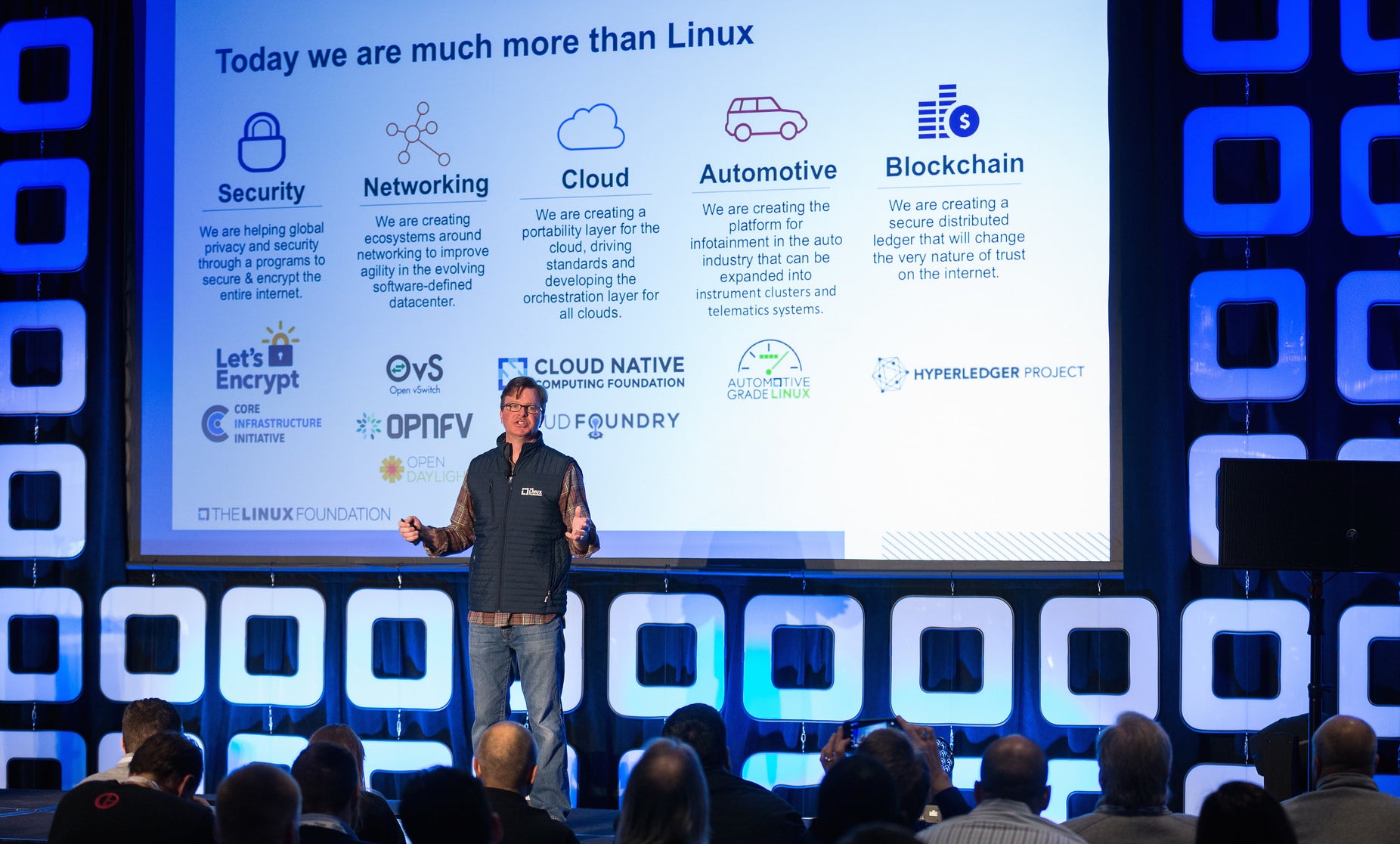
Open source is now mainstream. More and more developers, organizations, and enterprises are are understanding the benefits of an open source strategy and getting involved. In fact, The Linux Foundation is on track to reach 1,000 participating organizations in 2017 and aims to bring even more voices into open source technology projects ranging from embedded and automotive to blockchain and cloud.
Just this week, AT&T joined The Linux Foundation as a Platinum Member, and 16 other organizations joined as Silver Members. Together, these organizations combine to help support development of the greatest shared technology resources in history, while accelerating innovation across industry verticals.
AT&T’s commitment to open source follows news of the company’s contribution of several million lines of ECOMP code to The Linux Foundation. Additionally, Chris Rice, senior vice president of AT&T Labs, joined The Linux Foundation Board of Directors and was also recently selected as the ONAP chairman.
The Linux Foundation is excited about the recent merger of open source ECOMP and OPEN-O, which formed the Open Network Automation Platform (ONAP) project initiated by China Mobile. The newly formed ONAP will allow end users to automate, design, orchestrate, and manage services and virtual functions. Through this amalgamation of projects, ONAP creates a harmonized framework for real-time, policy-driven software automation of virtual network functions and is poised to deliver a unified architecture and implementation faster than any one project could on its own.
AT&T, along with other members, service providers, developers, and industry leaders, will be at Open Networking Summit next week, April 3-6, in Santa Clara, CA to discuss networking topics, share insights, and shape the future of the industry. The event will feature an enterprise track, more than 75 sessions, and keynotes from networking visionaries.
The new Silver members include: Amihan Global Strategies, BayLibre, Bell Canada, China Merchants Bank, Comcast, Ericsson, Innovium, Kinvolk, Kontena, Kubique, Metaswitch Networks, Monax, Pinterest, SAP SE, SELTECH, and Tech Mahindra.
In addition to joining the Foundation, many of these new members have joined Linux Foundation projects across a wide range of technologies, such as Automotive Grade Linux, Cloud Native Computing Foundation, Hyperledger, Open Container Initiative, Open Mainframe Project, Open Network Automation Platform (ONAP), OpenSwitch, and Yocto Project.
The Linux Foundation is also excited about a new initiative in the IoT space. If you’re working in the edge networking/IoT space and want to learn more, please contact Mike Woster.
Once you’ve chosen a Linux distro that meets all the security guidelines set out in our last article, you’ll need to install the distro on your workstation.
Linux installation security best practices vary, depending on the distribution. But, in general, there are some essential steps to take:
Use full disk encryption (LUKS) with a robust passphrase
Make sure swap is also encrypted
Require a password to edit bootloader (can be same as LUKS)
Set up a robust root password (can be same as LUKS)
Use an unprivileged account, part of administrators group
Set up a robust user-account password, different from root
These guidelines are intended for systems administrators who are remote workers. But they apply equally well if you work either from a portable laptop in a work environment, or set up a home system to access work infrastructure for after-hours/emergency support.
When combined with the other recommendations in this series, they will help reduce the risk that SysAdmins will become attack vectors against the rest of your IT infrastructure.
Full disk encryption
Unless you are using self-encrypting hard drives, it is important to configure your installer to fully encrypt all the disks that will be used for storing your data and your system files. It is not sufficient to simply encrypt the user directory via auto-mounting cryptfs loop files (I’m looking at you, older versions of Ubuntu), as this offers no protection for system binaries or swap, which is likely to contain a slew of sensitive data. The recommended encryption strategy is to encrypt the LVM device, so only one passphrase is required during the boot process.
The /boot partition will usually remain unencrypted, as the bootloader needs to be able to boot the kernel itself before invoking LUKS/dm-crypt. Some distributions support encrypting the /boot partition as well (e.g. Arch), and it is possible to do the same on other distros, but likely at the cost of complicating system updates. It is not critical to encrypt /boot if your distro of choice does not natively support it, as the kernel image itself leaks no private data and will be protected against tampering with a cryptographic signature checked by SecureBoot.
Choosing good passphrases
Modern Linux systems have no limitation of password/passphrase length, so the only real limitation is your level of paranoia and your stubbornness. If you boot your system a lot, you will probably have to type at least two different passwords: one to unlock LUKS, and another one to log in, so having long passphrases will probably get old really fast. Pick passphrases that are two to three words long, easy to type, and preferably from rich/mixed vocabularies.
Examples of good passphrases (yes, you can use spaces):
• nature abhors roombas
• 12 in-flight Jebediahs
• perdon, tengo flatulence
Weak passphrases are combinations of words you’re likely to see in published works or anywhere else in real life, and you should avoid using them, as attackers are starting to include such simple passphrases into their brute-force strategies.
Examples of passphrases to avoid:
• Mary had a little lamb
• you’re a wizard, Harry
• to infinity and beyond
You can also stick with non-vocabulary passwords that are at least 10-12 characters long, if you prefer that to typing passphrases.
Unless you have concerns about physical security, it is fine to write down your passphrases and keep them in a safe place away from your work desk.
Root, user passwords and the admin group
We recommend that you use the same passphrase for your root password as you use for your LUKS encryption (unless you share your laptop with other trusted people who should be able to unlock the drives, but shouldn’t be able to become root). If you are the sole user of the laptop, then having your root password be different from your LUKS password has no meaningful security advantages. Generally, you can use the same passphrase for your UEFI administration, disk encryption, and root account — knowing any of these will give an attacker full control of your system anyway, so there is little security benefit to have them be different on a single-user workstation.
You should have a different, but equally strong password for your regular user account that you will be using for day-to-day tasks. This user should be member of the admin group (e.g. wheel or similar, depending on the distribution), allowing you to perform sudo to elevate privileges.
In other words, if you are the sole user on your workstation, you should have two distinct, robust, equally strong passphrases you will need to remember:
Admin-level, used in the following locations:
• UEFI administration
• Bootloader (GRUB)
• Disk encryption (LUKS)
• Workstation admin (root user)
User-level, used for the following:
• User account and sudo
• Master password for the password manager
All of them, obviously, can be different if there is a compelling reason.
Next time we’ll talk about post-installation security hardening. This will depend greatly on your distribution of choice, so we’ll provide an overview of the steps you should take rather than provide detailed instructions.
Intel’s Manasi Navare describes her journey of creating a patch to fix DisplayPort issues and offers some general tips for the Linux kernel upstreaming process.
In today’s stupendous roundup, we will dig into the beloved lshw (list hardware) and lsusb (list USB) commands. This is a wonderful rabbit hole to fall down and get lost in as you learn everything about your hardware down to minute details, without ever opening the case.
lshw
The glorious lshw (list hardware) command reveals, in excruciating detail, everything about your motherboard and everything connected to it. It’s a tiny little command, weighting in at a mere 639k, and yet it reveals much. If you run lshw with no options you get a giant data dump, so try storing the results in a text file for leisurely analysis, and run it with root permissions for complete results:
$ sudo lshw | tee lshw-output.txt
The -short option prints a summary:
$ sudo lshw -short
H/W path   Device     Class     Description
===========================================
                      system    To Be Filled By O.E.M.
/0                    bus       H97M Pro4
/0/0                  memory    64KiB BIOS
/0/b                  memory    16GiB System Memory
/0/b/0                memory    DIMM [empty]
/0/b/1                memory    8GiB DIMM DDR3 Synchronous 1333 MHz (0.8 ns)
I assembled this system, so there is no OEM description. On my Dell PC it says “Precision Tower 5810” (0617).
This abbreviated example displays the hardware paths, which are the bus addresses. The output is in bus order. /0 is system/bus, your computer/motherboard. /0/n is system/bus/device. You can see these in the filesystem with ls -l /sys/bus/*/*, or look in /proc/bus. The lshw output tells you exact locations, like which memory slots are occupied, and which ports your SATA drives are connected to.
The Device column displays devices such as USB host controllers, hard drives, network interfaces, and connected USB devices.
The Class column contains the categories of your devices, and you can query by class. This example displays all storage devices, including a USB stick:
$ sudo lshw -short -class storage -class disk
H/W path               Device      Class      Description
=========================================================
/0/100/14/1/3/4        scsi6       storage    Mass Storage
/0/100/14/1/3/4/0.0.0  /dev/sdc    disk       4027MB SCSI Disk
/0/100/1f.2                        storage    9 Series Chipset Family
                                              SATA Controller [AHCI Mode
/0/1                   scsi0       storage
/0/1/0.0.0             /dev/sda    disk       2TB ST2000DM001-1CH1
/0/2                   scsi2       storage
/0/2/0.0.0             /dev/sdb    disk       2TB SAMSUNG HD204UI
/0/3                   scsi4       storage
/0/3/0.0.0             /dev/cdrom  disk       iHAS424   B
Use -volume to show all of your partitions.
In the first example I see my motherboard model, H97M Pro4, but I don’t remember anything else about it. No worries, because I can call up excruciatingly detailed information by omitting the -short option:
Check it out, the serial number, vendor, and everything. Consult the fine man page, man lshw, and see Hardware Lister (lshw) for detailed information on what all the fields mean.
lsusb
The usbutils suite of commands probes your USB bus and tells you everything about it. This includes usb-devices, lsusb, and usbhid-dump. openSUSE and CentOS also package lsusb.py, but don’t include any documentation for it. My guess is it’s obsolete as it was last updated in 2009, so let us move on to the freakishly useful lsusb:
$ lsusb
Bus 002 Device 002: ID 8087:8001 Intel Corp.
Bus 002 Device 001: ID 1d6b:0002 Linux Foundation 2.0 root hub
Bus 001 Device 002: ID 8087:8009 Intel Corp.
Bus 001 Device 001: ID 1d6b:0002 Linux Foundation 2.0 root hub
Bus 004 Device 001: ID 1d6b:0003 Linux Foundation 3.0 root hub
Bus 003 Device 003: ID 148f:5372 Ralink Technology, Corp. RT5372 Wireless Adapter
Bus 003 Device 004: ID 046d:c018 Logitech, Inc. Optical Wheel Mouse
Bus 003 Device 001: ID 1d6b:0002 Linux Foundation 2.0 root hub
This may be all you ever need to verify what USB devices are connected to your system, and whether it is seeing all of them.
It also tells us a lot of interesting details, starting with bus assignments. The above output is on an older system that includes both 3.0 and 2.0 controllers, which may seem odd because USB standards are always backwards-compatible. But some 2.0 devices had problems with 3.0 controllers, so it made sense to have both.
There are only two external USB devices in the above output, a Ralink wi-fi dongle and a USB mouse. What are all those other things?
The root hub is a virtual device that represents the USB bus. Its device number is always 001, and the manufacturer is always 1d6b: Linux Foundation. The device ID tells us the USB standard, so 1d6b:0002 is a USB 2.0 bus, and 1d6b:0003 is USB 3.0.
In the above output there are two physical host controllers: 8087:8001 Intel Corp. USB 2.0) and 8087:8009 Intel Corp. (USB 3.0). On this system this is the Intel 9 Series Chipset Family Platform Controller Hub (PCH). This particular controller manages all I/O between the CPU and the rest of the system. There are no North and South bridges as there were in in the olden Intel days; everything is managed in a single chip. The architecture is rather interesting, and you can read all the endless details in the 815-page datasheet. The pertinent bits for this article are as follows.
There are two physical EHCI host controllers (USB 2.0), and one xHCI host controller (USB 3.0). You can see this more clearly with the tree view:
$ lsusb -t
/:  Bus 04.Port 1: Dev 1, Class=root_hub, Driver=xhci_hcd/6p, 5000M
    |__ Port 4: Dev 2, If 0, Class=Mass Storage, Driver=usb-storage, 5000M
/:  Bus 03.Port 1: Dev 1, Class=root_hub, Driver=xhci_hcd/14p, 480M
    |__ Port 5: Dev 13, If 0, Class=Vendor Specific Class, Driver=rt2800usb, 480M
    |__ Port 12: Dev 4, If 0, Class=Human Interface Device, Driver=usbhid, 1.5M
/:  Bus 02.Port 1: Dev 1, Class=root_hub, Driver=ehci-pci/2p, 480M
    |__ Port 1: Dev 2, If 0, Class=Hub, Driver=hub/8p, 480M
/:  Bus 01.Port 1: Dev 1, Class=root_hub, Driver=ehci-pci/2p, 480M
    |__ Port 1: Dev 2, If 0, Class=Hub, Driver=hub/6p, 480M
This reveals all manner of fascinating information. It displays the kernel drivers, the USB versions of the connected devices (1.5M = USB 1.1, 480M = USB 2.0, and 5000M = USB 3.0), classes, busses, ports, and device numbers. There are four buses because the xHCI controller manages both USB 2.0 and 3.0 devices. lspci more clearly shows three physical host controllers:
$ sudo lspci|grep -i usb
00:14.0 USB controller: Intel Corporation 9 Series Chipset Family
USB xHCI Controller
00:1a.0 USB controller: Intel Corporation 9 Series Chipset Family
USB EHCI Controller #2
00:1d.0 USB controller: Intel Corporation 9 Series Chipset Family
USB EHCI Controller #1
The physical USB ports that you plug your devices into are supposed to be color-coded. 3.0 is blue, and 2.0 ports are black. However, not all vendors use colored ports. No worries, just use a 3.0 device and lsusb to map your ports.
You may query specific buses, devices, or both. This example queries bus 004 and displays detailed information on the bus and connected devices:
$ sudo lsusb -vs 004:
You may query by vendor and product code:
$ sudo lsusb -vd 148f:5372
Update the ID database:
$ sudo update-usbids
You can also update the lspci database:
$ sudo update-pciids
See man lsusb for complete options, and thank you for joining me on this trip down the Linux hardware discovery rabbit hole.
Learn more about Linux through the free “Introduction to Linux” course from The Linux Foundation and edX.
If you’ve ever hooked up a Linux computer to a DisplayPort monitor and encountered only a flickering or blank screen, we’ve got good news for you. A graphics kernel developer at Intel’s Open Source Technology Center has solved the problem with a patch that will go into Linux 4.12. Manasi Navare’s patch modifies Atomic Kernel Mode Setting (KMS) technology to gracefully drop down to a lower resolution to display the image.
“Someone had to fix this problem, so I said okay, I have the knowledge and I have the community to help me,” said Navare at Embedded Linux Conference.
To hear Navare tell it, the hard part was not so much developing the fix as fully understanding the inner workings of DisplayPort (DP) compliance, the Linux graphics stack, and Atomic KMS. The task of upstreaming the patch was perhaps even more challenging, calling upon the right mix of persuasion, persistence, charm, and flexibility. At the end of the talk, Navare offered some tips for anyone pushing a patch upstream toward an eventual kernel merge.
Negotiating with DisplayPort
Navare started by explaining how a computer (the DP source) negotiates with a display (DP sink) to enable the desired resolution and other properties. When you connect the cable, the sink sends a signal that informs the source about the maximum link-outs and link rates supported by the sink. The source then initiates a DPCD (DisplayPort Configuration Data) read on the sink’s AUX channel, performs a calibration routine, and then launches a handshaking process called DP link training. This configures the main link out of the four possible DP links, each of which has different channel capacities.
“The first phase is clock recovery, sending out the known training packet sequence onto the main link,” said Navare. “The receiver extracts the block information to find if it can work at that linkage. Next comes channel equalization where the receiver tries to understand the link mapping. If these are successful, the link is ready, and the sink is set to receive the data at a specific link-out and link rate.”
Despite all these steps, the link training can still result in a blank or flickering display. “The link training could fail because you haven’t tested the physical capability of the cable until the very end of the process,” said Navare. “There is no way to send this information back to userspace because the commit phase was never expected to fail. It’s a dead end.”
To find a solution, Navare needed to test DP compliance. She used a Unigraf DPR 120 device, which has been certified by Mesa. The device sits between the source and sink and requests specific data or video packets to be sent to the DP monitor. “It maps those values onto the AUX channel and monitors all the transactions on the display cables,” said Navare. “It compares that data to the reference values, and if it matches, the device is compliant.”
Navare also needed to improve her understanding of the complex Linux graphics stack. The base level consists of an Intel Integrated Graphics Device layer — a hardware layer for rendering the display and doing graphics acceleration. “On top of this sits the Linux kernel with the I19 Intel graphics driver, which knows how to configure the hardware according to userspace commands,” explained Navare.
At a higher layer within the same Linux kernel subsystem is the DRM (Direct Rendering Manager), which implements the part of the kernel that is common to different hardware specific drivers. “The DRM exposes the APIs to userspace, which sends information down to the hardware to request a specific display for rendering,” said Navare.
She also further explored KMS, which, among other things, scans the RGB pixel data in the plane buffers using the cathode ray tube controller (CRTC), which decides whether to generate DVI, HDMI, or DP signals.
“The CTRC generates the bitstream according to the video timings and sends the data to the encoder, which modifies the bitstream and generates the analog signals based on the connector type,” says Navare. “Then it goes to the connector and lights up the display.”
Once into the project, Navare realized her solution would need to support the new Atomic KMS version of KMS, which implements a secondary process that Navare called the two step. “When you connect the source with the sink, userspace creates a list of parameters that it wants to change on the hardware, and sends this out to the kernel using a DRM_IOCTL_MODE_ATOMIC call. The first step is the atomic check phase where it forms the state of the device and its structure for the different DRM mode objects: the plane, CRTC, or connector. It validates the mode requested by Userspace, such as 4K, to see if the display is capable.”
If successful, the process advances to the next stage — atomic commit — which sends the data to the hardware. “The expectation is that it will succeed because it has already been validated,” said Navare.
Yet even with Atomic KMS, you can still end up with a blank screen. Navare determined that the problem happened within Atomic KMS between the check and commit stages, where link training occurred.
Navare’s solution was to introduce a new property for the connector called link status. “If a commit fails, the kernel now tags the connect property as BAD,” she explained. “It sends the HPD back to the userspace, which requests another modeset, but at lower resolution. The kernel repeats the check and commit, and retrains the link at a lower rate.”
If the test passes, the link status switches to GOOD, and the display works, although at a lower resolution. “Atomic check is never supposed to fail, but link training is the exception because it depends on the physical cable,” said Navare. “The link might fail after a successful modeset because something can go wrong with the cable between initial hookup and test. This patch provides a way for the kernel to send that notification back to userspace. You have to go back to userspace because you have to repeat the process of setting the clock and rate, which you can’t do at the point of failure.”
A few tips on upstreaming
Navare added the new link status connector property to the DRM layer as part of an Upstream I915 driver patch, and submitted it to her manager at Intel. “I said, ‘It’s working now. What can I work on next?’ He replied: ‘Have you sent it upstream?’”
Navare submitted the patch to the public mailing list for the graphics driver, thereby beginning a journey that took almost a year. “It took a long time to convince the community that this would fix the problem,” said Navare. “You get constant feedback and review comments. I think I submitted 15 or 20 revisions before it was accepted. But you keep on submitting patch revisions until you get the ‘reviewed by’ and that’s the day you go party, right?”
Not exactly. The patch then gets merged into an internal DRM tree, where much more testing transpires. It finally gets merged into the main DRM tree where it’s sorted into DRM fixes or DRM next.
“Linus [Torvalds] pulls the patches from this DRM tree on a weekly basis and announces his release candidates,” said Navare. “It goes through the cycle of release candidates for a long time until it’s stable, and it finally becomes part of the next Linux release.”
Torvalds finally approved the patch for merger, and the champagne cork popped.
Linus’s Rules
Navare also offered some general tips for the upstreaming process, which she calls Linus’s Rules. The first rule is “No regressions,” that is, no GPU hangs or blanks screens. “If you submit a patch it should not break something else in the driver, or else the review cycle can get really aggressive,” said Navare. “I had to leverage the community’s knowledge about other parts of the graphics driver.”
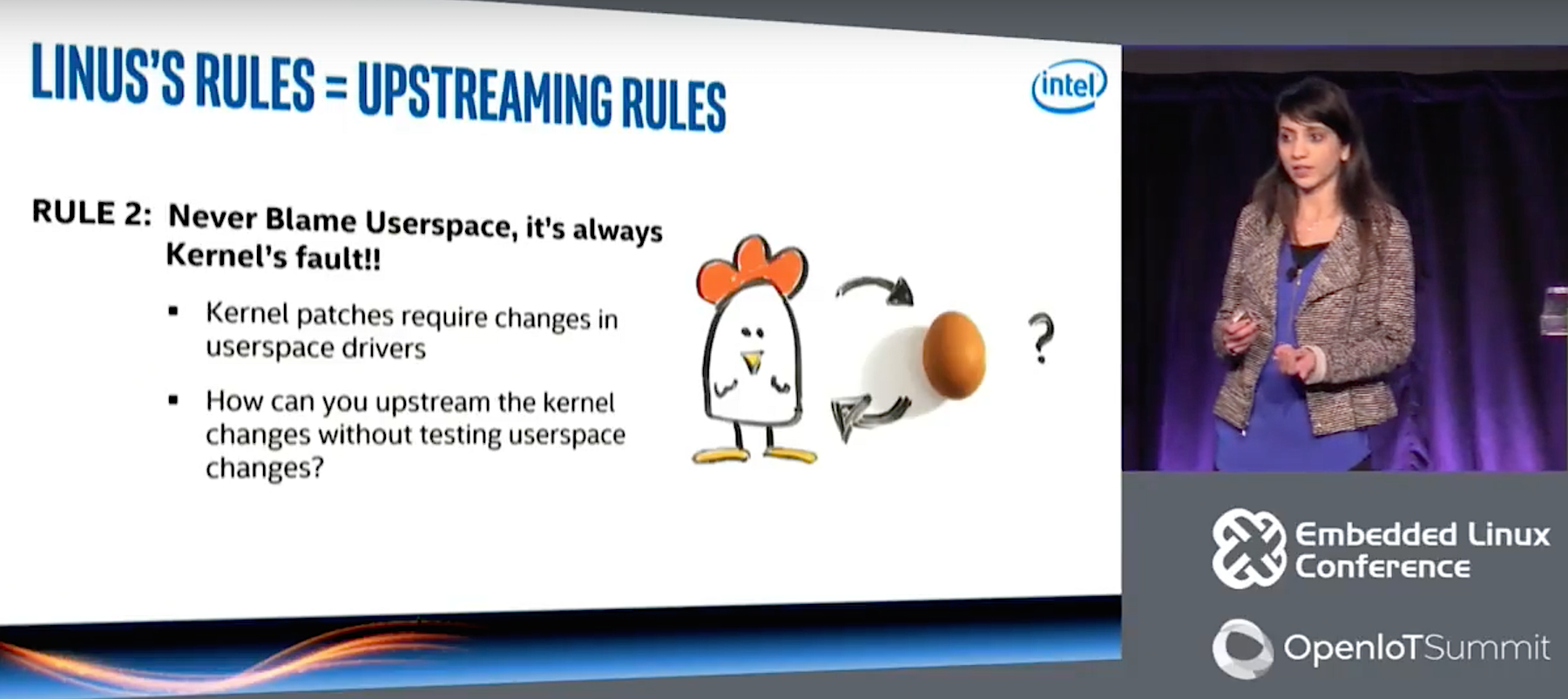
The second rule is “Never blame userspace, it’s always kernel’s fault.” In other words, “If the hardware doesn’t work as expected then the kernel developer is the one to blame,” she added.
The problem here is that kernel patches require changes in userspace drivers, which leads to “a chicken and egg situation,” said Navare. “It’s hard to upstream kernel changes without testing userspace… You can’t merge the kernel patches until you’ve tested the userspace, but you can’t merge userspace because the kernel changes have not yet landed. It’s very complicated.”
To prove her solution would not break userspace, Navare spent a lot of time interacting with userspace community and involved them in testing and submitting patches.
Another rule is that “Feedback is always constructive.” In other words, “don’t take it as criticism, and don’t take it personally,” she said. “I got reviews that said: ‘This sucks. It’s going to break link training, which is very fragile — don’t touch that part of the driver.’ It was frustrating, but it really helped. You have to ask them why they think it’s going to break the code, and how they would fix it.”
The final rule is persistence. “You just have to keep pinging the maintainers and bugging them on IRC,” said Navare. “You will see the finish line, so don’t give up.”
Navare’s Upstream i915 patch can be found here, and the documentation is here. You can watch the complete presentation below.
Connect with the Linux community at Open Source Summit North America on September 11-13. Linux.com readers can register now with the discount code, LINUXRD5, for 5% off the all-access attendee registration price. Register now to save over $300!
Every month or two, someone asks me how they should go about learning Unix. The short answer is always “use it” or maybe as much as “use it — a lot.”
But the detailed answer includes a lot of steps and a good amount of commitment to spending time working on the command line. I may have learned some of the most important parts of making my way on the Unix command line the first week that I used it back in the early 80’s but I had to spend a lot of time with it before I was really good. And I’m still learning new ways of getting work done 30+ years later. So here is my detailed answer.
The idea is that a cache is often first because it’s so fast. We can, of course, write a giant master function with other functions..
One objective of the chain of command design pattern is to be able to write a bunch of functions that link together and form a chain of alternative implementations. The idea is to have alternatives that vary in their ability to compute a correct answer. If Algorithm 1 doesn’t work, try Algorithm 2. If that doesn’t work, fall back to Algorithm 3, etc.
Perhaps Algorithm 1 has a number of constraints, i.e., it’s fast, but only for a limited kind of input. Algorithm 2 may have a different set of constraints. And Algorithm 3 involves the “British Museum” algorithm.
Have you ever wondered where the various files contained inside a package are installed (located) in the Linux file system? In this article, we’ll show how to list all files installed from or present in a certain package or group of packages in Linux.
This can help you to easily locate important package files like configurations files, documentation and more. Let’s look at the different methods of listing files in or installed from a package:
As the open source community continues to grow, Jim Zemlin, Executive Director of The Linux Foundation, says the Foundation’s goal remains the same: to create a sustainable ecosystem for open source technology through good governance and innovation.