Home Blog Page 586

Monitor SATA and SSD Health with SMART

Smartmontools helps you keep an eye on the health of your hard disk and SSD drives. SMART is the Self-Monitoring, Analysis and Reporting Technology built-in to modern drives, and smartmontools reads the SMART data. It’s not 100 percent accurate at predicting imminent drive failure, so, as you should always do, keep current backups.

Whatever Linux you use, the package name is probably smartmontools. The main command that you will use is smartctl. Install it and then query basic information about one of your drives:

$ sudo smartctl -i /dev/sda

This should be uneventful, as it prints basic information about your drive including model number, serial number, firmware version, size, sector size, and if it is SMART-enabled. But I got this little surprise:

==> WARNING: Using smartmontools or hdparm with this
drive may result in data loss due to a firmware bug.
****** THIS DRIVE MAY OR MAY NOT BE AFFECTED! ******
Buggy and fixed firmware report same version number!
See the following web pages for details:
http://knowledge.seagate.com/articles/en_US/FAQ/223571en
http://www.smartmontools.org/wiki/SamsungF4EGBadBlocks

Just what everyone needs, an ambiguous warning that you may have just wrecked your hard drive. The Seagate article is enlightening:

“If the host issues an identify command during an action of writing data in NCQ, the data’s writing can be destabilized, and can lead to data loss.”

I was being sarcastic when I said it was enlightening. What does that even mean? You can download a firmware patch from that page, but it’s an .exe file, which only runs in Windows. There are ways to extract an image from an .exe file that you can use in Linux, but it makes me tired and exasperated even thinking about it. Check out Flashing BIOS from Linux in the Arch Linux Wiki to learn more about forcing .exe files to be usable on real operating systems.

So, getting back to the warning. The Smartmontools Wiki page offers actual information:

“Problem: If the system writes to this disk and smartctl -a (5.40) is used at the same time, write errors are reported and bad blocks appear on the disk.”

This is an issue with the disk firmware and not smartmontools, and it applies to hdparm as well. Chances are it’s not an issue anymore:

“Update: According to Samsung Support, HD204UI drives manufactured December 2010 or later include the firmware patch…The warning will also be printed when the patch is already installed!”

So how do you know if the patch is installed? Check the label on your hard drive, which should have the date of manufacture. If it’s an older drive then you must decide if you want to apply the patch just to keep smartmontools happy.

One More Time

Using computers involves a lot of detours. Let’s get back on track and look at the basic information that smartctl prints, using a non-Samsung drive:

$ sudo smartctl -i /dev/sdb
smartctl 6.5 2016-01-24 r4214 [x86_64-linux-4.4.0-64-generic] (local build)
Copyright (C) 2002-16, Bruce Allen, Christian Franke, www.smartmontools.org

=== START OF INFORMATION SECTION ===
Model Family:     Seagate Barracuda 7200.14 (AF)
Device Model:     ST2000DM001-1CH164
Serial Number:    Z240S0F3
LU WWN Device Id: 5 000c50 05080924c
Firmware Version: CC26
User Capacity:    2,000,398,934,016 bytes [2.00 TB]
Sector Sizes:     512 bytes logical, 4096 bytes physical
Rotation Rate:    7200 rpm
Form Factor:      3.5 inches
Device is:        In smartctl database [for details use: -P show]
ATA Version is:   ATA8-ACS T13/1699-D revision 4
SATA Version is:  SATA 3.0, 6.0 Gb/s (current: 6.0 Gb/s)
Local Time is:    Mon Mar  6 10:56:00 2017 PST
SMART support is: Available - device has SMART capability.
SMART support is: Enabled

This is a nice bundle of useful information, containing everything but the date of manufacture. Sometimes, you can visit the manufacturer’s site and use the serial number to learn if the drive is still under warranty, and decode the date information. If SMART support is not enabled then enable it:

$ sudo smartctl -s on /dev/sdb
smartctl 6.5 2016-01-24 r4214 [x86_64-linux-4.4.0-64-generic] (local build)
Copyright (C) 2002-16, Bruce Allen, Christian Franke, www.smartmontools.org

=== START OF ENABLE/DISABLE COMMANDS SECTION ===
SMART Enabled.

smartctl -s off [device] disables it.

Want to see a complete data dump? Use the -x option:

$ sudo smartctl -x /dev/sdb

Health Check

Let’s run a quick health check:

$ sudo smartctl -H /dev/sdb                                                                                                   
smartctl 6.5 2016-01-24 r4214 [x86_64-linux-4.4.0-64-generic] (local build)                                                  
Copyright (C) 2002-16, Bruce Allen, Christian Franke, www.smartmontools.org                                                  
                                                                                                                             
=== START OF READ SMART DATA SECTION ===                                                                                     
SMART overall-health self-assessment test result: PASSED

Hurrah! It passed. Use -Hc to see more details. Now, just for fun, check the logfile for errors:

$ sudo smartctl -l error /dev/sdb
smartctl 6.5 2016-01-24 r4214 [x86_64-linux-4.4.0-64-generic] (local build)
Copyright (C) 2002-16, Bruce Allen, Christian Franke, www.smartmontools.org

=== START OF READ SMART DATA SECTION ===
SMART Error Log Version: 1
No Errors Logged

Well, this sure is turning into a boring exercise. Which is fine with me. Some forms of boredom are good. What do you do if there are errors? Consult the Smartmontools FAQ which ones are significant.

Running Self-Tests

You can run a short and a long self-test: smartctl -t short /dev/sdb and smartctl -t long /dev/sdb. smartctl tells you how long the test will run. You won’t get any notifications when it’s finished. Check the results by reading the log:

$ sudo smartctl -l selftest /dev/sdb
smartctl 6.5 2016-01-24 r4214 [x86_64-linux-4.4.0-64-generic] (local build)
Copyright (C) 2002-16, Bruce Allen, Christian Franke, www.smartmontools.org

=== START OF READ SMART DATA SECTION ===
SMART Self-test log structure revision number 1
Num  Test_Description Status                Remaining  LifeTime(hours)  LBA_of_first_error
# 1  Short offline   Completed without error       00%      5357

smartd Daemon and Notifications

You can run smartd, the SMART daemon, to continually monitor your drives and email you to report possible troubles. On Debian/Ubuntu/etc. you’ll edit /etc/default/smartmontools to automatically launch smartd at startup, and edit /etc/smartd.conf to configure monitoring and notifications. Most distros install /etc/smartd.conf, and you’ll use your distro’s method of launching smartd at boot.

Learn more about Linux through the free “Introduction to Linux” course from The Linux Foundation and edX.

Critical Vulnerability Under “Massive” Attack Imperils High-Impact Sites

In a string of attacks that have escalated over the past 48 hours, hackers are actively exploiting a critical vulnerability that allows them to take almost complete control of Web servers used by banks, government agencies, and large Internet companies.

The code-execution bug resides in the Apache Struts 2 Web application framework and is trivial to exploit. Although maintainers of the open source project patched the vulnerability on Monday, it remains under attack by hackers who are exploiting it to inject commands of their choice into Struts servers that have yet to install the update, researchers are warning. Making matters worse, at least two working exploits are publicly available.

Read more at Ars Technica

How to Format Storage Devices in Linux

Managing storage devices — whether they are internal hard drives, SSDs, PCIe SSDs, or external USB devices — is always a tricky task. With a tiny mistake, you may lose data or wrongly format your drive in a way that can lead to data corruption. In this article, I will talk about some of the basics of storage devices on Linux. The article is aimed at beginners and new users of Linux.

There are many graphics tools to manage your hard drive. If you happen to use Gnome, then the Disks tool is quite useful. However, every once in a while I come across issues where it throws errors and fails to format a drive. I prefer to use the command line, as it’s much easier and fail safe.

How to find what is connected or plugged to your system

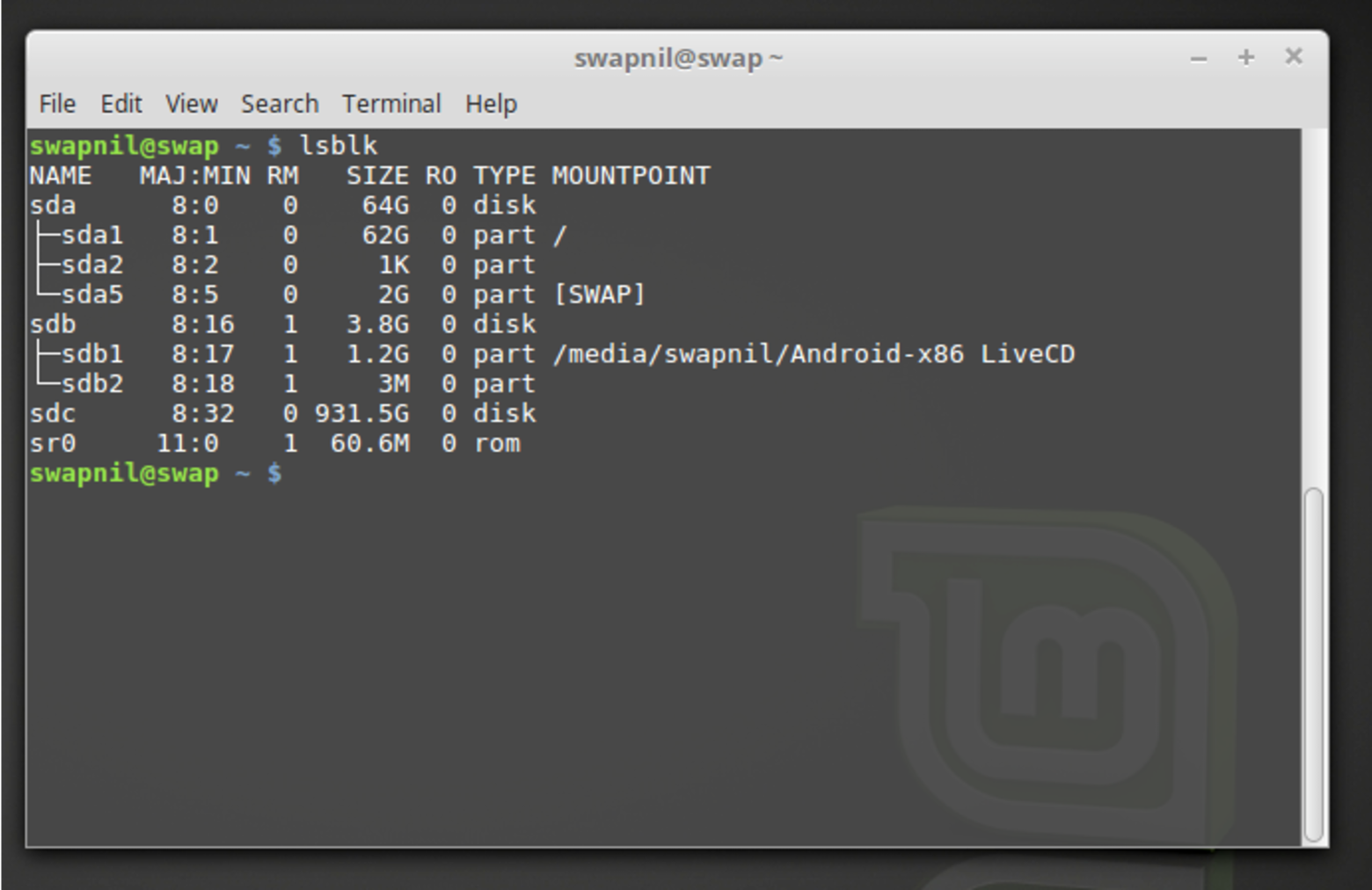
Using ‘lsblk’ is the simplest and easiest way to find all block devices connected to your system. As you can see, the lsblk command is showing me my SSD ‘sda’ where Linux Mint 18.1 is installed, ‘sdb’ is a USB Flash Drive, and ‘sdc’ is 1TB internal hard drive.

Understanding the lsblk output

In the figure above, the NAME column gives out the name of the device (it’s not consistent and can change based on which device was mounted first). ‘sda’, ‘sdb’, ‘sdc’ etc. are the block device names and ‘sda1’, ‘sda2’… denote the partitions on each device. MAJ:MIN denotes the major and minor device number. RM tells whether the device is removable, and in this example, you can see that the USB drive ‘sdb’ is a removable device.

Obviously, the SIZE column tells about usable storage space on the device. RO tells whether the device is read only, such as a DVD drive or write protected Flash drive. TYPE tells whether it’s a disk or partition, and you can see that block device name with numbers ‘sda1, sda2…’ are marked as partitions. The last column tells about the mount point.

The lsblk command is capable of giving out more information about storage devices, but we are keeping our focus on formatting a device.

Format a drive completely with a brand new partition table

There is no dearth of quality tools in the Linux world, and we tend to use the ones we like. In this tutorial, I am using ‘parted’ as it’s easy to use and can handle both MBR and GPT partitioning tables, but feel free to use your favorite partitioning tool. I will be formatting a 3.8GB USB flash drive. The procedure can be used on any storage device, external or internal.

sudo parted /dev/sdb

Doublecheck to make sure to add the block device you want to format; otherwise, parted will run on ‘sda’ or the drive where your OS is installed and you may end up with a broken system. The tool is extremely powerful and choosing the wrong device may lead to valuable data loss, so please use caution while formatting your drives.

After entering the password, you will notice (parted) added, which means you are now inside the parted utility.

Now we have to create a new partition table. There is good old MBR (master boot record) and newer GPT (guid partition table). Comparison between the two is beyond the scope of this story. In this example, we will use MBR.

(parted) mklabel msdos 

Here ‘mklabel’ creates the partition table and ‘msdos’ will use MBR. Now we can create partitions. This is the basic format of the command:

(parted) mkpart ‘type of partition’ ‘file system’ start end

If I want to use all the space and create one big partition I will run this command:

(parted) mkpart primary ext4 1MiB 100%

Here 100% means it will use all the available space. But if I want to create more than one partition, I will run this command:

(parted) mkpart primary ext4 1MiB 2GB

Here it will create a partition with 2GB storage. Next, we’ll create another partition, but because we already have one partition, the end point of previous partition is now the starting point of the next partition.

(parted) mkpart primary ext4 2GB 5GB

This command will create a second partition of 3GB. If you want to create one more partition for the remaining space, you know the end point and the start point:

(parted) mkpart primary ext4 5GB 100%

You can replace ‘ext4’ with desired file type: ntfs, vfat, btrfs…

To see how the partitioning has worked, run the print command:

(parted) print

It will display the partitions you created. If everything looks as expected, you can exit the partitioning tool by typing ‘quit’:

(parted) quit

Running the lsblk command will show the newly created partitions. We need to now format these partitions before we mount and use them. In my machine, there are now three partitions on sdb: sdb1, sdb2, sdb3. We will format each with ext4.

sudo mkfs.ext4 /dev/sdb1

Repeat the same step for each drive — just change the block device name and number.

Now, your drives are formatted. If it’s an external drive like a USB drive, just unplug and plug it to mount it.

Learn more about Linux through the free “Introduction to Linux” course from The Linux Foundation and edX.
How Safe Are Blockchains? It Depends.

To understand the inherent security risks in blockchain technology, it’s important to understand the difference between public and private blockchains.

One of the first decisions to make when establishing a private blockchain is about the network architecture of the system. Blockchains achieve consensus on their ledger, the list of verified transactions, through communication, and communication is required to write and approve new transactions. This communication occurs between nodes, each of which maintains a copy of the ledger and informs the other nodes of new information: newly submitted or newly verified transactions. Private blockchain operators can control who is allowed to operate a node, as well as how those nodes are connected; a node with more connections will receive information faster.

Read more at Harvard Business Review

Three Overlooked Lessons about Container Security

I’ve just joined container security specialists Aqua Security and spent a couple of days in Tel Aviv getting to know the team and the product. I’m sure I’m learning things that might be obvious to the seasoned security veteran, but perhaps aren’t so obvious to the rest of us! Here are three aspects I found interesting and hope you will too, even if you’ve never really thought about the security of your containerized deployment before:

#1: Email Addresses in Container Images

A lot of us put contact email information inside our container images. Even if the MAINTAINER directive in Docker files is deprecated in favor of using the more generic LABEL, it’s natural to think that users would find it helpful to be able to contact the image author.

Read more at The New Stack

Introduction to gRPC

The hot new buzz in tech is gRPC.  It is a super-fast, super-efficient Remote Procedure Call (RPC) system that will make your microservices talk to each other at lightspeed, or at least that’s what people say.  So this article will take a quick look at what it is, and how or when it can fit into your services.

What is gRPC

gRPC is a RPC platform developed by Google which was announced and made open source  in late Feb 2015.  The letters “gRPC” are a recursive acronym which means, gRPC Remote Procedure Call.

gRPC has two parts, the gRPC protocol, and the data serialization. By default gRPC utilizes Protobuf for serialization, but it is pluggable with any form of serialization you wish to use, with some caveats, which I will get to later.

Read more at Container Solutions

Secrets of Maintainable Codebases

You should write maintainable code. I assume people have told you this, at some point.  The admonishment is as obligatory as it is vague. So, I’m sure, when you heard this, you didn’t react effusively with, “oh, good idea — thanks!”

If you take to the internet, you won’t need to venture far to find essays, lists, and stack exchange questions on the subject. As you can see, software developers frequently offer opinions on this particular topic. And I present no exception; I have little doubt that you could find posts about this on my own blog.

So today, I’d like to take a different tack in talking about maintainable code. Rather than discuss the code per se, I want to discuss the codebase as a whole. What are the secrets to maintainable codebases? What properties do they have, and what can you do to create these properties?

Read more at DZone

Asus Tinker Board Review: First Impressions

The Asus Tinker Board is a new ARM-based single-board computer (SBC) which stands out from the crowd. It’s tiny, affordable, with strong performance, and targeted at the DIY/hobbyist market. Essentially a complete PC — motherboard, CPU, GPU, system memory and more — all in one package, it is priced at £54.99.

SBC’s are very much in vogue. With sales exceeding 10 million units, the Raspberry Pi is the most popular British computer ever produced. The Pi has retained its position despite other manufacturers jumping on the bandwagon producing similar computers. None of its competitors have, to date, come close rivaling its popularity partly because there’s more software and support available for the Pi. Things could change with the Tinker Board. And not just because the computer is developed by Asus, the 4th-largest PC vendor.

Read more at OSS Blog

https://www.ossblog.org/asus-tinker-board-review-first-impressions/

Keynote: State of Blockchain – Christopher Ferris, Distinguished Engineer

https://www.youtube.com/watch?v=kz318Gl8C88?list=PLbzoR-pLrL6rm2vBxfJAsySspk2FLj4fM

The Hyperledger project has come a long way in making the innovative blockchain technology used in Bitcoin a viable option for secure business transactions; hear more from Christopher Ferris in this keynote at the Open Source Leadership Summit.

Why Open Collaboration Is Crucial for Blockchain Tech

The one-year-old Hyperledger Project has already come a long way in making the innovative blockchain technology used in Bitcoin a viable option for secure business transactions. That was the clear message from Christopher Ferris in his keynote at the Open Source Leadership Summit in February.

Ferris, the CTO of open technology at IBM and member of Hyperledger’s leadership, said Hyperledger and blockchain technology could be enormously successful in private enterprise securing and verifying rapid, high value, and highly private transactions. Additionally, the collaborative open source foundation is nearing release of its production-ready distributed ledger code base, Fabric.

“We have the ability to think about how we might instrument all these different types of [private transactions] and essentially in antagonistic type environment and yet know that the information could be trusted,” Ferris said, “and that everybody actually shares the same copy of information.”

There are a few hurdles to clear first, Ferris said, and the project is still very young. The biggest issue is probably perception; Ferris said Bitcoin was built by anarchists looking to disrupt the banking industry and has had some notorious heists and scandals in its short history. That makes enterprise CEOs and CTOs a touch skittish.

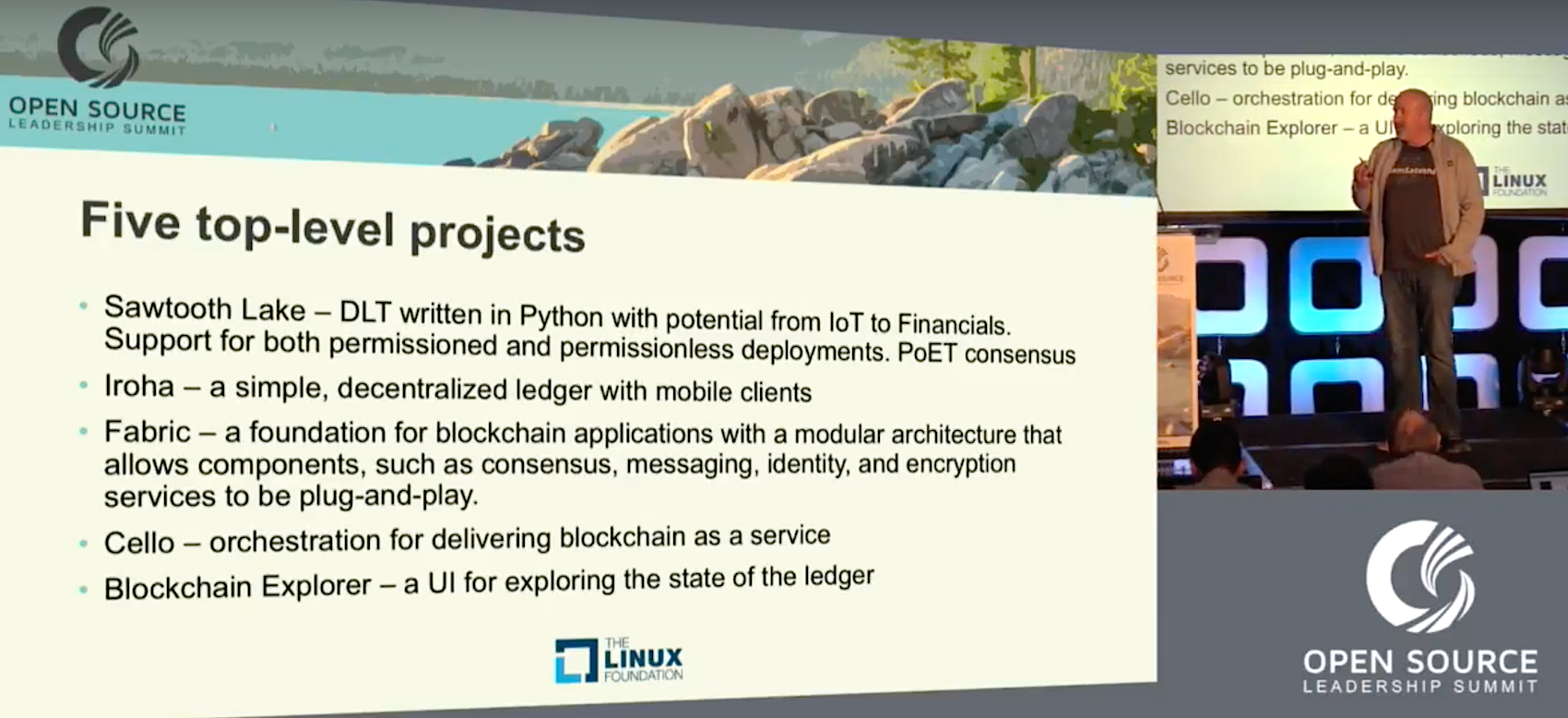
Ferris said that’s why good governance and a truly open and collaborative environment are crucial for blockchain tech, and that’s precisely what Hyperledger is looking to provide. The organization currently has five top-level projects under its umbrella. They are:

  • Sawtooth Lake – A distributed ledger technology written in Python, supporting both permissioned and permissionless deployments.

  • Iroha – A simple, decentralized ledger design for mobile clients.

  • Fabric – A foundation for blockchain applications with a modular architecture that allows components, such as consensus, messaging, identity, and encryption services to be plug-and-play.

  • Cello – Orchestration for delivering blockchain as a service.

  • Blockchain Explorer- A user interface for exploring the state of the ledger.

Fabric is the project closest to a general release; each of these projects is led by a different team and is working to ensure interoperability with the other projects.

“Our goal is obviously to develop and create open source solutions for these technologies,” Ferris said, “and to provide that neutral open governance model to sustain these things. To develop a diverse ecosystem of communities. To educate the public and government and so forth on what this technology is, how it can be applied. To educate ourselves by bringing people together to help us explore different ways that the technology might be used in various industries. Then, again, to promote this notion of a community of communities.”

Another issue the technology has is generally slow throughput; Bitcoin can handle only about seven transactions per second, Ferris said.

“Anybody who’s been working on any kind of enterprise systems know that ain’t going to cut it for just about anything,” he said. “If you wanted to apply that technology to your ERP system for instance to track all the shipments and invoices and whatnot that go on in your enterprise, it’s not going to do it.”

Ferris said Hyperledger, which was started in February 2016, has grown from 30 general members to more than 110 in just a year. Two more premier members have joined in that time — Airbus and American Express — and Ferris said there are others in the pipeline. The project is growing rapidly and has a significant amount of momentum because it’s a very useful technology that’s almost perfect for open source, he said.  

“This is a technology that is essentially perfect for open source,” Ferris said. “It’s potentially very revolutionary. We don’t want to have any one player in the ecosystem that controls all of it. We don’t want it to be monetized only by in IBM or somebody like that. We want it to be used universally by multiple parties.

“It requires special skills and it requires a diverse set of special skills. You have to have deep cryptographic capabilities, deep understanding of distributed computing, containerization, databases, database query engines and so forth. There’s a whole lot of different disciplines that are required to build this technology effectively and it needed a strong governance model.”

Watch the entire presentation below to learn more:

https://www.youtube.com/watch?v=kz318Gl8C88?list=PLbzoR-pLrL6rm2vBxfJAsySspk2FLj4fM

Learn how successful companies gain a business advantage with open source software in our online, self-paced Fundamentals of Professional Open Source Management course. Download a free sample chapter now!