Home Blog Page 651

Turn Raspberry Pi 3 Into a Powerful Media Player With RasPlex

I have hundreds of movies, TV shows and music that I have bought over the years. They all reside on my Plex Media Server. Just like books, I tend to buy these works and watch them once in awhile, instead of relying on “streaming” services like Netflix where content isn’t always available forever.

If you already have Plex Media Server running, then you can build an inexpensive Plex Media Player using Raspberry Pi 3 and RasPlex. Plex Media Server is based on open source Kodi (formerly  XBMC), but is not fully open source. Plex Media Center has a friendly interface and it’s very easy to set up a media center (See our previous tutorial on how to install it on a Raspberry Pi 3 or on another dedicated Linux machine).

One of the best ways I’ve used my Raspberry Pi 3 was turning it into an extremely inexpensive media player. I get more out of my $35 Pi 3 than Chromecast, which costs almost the same. And if you already have a Plex Media Server running, it makes a lot of sense to turn those ‘dumb’ TV sets into powerful Plex Media players, without putting a hole in your pocket.

What you need

  • A Raspberry Pi 3

  • Micro SD card (minimum 8GB storage)

  • A Linux PC to prepare the Micro SD card

  • Monitor, keyboard and mouse for initial setup

  • 5V 2A micro USB mobile charger

  • Heat sink (Multimedia playback will get the chips hot. You can buy them online on Amazon.com)

  • A free Plex account (and paid PlexPass if you want to access it over the internet)

  • A TV with HDMI input

  • HDMI cable.

Plug in your Micro SD card to the Linux system and download RasPlex installer from the official site. Open a terminal and go to the directory where the .bin file or RasPlex is downloaded. In my case it was in the ‘Downloads’ folder:

cd /home/swapnil/Downloads

Now make the file executable:

sudo chmod +x GetRasplex-debian64.1.0.1.bin 

And then execute the file:

sudo ./GetRasplex-debian64.1.0.1.bin

(Note: The version number may change, so don’t just copy this command.)

Now it will open the RasPlex SD card writer utility. Insert the Micro SD card to your Linux PC and hit the refresh button so it can detect the card. Once detected, choose Raspberry Pi 2 from the model number and version 1.6.2 (or the latest version) from the RasPlex. (Even if the image is for Pi2 it worked fine with Pi3).

XqWsTTnq_DxIX7_rp9y2JSJc3Lvfvv8sPupleWY7

Next click on the Download button to download the version of RasPlex. Once the image is downloaded, the Write SD Card button will become active. Just hit the button and it will start writing the image to the card.

Please install the heat sink on the chips (as shown below) so they absorb extra heat created while the Pi 3 is churning out HD videos.

Kxbd9hh4SKVMWDPeei7Ff3DYiSr62s80vPVlBWdr

Plug your Raspberry Pi 3 into the TV using the HDMI cable. Connect the keyboard and insert the RasPlex Micro SD Card and power the device with your 5V mobile charger. You will see RasPlex on the screen. Let it install on the card and configure. Once configuration and installation is finished, you will see the welcome screen for the set-up wizard (below).

Qihf_wGX9BWG9B2TDRqQB361TKwS81C2u03lA1QO

If you are using a wireless network, then during the first setup you can configure the wireless. The following image shows the networking screen during RasPlex set up.

h233HmnjiFaCq34lgPhC6sctU5lJ_6NTWkLZHn4F

In case you want to change the wireless connection, you can always do that post installation from System Settings as shown in the following image.

NamDD5ZkPKE8m8qmj9ctnv4XeRmHQ2NlAgxL8d6p

Once you are connected to the Internet, you can log into your Plex account. To make things easier, RasPlex asks you to open this URL (www.plex.tv/pin) in a browser on any device and enter the PIN shown on the RasPlex screen. Once you enter the PIN, RasPlex gets access to your Plex Media Server.

Now you are ready to enjoy your  Plex Media Server (running on another machine – perhaps another Pi 3!) on any TV in your house that has HDMI input.

You can further fine-tune RasPlex from the settings.

If you have a modern TV or AV system that supports HDMI-CEC then you can control RasPlex from the TV or AV remote. I manage my RasPlex server from the remote of my Yamaha AV system. If you have an older TV, then you can either get remote modules or use a mini keyboard, something I use with my Smart TV, Xbox, and other devices as it makes it easier to enter usernames, passwords, and the like.

oYtnY89yk_jkFBlDKOJKwi_xGQ_a2iiPjkjRdEtA

This image shows Indiana Jones playing on RasPlex on my 4K Samsung TV, I am using a remote for the Yamaha AV system for navigation.

Slick experience

You can see an ultra high-definition (UHD) movie playing on my 4K Samsung TV in the image above (keep in mind that unlike Pine 64, Raspberry Pi 3 doesn’t support 4K video). Initially I was skeptical as ultra high-definition videos never played smoothly on the $35 Raspberry Pi 3, even when playing from local storage. Since Plex does all transcoding at the server side, RasPlex offers a very slick experience. Videos, even full HD play really smoothly: no jitters, no lag whatsoever.

I am enjoying my RasPlex quite a lot given that I “built” it myself. So, if you are like me and love to tinker with everything Linux, this project is for you.

Read the previous articles in the series:

5 Fun Raspberry Pi Projects: Getting Started

How to Build a Minecraft Server with Raspberry Pi 3

Build Your Own Netflix and Pandora With Raspberry Pi 3

For 5 more fun projects for the Raspberry Pi 3, including a holiday light display and Minecraft Server, download the free E-book today!

Linux Kernel 4.9 Slated for December 11 Release As Linus Torvalds Outs RC8

According to Linus Torvalds, work on Linux kernel 4.9 is almost finished, and while things have not been so bad during its entire development cycle, the need for an eighth Release Candidate was imperative to ensure everything is well-tested and polished before the Linux 4.9 kernel series gets promoted to the stable channel.

“So if anybody has been following the git tree, it should come as no surprise that I ended up doing an rc8 after all: things haven’t been bad, but it also hasn’t been the complete quiet that would have made me go ‘no point in doing another week’,” said Linus Torvalds in the mailing list announcement.

Read more at Softpedia

Canonical Log Lines

A lightweight and stack agnostic operational technique for easy visibility into production systems.

Over the next few weeks I want to post a few articles about some of my favorite operational tricks that I’ve seen while working at Stripe.

The first, and easily my favorite, is the canonical log line. It’s a lightweight pattern for improved visibility into services and acts as a middle ground between other types of analytics in that it’s a good trade-off between ease of access and flexibility.

We could say that many production systems (following standard industry practices) emit “tiers” of operation information:

Read more at Brandur.org

Hype Driven Development, from Frameworks to Microservices

Last week Marek Kirejczyk‘s essay on Medium about the dangers of hype driven development, which he described as “how teams bring doom on themselves,” triggered a massive online discussion about what’s driving today’s technology decisions.

In a nutshell, hype driven development (HDD for short) has been a long-standing buzzword — or anti-buzzword? — that’s been humming around for years, but Kirejczyk — the VP of Engineering at a small dev shop — tried to capture it with a definitive essay.

HDD happens when a development team picks the “newest, hottest technology” to use on a project, based on how the technology is trending on Twitter, or on a number of enthusiastic blog posts or conference talks.

Read more at The New Stack

10 Open Source Tools for Your Sysadmin Toolbox

10 open source tools for your sysadmin toolbox

Sysadmins, no matter what platforms they work on, are awash in great open source software tools. In this article, we highlight well-knownand not-so-well-knowntools that have released new versions in 2016. …

Vim

Just because the Windows/Linux battle has been laid to rest, that doesn’t mean the editor wars are over, too. The venerable Vim editor, which celebrated its 25th birthday in November, is still under active development. This year saw the release of version 8, the first major release in a decade. Vim 8 brings features such as support for GTK+ 3 and DirectX, asynchronous I/O for plugins, and jobs.

Read more at OpenSource.com

How Should You Put Soft Skills on a Technical Resume?

I was in Google Docs collaborating on a resume for a Resume Raiders client the other day when a comment popped up regarding soft skills. The client was a highly accomplished mobile developer with many years of experience, and he wanted to be sure that his “abilities to communicate with clients, present ideas, and collaborate on designs and specifications” were prominently featured on the resume. 

It’s incredibly difficult to demonstrate soft skills on a resume, and spending significant amounts of resume space in an attempt to do so is typically ineffective. 

Read more at DZone

This Week in Open Source News: Challenging the Microsoft Challengers, Fedora 25 Makes Linux Easy, & More

This week in open source and Linux news, Steven J. Vaughan-NIchols challenges the critics of the new Linux Foundation-Microsoft membership news, Fedora 25 is easy for newbies to use, and more. Keep reading for all the latest top OSS news!

1) Steven J. Vaughan-Nichols challenges the Microsoft challengers.

Open Source Has Won, and Microsoft Has Surrendered– ComputerWorld

Fedora 25 makes Linux easy for n00bs. Read what else Alex Campbell has to say about the distro in his article for PCWorld.
2) “The Fedora community created one of the smoothest Linux Installation experiences ever [with Fedora 25.]”

Fedora 25 Makes Linux Easy Enough for Anyone to Try– PCWorld

3) “Let’s take a look at how wrong I was,” says Bryan Lunduke about his 2016 predictions from last year. 

2016 Linux Predictions: Which Ones Came True?– NetworkWorld

4) “The Node.js Foundation announced major milestones toward allowing the solution to work in a wide variety of VMs at the Linux Foundation’s Node.js Interactive conference this week.”

Notes from Node.js Interactive– SDTimes

5) OpenDaylight Project’s Neela Jacques investigates vendors’ practice of “openwashing.”

Are We in a Golden Age of Open Source or Just Openwashing?– NetworkWorld

Parrot Security Could Be Your Next Security Tool

Network and security administrators rely heavily on their tools. Without the right tools, that brilliant mind can only do so much. But what tools are the best for the job of forensics or testing? As you probably know, the list of such tools is extensive and often times it’s a matter of experimentation, review, and guesswork.

That’s where the likes Parrot Security come in. Parrot Security is a complete distribution, based on Debian Jessie core, which includes software for cryptography, cloud, anonymity, digital forensics, programming. The software list alone should be enough to have security and network admins rushing to download a copy.

  • Anonymous mode start

  • I2P

  • Two Cents Crypto

  • ZuluCrypt

  • EtherApe

  • Ettercap

  • King Phisher

  • Tor Browser

  • TorChat

  • Wireshark

  • XHydra

  • Zenmap

  • debmod builder

  • Parrot Cloud Controller

  • Spectrum Tool

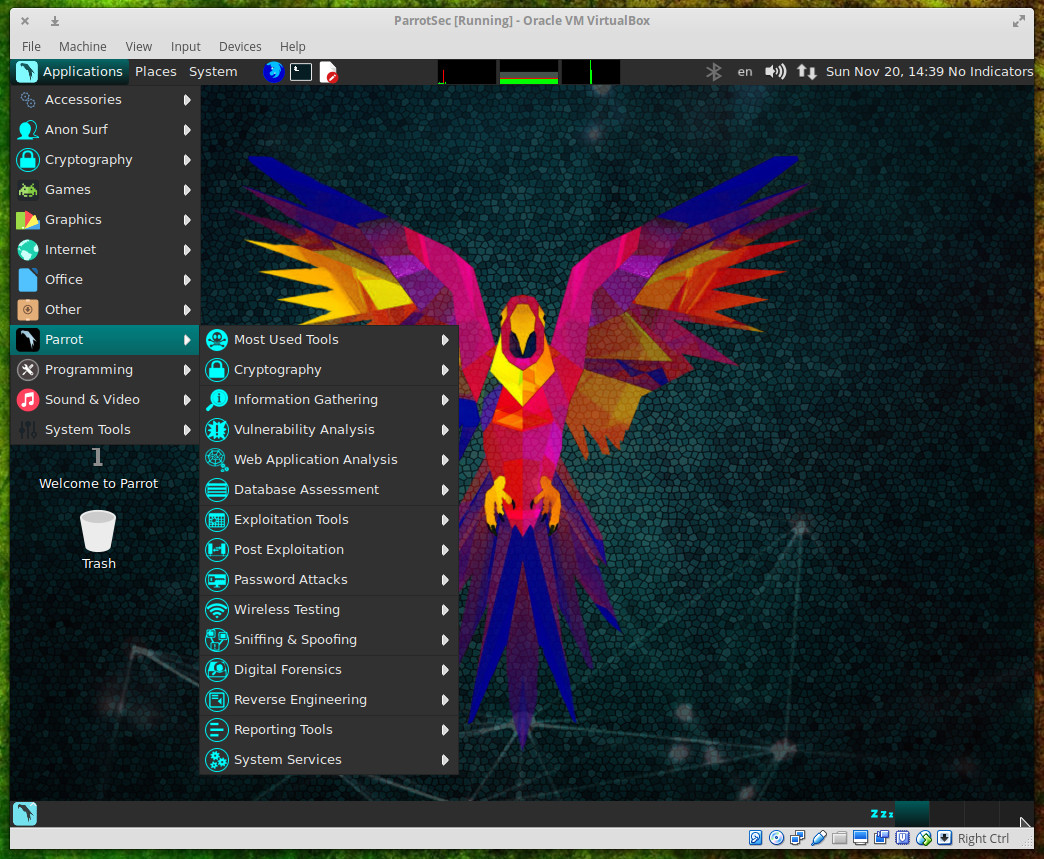
And that’s just from the standard menu entries. Dive into the Parrot submenu (Figure 1) and you’ll find an astonishing array of tools.

Figure 1: The Parrot submenu of the main menu.

Parrot as distribution

Beyond the testing, auditing, and programming tools, what you’ll find in the Parrot distribution is a rock solid system. Parrot is based on Debian 9 and includes a custom hardened Linux 4.6 kernel. This is a rolling release upgrade distribution that uses the MATE desktop and the Lightdm display manager…all presented with custom icons and wallpapers. It’s pretty and it’s powerful.

The system requirements for Parrot are:

  • CPU: x86 with at least 700Mhz

  • Architecture: i386, amd64 (x86-64bit), 486 (legacy x86), armel, and armhf

  • RAM: At least 256MB for i386 and 320MB for amd64. 512MB recommended

  • GPU: No graphic acceleration required

  • HDD: ~16GB required for installation

  • BOOT: Legacy bios preferred

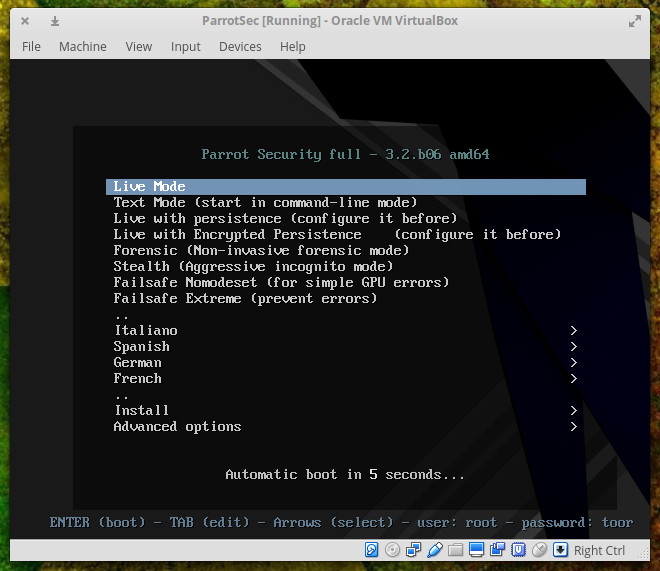
Parrot can be run as either a live distribution or installed on a standard desktop. When you first fire up the image, you will see a boot screen unlike any you’ve ever seen (Figure 2).

Figure 2: The Parrot Security boot screen.

From the boot screen, you can start Parrot as either a live instance, run it in text mode, run it live with persistence (any configurations you make will be saved), Live with encrypted persistence (so your configuration options cannot be viewed by others), a non-invasive forensics mode, an aggressively anonymous mode, or a failsafe mode. You can also install directly from the boot menu.

If you run Parrot as a live instance, you can then install the distribution to your hard drive by going to Applications > System Tools > Install Parrot Security OS.

One of the issues I discovered is, out of the box, the screen will lock after five minutes. It took me a while to discover that the default live credentials are root/toor. Before discovering those credentials, I had to unset the screen locking (otherwise I was having to constantly reboot after five minutes of inactivity).

The installation of Parrot can hiccup out of the gate. After using Parrot as a live instance, I went to install, only to discover the kernel had upgraded from 4.6.0 to 4.7. The Parrot installer can only be used if the kernel versions of the live system and the installer are the same. The best way to successfully install Parrot Sec is to go directly to Install from the boot menu. This will ensure your kernels match. You can run the standard installer (an NCURSES installer) or a GTK installer (GUI). Either installer will work like a charm and installation is fairly fast. NOTE: Installing Parrot Security on as a VirtualBox instance failed every time, so your best bet is to either run the distribution live or install it on a standalone system.

Once installed, you’re ready to take advantage of the Parrot Platform.

One really nice feature of Parrot Sec is the anonymous mode. While running either a live session or from a fully installed sesion, go to Applications > Anon Surf > anonymous mode start. Once in anonymous mode, Parrot Security will automatically route all of your traffic through TOR (including your DNS requests so to prevent DNS leaks).

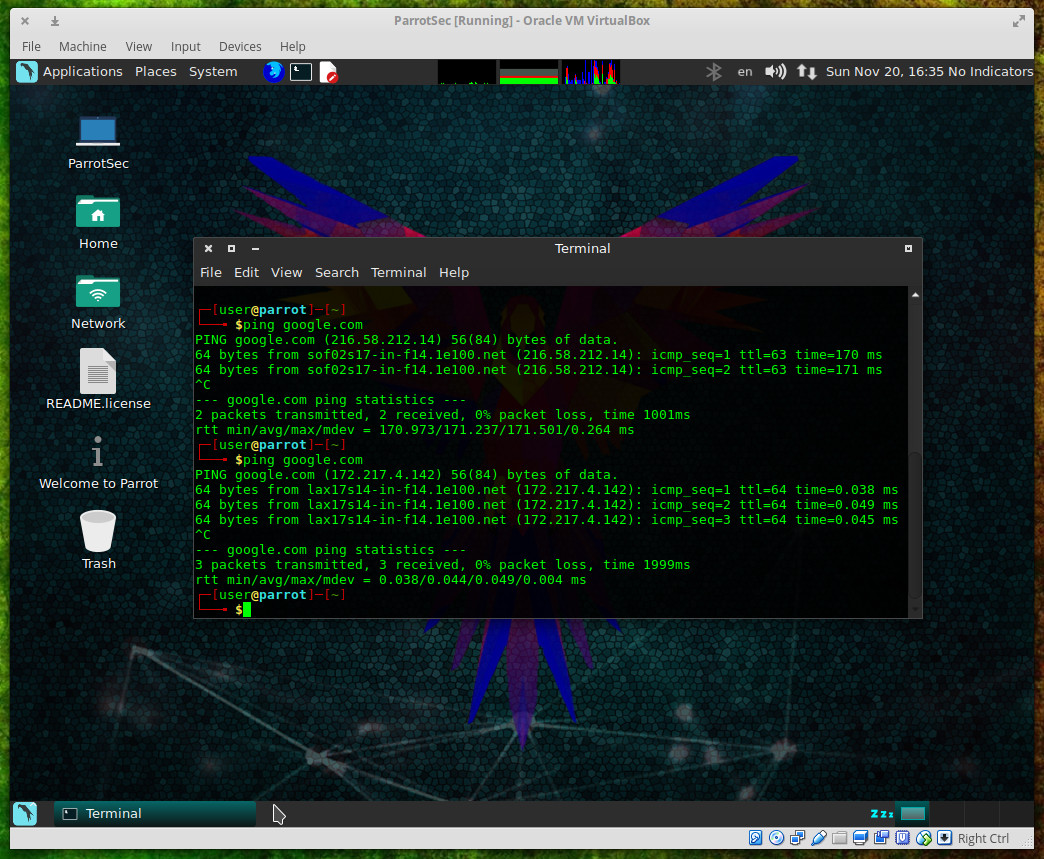
I ran a quick test of the anonymous mode. Before starting the mode, I ran a ping on google.com to see standard results. Afters starting up the anonymous mode, I ran the same ping to see very different output (Figure 3).

Figure 3: The difference between a ping with Anonymous mode off and then on.

Parrot as testing platform

As a testing platform, Parrot excels beyond any normal expectations. All you have to do is venture into Applications > Parrot and you’ll immediately see how capable a testing platform you have in Parrot Security. This distribution comes with nearly every tool you could possibly need to test your network and systems. It is from this menu that you can tackle serious work: Information gathering with DNS analysis, IDS/IPS Identification, Live Host Identification, OSINT/Route/SMB/SMTP/SNMP/SSL analysis; Vulnerability analysis with Cisco Tools, Fuzzing Tools, OpenVAS Scanner, Stress Testing, VoIP Tools; Web Application Analysis with CMS & Framework Identification, IPv6 Tools, Web Application Proxies, Web Crawlers & Directory Bruteforce, Web Vulnerability Scanners.

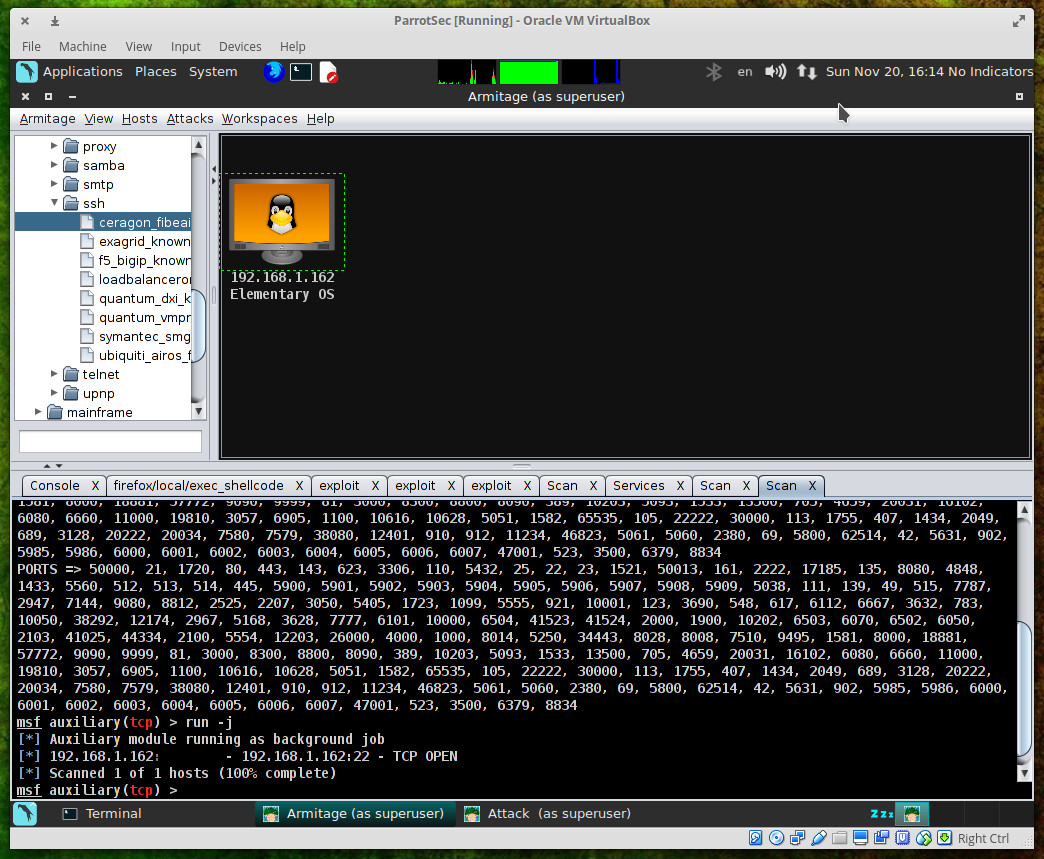
Each tool in the Parrot menu is a full-blown application, ready to use. Take a look into Applications > Parrot > Exploitation Tools and you’ll see an impressive list of applications including the likes of armitage (Figure 4 — a scriptable collaboration tool for Metasploit that visualizes targets, recommends exploits, and exposes the advanced post-exploitation features in the framework).

Figure 4: Scanning a host with armitage.

Parrot as programming platform

But don’t think Parrot Security is a distribution designed solely for those who want to audit the security of their network and systems. This Debian-based distro packs plenty of programming punch as well. You’ll find interpreters and compilers for the most popular languages. Programming tools include:

  • Arduino IDE

  • Atom

  • Ferret

  • Geany

  • GNU Emacs 24

  • GRC

  • Ipython

  • PyCrust

  • Qt Creator

  • SQLite database browser

  • USBprog

  • XRCed

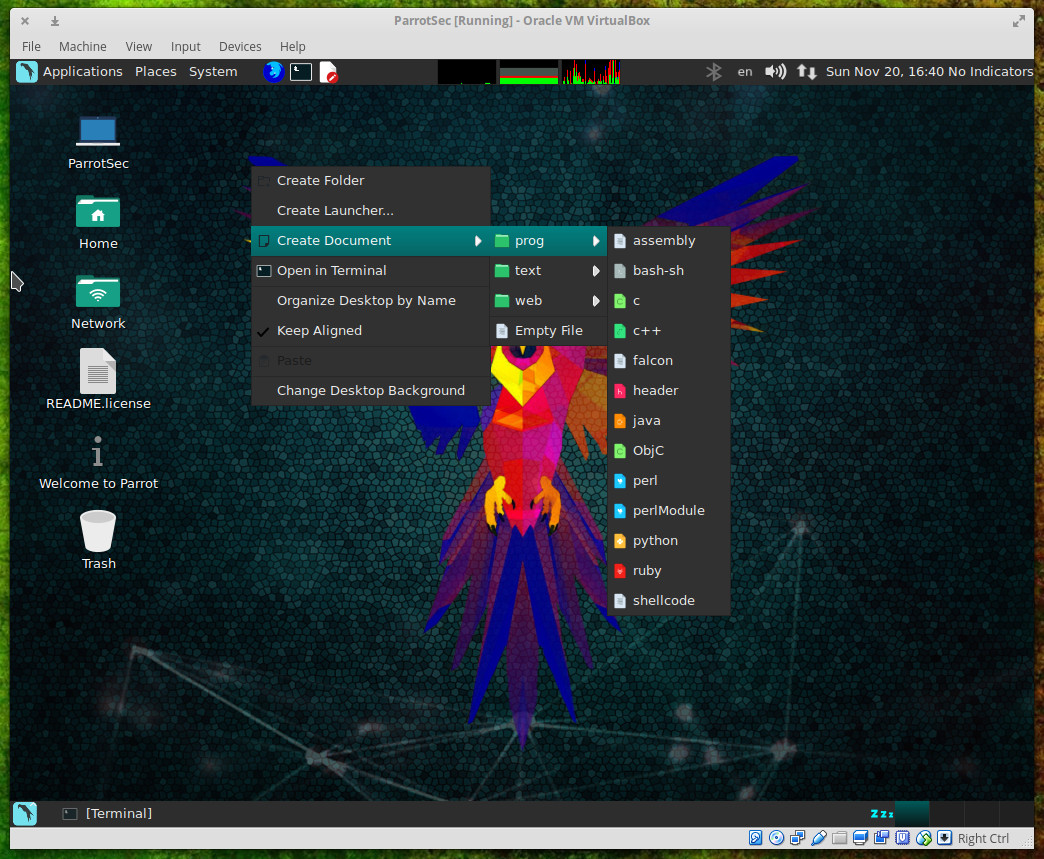
Beyond that, programmers will find one of the handiest tricks to ever grace their desktops. If you right-click a blank spot on the desktop and click Create Document > prog, you’ll see that you can create documents from a number of programming-centric templates (such as, assembly, Bash-sh, C, C++, header, Java, ObjC, Perl, etc. — Figure 5).

Figure 5: Creating a new document from one of the programming templates is simple.

This will create a file with the necessary extension, for the language you want work with, on your desktop. Right-click that file and then click Open With and then select your tool of choice. The template you choose will include some basic elements necessary for that language.

This is what you’ve been waiting for

If you’ve grown frustrated with your testing platform of choice letting you down, you cannot go wrong with Parrot Security. It’s only been around since 2013, but it’s made some remarkable strides in those short three years. Spin up an instance of this testing/programming-centric distribution and see if it isn’t exactly what you’ve been waiting for.

Advance your career with Linux security skills. Check out the Linux Security Fundamentals course from The Linux Foundation.

10 Great Moments from Linux Foundation 2016 Events

This year, more than 20,000 tech professionals gathered at 150 Linux Foundation events worldwide to learn and share open source technologies and best practices. Held in 46 cities across 14 countries — from the U.S. and Canada, to Germany, Spain, China and Japan — Linux Foundation events are where the creators, maintainers and practitioners of the world’s most important open source projects meet.

As 2016 comes to a close, we have taken a look back at some of the highlights from this year’s events and compiled 10 great moments into a photo gallery, including the 25th anniversary of Linux Gala, the first Kids Day at LinuxCon, and Cory Doctorow speaking on FLOSS. Please share your favorite moments with us in the comments!

Thanks to all of the speakers, attendees, sponsors, and staff who made 2016 the best year yet for The Linux Foundation’s open source events. We look forward to seeing you all again in 2017.

You can see the complete 2017 event schedule now. 


Monitoring Software: The Market Lines Are Blurry

Who is the market leader in IT monitoring? You won’t find the answer to that question in this article.

With a wide range of functionality being offered for multiple audiences, our priority is to provide clarity about who wants what. The New Stack is seeing two contradictory patterns. Many companies are trying to create a full stack of monitoring services, but there is also a desire to have a composable infrastructure.

We believe these trends will continue. The lines between infrastructure and application monitoring will continue to blur, but task-specific tools will gain prominence. Perhaps the biggest factor in how these changes unfold is the job roles of the people using the monitoring software.

Read more at The New Stack