Home Blog Page 733

4 Talks from Leaders in Higher Ed on the Future of Open Education

4 talks from leaders in higher ed on the future of open education

Openness has become the new standard for content and software across a variety of initiatives in higher education. Open source software, open education, open educational resources, open access publishing, open analytics, open data, open science, and open humanities have matured to challenge, even dominate, the global educational landscape.

Those of us working with open projects know how important it is to contribute experiences of best practice, develop common understanding, and share strategic direction, in order to better facilitate communication and synchronization across the emerging open landscape. To that end, the Apereo Foundation—an open source software community of over 100 institutions of higher education—along with the Open Source Initiative and Red Hat organized the first Open Summit.

Read more at OpenSource.com

DARPA Cyber Grand Challenge Ends With Mayhem

DARPA’s Cyber Grand Challenge pitted machine against machine in an effort to find the best in autonomous computer security. In the end, Mayhem was the big winner.

After three years of planning and lead-up contests, the finals of the Defense Advanced Research Projects Agency’s Cyber Grand Challenge (CGC) to show the best in autonomous computer security concluded with a win by the Mayhem system from the ForAllSecure team, which won the $2 million grand prize. The Xandra system finished in second place, winning $1 million, while the Mechaphish system placed third, claiming $750,000.

The three systems finished at the top of a field of seven systems that battled for 8 hours in front of an audience at the DefCon security conference here Aug. 4. There was live play-by-play and color commentary of the last hours of the contest from a broadcast booth.

Read more at eWeek


How To Set Up A Web Server and Host Website On Your Own Linux Computer

setup website

Welcome to small tutorial series of hosting website on Linux machine. This series of articles will teach how to set up a web server on Linux computer and make it available online. The website we’ll host on our personal computer can be accessed from around the globe. In this article(Part 1), we are going to install all the required tools to setup web server. So let’s get started and start our own setup web server

The Linux distro we’ll be using for this setup is Ubuntu OS. However, this can be implemented in any linux distro. At the end of this tutorial you will be able to host your php and mySQL based website on your own Linux machine. The tutorial is divided into two parts. In first part, we discuss about basic components and their installation part. In next section, we shall write sample php code for basic website and host it under apache2 web server

Complete Article At LinuxAndUbuntu

How to Encrypt and Decrypt Files and Directories Using Tar and OpenSSL

When you have important sensitive data, then its crucial to have an extra layer of security to your files and directories, specially when you need to transmit the data with others over a network.

That’s the reason, I am looking for a utility to encrypt and decrypt certain files and directories in Linux, luckily I found a solution that tar with OpenSSL can do the trick, yes with the help of these two tools you can easily create and encrypt tar archive file without any hassle.

[[ This is a content summary only. Visit my website for full links, other content, and more! ]]

Programming Basics: The Function Signature

See how paying attention to your function signature, utilizing language features where possible and using immutable data structures and pure functions can get you pretty far.

The basic unit of programming is the function. You build your program one function (or method) at a time. The smallest thing you can test in a unit test is a function. A function is also the smallest piece of code you can name and hence create a new abstraction. The whole point of a function is to encapsulate some piece of code and make it available to the rest of your program or other programs in a library. 

Read full article

This Week in Open Source News: British Government Seeks OSS Lead, Business Models Increasingly Embrace Open Software

1) British Government Digital Service (GDS) posted a job advertisement looking for a new ‘open source lead’. “How times have changed,” writes Adrian Bridgwater.

UK Government Recruits Chief Open Source Penguin– Forbes

The British Digital Service (BDS) seeks an open source lead; a metaphor for the changing times.
2) Vendors are changing their business models to incorporate OSS.
Open Source Reshaping Vendor Business Models – Wikibon– Silicon Angle

3) Scott Gilbertson anticipates two great years ahead with Mint 18.x.

Mint 18 Review: “Just Works” Linux Doesn’t Get Any Better Than This– Ars Technica

4) This edition of Jim Lynch’s weekly digest focuses on how many gamers are actually using Linux.

Do You Use Linux as Your Main Gaming OS?– InfoWorld

5) The new CORD project will enable telcos to use SDN, NFV and cloud-based tech.

CORD Project Will Help Service Providers Build Cloud-Like Networks– eWeek

Managing Encrypted Backups in Linux, Part 2

In part 1, we learned how to make simple automated unencrypted and encrypted backups. In this article, I will show you how to fine-tune your file selection, and how to backup your encryption keys.

rsync Include and Exclude Files

rsync supports all kinds of complex ways to build lists of files that you want to copy, and lists of files that you want to exclude from copying. man rsync details five ways to select files:

--exclude=PATTERN   exclude files matching PATTERN
--exclude-from=FILE read exclude patterns from FILE
--include=PATTERN   don't exclude files matching PATTERN
--include-from=FILE read include patterns from FILE
--files-from=FILE   read list of source-file names from FILE

Include rules copy everything by default. It seems they should exclude everything by default and copy only the files that you list, but it doesn’t work that way, and you have to use them in combination with exclude rules. Exclude rules exclude nothing by default, but exclude only the files you list. Include rules drive me nuts, so I don’t use them.

The two simplest methods use the –files-from and –exclude-from options. Put your list of files in a text file and then call this file in your backup command. Use the –files-from option when your list of files to copy is smaller than the number of files you don’t want to copy. –files-from does not support pattern matching; it is just a plain list.

Use –exclude-from when your exclude list is shorter than your include list. This supports pattern matching, so you can use regular expressions.

This example include file lists subdirectories and one file from the 1mybooks directory, and the entire blog directory. Filepaths are relative to the root directory, which is ~/Documents/:

1mybooks/newbook/
1mybooks/oldbook/
1mybooks/hacks.pdf
blog/

This example backup command use the -a (archive) option, which preserves your file metadata, including permissions, file ownerships, and timestamps. -r (recursive) is normally included in the -a option, but the –files-from option does not recurse. -v adds verbosity.

$ rsync -arv --files-from=include.txt ~/Documents/ 
   carla@backup:/home/carla/backupfiles

You have to specify the target directory, and trailing slashes have no effect.

–exclude-from supports pattern matching. In this example, logs/2015/* will not copy any subdirectories or files after 2015/. sketchbook/sketch* will not copy any files that start with “sketch”. .* means do not copy dotfiles. games/ and Videos/ are completely excluded:

.*
games/
downloads/
logs/2015/*
sketchbook/sketch*
Videos/

Use it like just like the include example:

$ rsync -arv --exclude-from=exclude.txt ~/Documents 
   carla@backup:/home/carla/backupfiles

Now you must mind your trailing slashes, as we learned in part 1. A trailing slash on the source directory copies only the contents, and omitting it copies the directory and contents. It makes no difference on the target directory.

duplicity File Selection

duplicity supports similar file selection conventions to rsync, with includes and excludes and pattern matching. The simplest backup command names a single directory, as we learned in part 1. When you want to backup more than one file or directory, it gets more complicated. No, sorry, you can’t just make a normal plain file list. This example excludes two subdirectories in the ~/foo directory, and by default includes all the others:

duplicity --encrypt-key 088D5F09  --exclude ~/foo/dir1 --exclude ~/foo/dir2 
 ~/foo  scp://carla@backupserver/somefiles

To include files, list the files you want and then exclude the root directory of your backup:

duplicity --encrypt-key 088D5F09  --include ~/foo/dir3 --include ~/foo/filename  
 --exclude '**' ~/foo  scp://carla@backupserver/somefiles

Note that duplicity defaults to not allowing multiple different backups to the same backup directory. You can override this with the –allow-source-mismatch option, although I don’t recommend it. It’s cheap and easy to give each backup archive its own directory.

You can put your file list in a file and then call it with the –include-filelist or –exclude-filelist option. This example includes files to backup and excludes all the others in your root backup directory:

+ /home/carla/dir1/
+ /home/carla/dir2
- **

Call your include file like this example:

$ duplicity --encrypt-key 088D5F09 --include-filelist filelist.txt /home/carla/ 
 scp://carla@backupserver/somefiles

This example lists files to exclude:

- /home/carla/dir1
- /home/carla/dir2
- /home/carla/filename

You don’t need to tell it to include all the other files because that is the default. Then, run your backup command:

$ duplicity --encrypt-key 088D5F09 --exclude-filelist filelist.txt /home/carla/ 
 scp://carla@backupserver/somefiles

duplicity has eleventy-fourteen options. Please study man duplicity to learn about full and incremental backups, pattern matching for uber-nerdy file selection, and the correct syntax for FTP and local backups. Yes, it’s a bit of a rough read, but that is the authoritative source, and believe me it is faster in the long run than wading through web searches.

Backup Keys

The quickest method is to copy your .ssh and .gnupg directories to a safe location. I recommend using an SD card rather than a USB key — because SD cards are more reliable — and locking it somewhere safe. You could also store these on a safe cloud service such as SpiderOak. Then to restore them, you can just copy them back into place. There are several other cool nerdy ways to back up encryption keys, which I’ll discuss in a future article.

Advance your career in Linux System Administration! Check out the Essentials of System Administration course from The Linux Foundation.

Total System Backup and Recall with Déjà Dup

Linux offers a world of options. No matter your need, you’ll find a tool for the purpose. This holds true for servers, productivity, games, and everything in between. While you’re working on your desktops or servers, however, there’s one task of singular importance. That task is backups.

You probably already know of rsync and other command-line tools that enable Linux to handle backups in incredibly flexible ways. But, what if you prefer a GUI for such tasks? Where do you turn? The tool I used for years was Lucky Backup. Unfortunately, the development on Lucky Backup has frozen, so it will not be receiving any new features. The developer does still support the tool, but it’s not possible to install his latest release on anything but outdated distributions (such as Ubuntu 14.10). Even though Lucky Backup is still an outstanding backup solution, you’re going to want to find a tool that will continue development. For me, the obvious GUI replacement for Lucky Backup is Déjà Dup.

Déjà Dup offers just about any feature you’d need in a simple backup solution, driven by a GUI front end (for the duplicity command-line tool). It features:

  • Support for local, remote, or cloud backup location (including services like Amazon S3 and Rackspace Cloud Files)

  • Built-in encryption and compression support

  • Incremental backups (so you can restore from any particular point)

  • Scheduled backups

  • Integrates into Nautilus and other file managers

I rely on Déjà Dup to run a regularly scheduled backup and it has yet to fail me. Let’s install Déjà Dup, set up a job, run it, and then restore from the backup.

Installation

Déjà Dup can be installed on most Linux distributions. On some variations of Linux, such as Ubuntu, it will come pre-installed. To find out, open up your Dash (or menu) and search for either Backups or Déjà Dup (just type deja in your desktop search, and it should appear). If you do not find it, you can install directly from either your Software Center (search for deja) or you can install from the command line with the following:

  • Ubuntu: sudo apt-get install deja-dup

  • Fedora: dnf install deja-dup

  • openSUSE: zypper install deja-dup

Once installed, you’ll find Déjà Dup in your desktop menu. You’re ready to start backing up.

Usage

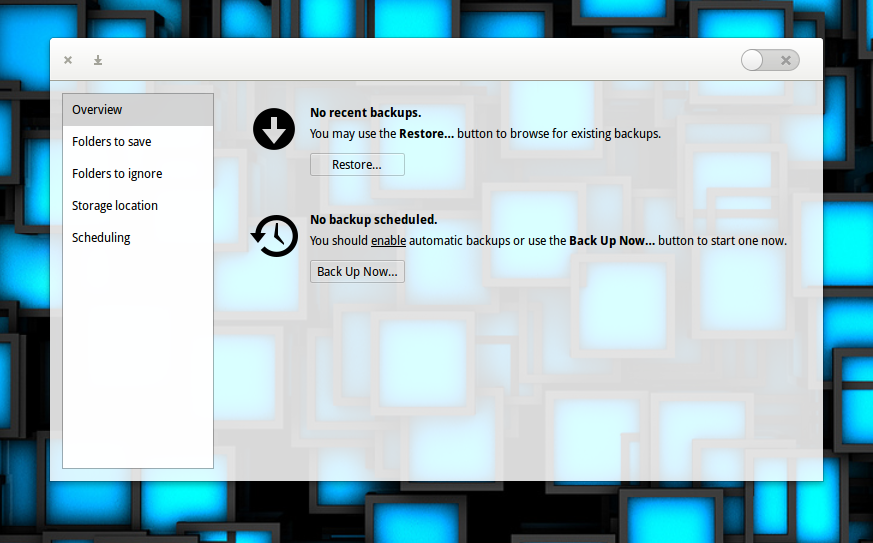
Working with Déjà Dup makes backups incredibly easy. When you first launch the app (I’m running the software on Elementary OS Freya), you’ll see a straightforward window, that clearly indicates Déjà Dup is disabled (Figure 1).

Figure 1: The Déjà Dup main window ready to serve.

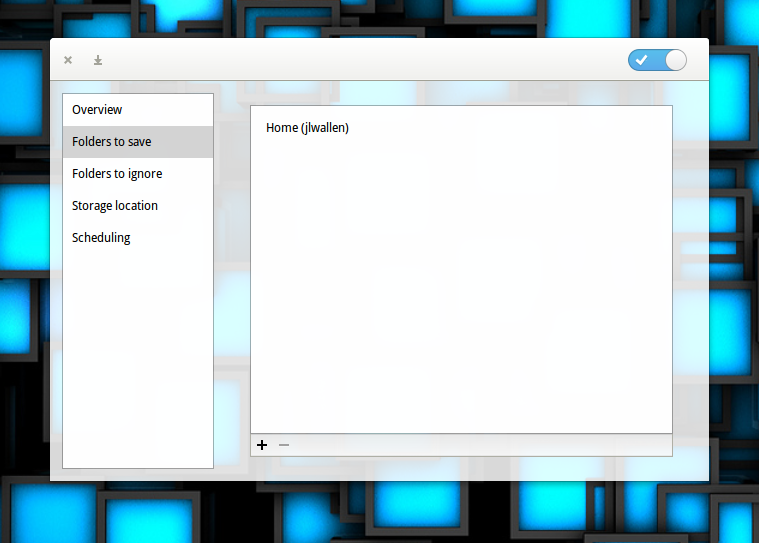
Let’s set up a backup. I’ll be backing up my most important folder (a local Google Drive folder synced using the Insync tool) to an external drive. The first thing to do is enable Déjà Dup by clicking the slider in the upper right corner. Once you’ve done that, click on Folders to save in the left navigation. In the resulting window (Figure 2) click on the + button, navigate to the folder to be backed up, and click Add.

Figure 2: If you don’t need to backup the default (your home directory), select it and click the – button.

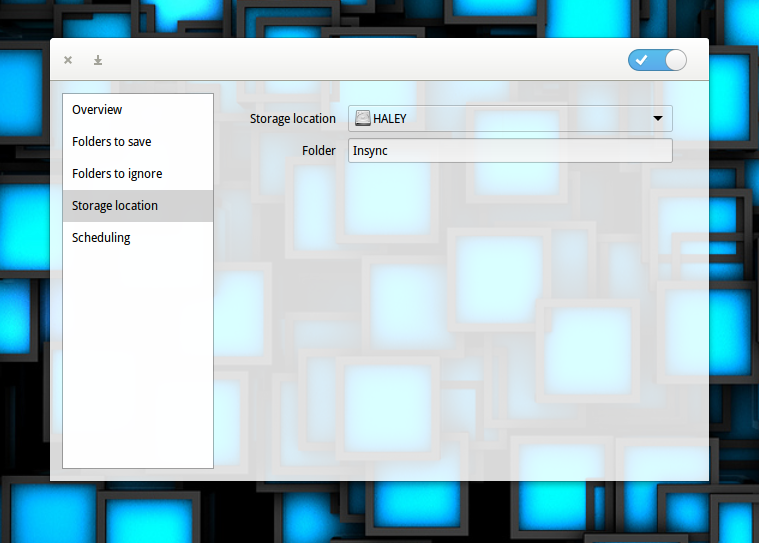
If there are any folders that need to be excluded from your backup, click on Folders to ignore and add them in the same way you added the folder to save. Otherwise, click on Storage location. In the resulting window (Figure 3), select the storage location from the drop-down (in my case a locally attached drive) and then enter the folder the backup is to be saved to.

Figure 3: Selecting your storage location for your backups.

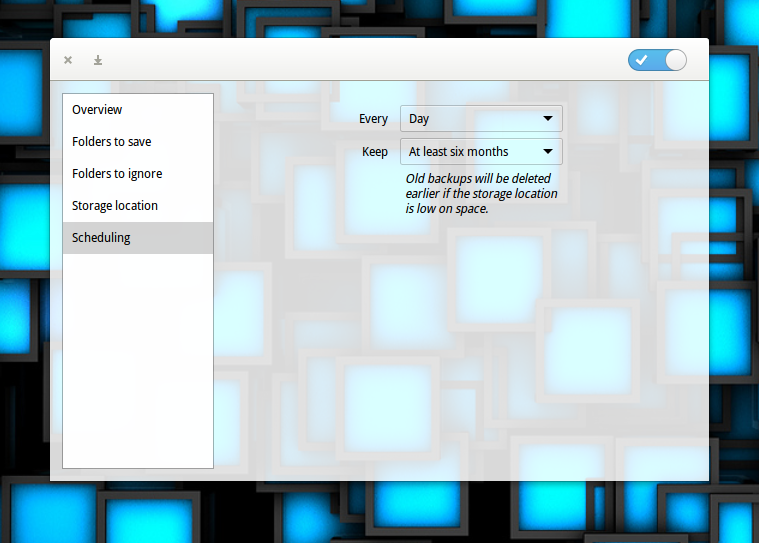
The final step is to click on Scheduling and then, select when you want to run the backups and how long you want to keep a backup (Figure 4).

Figure 4: The scheduling options are a bit limited, but they work well.

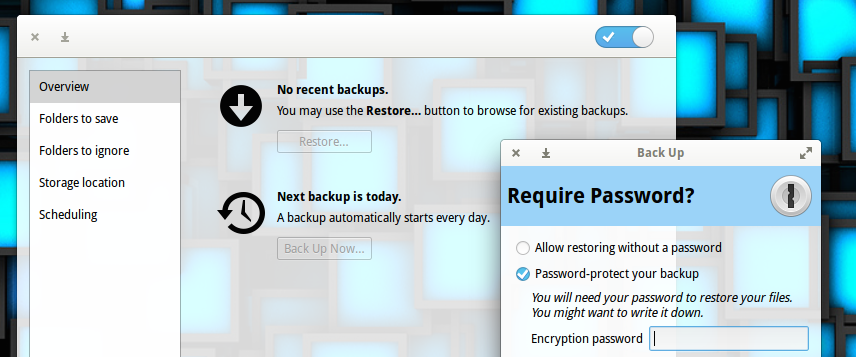
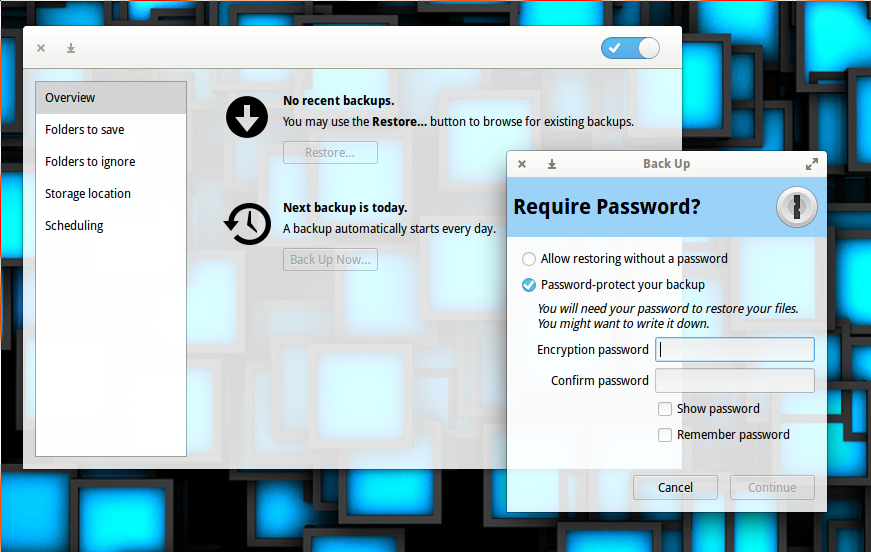
Finally, click back on Overview and you can either run a backup now or wait for the backup to run at its scheduled time. If you click Run Now (from Overview), you will be prompted to either enable or disable encryption for the backup (Figure 5).

Figure 5: Enabling encryption for your backups.

If you opt for encryption, enter your password and then click Continue. If you opt out of encryption, select Allow restoring without a password and then click Continue. The backup will immediately start running. If necessary, you can click Resume later (if the backup is taking too long). An initial backup will take a considerable amount of time (depending, of course, on the amount of data to be backed up). You should start seeing your destination fill up with files. Each of these files is a tar file containing backup information. If you enabled encryption, each file will end with a .gpg extension (otherwise they will end in .difftar).

Restoring a backup

How you restore will depend on which desktop you use. First, we’ll walk through the process of restoring from within the Déjà Dup application (on a Ubuntu 16.04 desktop). This process will work, regardless of what desktop you use.

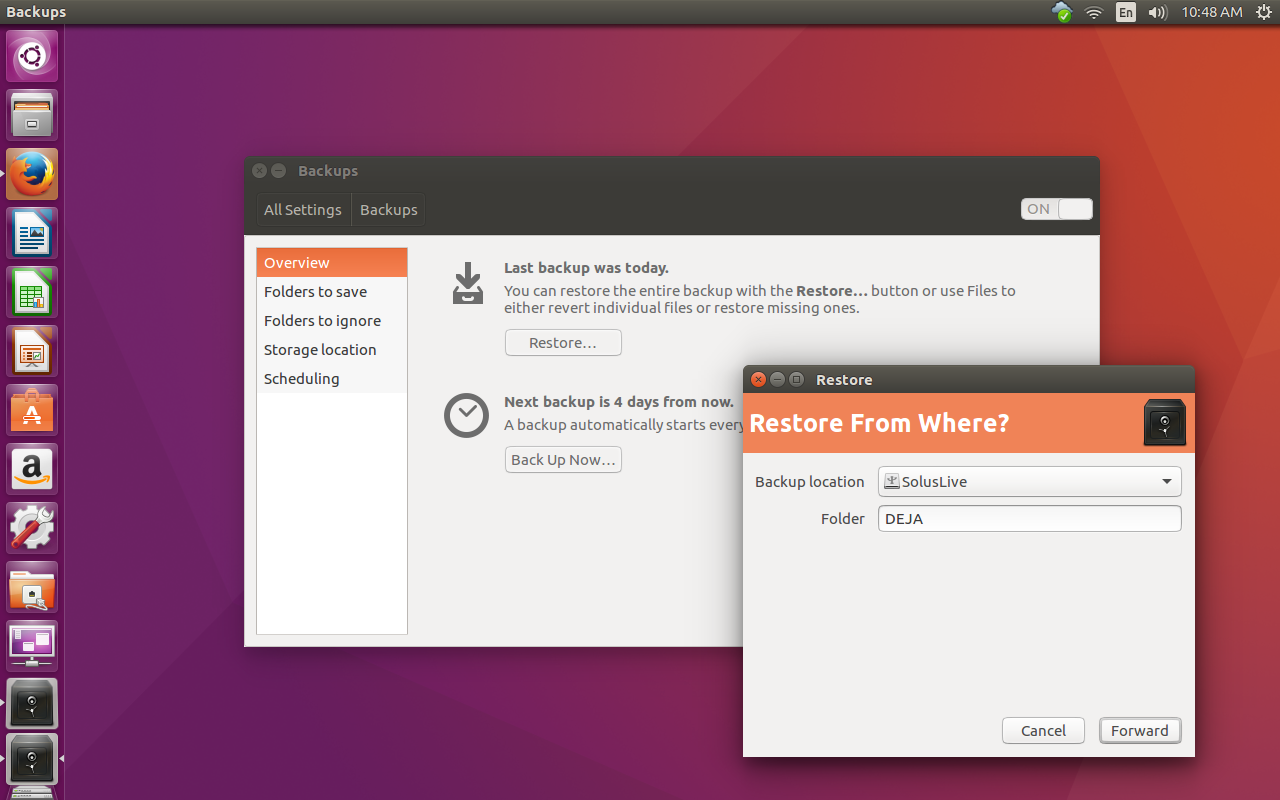
From the main window, click the Restore button. Next, select the backup location (Figure 6).

Figure 6: Backing up from a USB flash drive on Ubuntu.

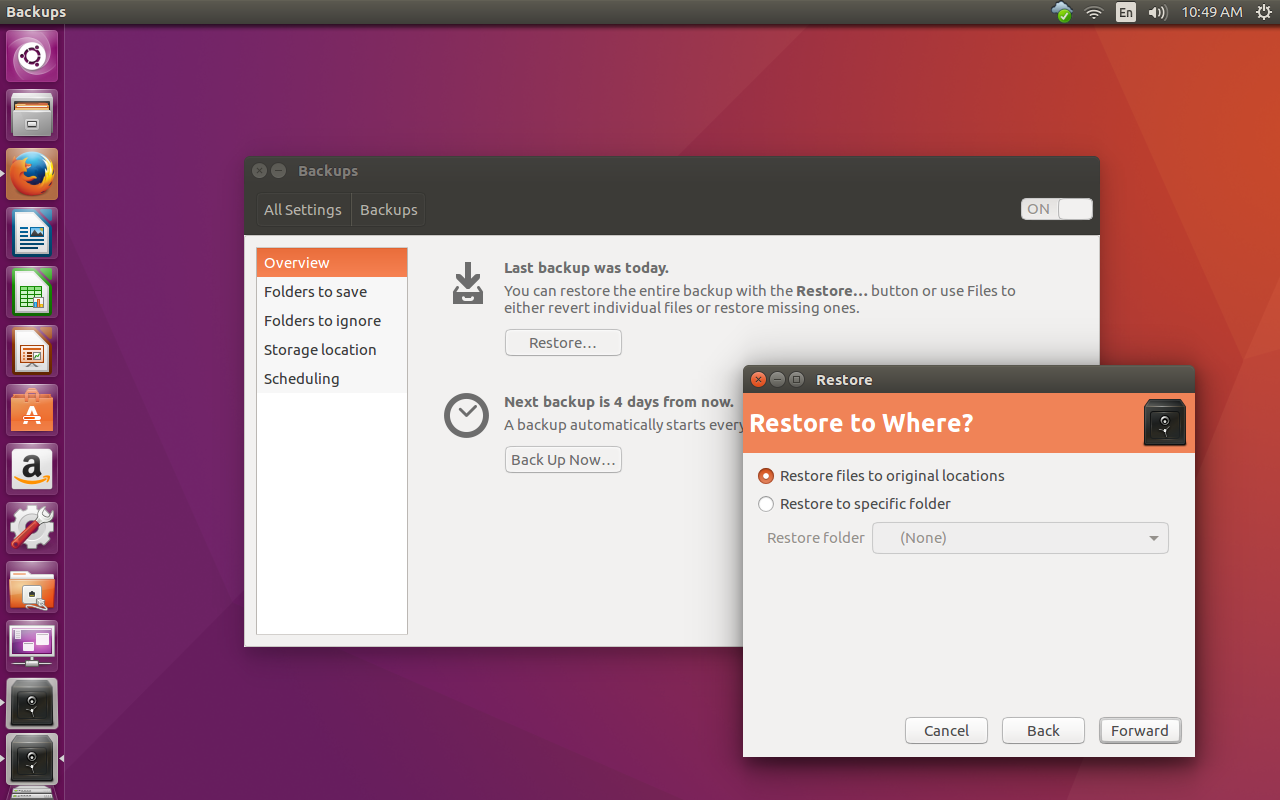
Click Forward and then select the restore date. Click Forward again and select where you want to restore the files to (Figure 7).

Figure 7: You can either restore the files to the original locations or a specific folder.

Finally, if you’ve enabled encryption, you’ll be asked to enter your encryption password and the restoration will begin.

If you’re using Ubuntu (with Unity) or a GNOME-based desktop, you can do the following:

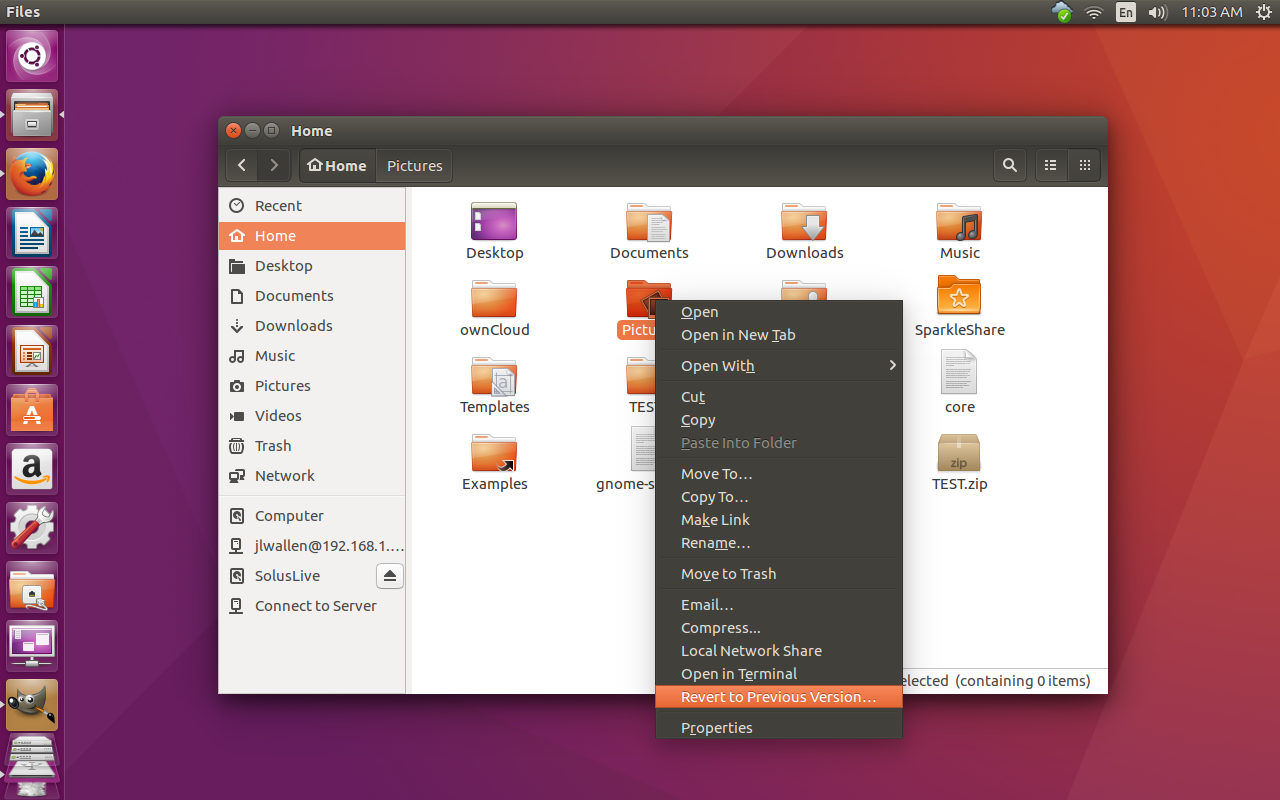
Locate and right-click on the folder to be restored (the folder you backed up with Déjà Dup). When the contextual menu appears (Figure 8), select Revert to Previous Version and the Déjà Dup application will open up to the Restore from where window. You can then continue the process in the fashion as you did above.

Figure 8: Restoring from the context menu of the default Ubuntu file manager.

A Solid and Simple Backup

You will be hard pressed to find an easier, more reliable backup GUI for Linux than Déjà Dup. Although it might not have all the flexibility of some of its command-line counterparts, it is a solution that anyone can depend upon. Install it and schedule a regular backup of your important data…and hope that you never have to use (but rest assured it’s there).

Learn more about backups and system management in the Essentials of System Administration course from The Linux Foundation.

Graph Databases for Beginners: Graph Search Algorithm Basics

While graph databases are certainly a rising tide in the world of technology, graph theory and graph algorithms are mature and well-understood fields of computer science.

In particular, graph search algorithms can be used to mine useful patterns and results from persisted graph data. As this is a practical introduction to graph databases, this blog post will discuss the basics of graph theory without diving too deeply into mathematics.

In this “Graph Databases for Beginners” blog series, we have covered why graphs are the future,why data relationships matterthe basics of data modelingdata modeling pitfalls to avoidwhy a database query language matterswhy we need NoSQL databasesACID vs. BASEa tour of aggregate storesother graph data technologies, and native versus non-native graph processing and storage.

Read more at DZone

The NVIDIA Jetson TX1 Developer Kit: A Tiny, Low Power, Ultra Fast Computer

The NVIDIA Jetson TX1 offers enormous GPU processing in a tiny computer that only consumes 5-20 watts of power. Aside from the GPU, the CPU is certainly not slow with four 64-bit A57 ARM cores. And, you have 4GB of RAM and 16GB of eMMC storage, so you should be able to load your application onto the on-board storage and throw around big chunks of data in RAM. The SATA interface gave great performance when paired to an SSD, and the two antenna 802.11ac gave speeds up to gigabit Ethernet over the air.

The small size, low power, and great GPU processing of the Jetson TX1 screams for robotics applications where the machine is on the move and needs to process streams of images and sensor data in real time. Stepping away from robotics specifically, the Jetson TX1 is a very interesting machine when you want to take performance with you. Whether the Jetson TX1 is driving a screen in a car seat or performing image recognition at a remote location with limited bandwidth — it’s a smarter choice to perform processing on site. You might not care about the 4k video streams at a job site, but you want to know if an unknown person is detected in any image at 2am.

The heart of the Jetson is on a computer on a module (COM). This includes the NVIDIA Maxwell GPU, CPUs, RAM, storage, WiFi handling, etc. The COM contains all these and physically sits below the aluminum heat sink in the picture. To help you use all these features, a base board with a mini-ITX form factor is part of the developer kit, and it gives you one USB3 port, a microUSB port for setup, 19-volt DC input for power, HDMI 2.0, SATA, full-sized SD card slot, camera and display connections, two antenna connectors, and access to low-level hardware interaction such as SPI, GPIO, and TWI connections.

Because of the small size of the Jetson TX1, it is tempting to compare it with other small machines like the various Raspberry Pis, BeagleBone Black, and ODroid offerings (Figures 1 and 2). Any such comparison will quickly lead to moving away from benchmarks that target the CPU only to considering the performance advantage offered by the NVIDIA Maxwell GPU on the Jetson board that is covered later in the article. The GPU can perform many general-purpose tasks as well as much of the image manipulation and mathematics used in high-end robotics. When comparing the Jetson TX1 with desktop and server hardware, however, although the latter can have powerful GPU hardware, the Jetson will likely draw significantly less power.

Figure 1: OpenSSL cipher performance speed test.

Figure 2: OpenSSL digest performance speed test.
The Jetson has most of its connectors on the base board along the back, including a gigabit Ethernet connector, an SD card slot, HDMI, USB 3.0, microUSB, two WIFI antennas, and a DC power input socket. On the left side of the board next to the Jetson COM, you’ll find a PCIe x4 slot and the SATA and SATA power connectors. The microUSB slot is used during initial setup and a USB “on the go” adapter lets you then adapt the microUSB to a regular USB 2.0 slot so your keyboard can be connected there, leaving the USB 3.0 port free for more interesting tasks. The little daughter board on the middle right of the image is the camera module (Figure 3).

Figure 3: NVIDIA Jetson TX1.

The base board has a M.2 Key E slot on it. Most M.2 SSD drives need a Key B and/or Key M instead. So, you should make sure that an SSD is going to be compatible with Key E if you are hoping to expand the storage on the Jetson TX1 using the M.2 slot. You’ll also find regular SATA and SATA power connectors on the Jetson TX1, which might be a more hassle-free route to an SSD. You will have to order cables for these SATA and power ports, because the ones on the Jetson are the opposite gender to those on a regular motherboard. I was tempted to try to connect a SATA SSD directly to the base board (the connectors themselves would allow this), but there is a large capacitor in the way blocking such maneuvers.

Unlike many other small Linux machines, the Jetson TX1 wants you to have a desktop machine with 64-bit Ubuntu 14.04 running on it in order to get started. In some ways, this approach makes things simpler, because you can follow the prompts provided by the Jetpack for L4T installer software. If you have your Jetson TX1 connected via USB to the Ubuntu desktop and the network cable plugged into the Jetson TX1 with access to the Internet without needing a proxy server, then everything installs fairly easily. The instructions are shown on screen when you need to put the Jetson TX1 into recovery mode to flash the software, and everything runs smoothly.

When I first started up the Jetson, I tried to find demos in the menu. Opening a file manager shows many graphical and general-purpose GPU programming examples to be explored. There is also GStreamer support for taking advantage of the hardware and a version of OpenCV optimized to run on the GPU. The more standard libraries and tools that can be optimized to take advantage of running on the GPU, the easier it will become to fully take advantage of the Jetson TX1. Imagine if std::sort could offload the mergesort to your GPU, and all of a sudden a large sort was 15 times faster.

The WIFI came up without any issue or manual intervention. When connecting the Jetson to a D-Link DSL-2900AL router, iwconfig reported a bitrate of 866.5 Mb/s. I used the following command to initiate the connection to my access point.

nmcli dev wifi con ACCESSPOINTNAME password PASSWORDHERE name ACCESSPOINTNAME

Performance

Looking at general purpose computing speed, in the advanced section of the CUDA examples, there are mergesort implementations for both the CPU and the GPU. This was a golden chance for me to test performance on a common task not only on the Tegra CPU and GPU but also to throw in numbers for Intel CPUs to compare with. I noticed that compiling for the CPU, there was a huge difference in performance between just compiling and using -O3, leading me to think perhaps the NEON Single Instruction, Multiple Data (SIMD) instructions might be getting used by gcc at higher optimization levels.

On the Jetson TX1 board, running the gcc -O3 code on the GPU took 8.3 seconds, while the GPU test could complete in 370ms or less. I say “or less” because I hacked the source to include the time taken to copy buffers from CPU to GPU and back so the 370ms is a complete round trip. About half the 370ms were spent copying data to and from the GPU memory. In contrast, an Intel 2600K took 4 seconds and a Core M-5Y71 took about 4.5 seconds. It is impressive that the CPU-only test was so fast on the Jetson relative to the Intel CPUs. Obviously, if you can do your sorting on the GPU, then you are much better off.

For testing web browsing performance, I used the Octane Javascript benchmark. For reference, using the 64-bit version 32.0.3 of Firefox, an Intel 2600K gives an overall figure of about 21,300, whereas the Intel J1900 chip comes in at about 5,500 overall. Using Iceweasel version 31.4.0esr-1, the Raspberry Pi 2 got 1,316 on Octane. The Jetson TX1 got 5995 using Firefox.

OpenSSL 1.0.1e took about 2 minutes to compile on the Jetson TX1. Although the OpenSSL test is only operating on the A57 core and not taking any advantage of the GPU, it does show that the CPU on the Jetson is very capable. Three of the top scores are taken by the Jetson for plain encryption.

Media

The Jetson has support for both hardware encode and decode of various common image and video formats. This is conveniently exposed through GStreamer so you can take advantage of the speed fairly easily. I grabbed the grill-mjpeg.mov file from the Cinelerra test clips page for testing JPEG image support. The first command below uses the CPU to decode and then re-encode each JPEG frame of the motion jpeg file. The slight modification in the second command causes the dedicated hardware on the Jetson to kick in. The first command took 4.6 seconds to complete, and the second ran in 1.7 seconds.

gst-launch-1.0 filesrc location=grill-mjpeg.mov ! 
 qtdemux ! jpegdec ! jpegenc ! 
 filesink location=/tmp/test_out.jpg -v -e

gst-launch-1.0 filesrc location=grill-mjpeg.mov ! 
 qtdemux ! nvjpegdec ! nvjpegenc ! 
 filesink location=/tmp/test_out.jpg -v -e

The Jetson comes with a CSI camera attached to the base board. It has been mentioned on the forums that in the future that camera will be exposed through /dev/video. The camera can be accessed already through JetPack install. I tested it using the following command.


gst-launch-1.0 nvcamerasrc fpsRange="30.0 30.0" ! 
 'video/x-raw(memory:NVMM), width=(int)1920, height=(int)1080, format=(string)I420, framerate=(fraction)30/1' ! 
 nvtee ! nvvidconv flip-method=2 ! 'video/x-raw(memory:NVMM), format=(string)I420' ! 
 nvoverlaysink -e

The Jetson can decode and encode H.264 video in hardware. The first command generates a test pattern video and encodes it to H.264 using hardware. The second command generates random “snow” video and encodes it at a much higher bitrate to try to preserve the random patterns of the snow video. Both of these commands caused one CPU core of the Jetson to sit at 100 percent usage.


gst-launch-1.0 videotestsrc ! 
 'video/x-raw, format=(string)I420, width=(int)1920, height=(int)1080' ! 
 omxh264enc ! matroskamux ! filesink location=test -e

gst-launch-1.0 videotestsrc  pattern="snow" ! 
 'video/x-raw, format=(string)I420, width=(int)1920, height=(int)1080, framerate=30/1, pattern=15' ! 
 omxh264enc profile=8 bitrate=100000000 ! matroskamux ! 
 filesink location=test -e

Viewing these H.264 files with the following command resulted in each CPU core being used at about 10-15 percent.

gst-launch-1.0 filesrc location=test ! decodebin ! nvoverlaysink  

In an attempt to work out how much of the CPU usage in the above encode example was due to buffer handling and source video generation, I encoded data right from the onboard CSI camera with the following command. This resulted in all CPU cores at around 10-15 percent with peaks up to 20 percent. Increasing the encode parameters to use profile=8 bitrate=100000000 and with very large and swift changes on the camera increased the CPU to 100 percent at times.


gst-launch-1.0 nvcamerasrc fpsRange="30.0 30.0" ! 
 'video/x-raw(memory:NVMM), width=(int)1920, height=(int)1080, format=(string)I420, framerate=(fraction)30/1' ! 
 nvtee ! nvvidconv flip-method=2 ! 'video/x-raw(memory:NVMM), format=(string)I420' ! 
 omxh264enc ! matroskamux ! filesink location=test -e

Unfortunately, the version of GStreamer that comes with the current software release for Jetson has a matroskamux that does not support the H.265 format. The Jetson is also capable of handling the H.265 in hardware.

OpenCV

The Jetson comes with a specialized build of OpenCV 2.4.12.3 that is modified to offload calculations onto the GPU. By linking with that OpenCV (which is also the only one installed by default), you should automatically leverage the GPU on the Jetson. I had some fun figuring out how to test this. OpenCV comes with some performance tools if you enable them at build time, but those tools were not packaged by NVIDIA.

I ended up doing my own compilation of OpenCV on the Jetson to get the tools and then replacing OpenCV libraries that were built with the ones supplied with the Jetson. This way I got the performance measuring tools from OpenCV, which were also using the modified OpenCV that takes advantage of the GPU. I also used the script mentioned on the forum, which increases the clock governor limits to their maximum. The script also brings the main fan on for safety. I hadn’t seen much of the fan until this point.

I also compiled the same version of OpenCV on an Intel 2600K desktop machine. Looking at the imgproc results, the BilateralFilter family ranged from the Jetson being about twice as quick as the 2600K through to around 2.5 times slower. The CLAHE::Sz_ClipLimit tests are clearly optimized with the Jetson coming in at needing around 75 percent of the time the 2600K consumed. There are also cases like Filter2d::TestFilter2d::(1920×1080, 3, BORDER_CONSTANT) where the Jetson is 11 times slower than the 2600K. Some of the colorspace conversions are clearly optimized on the Jetson with cvtColor8u::Size_CvtMode::(1920×1080, CV_RGB2YCrCb) needing only 18 percent of the time that the 2600K took, a result that was repeated again with cvtColorYUV420::Size_CvtMode2 only wanting 11 percent of the time that the 2600K took.

This is not to say that the major share of the imgproc results showed the 2600K being 1.5, 2, 3, or 4 times faster than the Jetson. These are general purpose tests, some of which are operating on small data sets that may not lend themselves to being treated on the GPU. Again, these results were on general purpose OpenCV code, just using the optimized OpenCV implementation that comes with the Jetson. No code changes were made to try to coerce GPU usage.

The features2d results are a mixed bag, the Jetson needing 17 percent the time of the 2600K to calculate batchDistance_Dest_32S::Norm_CrossCheck::(NORM_HAMMING, false) through to the Jetson being 5 times slower for the extract::orb tests and 8 times slower on batchDistance_8U::Norm_Destination_CrossCheck::(NORM_L1, 32SC1, true). OpenCV video tests ranged from almost even through to the Jetson being 4 times slower than the 2600K.

The interested reader can find the results for calib3d, core, features2d, imgproc, nonfree, objdetect, ocl, photo, stitching, and video in detail.

SATA

I connected a 120Gb SanDisk Extreme SSD to test SATA performance. For sequential IO, Bonnie++ could write about 194 Mb/s and read 288 Mb/s and rewrite blocks at about 96 Mb/s. Overall, 3588 seeks/s were able to be done. Many small boards have SATA ports that are not able to reach the potential transfer capabilities of an SSD. Given that this is a slightly older SSD, the Jetson might allow higher transfer speeds when paired with newer SSD hardware. For comparison, this is the same SSD I used when reviewing the CubieBoard, Cubox, and the TI OMAP5432 EVM. The results are tabulated below.

Board

Read

Write

Rewrite

Jetson TX1

288

194

96

CuBox i4 Pro

150

120

50

TI OMAP5432 EVM

131

66

41

CubieBoard

104

41

20

Power

During boot the Jetson wanted up to about 10 watts. At an idle desktop around 6-7 watts were used. Running make -j 8 on the openSSL source code jumped to around 11.5 watts. Running four instances of “openssl speed” wanted around 12 watts. This led me to think that CPU-only tasks might range up to around 12 watts.

Moving to stressing out the GPU, the GameWorks ParticleSampling demo wanted 16.5 watts. The ComputeParticles demo ranged up to 20.5 watts. Hacking the GPU-based merge sort benchmark to iterate the GPU sort 50 times, resulted in 15 watts consumed during sorting. Reading from the camera and hardware encoding to an H264 file resulted in around 8 watts consumed.

Final Words

The Jetson TX1 is a powerful computer in a great tiny-sized module. The small module gives more determined makers the option of building a custom base board to mount the Jetson into a small robot or quadcopter for autonomous navigation. If you don’t want to go to that extreme, small base boards are already available, such as the Astro Carrier, to help mount the TX1 on a compact footprint.

You have to be willing to make sure your most time-intensive processes are running on the GPU instead of the CPU, but when you do the performance available at such a low power draw is extremely impressive.

The Jetson TX1 currently retails for $599. There is also a $299 version for educational institutions in the USA and Canada. I would like to thank NVIDIA for providing the Jetson TX1 used in this article.