
In a panel on “Rise of Open Cloud Architectures and Over-the-Top Network Services” at Open Networking Summit 2016, speakers from Arista, Metro Ethernet Forum (MEF), and Akanda shared OpenStack implementations for over the top (OTT) network services.
Ciena introduced its Blue Planet DevOps Toolkit to help network operators speed up the creation and delivery of new on-demand, virtualized services within their SDN and NFV enabled networks.
The kit consists of a set of software development tools and community resources that allow operators to integrate network resources such as devices, functions, or domains (physical or virtual), as well as customize service templates, with the Blue Planet Network and Service Orchestration software.
Ciena said the kit could be used in the creation and on-boarding of new virtual network functions (VNFs) such as virtual firewalls, physical network domains such as Layer 2 metro networks, and virtual domains such as a third party cloud, and ultimately deploy these resources as components of new service offerings.
Read more at Converge Digest.
To meet greater traffic demands and lower operating costs, some of the world’s largest service providers today are looking at open source software to deliver new network services using OpenStack and Linux containers.
In a panel on ‘Rise of Open Cloud Architectures and Over-the-Top Network Services’ at Open Networking Summit 2016, speakers from Arista, Metro Ethernet Forum (MEF) and Akanda shared OpenStack implementations for over the top (OTT) network services.
OTT services allow companies to manage multivendor cloud environments and mix and match the network functions as needed. The panel discussed how network functions are abstracted from network hardware and delivered as an open source network service providing examples of dynamic north/south routing, load balancing and security-as-a-service.
Rami Yaron, Co-Chair of Global Marketing Committee at MEF introduced the primary focus of MEF as a standards body accelerating adoption of carrier ethernet in telcos and presented the three major areas of work at MEF:
• Dynamic Network Services
• Lifecycle Service Orchestration
• Open Source Initiatives
Yaron discussed management and control layered reference architecture and the framework that characterizes the domains and management entities required to enable cooperative LSO (Lifecycle Service Orchestration) capabilities for connectivity services.
Fred Hsu, Technical Marketing Engineer, Arista outlined how Arista works with different network controllers using OpenStack Astara as an example. Arista’s approach emphasizes on being agnostic and open for different ways to communicate with and provision the network. As a result, network changes like provisioning or changing switches will not need manual updates, but will be managed through the controller abstraction. This enables configuring and managing Arista switches using standard OpenStack interface.
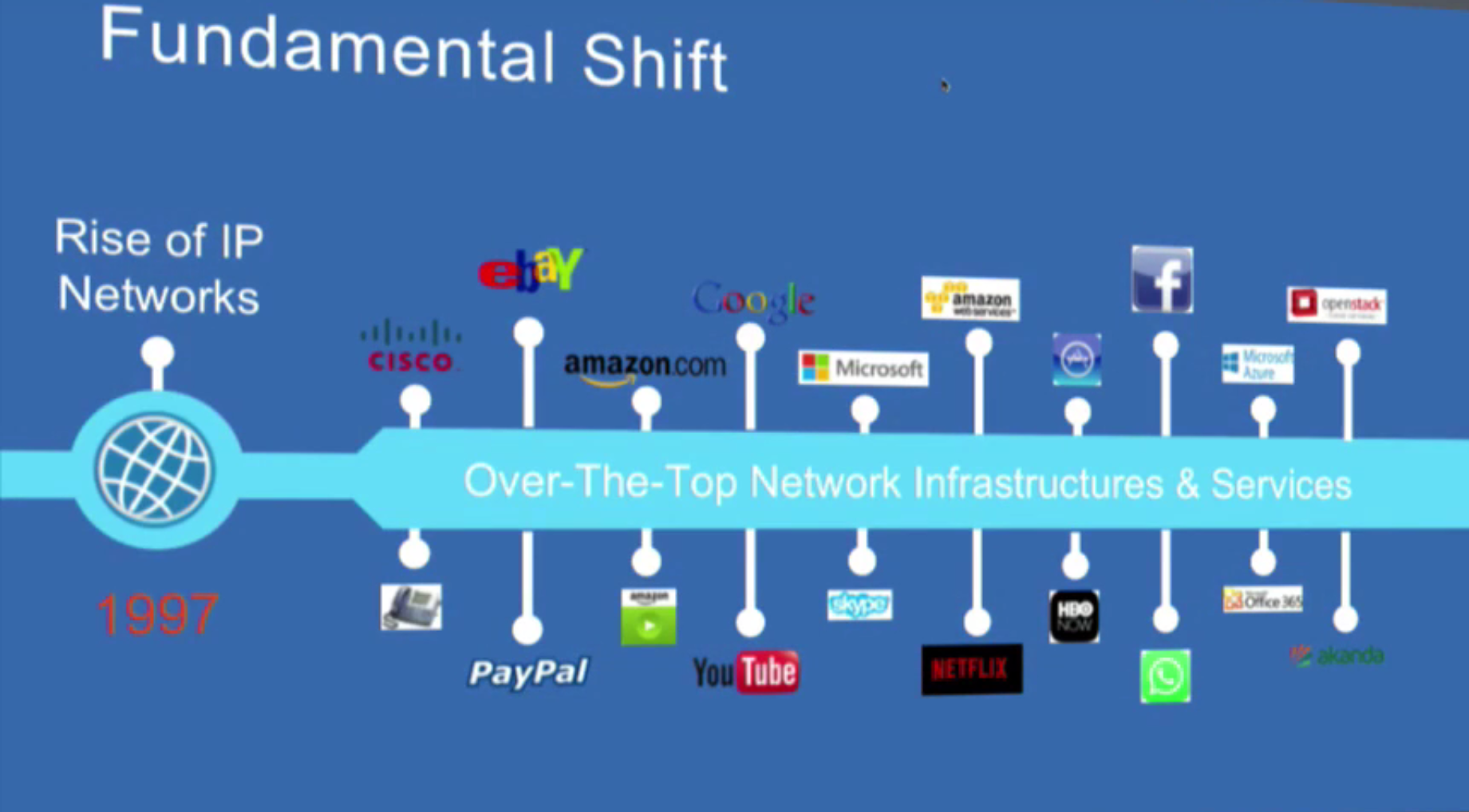
Mark McClain, CTO of Akanda, outlined the fundamental shift to open source software for over-the-top (OTT) network infrastructure; highlighted that running virtual network functions in the cloud can be 70% cheaper than traditional network hardware and discussed OpenStack Astara features, architectures and how it enables network operation across multiple clouds. He explained how OpenStack Astara can setup and manage virtualized network services from multiple vendors as well as manage bare metal servers and other types of physical infrastructure not traditionally part of an OpenStack solution.
Watch the full talk below:

The year of Linux is here. According to reports, Google sold more Chromebooks in the first quarter of 2016 than Apple sold Macbooks. And, Chromebooks are about to get even more exciting. During the Google I/O Summit, the company announced that the Google Play store for Android is coming to Chromebooks in mid June, which will allow users to run Android apps on their Chrome OS devices.
But, you don’t have to buy a brand new laptop to use Chrome OS; you can now easily convert your old laptop or PC into a powerful Chromebook. I did this for a Dell Mini and a Dell laptop that I bought in 2009. Those two devices were collecting dust and were destined for freecycling, because modern operating systems and desktop environments like Unity, Plasma, and Gnome won’t run on them.
If you have an old system lying around, you can easily convert it into a Chromebook. You can also dual-boot your laptop with Chrome OS, so you get the best of both worlds.
Thanks to the open source base of Chrome OS, many solutions out there enable you to install the operating system on your device. I have tried several, but the solution I like most is CloudReady by Neverware. The company offers a free, community-supported version of the OS along with a commercially supported version for $49 per year, per device. The good part is that all licenses are transferable, so if you sell or donate the device, you can also transfer the Neverware license to the new user.
Before you can get started installing CloudReady on your laptop, you will need some preparation:
A USB drive with 4GB or more storage
Open Chrome browser, go to Google Chrome Store and install Chromebook Recovery Utility.
Change BIOS settings of your target PC so it can boot from the USB
Neverware offers two images for CloudReady: 32 bit and 64 bit. Download the appropriate OS for your hardware from the download page.
Extract the content of the downloaded zip file, and you will get a chromiumos_image.bin file. Now plug in the USB device and open the Chromebook recovery utility. Click on the gear at the top right corner of the tool and select erase recovery media (Figure 1).
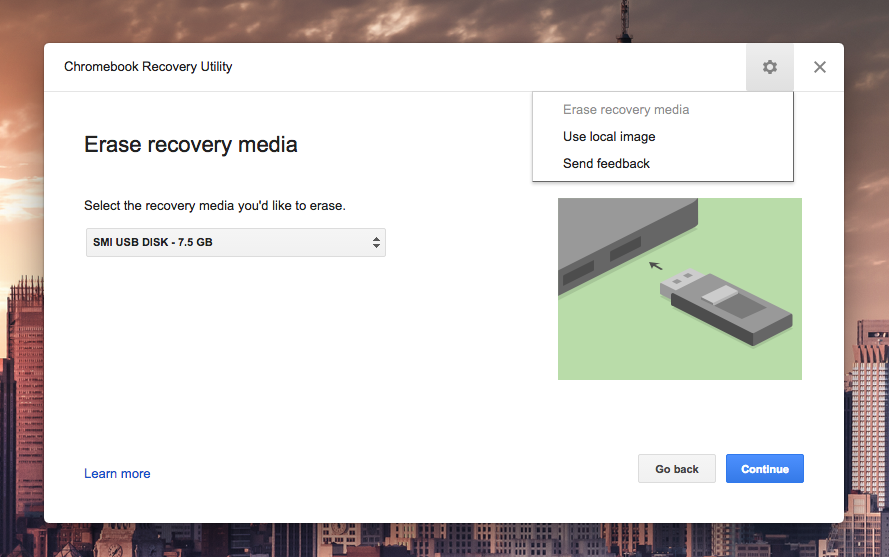
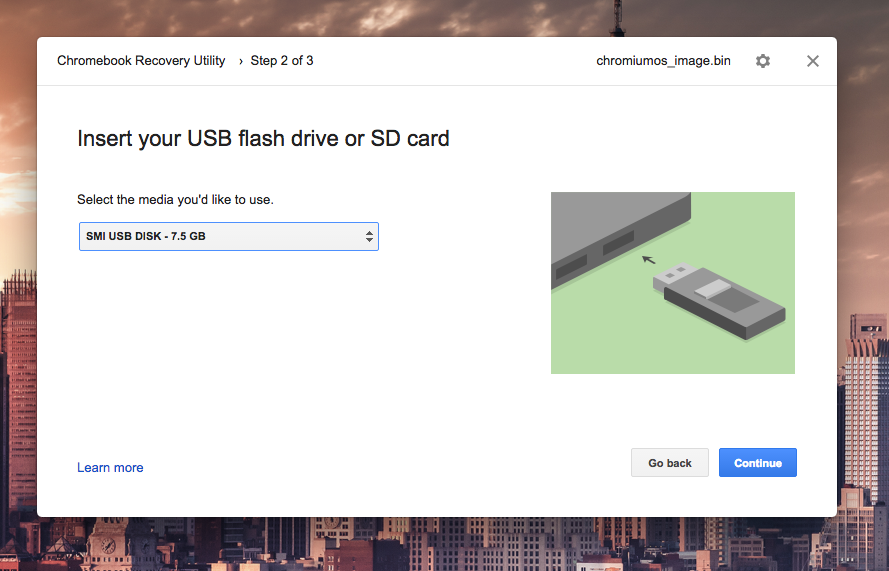
Next, choose the target USB drive and format it. Once formatted, go to the gear again, and this time select the use local image option. Now browse the extracted bin file, select the USB drive, click on continue, and then on the create button (Figure 2). It will start writing the image to the drive.
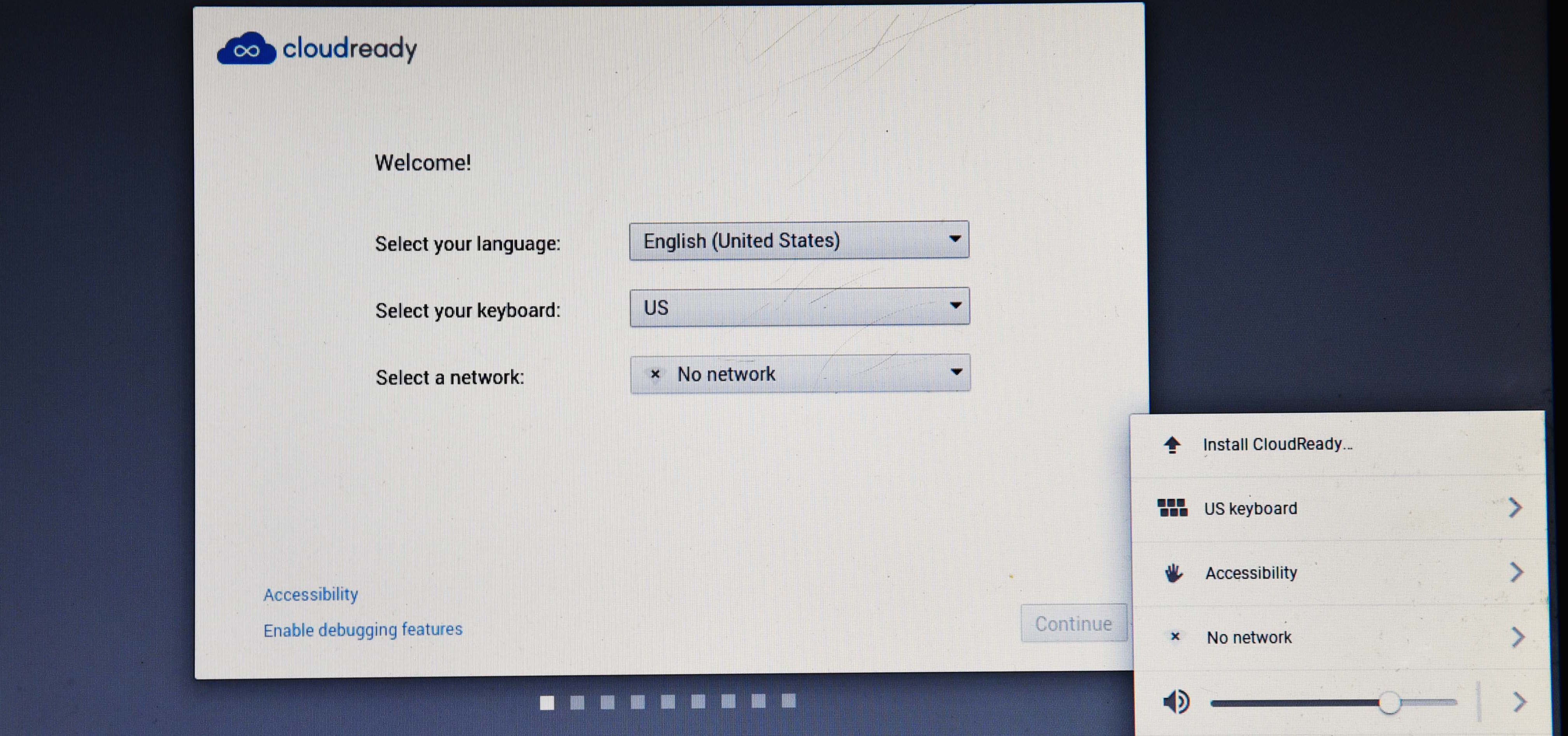
Once the drive is ready with bootable CloudReady, plug it into the target PC and boot the system. It may take a while for the system to boot into Chromium OS. Once booted, you will see the screen shown in Figure 3.
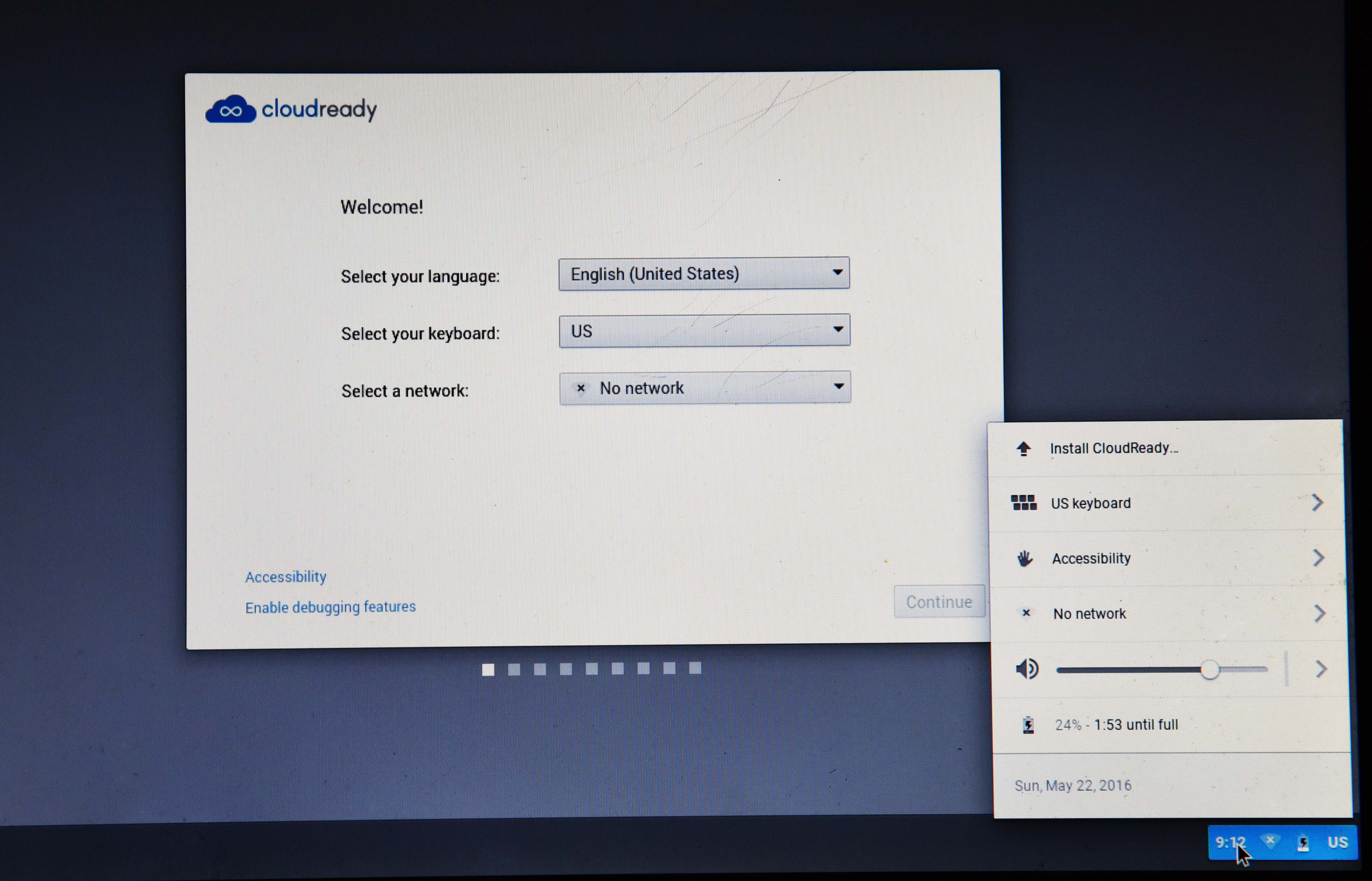
Go to the taskbar and click on Install CloudReady.
You can dual boot your system between Chromium OS and another operating system, but the other OS should already be installed.
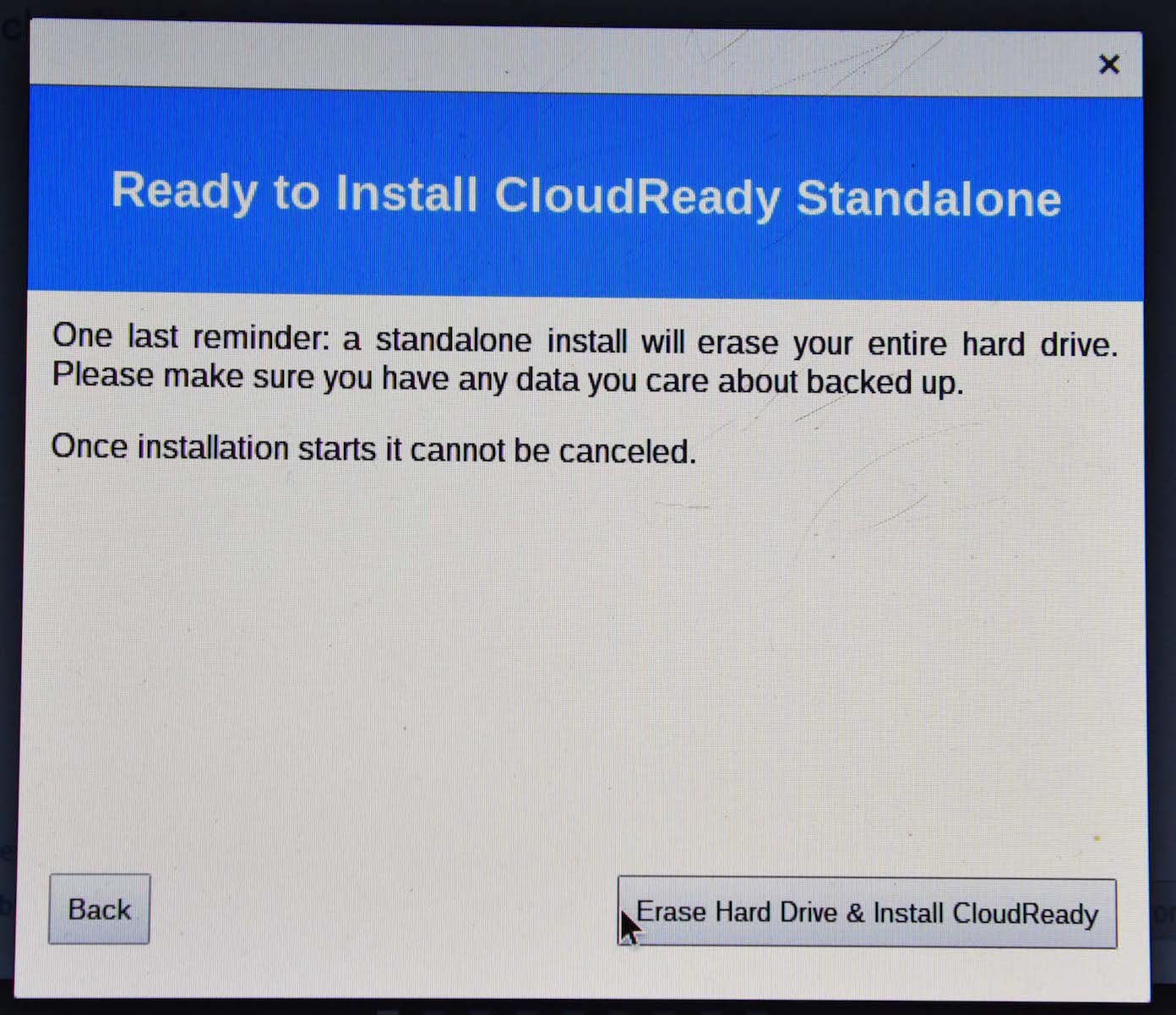
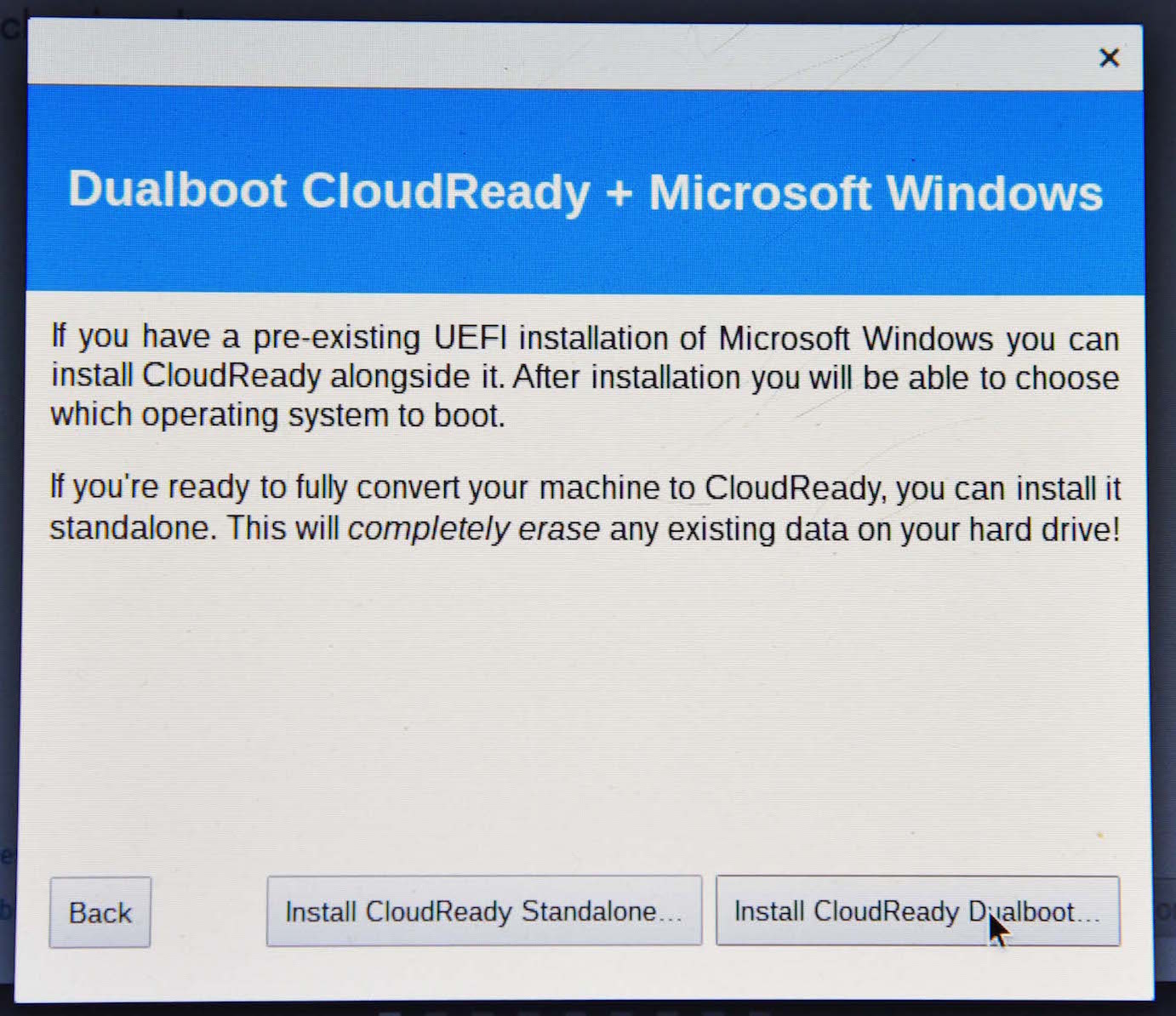
To single boot (Figure 4) or dual boot (Figure 5) your system, choose the option in the next window.
Just follow the click-next instructions.
The entire process will take up to 20 minutes, depending on the storage media and the processing power. Once installed, the PC will shut down and reboot.
After you reboot, you will be greeted with the network settings page (Figure 6). The exciting thing is that, although I had to install wireless drivers for Linux distributions on the same hardware, everything worked out of the box with Chromium OS.
Once you connect to the wireless network, the system will look for updates and also offer to install Adobe Flash. Once the installation is finished, you will see the Chromium OS login screen. Now you can just log into your Gmail account and start using your “Chromebook” right away.
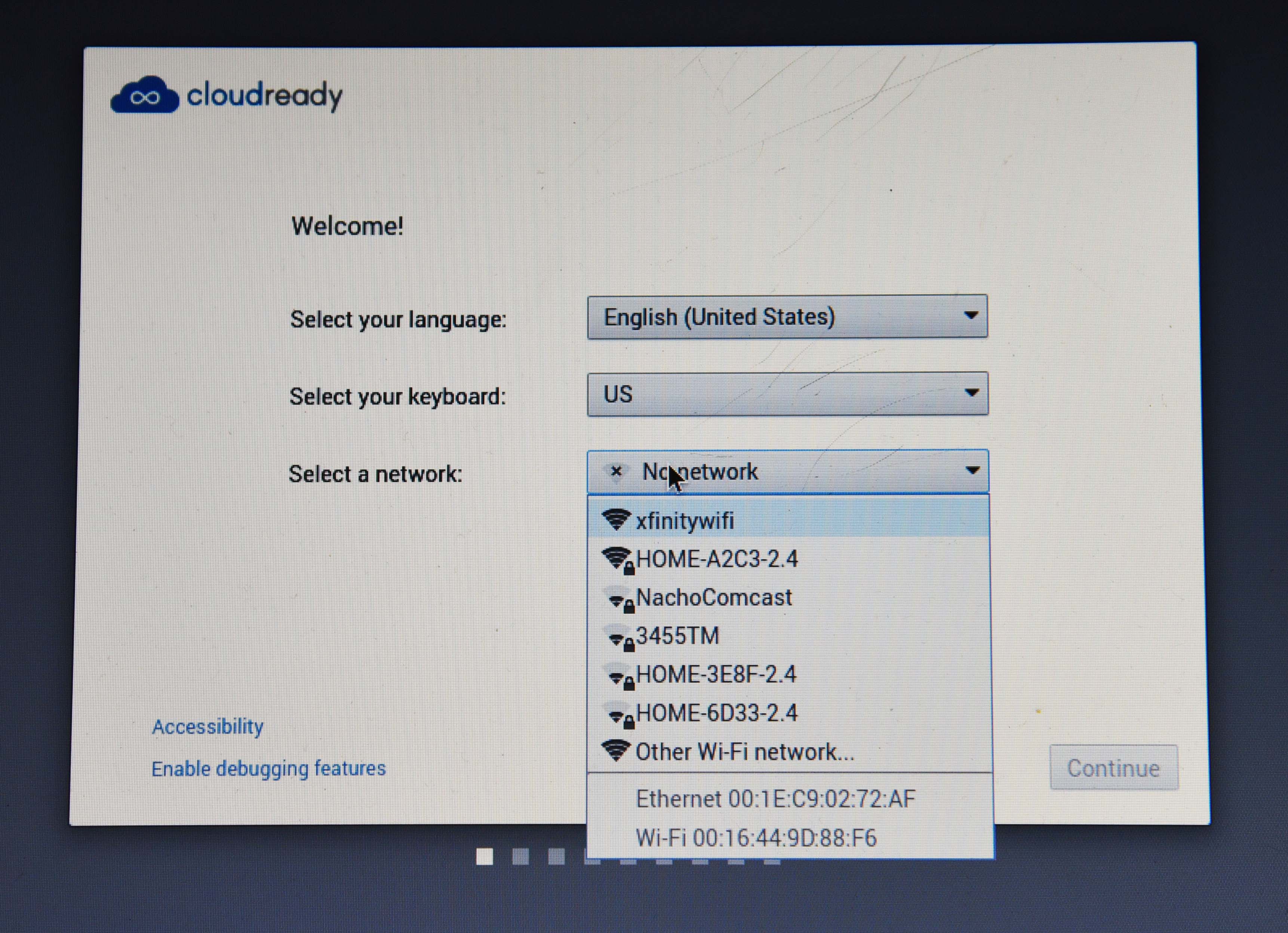
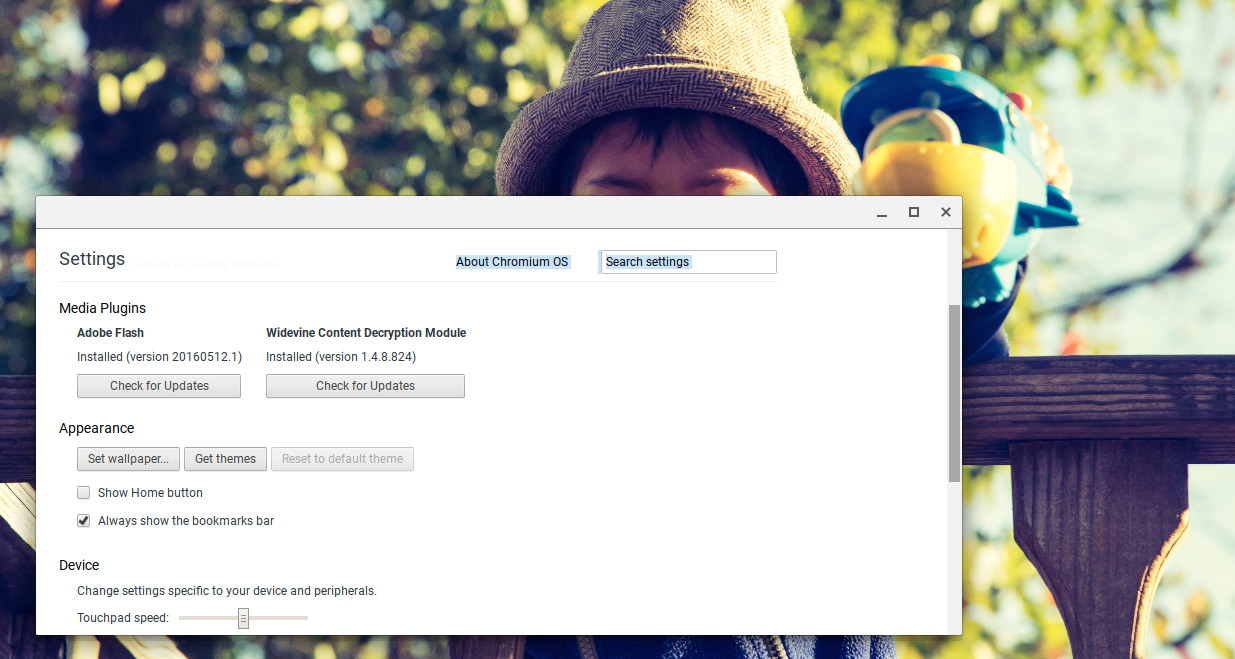
If you want to play Netflix and other DRM protection-streaming sites, you do need to do some extra work. Go to settings and click on the Install Widevine plugin (Figure 7).
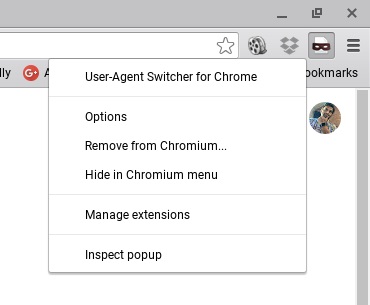
Now you need the good old trick of using a user agent switcher (Figure 8).
Go to Chrome Webstore and install User Agent Switcher. Once the plugin is installed, it will be added to the bookmark bar of the browser.
Right-click on the agent switcher icon and create a new entry (Figure 9):
Name: “CloudReady Widevine”
String: “Mozilla/5.0 (X11; Linux x86_64) AppleWebKit/535.11 (KHTML, like Gecko) Ubuntu/16.10 Chrome/49.0.1453.93”
Group: “Chrome” (should be filled automatically)
Append: “Replace”
Indicator Flag: “IE”
Click “Add”
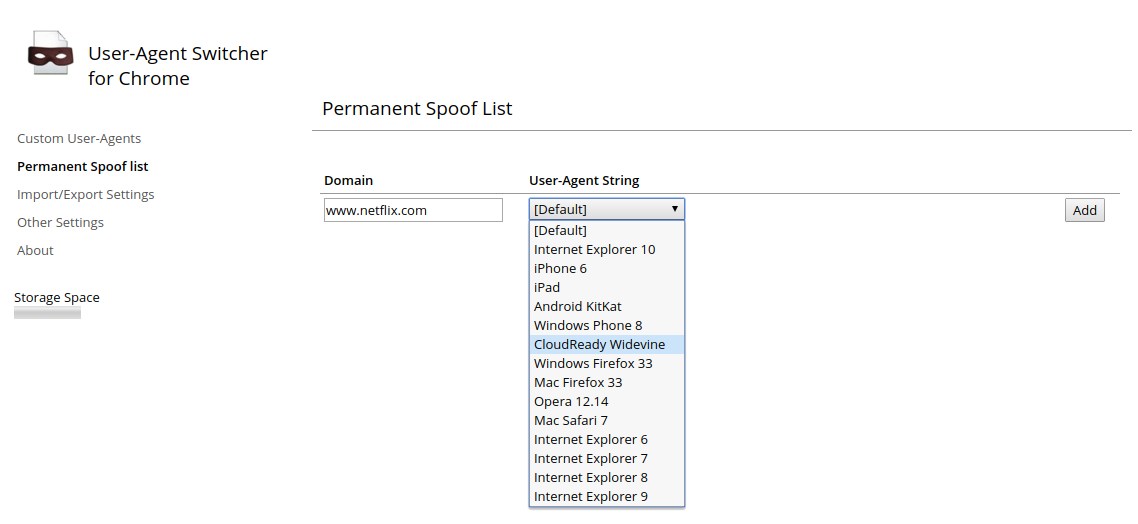
Then, go to the “permanent spoof list” option and add CloudReady Widevine as the permanent string for www.netflix.com.
Now, reboot your system, and you can watch Netflix and many other services.

I’ve seen it happen: a Linux server is taken over by a rootkit and no one was the wiser…at least not until some errant behavior occurred or something outside of the company reported an oddity. After some serious digging, you find out the rootkit has modified a few files or directories and the damage has been done.
What if you knew of a tool that could monitor files for change and then report the changes within /var/log/syslog or take some action when a file was modified? There is such a tool.
Incron is similar to cron, but instead of running a command based on time, it can trigger commands when a file/directory event occurs (e.g., a modification to a file or to a file’s permissions). This makes it an outstanding tool to use for monitoring folders like /etc/apache2 or /usr/bin.
I’ll walk you through the process of installing and using Incron to monitor such a directory, so that you can always keep tabs on those crucial files and folders.
I’ll be installing Incron on the Ubuntu 16.04 platform. With one quick command, you can have the tool ready to go. Here’s how:
Open up a terminal window
Issue the command sudo apt-get install incron
Type your sudo password and hit Enter
Type y when/if prompted
Allow the installation to complete
Incron is similar to cron, in that you’ll use the incrontab command to create jobs for watching files/folders. Unlike cron, however, you must first specify who can actually use the tool (smart thinking by the developers). To set this up, you must add users to the /etc/incron.allow file. Say you want to enable the root user to use Incron. For this, you would open up /etc/incron.allow and add the following line:
root
List all of the users you want to give access to Incron, one user per line, in this file. Close the file and those users can now execute the incrontab command without error.
As you may have surmised, using incrontab is similar to using crontab. You would edit your incrontab file with the command incrontab -e. This command will open up the incrontab file for editing. How you use Incron now starts to veer away slightly from Cron. let’s see how.
The format of the incrontab looks like:
<path> <mask> <command>
Let’s break that down.
<path> — This is the path to the directory you want to watch. Do note the Incron is not capable of watching subdirectories. Only files within the path will be monitored. If you need subdirectories monitored, you must give them their own entry.
<mask> — This is one of several options:
IN_ACCESS File was accessed (read)
IN_ATTRIB Metadata changed (permissions, timestamps, extended attributes, etc.)
IN_CLOSE_WRITE File opened for writing was closed
IN_CLOSE_NOWRITE File not opened for writing was closed
IN_CREATE File/directory created in watched directory
IN_DELETE File/directory deleted from watched directory
IN_DELETE_SELF Watched file/directory was itself deleted
IN_MODIFY File was modified
IN_MOVE_SELF Watched file/directory was itself moved
IN_MOVED_FROM File moved out of watched directory
IN_MOVED_TO File moved into watched directory
IN_OPEN File was opened
<command> — This is the command that will run should an event be triggered. In place of a command, you can always use wildcards. The wildcards will report basic information in syslog. The available wildcards are:
$$ Prints a dollar sign
$@ Add the watched filesystem path
$# Add the event-related file name
$% Add the event flags (textually)
$& Add the event flags (numerically)
Let’s set up a simple incrontab, using wildcards, and see how this works. First, let’s assume we’ve added the user olivia into the incron.allow file. We’ll create the folder /home/olivia/TEST and then run the command incrontab -e as user olivia. With the editor open, add the following line:
/home/olivia/TEST IN_MODIFY echo "$$ $@ $# $% $&"
Save the file and do the following:
Open up a second terminal window and issue the command tail -f /var/log/syslog
In the first terminal window, create the file /home/olivia/TEST/test
Add some text to the file and save it
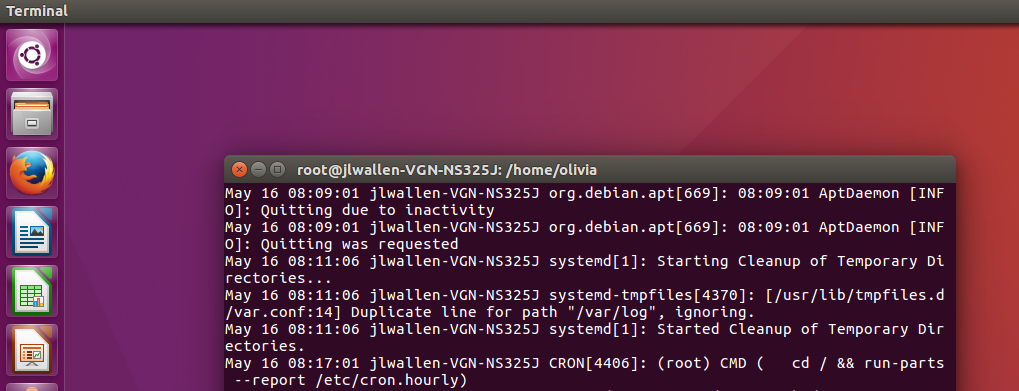
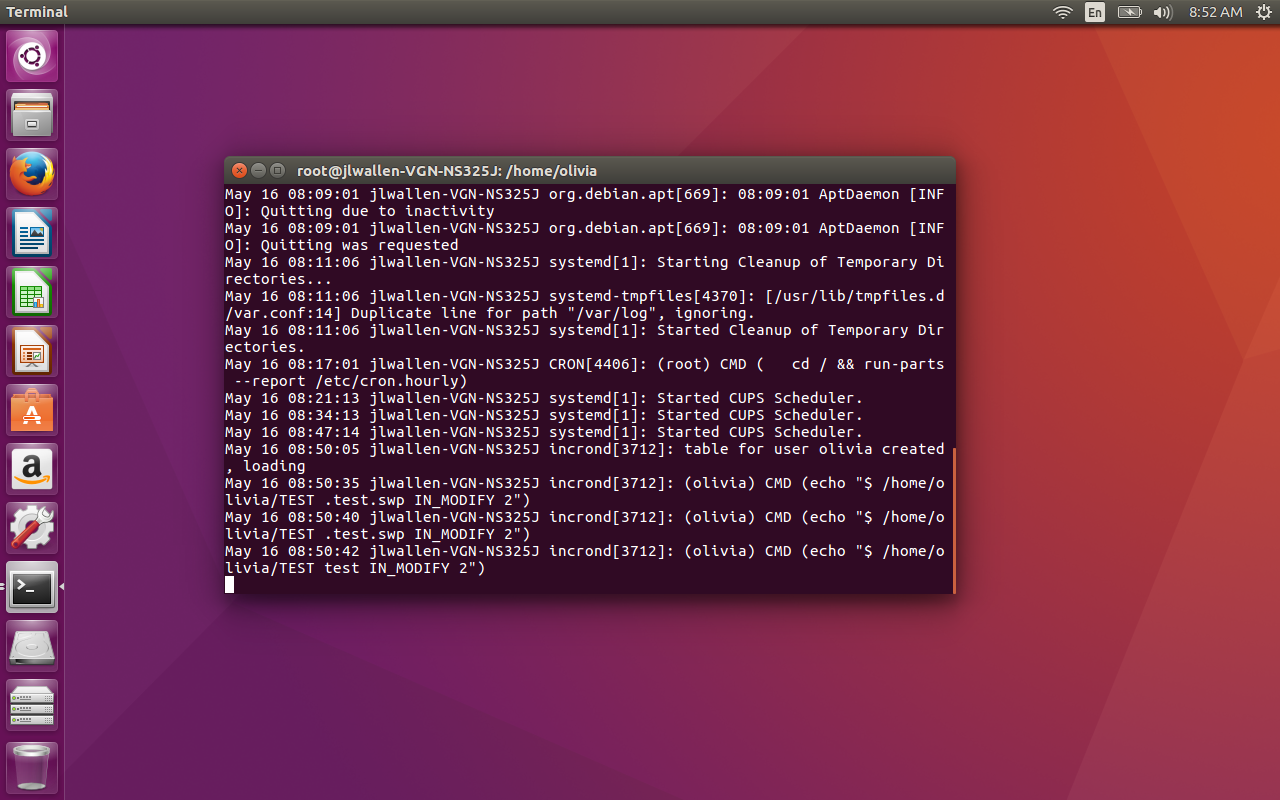
If you check the tail running on /var/log/syslog, you should see entries as shown in Figure 1.
Here’s what you would want to do. Open up a terminal window and issue the command sudo su. Enter your sudo password and then issue the command incrontab -e. With the Incrontab editor open, add the following:
/etc/apache2/apache2.conf IN_MODIFY /usr/sbin/service apache2 stop
Save and close the file. You can test this by opening the /etc/apache2/apache2.conf file and making some minor change. Save the edited file and your web server should immediately stop.
You could also have Incron watch multiple folders/files and employ the same action. Suppose you want to watch both the /etc/apache2/apache2.conf file and the /var/www/html/index.html file for changes. You could create two incrontab entries like so:
/etc/apache2/apache2.conf IN_MODIFY /usr/sbin/service apache2 stop

/var/www/html/index.html IN_MODIFY /usr/sbin/service apache2 stop
Should either file be modified, the web server will stop.
This, of course, is only a simple example of how you can make use of Incron. Get creative and see just how far you can bend the will of Incron to meet your needs. This is Linux, after all…it is ready be used in ways other platforms only dream of.