 The Git version control system is pretty nice, a useful evolution from Subversion, CVS, and other older version control systems. It’s especially strong for distributed development, as you can work disconnected and not have to depend on the availability of a central server.
It’s also more complex than older VCS, and experienced users have their favorite ways of doing things that they think should be your favorites, too, even if they can’t explain them very well. One of the most important things to understand is which commands are for remote repositories, and which ones are for your local work.
Git is extensively documented, so you can always find authoritative answers. Always look in the documentation before doing a Web search because it is faster and you’ll get better answers.
Joining an Existing Project
The most common use-case is joining an existing project and getting flung in to sink or swim. Your first step, obviously, is to install Git. The various Linux distributions have packages for core Git, the Git man pages, and tools such as Gitk, the Git visual tools kit. (Github users may be interested in Beginning Git and Github for Linux Users.)
Next, run git config to set up your local environment with your repo credentials, default editor, password caching timeout, and other useful time-savers.
Then create a directory for your local repos and clone the project into it, using the actual address of your remote repo, of course:
$ mkdir project
$ cd project
$ git clone https://[remote-repo-address].git
Take a few minutes to look at your repo files. Everything is there in plain text. Git stores logs, commit messages and hashes, branches, and everything else needed to track your code in the .gitdirectory.
Your First Edits
The key to Git happiness is doing your work in a branch. You can make as many branches as you like, and mangle them to your heart’s content without making a mess of upstream branches. The default for most projects is to work from the master branch. Let’s use the fictional “coolproject” as an example. Create your new working branch like this:
$ cd coolproject
$ git checkout master
$ git pull
$ git checkout -b workbranch
What you did: you changed to your project directory, changed to the master branch, brought it up-to-date from the remote repository, and created the new branch “workbranch” from master. All the commands are local except git pull.
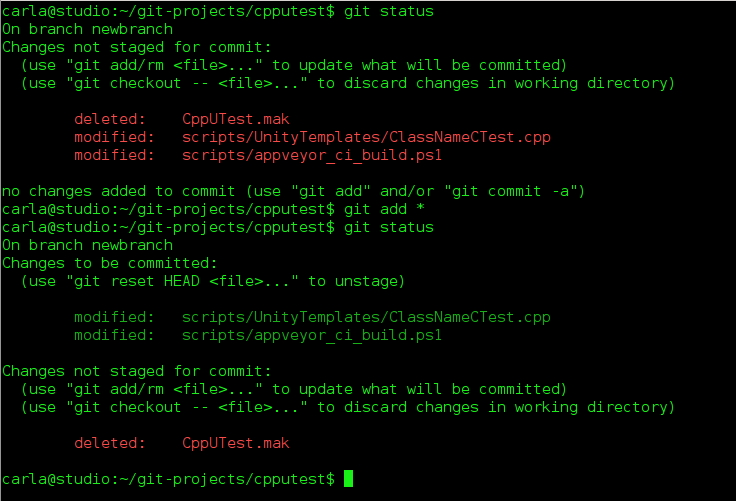
Now you can work in “workbranch” all you want without bothering anyone else’s work. At any time you can run git status to see which files have changed and what branch you are on:
$ git status
On branch workbranch
Changes not staged for commit:
  (use "git add/rm ..." to update what will be committed)
  (use "git checkout -- ..." to discard changes in working directory)
        modified:   api.c
        deleted:    routes.c
no changes added to commit (use "git add" and/or "git commit -a")
git status gives lots of helpful hints, so you might map it to a hotkey. The two files, api.c and routes.c, are highlighted in red to indicate that they have not been added to any commits yet. This means they are available to any branch, so if you are in the wrong one by mistake you can now change to the right one. You can add all changes to your commit with the first command, or name specific files with the second command:
$ git add --all
$ git add [filename or filenames, space-delimited]
Now when you run git status the filenames are green to show they have been added to your working branch. You can delete files from your working branch without deleting them from other branches, like this example using api.c:
$ git rm api.c
What if you change your mind and want to discard all changes to a file, or restore a deleted file? To restore api.c run these two commands:
$ git reset HEAD api.c
$ git checkout api.c
Note that since you started working in “workbranch” all of the commands have been local. You can do most of your work disconnected, and connect only to pull updates and push changes. Now let’s call our work in “workbranch” done and push our changes to the remote server. This is two steps: first commit your changes to your local branch with a nice message telling what you did, then push it to the remote server:
$ git commit -a -m "updates and changes and cool code stuff"
$ git push origin workbranch
Now your new branch is on the remote server waiting to be merged into master. In most projects you’ll be on a public Git host such as Github, Bitbucket, or CloudForge, and will use the hosting tools to create a pull request. A pull request is a notification that you want your commit reviewed and merged with the master branch.
List – Delete Branches
Run git branch to see the branches on your local systems, and git branch -a to see all branches on the remote server. git branch -d [branch name] deletes local branches, and if you get an error message that it is not completely merged, and you’re sure you’re finished with it, run git branch -D [branch name].
Undo
What if, after pushing your commit to the remote repo, you want to undo it? There are a couple of ways. You can revert the entire commit:
$ git revert de4bbc49eab
Your default editor will open so you can write a commit message and complete the revert. Every commit gets a unique number, which you can find by running git log. If it’s a small error then don’t revert, but fix it in your local working branch, and then push it to your remote working branch.
Stashing for Later
When you want to leave unfinished work in a branch and switch to another branch, stash your changes:
$ git stash
Saved working directory and index state WIP on workbranch: 56cd5d4 Revert "update old files"
HEAD is now at 56cd5d4 Revert "update old files"
The status message will reference your previous commit. You can see a list of your stashes:
$ git stash list
stash@{0}: WIP on workbranch: 56cd5d4 Revert "update old files"
stash@{1}: WIP on project1: 1dd87ea commit "fix typos and grammar"
When you’re ready to work on your stash, select the one you want like this:
$ git stash apply stash@{1}
Don’t Be Afraid to Copy-Paste
Chances are you will work with Git wizards who have all kinds of amazing and advanced ways to fix errors. Don’t be too proud to use copy-and-paste; get your work done now, and learn how to show off your Git wizardry later. All the files in your project repository are under Git control, so when you read the files you’ll see only the versions of your current branch. There is no shame in changing to another branch, copying files into an outside directory, and then changing to your working branch and copying them there. It’s a fast and sure way to fix problems or make large changes quickly.