Version 5.4 of the Qt toolkit is now available. It provides better interaction with web-based content, improved graphics, Bluetooth Low Energy support, and a lot more, including a licensing change: “As announced earlier, the open-source version for Qt 5.4 is also made available under the LGPLv3 license. The new licensing option allows us at The Qt Company to introduce more value-add components for the whole Qt ecosystem without making compromises on the business side. It also helps to protect 3rd party developers’ freedom from consumer device lock-down and prevents Tivoization as well as other misuse.“
This Modular Smartphone Wants to Offer Ubuntu for Phones
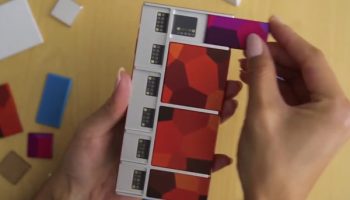
Google’s Project Ara may soon have some competition in the modular smartphone stakes, with a Finnish start-up — co-founded by a former Nokia Android X employee — pitching in. And in keeping with the Lego-like idea of swappable hardware components, the upstart handset is planning to support swappable operating systems, too. Vsenn, the company behind the project, this week announced that it […]
The post This Modular Smartphone Wants to Offer Ubuntu for Phones first appeared on OMG! Ubuntu!.
Fedora 21 VS Ubuntu 14.10 ( performance /User experience)
Hi Linuxites,
would like to share my recent observations between Fedora 21 ( just released ) vs UBuntu 14.10.
Configuration of my machine :: SONY VAIO VPCEB1E03, core i3 ( 1st generation), 8GB ram, 320gb HDD,
Background :: Just one week back installed Ubuntu 14.0 on my laptop by erasing windows 7. Impressed with the look and feel of Ubuntu, within few minutes able to use it. Today installed fedora 21 official release on the same m/c by erasing Ubuntu 14.10. My observations are like the following. Just trying to settle down whether i have to go with UBuntu way or fedora way (?) . Lets see what i have decided!!
Performance / User experience ( UBuntu 14.10 vs Fedora 21-5 official release )
Ubuntu 14.10::
Looks impressive, Terminal window is beautifully coloured, graphics are good, heavy weight icons Seems, everything is OK, graphics drivers are installed no issues. But, I am facing few problems, like fan control always my FAN is running very fast and making noise, RAM is eaten up around 1.8 to 2.2 GB. Started rhythm box music player, after playing sometime closed it. Executed top command, and it is showing still music player is running and utilizing CPU (??), I have to manually shut down the player. Now, coming to application search box , when I type from keyboard my letters are being displayed very slowly, applications display is very very slow at this moment, my FAN makes so much noise. Disabled web searching options in the settings, still i have same issues. Software updates are installed without any issues. GCC 4.9.1 is working fine. kernel 3.16.x
Fedora 21-5 ( Official release ) ::
Instsalled, compared to Ubuntu installation seems this is fast. everything is fine. Now, repeated same actions from GNOME window manager. graphics drivers are installed no issues. surprisingly regarding FAN control, my fan is so silent and it is not making any noise, so so so quiet. RAM is around 780MB is eaten up when I opened firefox, rhythm box music player and few terminals. it was never above 1 GB.. thats impressive(same applications were opened with Ubuntu 14.10 also, it was RAM hungry 1.8 GB to 2.2GB). applications are closed and immediately disappeared from my TOP command menu. The surprising and I like very much is application search box…. Unlike in UBuntu Unity desktop search option, the Fedora 21 search is very fast , display is very fast, text input is very fast, i have tested really half an hour and seems, everything is awesome. FAN is not making any noise very quiet. I havent even disabled web searching. Software upadtes are installed without any issue. Well, one awkward situation with fedora 21 is without using GNOME TWEAK TOOL, i cannot get my minimize and maximize buttons in terminal. Fedora terminal windows are good, but compared to Ubuntu terminals they are less attractivre. GCC 4.9.2 is working fine. Kernel is 3.17.x
Conclusion :
I am a computer engineering graduate and software architect. I thought i will stick to UBuntu because of its impressive looks. But, due its resource hungry nature and slow response times from desktop point of view, I think i will stick to FEDORA 21. btw, I have two more laptops which run REDHAT ENTERPRISE LINUX 7.0 and SUSE ENTERPRISE LINUX 12.0 commercial versions, using core i7 and core i5 respectively . RHEL 7.0 is more impressive from user experience point of view compared to all others.
UBuntu applications and Fedora 21 applications are almost all are same. Same packages, same utilities, i think I can do everything with both the versions from LINUX POINT OF VIEW.
If UBUntu improves its response times with its window manager Unity , then it will become a great desktop compared to other versions. Seems, UBuntu team is concentrating only on good looks without bothering about response times. Their team should concentrate on improving response times.
For the moment next 6 months, i will stick with fedora 21 only, Lets see what UBuntu 15.04 will come up with an answer to Fedora 21.
How to Sync Android with the Linux Desktop
It’s well known that the Android platform relies heavily upon Linux. With this in mind, it makes perfect sense that Android and Linux should be able to seamlessly communicate on the desktop layer. For the most part … it does. You can easily drag and drop files between your desktop and the Android device. However, when it comes to syncing things like contacts and calendars ─ if you’re not ready to do a bit of work, your best bet is to keep your head (and your desktop) in the cloud.
How much work? Not really all that much. In fact, extending your Android device to your Linux desktop is really just a matter of installing a few extra apps and understanding the difference between MTP and PTP connections.
First and foremost, we need to understand what is the best practice scenario here. Ideally, you would be using Google services ─ such as Gmail and Google Calendar as both your desktop and mobile solutions. This is the most seamless method of getting your Android and Linux desktops to meet.
Of course, not everyone wants to limit themselves to a browser on the desktop. To that end, what do you do? The best method around this is by employing Thunderbird. Using Thunderbird, you can sync both your contacts and your calendars. There is, of course, a caveat to this method ─ you will still be syncing Thunderbird to your Google account. That’s not a problem, seeing as how you will already be using a Google account on your Android device. So first, let’s take care of the Contacts/Calendar side of things and then we’ll deal with files.
Contacts and Calendars
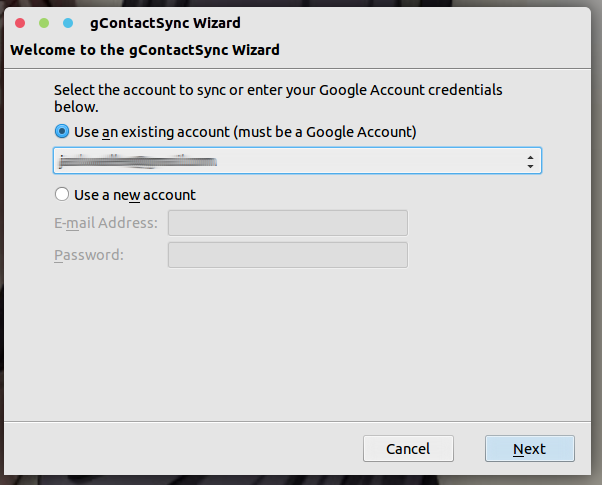
The first thing you want to do is install gContactsSyn addon for Thunderbird. Once you’ve installed this (and restarted Thunderbird), you will be prompted to select the account you want to use for the sync, or use a new account (Figure 1).

Click Next and then select which Address Book to use for the synchronization, the Groups and Contacts to sync, and pick the direction for the sync.
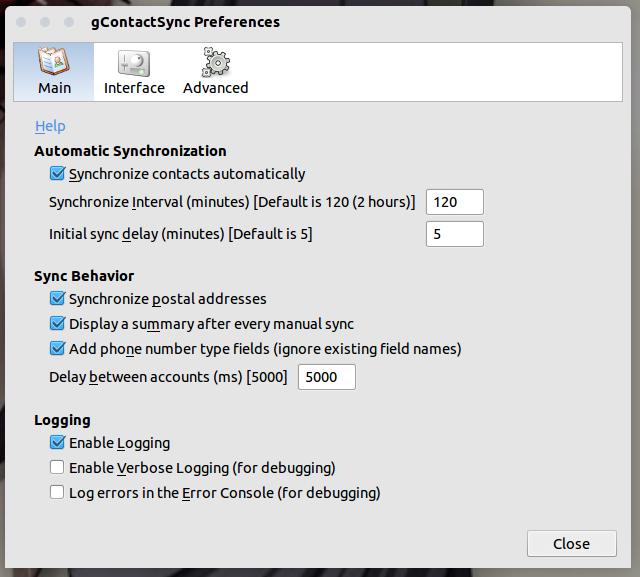
Click the Finish button and the syncing should begin. Once the sync is complete, you should see a popup indicating what was added. By default, gContacsSync is set up to autosync every 120 minutes. You can change that by clicking the gContactsSync menu (within Thunderbird) and then clicking Preferences. From the preferences window (Figure 2), change the autosync time to best fit your needs. Your Contacts are now syncing between your Linux desktop, your Google account, and your Android device.

Now that you have your Contacts in sync, what about the calendar? This is just a simple means of installing the Lightning extension and configuring it to sync with your Google Calendar. If you need both read/write access to the Google Calendar, you will also have to install the Provider for Google Calendar addon.
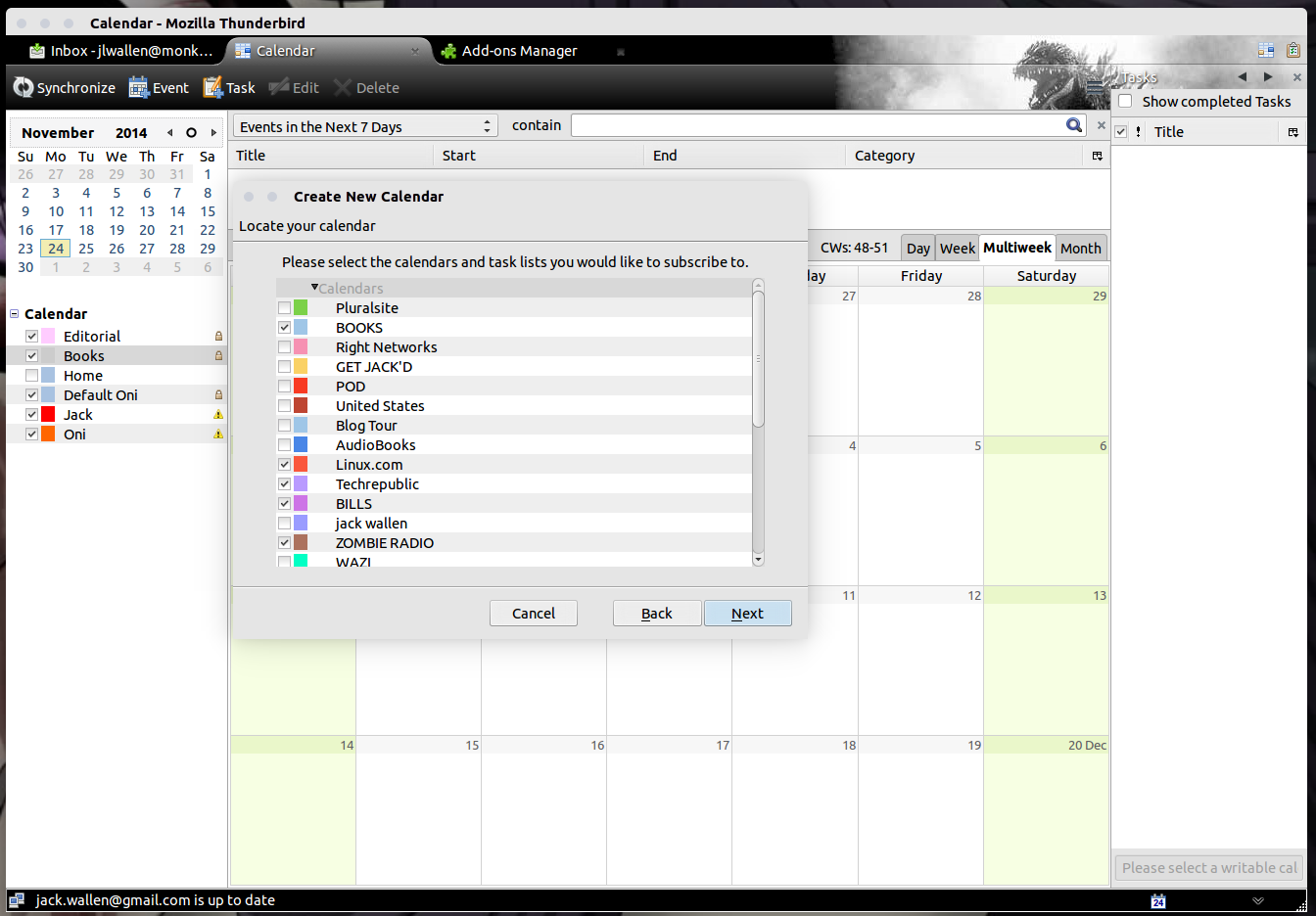
Once that is installed, open up Lightning and right-click a blank space in the Calendar listing, select New Calendar, select On the Network, select Google Calendar, and walk through the remainder of the wizard. Even if you have two-step verification, this process will work without a hitch. In the end, you can select all of the calendars you want to sync (Figure 3) and start working with your Google Calendar ─ which will then sync with your Android device.

Files and photos
This is actually where there is little work to be done (outside of the installation of an optional app). When you connect your Android device to your Linux desktop (via USB), your file manager should open to the available Android directory. What directory appears will depend upon if you have Android set up to connect via MTP (Media Transfer Protocol) or PTP (Picture Transfer Protocol).
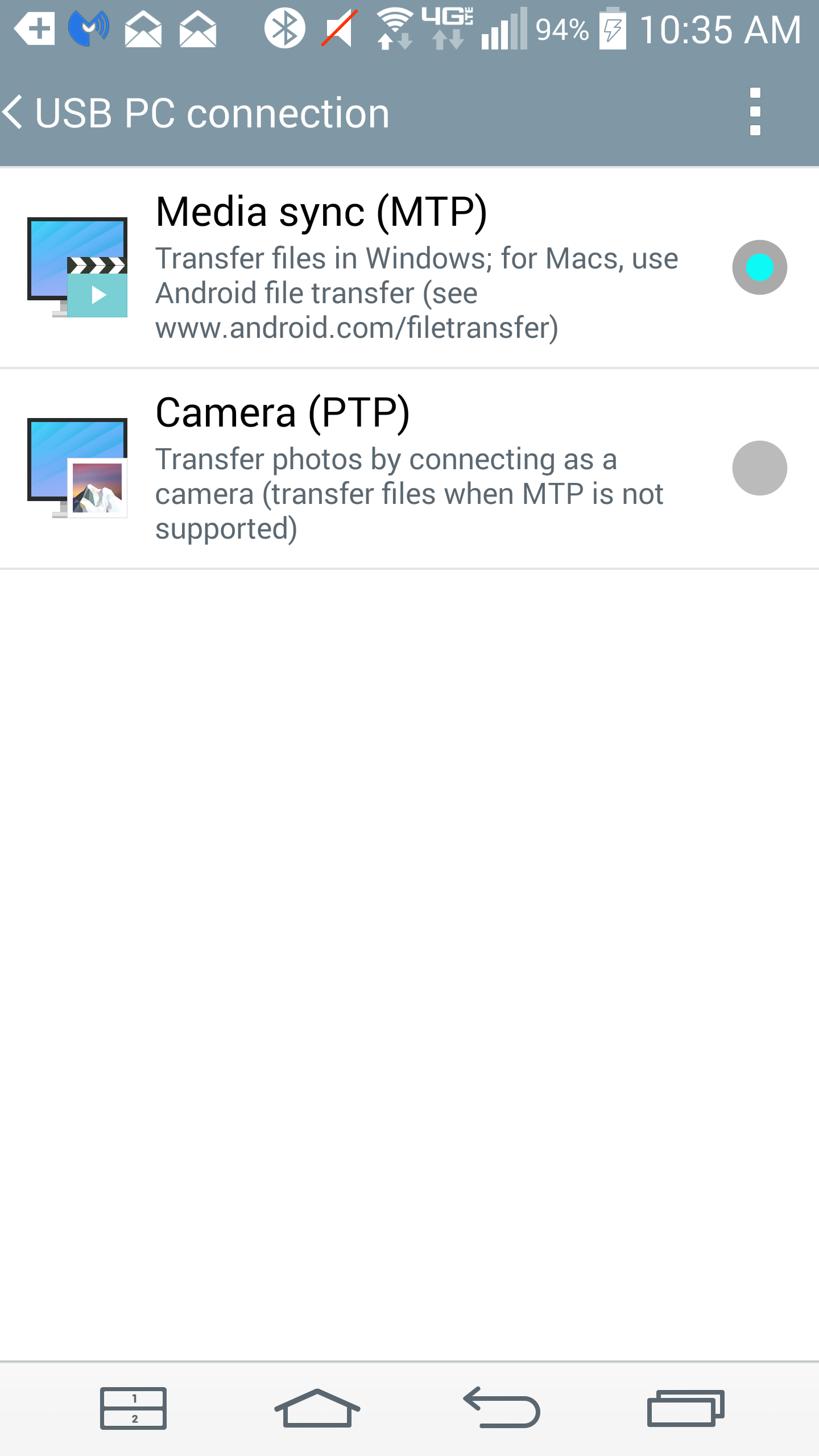
If configured for PTP, your Android device will connect as if it is a camera only and the DCIM and Pictures folders will appear. You can then click the Shotwell button (if available) and import all of those photos onto your desktop. Switching between MTP and PTP is quickly done by dragging down the Android notification bar, tapping the USB indicator, and then switching between the two (Figure 4).
If, however, your device is set up for MTP, Internal (phone) and External (microSD card) storage folders will appear. You can then drag and drop files to and from the Android device.
What if you want be able to transfer files to and from a Samba share on your Linux desktop? With the help of the Astro File Manager (with Astro SMB Module), you can easily access those Samba shares from Android.
To install the Android apps, do the following:
-
Open Google Play Store on your Android device.
-
Search for Astro File Manager.
-
Locate and tap the entry by Metago.
-
Tap Install.
-
Read through the permissions listing.
-
If the permissions listing is acceptable, tap Accept.
-
Allow the installation to complete.
Follow the above steps for the Astro SMB Module and you’re ready to set up the connection. The Android device must be connected to the same network as is the Linux desktop that holds the Samba-shared folder. Here’s how to connect
through Astro File Manager:
-
Open Astro File Manager on the Android device.
-
Swipe right from the left edge of the screen.
-
Tap Locations.
-
Tap Local Network.
-
Tap WORKGROUP.
-
Tap the machine you want to access.
-
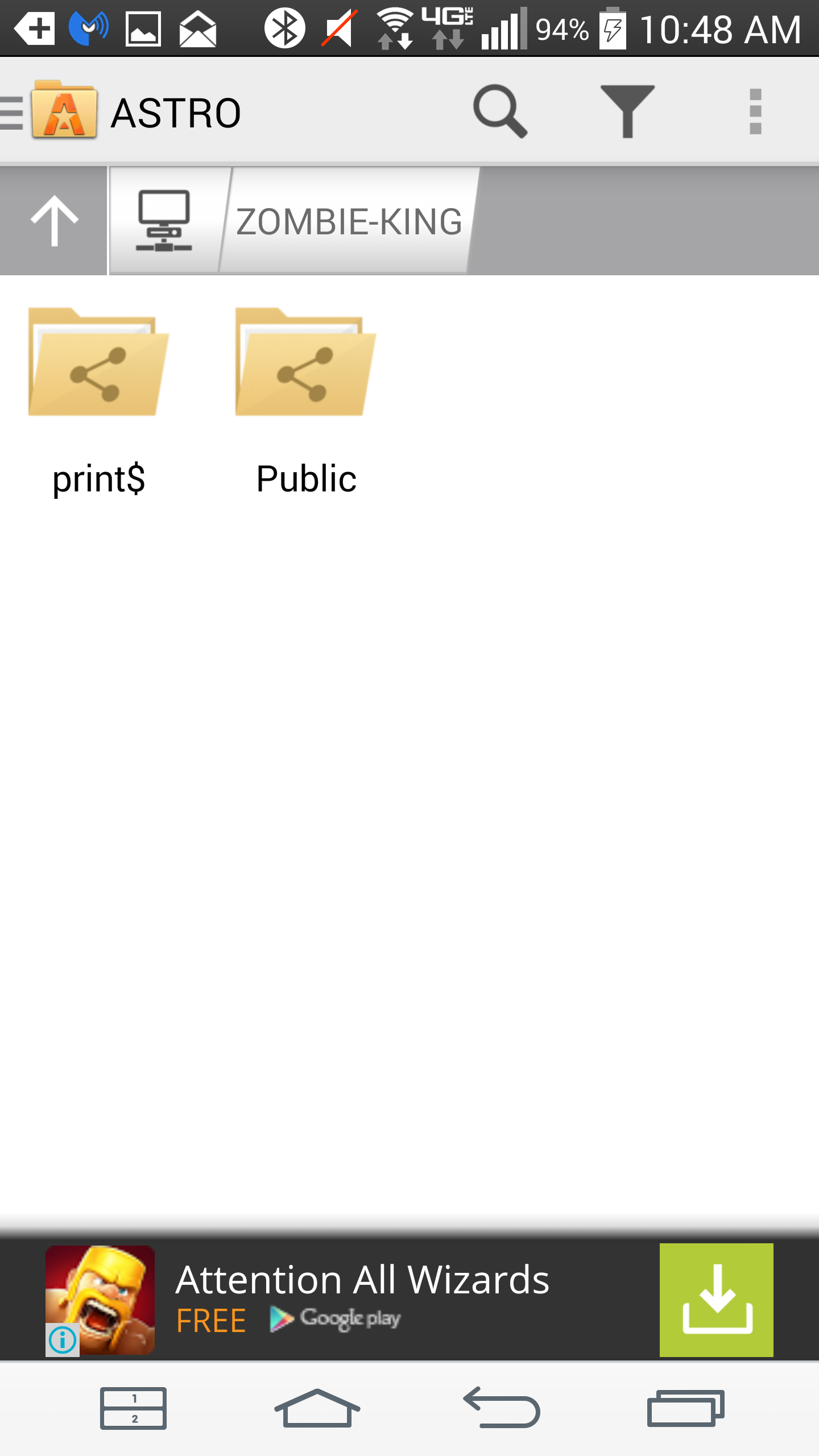
Tap the shared folder (Figure 5).
You should be able to copy, paste, and move files (assuming the folder is shared with the proper permissions).
At this point, you can now keep your files, folders, photos, calendars, and contacts in sync between your Android device and Linux desktop. It’s not quite plug and play, but it’s nothing any Linux use should have trouble taking care of.
How To : Install Linux Kernel 3.17.6 in Ubuntu/Linux Mint Systems
The Linux Kernel 3.17.6 is now available for the users, announced Linus Torvalds. This Linux Kernel version comes with plenty of fixes and improvements. This article will guide you to install or upgrade to Linux Kernel 3.17.6 in your Ubuntu or Linux Mint system.
Read complete article Here.
Top 10 Semi-Autonomous Robots That Run Linux (With Slideshow)
You still can’t buy many Linux-based robots for under $1,000, except for a handful of unmanned aerial vehicles (UAVs), but we’re definitely heading in that direction. Like last year’s robot slide show, this year’s top 10 list is not a definitive compendium or a shopping guide. However, it may help show how Linux is enabling new capabilities in terrestrial robots, as well UAVs and autonomous underwater vehicles (AUVs), which are essentially robots that fly or swim. (Click on Gallery to see the robot slide show.)
This year we require that the bots offer some degree of autonomy, even if it’s limited to moving around an obstacle for a terrestrial robot or returning to a base station to land by itself in the case of a UAV. This precludes robots that are entirely dependent on manual control via a controller or smartphone app, such as the new under $1,000 low-end Beam+ version of Unbounded Robotics’ Beam telepresence bot. We also require the robot to be able to move, even if it’s only an arm or two.
Most, but not all, of these robots are currently available for sale, although some cost tens of thousands of dollars. Others are available for pre-order with shipments due in early 2015.
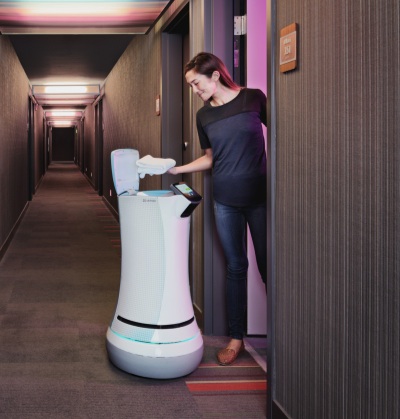
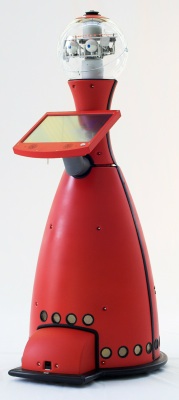
The terrestrial robots listed here range from the emotionally sensitive – Aldeberan’s Pepper, sold by Softbank, which is designed for marketing and companionship — to the vigilant, such as the Scitos A5 surveillance bot. If you worry about the recent warnings from Stephen Hawking and Elon Musk concerning the dangers of artificial intelligence, and prefer your robots to be more servile, you can opt for the SaviOne service robot. The bot not only delivers towels to your hotel room,
but promises not to enslave you in a robot work camp.
Linux will likely play its largest role in industrial robots. Here we include the UBR-1, which offers a smart robot arm that can perform dexterous work alongside humans, much like the two-armed Baxter, which appeared on last year’s list. Sadly, the Linux-based Butler Gold cattle-feeding robot did not quite make the cut.
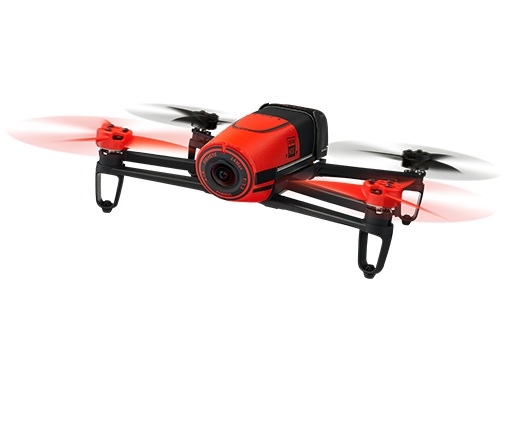
The three UAVs listed here can all be had for under $1,000. These include Parrot’s $499-and-up BeBop Drone — a higher-powered and more autonomous big brother to the AR.Drone 2 — and Pleiades’ somewhat similar Spiri which starts at $945. The $491-and-up Erle-Copter is described farther below. Like the other bots listed here, they all run Linux instead of Android, although next year, we may want to include Airmind’s Android-based Mind4 follow-me drone, which is available for $899 through Dec. 23 on Indiegogo.
Aside from last year’s OpenROV, we have yet to see any Linux-based AUVs that are affordable to consumers. However, we have included two professional, unmanned semi-autonomous submarines that run Linux. The Bluefin-21 made the news earlier this year for its use in the unsuccessful hunt for the wreckage of Malaysia Airlines Flight 370, and the SeaBED recently performed Woods Hole-directed research showing that Antarctic sea ice is thicker than expected.
ROS adds ARM Linux support as APM migrates tuxward
This year, several developments established Linux more fully in the robotics scene. In September, the Open Source Robotics Foundation (OSRF) announced plans to add ARM Linux support to the Robot Operating System (ROS), starting with a Snapdragon 600 optimized version. ROS and Linux have been teamed in a number of robot designs in recent years, including several on our list, but the new port should enable the first truly integrated Linux-based ROS robots.
The Linux port is expected to ship this month, followed by an Android build in 2015. Last week, Qualcomm posted an update on the project’s progress, including demos of Linux running ROS on a Snapdragon 600-based Inforce IFC6410 SBC.
In the sky, meanwhile, a Linux version of 3DRobotics’ open source, Arduino-focused, APM (ArduPilotMega) operating system for drone autopilots has begun to emerge. The BeaglePilot project behind this effort is a collaboration of 3DRobotics, Erle Robotics, and several academic institutions, which have integrated a BeagleBone Black SBC running Linux with an APM autopilot. The project recently published a paper on the topic, and Erle Robotics has launched a similar Linux-based Erle-Copter, which is included in our top 10 list.
In October, the Linux Foundation and 3DRobotics joined together with the APM-related PX4 autopilot project, as well as companies including Intel and Qualcomm, to announce an open source Dronecode Project based on APM. Although the announcement made no mention of Linux-based Dronecode devices, we are likely to see several arrive in 2015 in addition to the Erle-Copter. 3DRobotics itself is developing an optical companion computer for its new IRIS+ drone that will run Linux on an Intel Edison module.
As we look forward to a new crop of Linux bots in 2015, it should be noted that many of the models on our last two top 10 lists are also still available and viable. Last year’s list included the ASV Roboat, Baxter 2.0, Beam, Cheetah-cub Robot, Frindo, Hydraulic Quadruped, Lego Mindstorms EV3, Nao, OpenRov, and SuperDroid 6WD. Meanwhile, there are several open source designs based on the Raspberry Pi, BeagleBone Black, and other Linux SBCs that you can try to build yourself.
On Dec. 10, iRobot, whose Ava 500 telepresence bot made our list, announced a hackable, $200 version of the Roomba for STEM education called the Create 2. The mobile, microcontroller-based device can’t vacuum like a Roomba, but it can be fitted with a camera, and can be programmed via a laptop, an Arduino board, or a Raspberry Pi.
Top 10 Linux robots
This year’s top 10 Linux robot list, with links to vendor websites, may be found below, and the slideshow is available via the Gallery link. In-depth coverage of all these bots, except the Erle-Copter, may also be found on LinuxGizmos.com, among other resources.
Ava 500— iRobot
BeBop Drone— Parrot
Bluefin-21— Bluefin Robotics
Erle-Copter— Erle Robotics
Pepper— SoftBank and Aldeberan
SaviOne— Savioke
Scitos A5— MetraLabs/GS4
SeaBED— Seabed Technologies
Spiri— Pleiades
UBR-1 — Unbounded Robotics

11 Things to Do After You Install Fedora 21
Fedora 21 was announced yesterday and it turned out to be a great release. Fedora comes pre-installed with a lot of applications. Users can start working as soon as they boot into Fedora. However, like most operating systems Fedora also needs some work to prepare it to handle your workload.
Update your system
The first thing to do after installing Fedora is to update the system. Open the terminal and run the following command as sudo:
sudo yum update
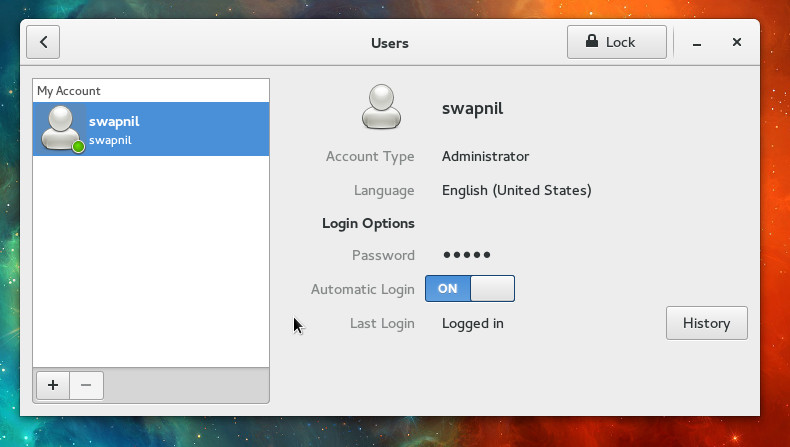
If you forgot to add yourself (the default user) to the administrative group during install you won’t be able to use the sudo command. Open the Gnome System Settings then go to users. Unlock the window and change the Account Type to ‘Administrator’. Now you will be able to perform administrative tasks as sudo.

Install extra repositories
Fedora doesn’t provide a lot of software through the official repository due to patent and licensing issues. Like any other Linux-based operating system such packages are offered through third party repositories. You can easily add RPMFusion repository to install such applications.
There are two repositories within RPMFusion. First you need to enable the free repository and then the non-free one.
Install both repositories from RPMFusion (if you don’t see repositories for 21 yet, wait for a few days or add Rawhide repos).
Install VLC
VLC is like a swiss knife for video playback. It can play virtually any video format. A lesser known but quite powerful feature of VLC is to convert media formats; you can also extract audio from video files. Another even lesser known feature is VLC’s ability to play online videos from services like YouTube.
Install VLC by running this command:
sudo yum install vlc
How to play MP3 files in Fedora
You need mp3 codecs to play such files in Fedora. Open the terminal and install gstreamer plugins:
yum install gstreamer-plugins-ugly
I like the Clementine music player so I went ahead and installed it from the terminal. It’s plays mp3’s without any hassle.
Install Chrome browser
Fedora has made a surprise move and replaced Gnome’s own Epiphany web browser with Firefox. However if you want Google Chrome, you can install it by downloading the binaries from the respective websites.
Go to the Chrome download page and grab the .rpm binaries for your architecture (32 bit or 64v bit whichever you installed on your system). Linux binaries can be installed just the way .exe files are installed on Windows. Just double click on them or right click and choose ‘Open with Software Install’ and follow instructions.
Ride high on cloud
The only cloud I trust is the one that I own and run. I am a heavy ownCloud user. If you are running ownCloud on your server you can install the ownCloud client for Fedora:
sudo yum install owncloud-client
If you are a dropbox user you can get the executable images from their sites and install them the way you installed Chrome.
Get started with online accounts
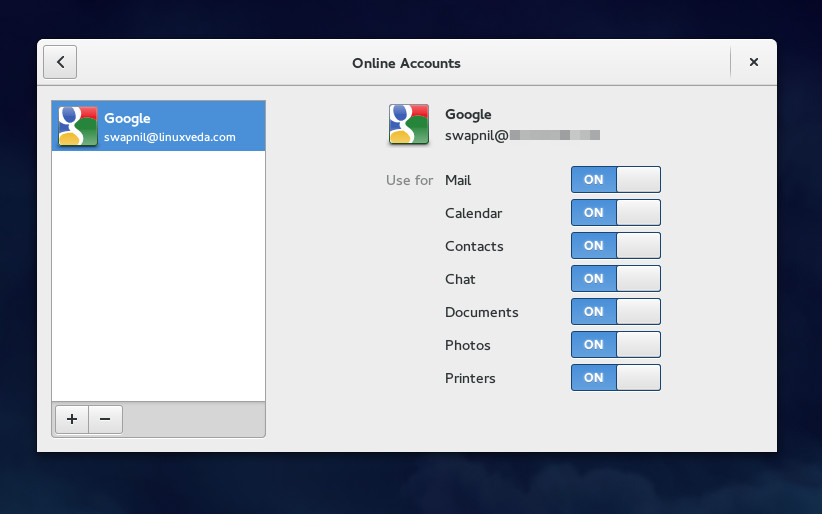
Gnome has made it extremely easy to set up the default email, calendar, and chat clients. Open Online Accounts and choose the service you want to integrate with the system. If you chose Gmail, it will automatically configure Evolution and Contacts for that account. It’s very easy, just follow the on-screen instructions.

Install Gnome Tweak Tool and install extensions
Gnome Tweak Tool is the most important tool for a great Gnome experience. I wonder why Fedora didn’t include it in the ISO image. You can easily install the tool from Software.
Once the tool is installed you can customize the system to your liking. I always enable the window minimize button; you can call me old school.
I also install a couple of extensions from the Gnome Extensions site. Open the site in Firefox, allow the pop-up and search for the desired extensions. Some of my favorite extensions are: Windows List, Dash To Dock, User Themes, Application Menu, Advanced settings in user menu, etc.
Installing non-free drivers for Nvidia and ATI
Fedora will work out of the box using open source drivers. But if you experience video tearing or if you play video games you may need proprietary drivers to get the most out of your GPU. Installing graphics drivers is a tricky area in Fedora. Installing the wrong drivers may break your system. I previously broke my Fedora installs so I don’t bother with non-free graphics drivers anymore. If you do want to install non-free drivers, follow the guide by RPMFusion.
Setting up printers
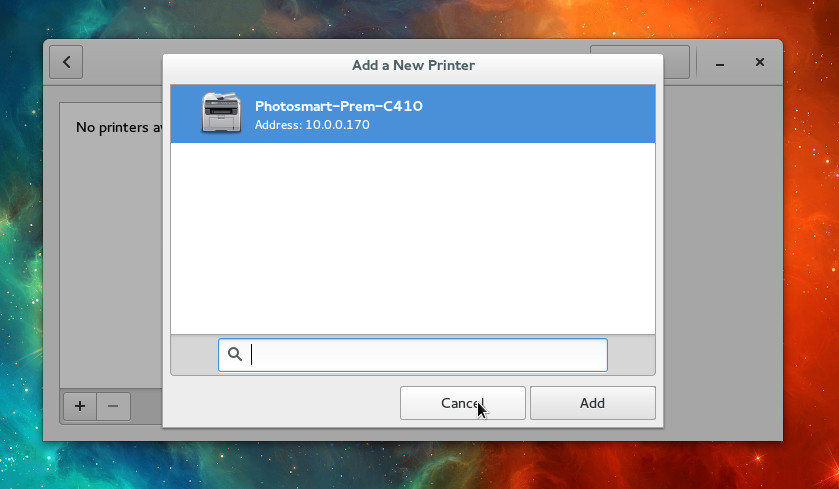
Setting up printers is a breeze in Fedora. Just open the Printers from Dash and click on the Add Printer button, Fedora will scan and detect the printers connected to the system physically or available over the local network. Select the printer from the list, click on the ‘Add’ button and you are all set.

How to change themes or icons
Even if Gnome aims to offer an easy-to-use desktop, customizing it is not that elegant. Go to Gnome Look site and download the desired Gtk3 or icon theme. Extract the content of the downloaded files.
Go to home folder and enable ‘show hidden and system folder’. If you don’t see .icons and .themes folder, create them. Now copy the extracted folders to appropriate directories: themes go in .themes directory and icons go in .icons directory.
Open the Gnome Tweak Tool and you will see the themes that you just downloaded.
These are just a few things I do after installing Fedora. It’s Linux so there are endless possibilities of personalizing and optimizing your system! Let us know if you have some cool tricks for Fedora up your sleeve.
Cloud Foundry Foundation Matures–Becomes A Linux Foundation Collaborative Project
News this morning that the Cloud Foundry Platform as a Service (PaaS) initiative, is going to become a Linux Foundation collaborative project with a “Governance by Contribution†model. This development was always going to happen, not least because of the varying commercial tensions in the Cloud Foundry ecosystem. (Disclosure, I’m an adviser to ActiveState, a contributor to Cloud Foundry, via their acquisition last year of Appsecute). The project was begun within VMware and has gained widespread traction. Since that time VMware VMW -1.53% has spun the Cloud Foundry part of its business out into Pivotal but tensions exist due to the fact that Pivotal is both the primary entity involved with the project, but also a commercial operation that needs to find ways to monetize the product. Put frankly, what is right for Pivotal may or may not be what is right for the Cloud Foundry project more generally. A governance body helps to allay these fears. While Cloud Foundry did indeed announce a foundation earlier this year, this announcement sees the foundation actually come into existence.
Read more at Forbes.
Linux 3.18: 4 Reasons to Love a ‘Diseased Newt’

Almost exactly two months after the release of Linux 3.17 Linus Torvalds on Sunday unleashed version 3.18 of the Linux kernel complete with a catchy new nickname: “Diseased Newt.
“It’s been a quiet week, and the patch from rc7 is tiny, so 3.18 is out,” Torvalds wrote in the official announcement email on Sunday evening.
The merge window for Linux 3.19 is now open, but in the meantime developers are still struggling to understand an occasional lockup problem that has been afflicting some users of Linux 3.17.
“I’d love to say that we’ve figured out the problem that plagues 3.17 for a couple of people, but we haven’t,” Torvalds explained. “At the same time, there’s absolutely no point in having everybody else twiddling their thumbs when a couple of people are actively trying to bisect an older issue, so holding up the release just didn’t make sense. Especially since that would just have then held things up entirely over the holiday break.”
Even as the bisection proceeds on that thorny issue, then, Linux 3.18 is here in all its glory. Here are a few of the new release’s more interesting features.
1. The Fastest Networking Stack Yet
A variety of networking performance improvements have been added to the Linux kernel, enabling relatively small systems to drive a high-speed interface at full wire speed, for example, even when small packets are being transmitted. Small-packet performance has been a problem area for Linux, as developer Jonathan Corbet noted in an early description of the 3.18 merge window, making this a particularly important improvement. “All told, the changes are relatively small,” he explained separately. “But small changes can have big effects when they are applied to the right places. These little changes should help to ensure that the networking stack in the 3.18 release is the fastest yet.”

2. Snappier Suspend and Resume
Users with large servers will likely notice much faster performance in suspend and resume operations as a result of a commit added to Linux 3.18 back in October. “This tree includes a single commit that speeds up x86 suspend/resume by replacing a naive 100msec sleep based polling loop with proper completion notification,” wrote developer Ingo Molnar in the official pull request. “This gives some real suspend/resume benefit on servers with larger core counts.”
3.The bpf() System Call
After several months of work on the kernel’s Berkeley Packet Filter (BPF) virtual machine, the bpf() system call has now been added to the mainline kernel. “The hooks to use this code (in tracing and packet filtering, for example) will take a little longer, but the core support for a ‘universal virtual machine’ in the kernel is now present,” Corbet explained. BPF has been extended beyond packet filtering into a number of other roles, he noted in a separate report, and numerous new functions are enabled by the use of this single bpf() system call, including the ability to load BPF programs.
4. A World of New Hardware Support
Last but not least, new drivers and broadened hardware support are a part of pretty much every new release of the Linux kernel, and version 3.18 is no exception. Among the inclusions this time around are a variety of audio codecs, touch screens, systems-on-a-chip (SoCs), USBs and touch and haptic controllers; of particular interest for gaming enthusiasts is support for the Razer Sabertooth controller.
Of course, there are countless other features and fixes in Linux 3.18 as well. For a more complete account, check out the changelog now under construction on Kernel Newbies.
Congratulations to the Cloud Foundry Foundation
It’s no longer debatable that most technologies today are built with open source software and collaborative development. Everyone knows this to be true. What’s become more the topic of discussion in recent years is how to support and manage these massive, shared resources we call open source projects and the developers who work on them.
That is why The Linux Foundation over the last couple of years has spent a lot of time identifying with its members existing or new open source projects that can transform technology or industries through collaboration. Taking a page from the Linux playbook, we’re able to work with companies and developers to together undertake massive, industrial-scale development projects that have the potential to change the world.
Today we’re excited to support another project,Cloud Foundry. The Cloud Foundry Foundation today becomes an independent organizationwith a “Governance by Contribution” structure and a growing number of participants. This combination of moves and milestones puts the Cloud Foundry project in a strong position for the year ahead. With the official launch of the Cloud Foundry Foundation, it will bring millions of dollars in shared resources to action to support the Cloud Foundry developer and user community.
As the popularity and necessity for Cloud Foundry has risen, the project has experienced a big increase in community contributions and pull requests in the thousands from a wide variety of individuals and companies. When a project reaches this level of maturity, organized and independent management becomes crucial. The Cloud Foundry Foundation is a great move that will enable the rapid development and the growing ecosystem around Platform-as-a-Service (PaaS). We look forward to the work and collaboration ahead.