So far in our Android UI building blocks tutorials we haven’t really looked at menus, but of course they’re an essential part of the user experience of our application. Read on to get started with the first type of Android menu, the options menu.
The Android UI provides three basic menu types:
- The options menu is the one that appears when you click the menu button on older Android devices, or via the action bar at the top of the screen in newer ones (post 3.0). The options menu should handle global application actions that make sense for the whole app.
- Contextual menus appear when you long-click on an element. Contextual menus should handle element-specific actions. They’re particularly useful in GridView or ListView layouts, where you are showing the user a list of elements.
- Pop-up menus display a vertical list of items. These are good for providing options for a second part of a menu command, rather than as a stand-alone menu.
In this tutorial, we’ll look at creating an options menu via XML, and at adding a menu item programmatically. Next month we’ll look at contextual menus for individual items and for batches of items. We’ll use the code from the previous tutorial, on GridView, and add a menu to that.
Options Menu
It’s best practice to define a menu and its items as an XML menu resource, then inflate it in your code. This makes it easier to see the menu structure, it means you can readily create different versions of the menu for different hardware, and it separates visual and behavioural code.
The important parts of the menu XML (for both options and contextual menus) are:
<menu> -- a container for menu items (<item> and <group> elements), which must be the root node of the menu XML file.
<item> -- a menu item (MenuItem once inflated in the code).
<group> -- allows you to categorise <item>s into groups, but isn't itself visible.
Here’s a sample options menu to save under res/menu/main_menu.xml:
<menu xmlns:android="http://schemas.android.com/apk/res/android" >
    <item
        android:id="@+id/background"
        android:title="@string/background_title"/>
        android:showAsAction="never"
    <item
        android:id="@+id/toast"
        android:title="@string/toast_title"/>
        android:showAsAction="ifRoom"
</menu>
The id attribute will let us refer to this menu item in the code later; and the title attribute is the item’s text title, which will be shown if there is no icon. showAsAction specifies whether the action will be shown by itself in the action bar, or just in the ‘more actions’ menu on the right-hand side of the bar. Here, one action will be shown if there is room, and the other will never be shown. See the docs for more attributes you can set for a menu item.
You’ll also need to add strings to res/values/strings.xml:
<string name="background_title">Change background colour</string>
<string name="toast_title">Show toast message</string>
Once you’ve created the menu, you need to inflate it in the code for it to be shown at runtime. Add this to GridViewTestActivity:
public boolean onCreateOptionsMenu(Menu menu) {
    MenuInflater inflater = getMenuInflater();
    inflater.inflate(R.menu.main_menu, menu);
    return true;
}
Compile and run, and check out your options menu. This is Android 4.3 so it shows the action bar; in Android 2.3 or lower you would hit the menu button to pull up the options menu, and it would appear at the bottom of the screen.
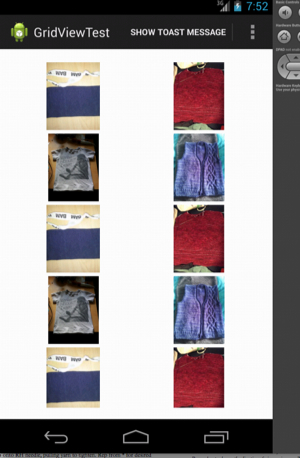
The text used on the action bar isn’t ideal; you’d be better off creating and saving an icon in res/drawable and then adding this attribute to the menu item:
android:icon="@drawable/toast_icon.png"
Handling menu clicks
Currently, nothing happens when the user clicks the menu items. We need to write a method to handle clicks:
public boolean onOptionsItemSelected(MenuItem item) {
  switch (item.getItemId()) {
    case R.id.background:
      changeBackground();
      return true;
    case R.id.toast:
      Toast.makeText(getBaseContext(), R.string.toast_message,
                     Toast.LENGTH_LONG).show();
      return true;
    default:
      return super.onOptionsItemSelected(item);
  }
}

private void changeBackground() {
  gridview.setBackgroundColor(Color.CYAN);
}
All we need is a switch statement, which looks at the item ID to decide what action to do. Note that the default is to pass up to the superclass. This is particularly useful if you want to have some menu items in multiple Activities in a single app. You can write a superclass which just creates a basic menu, and then inherit from that superclass to get those same methods in all your Activities.
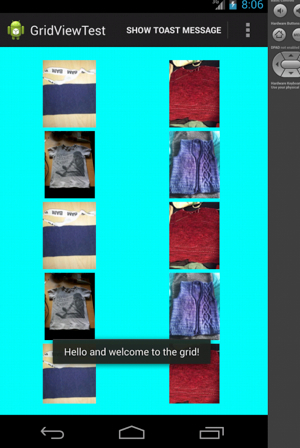
Compile and run this, and you’ll be able to see a message or change the background colour. A nice improvement would be to give the user a choice of different background colours.
Adding a menu item in code
Although most of the time it’s best to write your menu items in XML, sometimes you need to be able to add a menu item programmatically — for example, a menu item that shows up only in certain circumstances, or which changes. First, let’s look at changing a menu item based on the day of the week:
public class GridViewTestActivity extends Activity {
  private Menu menu;
  int backgroundColour;
  public boolean onCreateOptionsMenu(Menu menu) {
   	this.menu = menu;
    getMenuInflater().inflate(R.menu.main_menu, menu);
    setBackgroundItem();
    return true;
  }

  public boolean onOptionsItemSelected(MenuItem item) {
    // as before
    case R.id.background:
   	  changeBackground(backgroundColour);
      return true;
    // rest as before
  }

  private void setBackgroundItem() {
    Calendar cal = Calendar.getInstance();
    int day = cal.get(Calendar.DAY_OF_WEEK);
    if (day == Calendar.SUNDAY) {
      backgroundColour = Color.MAGENTA;
      MenuItem item = menu.findItem(R.id.background);
      item.setTitle("Change background colour to magenta");
    } else {
      backgroundColour = Color.CYAN;
    }
  }

  private void changeBackground(int color) {
    gridview.setBackgroundColor(color);
  }
}
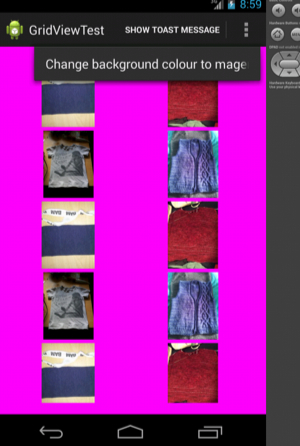
Much of this is the same code as before, just refactored a little (we need the menu and the background color as class variables). The main change is insetBackgroundItem(), which checks the day of the week, and if it’s a Sunday, grabs the background color menu item using its ID, and changes the title withitem.setTitle().
Adding a whole menu item is also fairly straightforward.
public class GridViewTestActivity extends Activity {
  private static final int NEW_MESSAGE = 0;
  public boolean onCreateOptionsMenu(Menu menu) {
    // add this line:
    addNewItem();
  }
  public boolean onOptionsItemSelected(MenuItem item) {
    	switch (item.getItemId()) {
    // rest of switch statement as before
   	case NEW_MESSAGE:
      Toast.makeText(getBaseContext(), R.string.new_message,
                     Toast.LENGTH_LONG).show();
    // rest as before
  }
  private void addNewItem() {
    menu.add(0, NEW_MESSAGE,0, R.string.new_message_title);
  }
}
The first argument to menu.add() is the group ID; we have no groups on this menu so this is zero. The second is the item ID, defined at the top of the class. The third is the order, we use 0 as we don’t care about the order. Finally, we give the title. And that’s our new menu item created. Remember to add a case to onOptionsItemSelected() so that your new menu item is correctly handled.
Compile and run, and you’ll see your new message appear. Note however that although a dynamically added menu item is sometimes correct, you might be better off creating the menu item in XML as with the others, and then using this line:
item.setVisible(false);
to set its visibility based on code conditions, just as we changed the title of the background color menu item in the code.
We’ve covered the basics of options menus; check out next month’s tutorial for more on contextual menus and batch processing of items in a list.