The openSuSE project offers two distributions: Tumbleweed, which is a rolling distribution that gets continuous updates, and Leap, which is a point distribution that gets periodic updates.
Looking at it a different way, I think of Tumbleweed as being a development distribution, so I expect it to get the latest version of all its major packages very quickly, but I am not surprised when there is some minor instability. I consider Leap to be a stable distribution, so some of the major/critical packages only get updates when a new point release is made, and I expect it to be very dependable.
A new open source PaaS, Tsuru, is out to ease the application deployment process by reducing it to little more than a Git push command.
The workflow for Tsuru, according to its documentation, consists of writing an app, backing it with resources like databases or caching, and deploying it to production with Git. Tsuru handles the rest, including crating up the apps in Docker containers and managing their workloads. Its creators claim it can be deployed both locally and on services like AWS, DigitalOcean, or Apache CloudStack.
The speed at which data is generated, consumed, processed, and analyzed is increasing at an unbelievably rapid pace. Social media, the Internet of Things, ad tech, and gaming verticals are struggling to deal with the disproportionate size of data sets. These industries demand data processing and analysis in near real-time. Traditional big data-styled frameworks such as Apache Hadoop is not well-suited for these use cases.
As a result, multiple open source projects have been started in the last few years todeal with the streaming data. All were designed to process a never-ending sequence of records originating from more than one source. From Kafka to Beam, there are over a dozen Apache projects in various stages of completion.
With a high overlap, the current Apache streaming projects address similar scenarios. Users often find it confusing to choose the right open source stack for implementing a real-time stream processing solution. This article attempts to help customers navigate the complex maze of Apache streaming projects by calling out the key differentiators for each. We will discuss the use cases and key scenarios addressed by Apache Kafka, Apache Storm, Apache Spark, Apache Samza, Apache Beam and related projects.
Teams working in agile test each new function during the release cycle, maybe do some light poking the day before shipping, and then give the thumbs up. Alternately, they just do nothing and software still ships. There is a better way to approach this problem; develop a regression testing strategy.
Why You Should Develop a Regression Testing Strategy
Every new software change introduces the potential for new problems. A user might get a new web page and submit a date format the programmer wasn’t expecting. In return, that user gets an error on the page explaining things they might not understand or even care about, data loss, and browser crashes. These risks are easy to imagine and are where feature testing during a sprint shines. A tester can perform these scenarios, discover the problems, and report them. Programmers can come back over the code to fix the problems, and then build automated checks that run with the build so the team finds out fast when they emerge again.
When you are a Linux power user, it is always mandatory to master using the command-line, since using commands to control the system offers a system user more power and control over the Linux…
[[ This is a content summary only. Visit my website for full links, other content, and more! ]]
Read the full article: http://www.tecmint.com/best-linux-terminal-console-games/
The time is ripe for new ways to distribute and deploy desktop applications: between snappy, Flatpak, AppImage and others there are quite a few projects in this area.
Sandboxing
Most of these projects involve some notion of sandboxing: isolating the application from the rest of the system.
Snappy does this by setting environment variables like XDG_DATA_DIRS, PATH, etc, to tell apps where to find their ‘stuff’ and using app-armor to not let them access things they shouldn’t.
Flatpak takes a somewhat different approach: it uses bind mounts and namespaces to construct a separate view of the world for the app in which it can only see what it is supposed to access.
Tor is a software that enables you to hide your identity on the internet. It is an open network that helps defend against traffic analysis and grants you a high level of privacy.
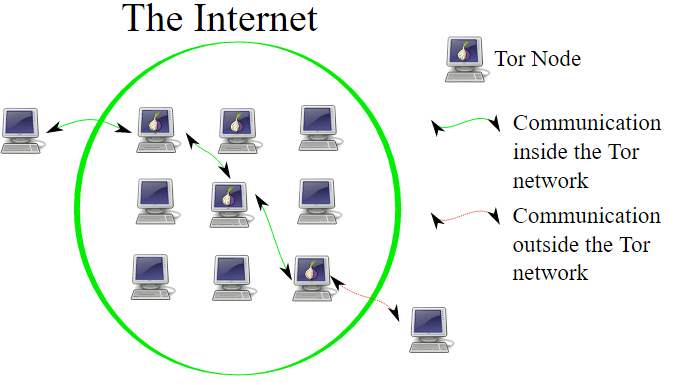
Tor protects you by bouncing your communications around a distributed network of relays (known as onion routing) run by volunteers all around the world: it prevents somebody watching your Internet connection from learning what sites you visit, and it prevents the sites you visit from learning your physical location.
What is Onion Routing?
In onion routing, the data to be sent is encapsulated in layers of encryption, just like the layers of an onion. The resulting encrypted data is then transmitted through a series of network nodes called onion routers, each of which “peels” away (or decrypts) a single layer of the encryption, uncovering the data’s next destination. Upon decrypting the final layer, the data arrives at its destination. The sender remains anonymous because each intermediary knows only the location of the immediately preceding and following nodes.
How to Install Tor on Ubuntu
Follow these steps to install Tor on Ubuntu:
1. Adding Source Entries
First find out which version of Ubuntu you are using. Then choose that version from the following list and add the following lines to the file /etc/apt/sources.list using the editor you use or simply by using the cat command.
$ sudo cat >> /etc/apt/sources.list
If you are using Ubuntu 14.xx
deb http://deb.torproject.org/torproject.org trusty main
deb-src http://deb.torproject.org/torproject.org trusty main
If you are using Ubuntu 15.xx
deb http://deb.torproject.org/torproject.org wily main
deb-src http://deb.torproject.org/torproject.org wily main
If you are using Ubuntu 16.xx
deb http://deb.torproject.org/torproject.org xenial main
deb-src http://deb.torproject.org/torproject.org xenial main
$ sudo apt-get update
$ sudo apt-get install tor deb.torproject.org-keyring
Using Tor
1. Configuring Tor
Tor puts the torrc file in /usr/local/etc/tor/torrc if you compiled tor from source, and /etc/tor/torrc or/etc/torrc if you installed a pre-built package.
Tor comes with a control port, which can be used to control it. It is highly recommended that in order to control Tor using the control port, you set up an authentication method to prevent anyone else from accessing it. The recommended way is to use a password. If you choose to use a password for authentication first run this command to get a hashed password to use in the config file in the next step:
$ tor --hash-password "passwordhere"
16:AC5FB526B90B4ED06027C6C4343EF87075B63B9A25822EE198622EE4D6
Open the torrc file (if you followed the above installation steps, then your torrc file path should be /etc/tor/torrc) and uncomment these lines:
ControlPort
CookieAuthentication OR HashedControlPassword (if you choose to uncomment HashedControlPassword, copy the hashed password you got in the previous step and paste it next to HashedControlPassword in the torrc file)
These lines are shown below:
# This provides a port for our script to talk with. If you set this then be
# sure to also set either CookieAuthentication *or* HashedControlPassword!
#
# You could also use ControlSocket instead of ControlPort, which provides a
# file based socket. You don't need to have authentication if you use
# ControlSocket. For this example however we'll use a port.

ControlPort 9051 # <--- uncomment this ControlPort line

# Setting this will make Tor write an authentication cookie. Anything with
# permission to read this file can connect to Tor. If you're going to run
# your script with the same user or permission group as Tor then this is the
# easiest method of authentication to use.

CookieAuthentication 1 #either uncomment this or below HashedControlPassword line

# Alternatively we can authenticate with a password. To set a password first
# get its hash...
#
# % tor --hash-password "my_password"
# 16:E600ADC1B52C80BB6022A0E999A7734571A451EB6AE50FED489B72E3DF
#
# ... and use that for the HashedControlPassword in your torrc.

HashedControlPassword 16:E600ADC1B52C80BB6022A0E999A7734571A451EB6AE50FED489B72E3DF #if you choose to uncomment this line, paste your hashed password here
Cookie authentication simply means that your credential is the content of a file in Tor’s DataDirectory.
In order for the changes to take effect, you must restart Tor using this command:
$ sudo /etc/init.d/tor restart
2. How to authenticate with Tor Control Port
If you want to authenticate with Tor to communicate with the Tor control port (e.g. to start a new session), you can do this: (if you chose cookie authentication method, you can use AUTHENTICATE without any password)
By default, Tor listens for SOCKS connections on port 9050. To use this SOCKS proxy, you can point your application directly to it (“localhost” port “9050”). For applications that do not have this feature, you can use torsocks.
3. How to install torsocks
To install torsocks you can either directly run this command:
$ sudo apt-get install torsocks
ALTERNATIVELY, To install it directly from source (this gets you the latest version and recent patches):
$ git clone https://git.torproject.org/torsocks.git
$ cd torsocks
$ ./autogen.sh
$ ./configure
$ make
$ sudo make install
Now let’s use torsocks! First, get your public ip address.
$ curl 'https://api.ipify.org'
75.119.16.140
So, it says 75.119.16.140 is my public ip, now use torsocks before the curl command:
As you can see, we now have a different ip address that was used to browse on the internet.
4. Signalling Tor Control to create a new circuit (or path)
You can tell Tor control to initiate a new Tor circuit. An important thing to note here is that a new circuit does not necessarily mean a new IP address. To do this, we use a command already introduced above:
$ telnet localhost 9051
Trying 127.0.0.1...
Connected to localhost.
Escape character is '^]'.
AUTHENTICATE "my_password"
250 OK
SIGNAL NEWNYM
250 OK
QUIT
250 closing connection
Connection closed by foreign host.
5. Use a Python Controller Library for Tor
Stem is an officially supported Python controller library for Tor. You can find all about how to install Stem and a few good tutorials to start with from the official website of Tor.
File comparison compares the contents of computer files, finding their common contents and their differences. The result of the comparison is often known as a diff.
diff is also the name of a famous console based file comparison utility that outputs the differences between two files. The diff utility was developed in the early 1970s on the Unix operating system. Typically, diff is used to show the changes between two versions of the same file. Modern implementations also support binary files.
When you setup proftpd on your Linux server, you may sometimes run into permission errors. By default, the home directory of the logged in user to FTP is that which is created when you make the user (using adduser or so). However, if you change the directory for this user, you’ll often find that you won’t be able to write files to that folder. So here are some tips on debugging this process:
1) Check the folder ownership. In order to write files to a folder, you need to belong to the folder’s usergroup or owner. You can check the folder’s usergroup by:
ls -o
This will list the group and file owner. To change the group to one that your FTP user belongs to use:
chgrp <folder> <groupname>
To change the owner use:
chown <file> <user>
<hr>
2) Check the permissions of the folder. Use ls -o to check the read/write permissions of the folder. We want the group users to be able to read/write/execute on the folder, so you want to chmod to something like 775. You can do this using the chmod command:
chmod 775 <file/folder>
<h4>
3) Also check your proftpd config that make’s sure the directory is chrooted (Configure proftpd on Debian). There are a number of directives you can use to setup the folder permissions, such as creating <directory /> blocks. This guide was particularly useful to me: http://www.proftpd.org/docs/howto/Directory.html
You probably have a folder full of documents that say things like importantpresentation.final.odp, importantpresentation.real.final.odp, and importantpresentation.final.changesfromjen.odp. The dates the files were created might help you figure out which one is the latest version, but it can get confusing very easily. Version control solves that problem by tracking document versions for you.
Version control is a process that lets you keep track of changes to electronic items. It’s used by coders who might make a change that breaks things. Version controls allows them to go back to the last working version. But it’s also a useful workflow for collaborating on documents.
In this tutorial, you’re going to learn how to use version control to collaborate on a document. We’re going to use a program called Git to track our files and a site called GitLab to host them. Git is the perfect tool to end the book on because it’s a command line tool that you can use with graphical tools, like text editors. The command line aspect is what makes this attractive to Linux users and it’s one of the reasons I covered it in my book, Learn Linux in a Month of Lunches.
A quick note: One confusing thing about Git is that it’s got two components:
Git, the software, which you use from the command line of your computer
Git Repositories, which are web-based and hold the content being tracked.
So while every person using the Git software is using the same program, the repositories where the content is synced and tracked can vary. If you stop for a minute to think about this, this set-up makes sense. You have Git, a program on your local machine, tracking files. But you need someplace that collaborators can see and access the files, which is where the web-based repository comes in. The most popular repository is probably GitHub, which holds the code from lots of different projects and has become a sort of living resume for people who program. But there are other repositories with which Git can be used.
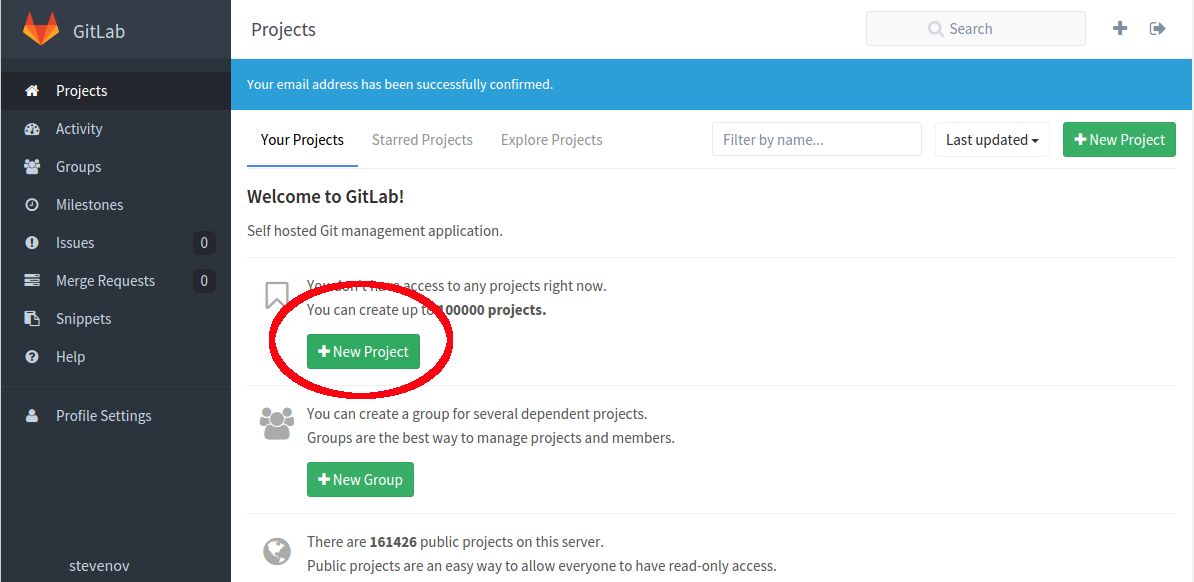
For the purposes of this tutorial, we’re going to create a private repository in GitLab.
Once you have confirmed your email address, you’ll be able to login
Click the New Project button.
Make the project path end in linuxlunches and keep the visibility level private so that no one can see your repository without your permission
Click Create project
You now have a repository!
Connecting to your repository with Git
The first thing you need to do is install the Git package on your computer. The package is, conveniently enough, called git.
Creating Your Git Identity
Once that’s installed, you need to tell Git who you are. You’ll do that with two commands. The first one will set-up your email and the second will set-up your name. This will let your collaborators know who’s doing what in the repository.
Once you’ve done that, create a folder called repo in your Documents directory and navigate into it via the command line. This folder is where we’ll add the repository we just created in GitLab. To get the address for your repository, go into GitLab and click the Project link. You should see an SSH link for your repository that begins *git@gitlab.com: *. Copy the link.
Cloning a Repository
Now that we have the address for our repository, we can tell Git to clone it, or copy it into that repo directory on our local computer.
The command to copy the repository is git clone and the full git@gitlab.com link you just copied.
While you were cloning the repository, you probably saw a message that it’s empty. That’s fine. Let’s add a file now. Go into the linuxlunches directory within the repo folder. Create a file called firstfile.txt. To upload it to your repository
git add firstfile.txt Git is now tracking this file.
To prepare the file for upload, use git commit -m “My first file” The file is ready to be uploaded to the repository.
To finish the job, use the command git push origin master This will push the committed file, or files, to the repository.
Go into your GitLab repository via the web interface and click on Files. You’ll see your empty file in the repository. You just uploaded your first file via Git!