Nokia’s Bell Labs’ R&D unit published a report this week warning that the capacity of mobile and Wi-Fi networks is not growing nearly quickly enough to satisfy the rise in that demand, especially when it comes to content and video. Of course, such a conclusion, coming from an equipment vendor, is predictable and self-serving, but nonetheless, Bell Labs’ figures are compelling.
It calculates that, by 2020, Wi-Fi and cellular networks, taken together, will be able to carry just 81 per cent of the projected mobile con-tent traffic, leaving almost one-fifth of demand unsatisfied. “Network operators will need to accelerate their path to 5G and cloud technologies, such as network functions virtualization (NFV) and software-defined networking (SDN), and adopt new business models to address the demand gap,” Nokia said.
Alongside Docker and CoreOS, LXC and LXD are open source solutions for creating containers, the virtual environments that make it easy to deploy individual applications. Containers offer a lot of advantages for data centers and clouds.
Here’s what you should know to understand where LXC and LXD fit into the open source container ecosystem…
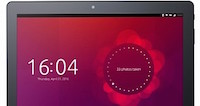
We believe that, by now, all of our readers are aware of the fact that BQ and Canonical have worked hard during the past few months on bringing the first-ever Ubuntu tablet device to the light of day.
BQ Aquaris M10 Ubuntu Edition is the first tablet to run the mobile version Ubuntu Linux operating system natively, which is called internally Ubuntu Touch, and we told you everything there was to know about it when it was first announced by Canonical, during the MWC (Mobile World Congress) 2016.
Could the artificial intelligence platform revolutionize the cybersecurity industry?
Today’s cybersecurity professionals face daunting tasks: protecting enterprise networks from threats as best they can, damage limitation when data breaches occur, cyberforensics and documenting the evolution and spread of digital attacks and malware across the world.
On Monday, MIT’s Computer Science and Artificial Intelligence Laboratory (CSAIL) said that while many “analyst-driven solutions” rely on rules created by human experts and therefore may miss attacks which do not match established patterns, a new artificial intelligence platform changes the rules of the game.
Another Sunday, another chance for us Linux enthusiasts to take the latest RC (Release Candidate) build of the upcoming 4.6 kernel for a test drive on our computers.
Yes, that’s right, we’re talking about Linux kernel 4.6 Release Candidate 4 (RC4), which has just been made available for download a few minutes ago (see download options below), as announced by Mr. Linus Torvalds himself.
And from the looks of it, things are going pretty good in the development cycle of Linux kernel 4.6…
DRaaS offers business continuity by enabling data backup, recovery and retrieval. It is the process of replicating virtual servers to protect and back up data.
IT acronyms that can be pronounced as words and used in complete sentences are the most fun kind. SaaS or SAS (“Beyonce shows a lot of SaaS”) and PaaS (“That Tom Brady throws quite a PaaS”) are two examples.
Ready or not, the IT industry has added DRaaS (“Don’t do anything DRaaS-tic”) to the mix. This stands for disaster recovery as a service, and it’s becoming a big seller very quickly because DR is a pain to set up, test and maintain on premises. DR in the cloud is good a way for a business to be well covered and not have to think about it.
The upside to this sub-sector of IT is a healthy one; the estimated size of the global market is expected to balloon to $6 billion to $12 billion by 2020. MarketsandMarkets is projecting a $12 billion DRaaS market by 2020, and that’s a far cry from the $1.4 billion worth of DRaaS sold in 2015.
Suppose that your original answer-file been used for Controller/Network +(N)*Compute Node deployment has been updated as follows to separate Storage Node from Controller. Controller has IP 192.169.142.127, Compute has IP 192.169.142.137. Following lines in classic ML2&OVS&VXLAN deployment answer-file are supposed to be updated.
EXCLUDE_SERVERS=192.169.142.127,192.169.142.137
. . . . . . .
CONFIG_UNSUPPORTED=y
. . . . . . .
CONFIG_STORAGE_HOST=192.169.142.117
. . . . . . .
CONFIG_NEUTRON_OVS_TUNNEL_IF=eth1
CONFIG_NEUTRON_OVS_TUNNEL_SUBNETS=12.0.0.0/24
As far as updates above are correct new node 192.169.142.117 will be added to landscape, however endpoints for all storage services in keystone database wouldn’t be updated. So before stopping services on Controller keystone database is supposed to be hacked. Cinder may be tuned manipulating bindings cinder-types to required volume-groupes via cinder.conf on 192.169.142.117.
With the release of GNOME 3 came the promise of a small collection of apps that would go a long way toward making GNOME a desktop for all occasions. Apps for weather, calendar, music, photos, and maps not only promised to bring about a unified experience across the platform, they helped to offer a certain “mobilized” feel to the desktop. Considering that users across the globe are adopting mobile platforms at a rate that desktops cannot match, this was a wise move. Give the users a familiar collection apps, and they’ll feel right at home.
No app better defines that move than GNOME Maps. It’s a desktop app that does a great job of paralleling what you might find on a mobile platform. It offers an easy-to-use interface, favorites, route mapping, standard and satellite view maps, and much more. Sure, you can find all of these features (and more) in, say, Google Maps. However, you won’t find a desktop version of Google Maps for Linux. So, if you like your map apps ready at the click of an icon, GNOME 3 has what you’re looking for.
If you’ve never used GNOME Maps, you’re in for a treat. All you need is one of the latest iterations of GNOME (Maps was introduced in GNOME 3.16) and GNOME Maps will be installed by default.
Let’s get started.
The Interface
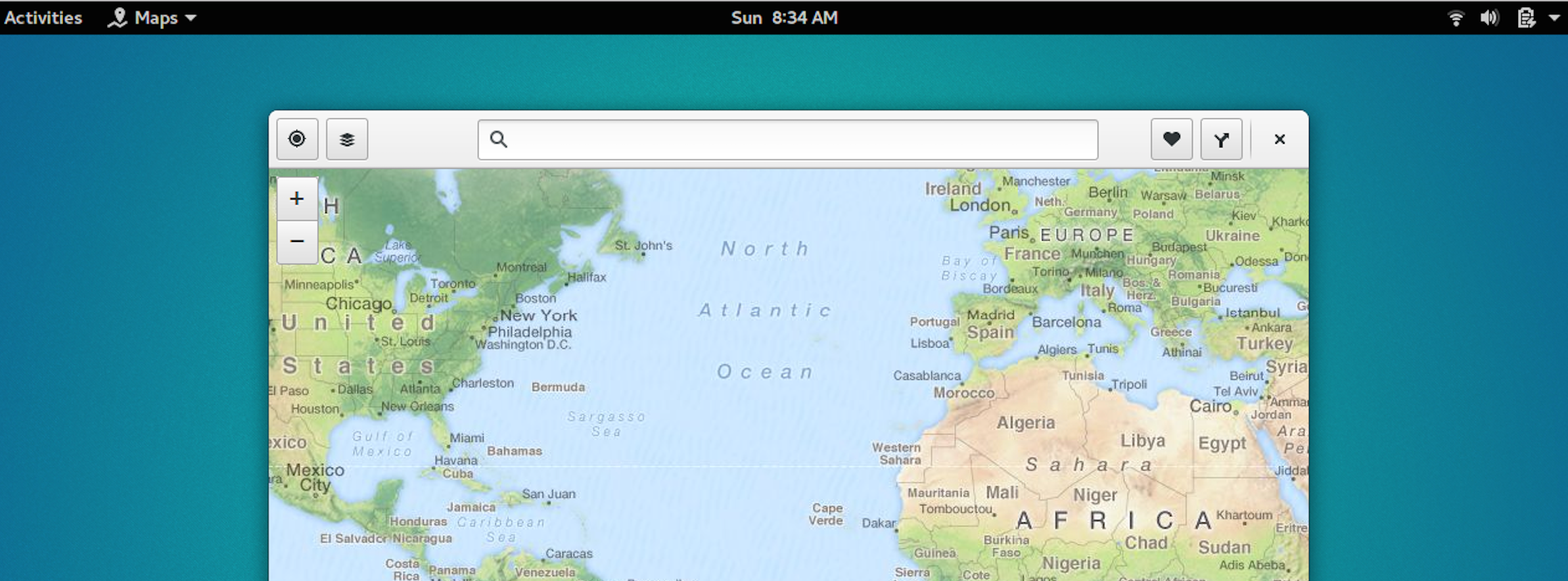
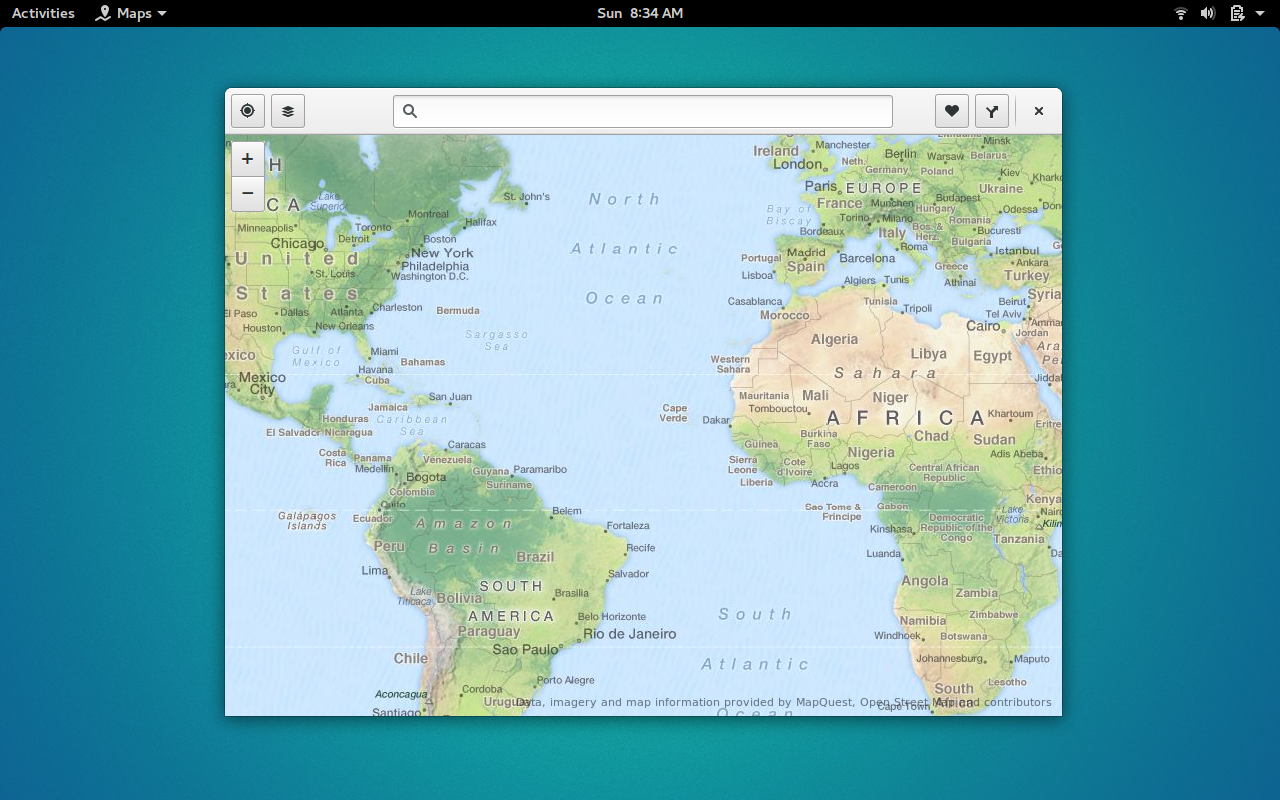
Figure 1: The Default GNOME Maps window.
To start up GNOME Maps, open up the Dash, search for Maps, and (when the Maps entry appears) click on the launcher. Maps will start up with a global view (Figure 1), ready to guide you.
The interface is quite simple. In the upper left corner, you have the location button, the map type selector, and the zoom in/out buttons. In the center top, you have the search bar. In the upper right corner, you have the favorites and the route buttons. The designers/developers have done a great job of making this app easy to navigate.
First Step
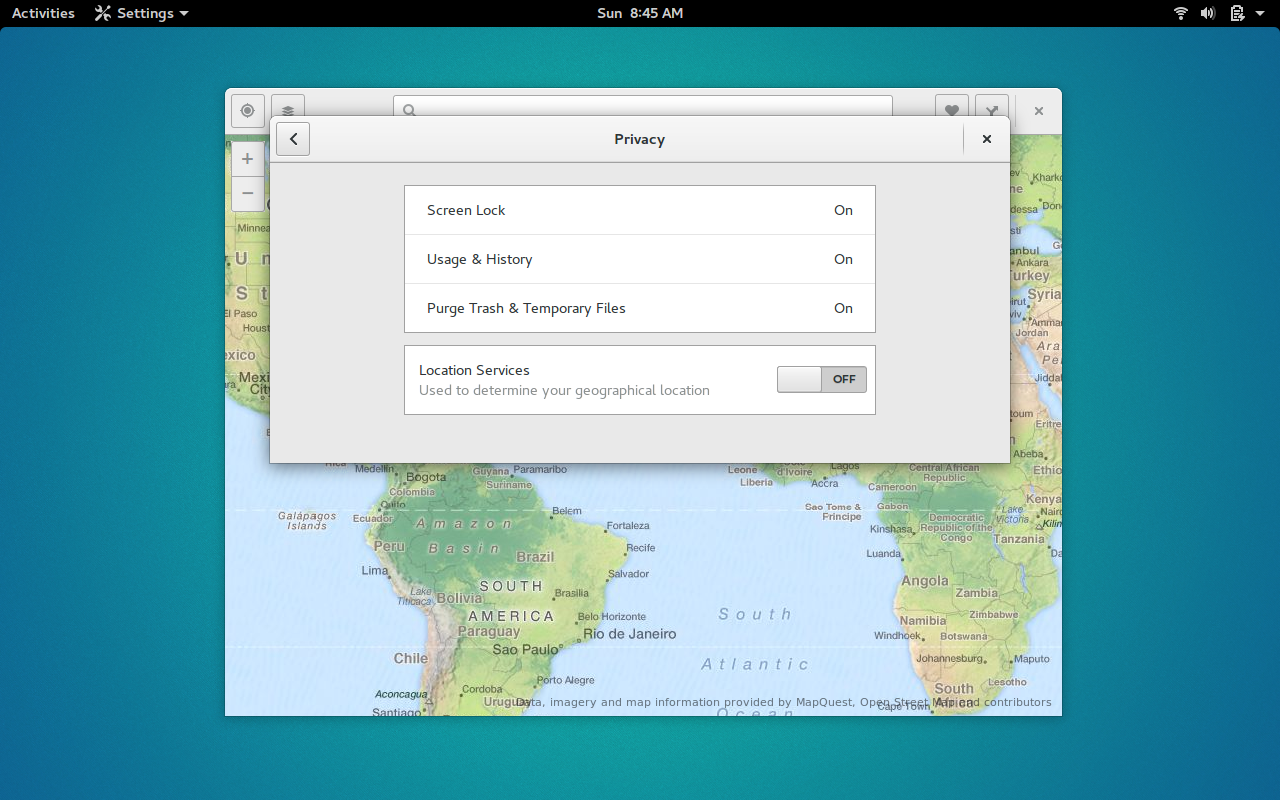
The first thing I recommend you do (to get the most out of GNOME Maps) is enable the location services. Understand, to some this could be seen as a security issue, so only enable this feature if you’re okay with your device knowing your location. However, it will make GNOME Maps easier to use.
Figure 2: Enabling location service for ease of use on GNOME Maps.
To enable the location service, click on the Location button in the top left corner. You will then be prompted to click on the Location Settings button, where you can then enable the service (Figure 2).
Once you’ve enabled the Location Service, close the settings window and return to GNOME Maps. Dismiss the location warning and you’re good to go. If you click the Location button and it responds with Unable to find location, give the service a moment to actually locate you. Try again until GNOME Maps can pinpoint your location. By default, it will open up your location by city. If you click on the Zoom In button (the + sign), you will see that the Location service does actually do a good job of finding you.
Using Maps
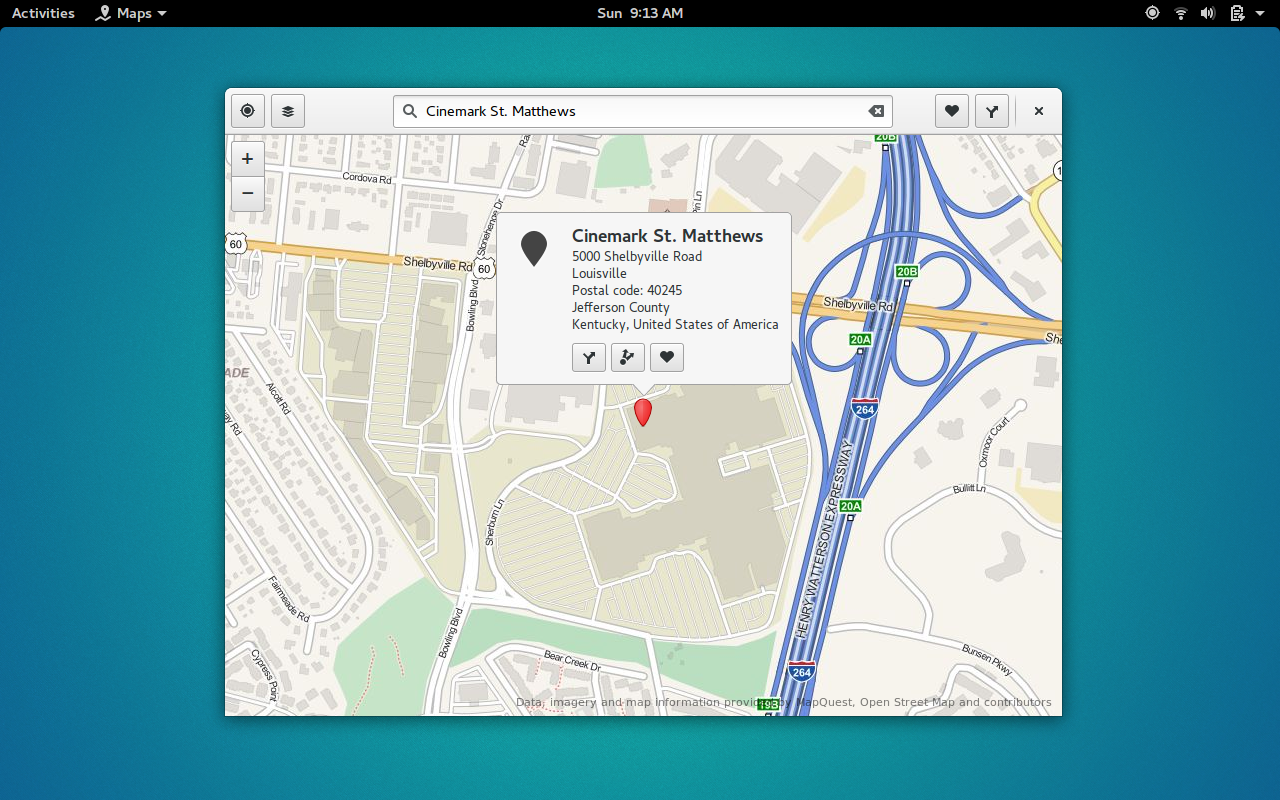
Let’s use GNOME Maps to locate a business. You can enter a business name in the search field and be presented with options. Say you want to find directions to the nearest Cinemark cinema. Type cinemark followed by your current city. All relative locations should appear.
Click on the desired entry, and GNOME Maps will then zoom into that location (Figure 3).
Figure 3: Your desired location at the ready.
There are now three actions you can take:
Add a new route (get directions to the location)
Open the location in another app
Add the location to favorites
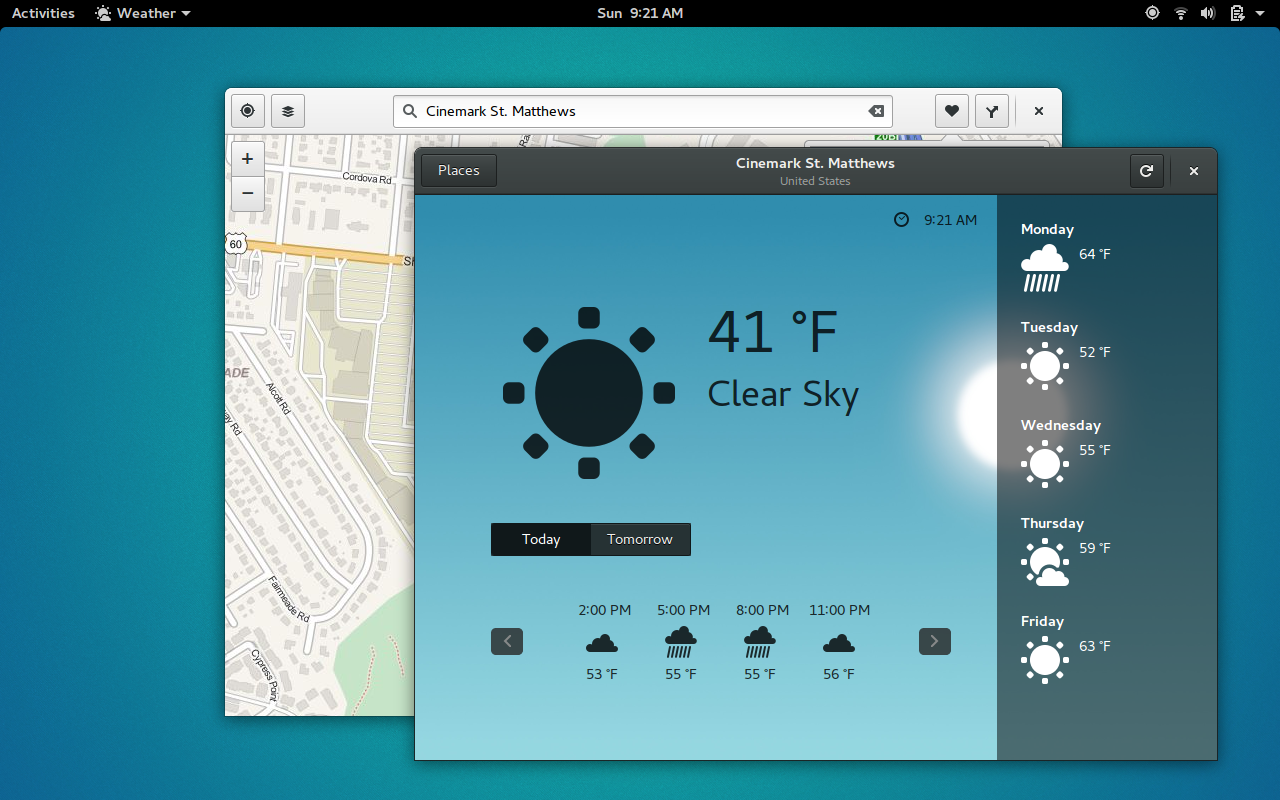
If you click the Add new route button, GNOME Maps will automatically give you directions to the destination from your current location. If you click to open the location in another app, you will be presented with all relevant apps (in this case, only the GNOME Weather app). You can then open that app and receive relevant information relative to the destination (Figure 4).
If you click on the Favorites button, that destination will be added to your favorites.
With every route, you can select a different travel type:
Car
Bicycle
Walking
Figure 4: Getting weather information about your destination.
The directions will change (as well as estimated time), according to the type of travel. To change the type of travel, simply find your destination, click the Route icon, and then click either the walking, cycling, or driving icon.
Favorites
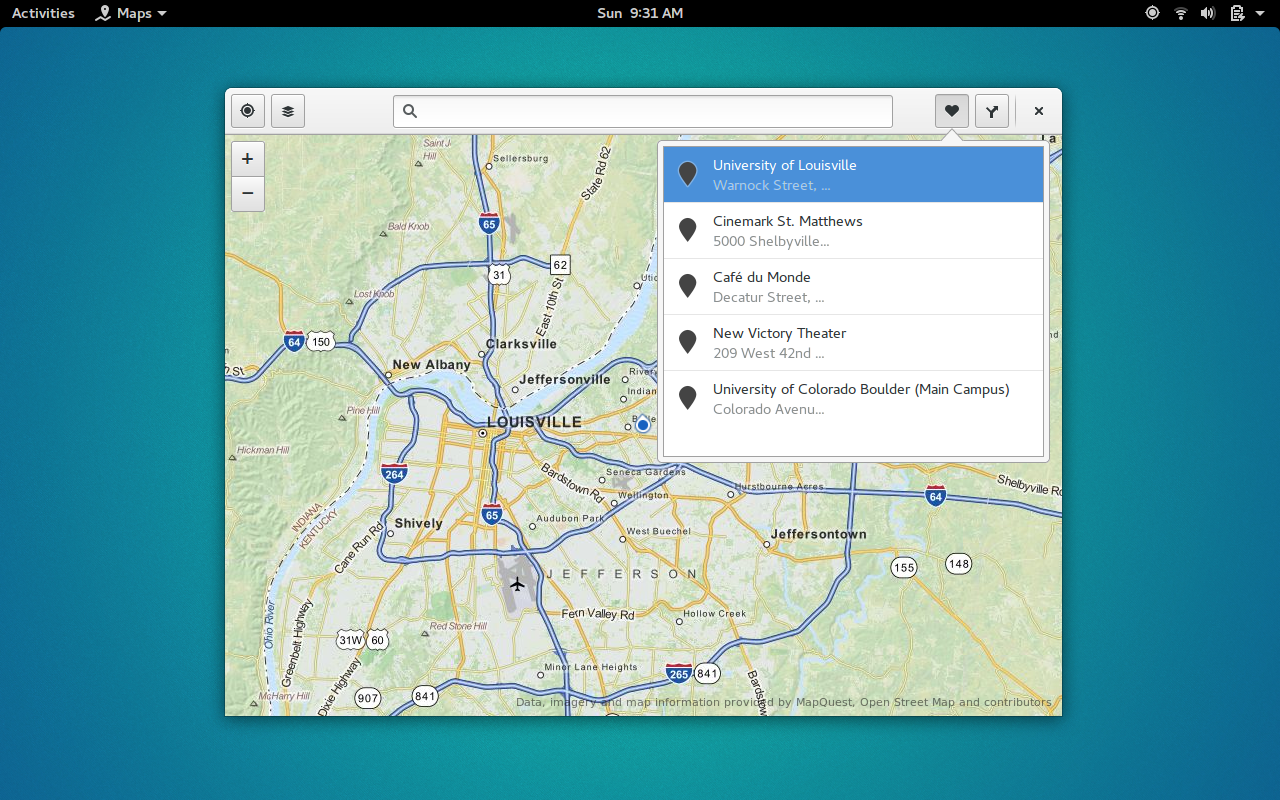
The Favorites feature should be a no-brainer for most. You click the Favorites button when you look up destinations. Once you’ve added to the Favorites, you can click the heart icon to reveal everything you’ve added (Figure 5). Click on one of the entries, and GNOME Maps will open to that destination.
To remove a location from your Favorites, here’s what you have to do:
Click to open the Favorites listing
Click on the destination to be removed
When the destination opens, click on the Favorites icon to remove the listing
Figure 5: Accessing your favorites from GNOME Maps.
There’s little more that can be done with Favorites.
Map Types
There are two types of maps:
Standard
Satellite view
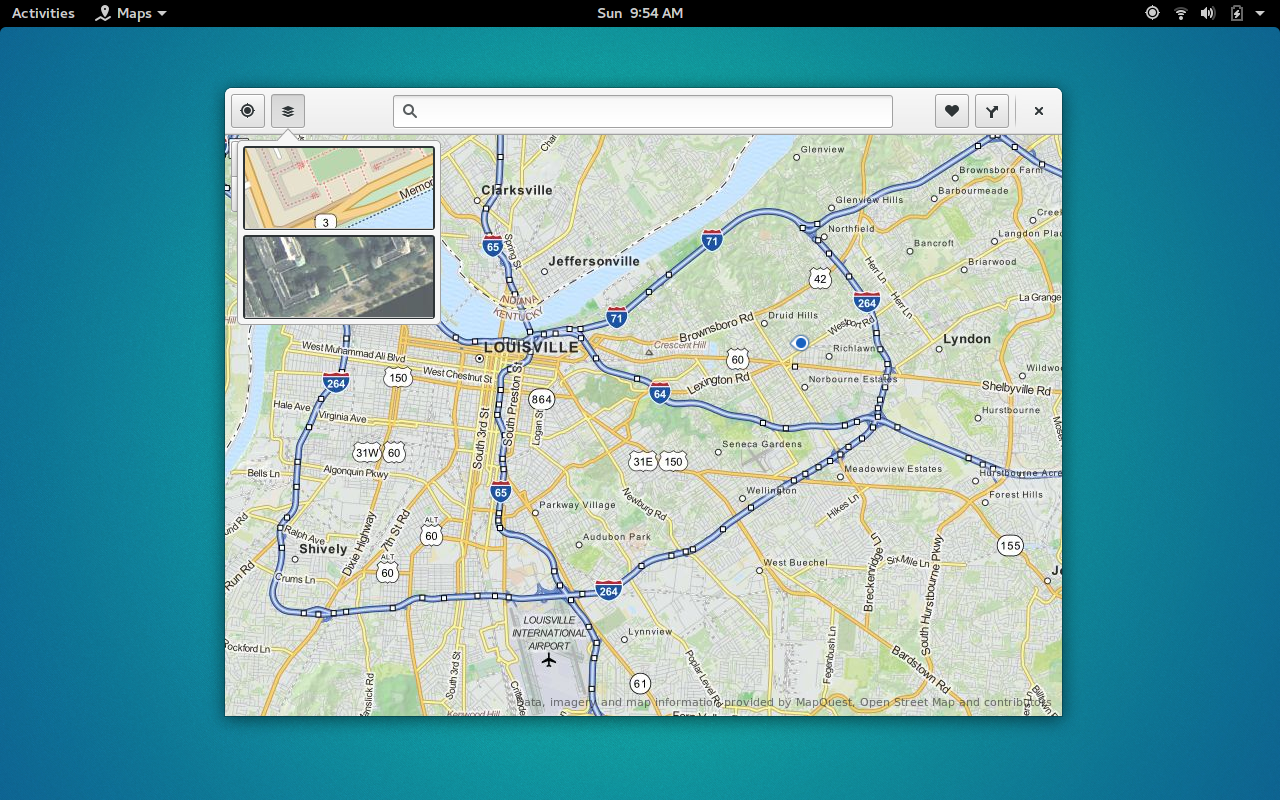
By default, all maps will appear in Standard mode. If you want to get a satellite view of the current location, click on the map type selector and then select the bottom view from the pop-up (Figure 6).
Figure 6: Selecting the map type.
At this point, you should now see a satellite view of the current location. You can zoom in to get a better view. Do note, however, that the satellite view of GNOME Maps isn’t nearly as detailed (nor can it zoom in nearly as close) as Google Maps.
Let GNOME Do the Work
The GNOME apps are ready to go for you. Let them help you find your location, check the weather, play your music, and view your photos. Each app has come a long way since inception and are outstanding additions to the usual set of desktop tools. GNOME Maps is no exception…it’s incredibly handy and one of the easiest desktop map tools you’ll ever come across.
Docker’s participation in the Open Container project has come full circle, as the latest version of Docker is now built with components donated by Docker to the OCP.
The biggest news about Docker 1.11 isn’t features in the application, but that it uses component versions standardized under the aegis of the Open Container Project. Last year, Docker donated the core of its runC runtime to the OCP as a basis for building container tools. The same went for containerd, a daemon or server used to control instances of runC. Docker 1.11 now uses the donated and publicly worked-on versions of those projects.