Home Blog Page 823

Shared Hosting on your Web Server: Multiple virtual hosts

This article tends to help you to set up multiple websites (or virtual hosts) on single web server running on Linux.

It’s particularly useful if you don’t want to spend money on multiple Virtual Private Servers (VPS), but you’d like to have ability to run and build multiple websites with minimum cost on the same server. In real world scenario, most of those sites would be based on common content management systems such as WordPress, Drupal, Joomla, etc.

The idea lies in the fact that instead of having single root directory for your website (which is /var/www/html/ in our example), you can have multiple folders located in /var/www/ where each folder will contain separate website.

What would you need to have to make it work:

  • web server which already has full LAMP stack on it. As example in this article, we use Ubuntu 14 with MySQL and Apache2 as web server.
  • root access to this web server
  • root access to MySQL database on this server

What we actually would do? When you want to add new website into your server, there are following three steps to consider:

  • pointing your domain into that folder
  • creating root folder for the website and setting up web server to recognize that folder
  • creating database and database user which would manage your WordPress or Drupal installation

Note, it doesn’t matter in what sequence you are following these three steps, as long as they all completed. And once all these steps completed, you are good to go with installation of your CMS as per its documentation.

All actions shown as performed under root account. Remember, it’s best practice to use regular account with sudo rather than root to perform any changes in your system.

Step 1: Point the domain

Point your web traffic of your  domain on to your server as per requirements of  your domain provider. Essentially it means you would need to create A record which resolves into your web server’s IP.

Step 2: Adding virtual host into web server’s configuration.

Let’s assume we want to build  website called cutepuppies.com  and related configuration files and folders in our server will be named accordingly as cutepuppies

Make separate root directory for your new website:

mkdir  /var/www/cutepuppies


Give ownership of the directory to the Apache web user (which is www-data)

chown www-data:www-data -R /var/www/cutepuppies


Also, if you action not under root account, add your username to the web group:

usermod -aG www-data YOUR_USER_NAME

Go to your web server configuration folder  /etc/apache2/sites-available

Make a copy of default configuration file 000-default.conf and name it cutepuppies.conf

cp 000-default.conf cutepuppies.conf


Open your new configuration file and change following parameters as per below:

ServerName cutepuppies.com
Server Alias www.cutepuppies.com
DocumentRoot /var/www/cutepuppies

<Directory /var/www/cutepuppies>
    DirectoryIndex index.php
    AllowOverride All
    Order allow,deny
    Allow from all
</Directory>


Once your configuration file is ready, enable it with this command:

a2ensite cutepuppies.conf


Now to make it work after changes, you need to reload configuration of your web server:

service apache2 reload


Step 3: Create MySQL database and database user

Let’s assume we’ve defined the values for new database as following:

Database name: dbcutepups

Database user: dbuser

DB user’s password: password123


Log into MySQL using your MySQL root credentials:

mysql -u root -p


Provide password when prompted. After successful login, instead of BASH invitation you will see the one looking like this:

mysql>


What we have logged into MySQL for is to create database, database user and make that user work with this database. It’s simply achieved by the following commands:

mysql> CREATE DATABASE dbcutepups;
mysql> CREATE USER dbuser@localhost;
mysql> SET PASSWORD FOR dbuser@localhost= PASSWORD("password123");
mysql> GRANT ALL PRIVILEGES ON dbcutepups.* TO dbuser@localhost IDENTIFIED BY 'password123';
mysql> FLUSH PRIVILEGES;

Then, you can exit from MySQL.

Now you are ready to unpack your CMS into root directory /var/www/cutepuppies/ and to run installation. When installing CMS, you would need to use MySQL credentials that you’ve just created.

Each time you want to add new website into your server, follow described instructions again. If everything is working properly, all your websites located on the server should be accesible. The other thing to worry about after that will be your server’s security and performance what’s beyond of subject of this article.

If you have anything to add or clarify, please feel free to comment and contibute.

34 Best Free Linux Backup Software

You may have read the story about a man deleting his entire company with one mistaken piece of code: accidentally misusing rm -rf in Ansible. It was a fairly obvious hoax designed to be a viral marketing effort. It achieved that goal as scores of media sources carried the story. But at least it will have alerted readers to the importance of making sure their data is safe.

Read Full article here

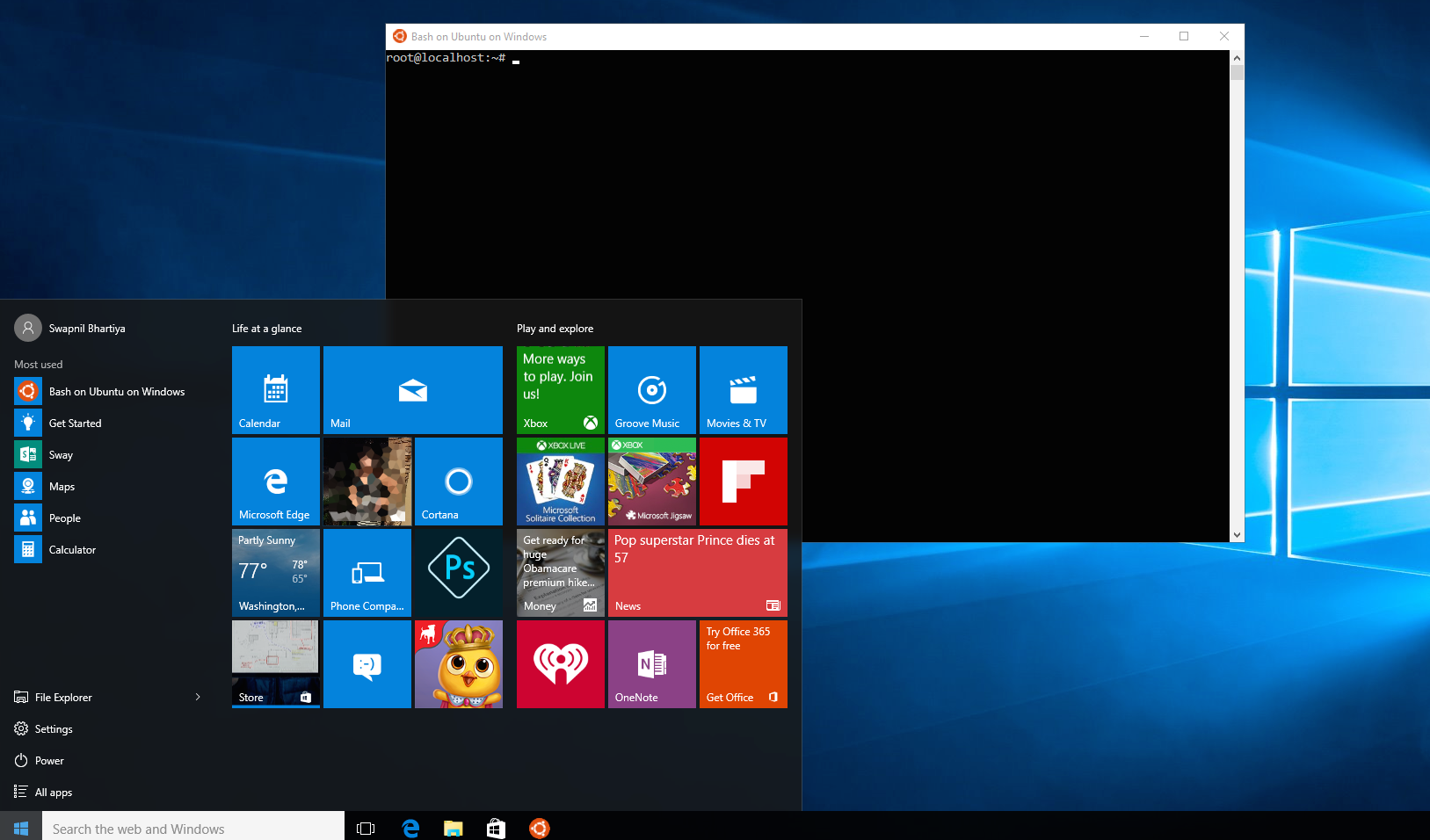
Bash on Windows: What Does It Mean?

As the enterprise landscape is changing — in favor of Linux and open source — companies like Microsoft are embracing Linux. Most recently, Microsoft announced support for the Unix Bash shell on Windows, providing developers and administrators with an important tool for managing Unix and Linux servers.

Linux is a dominant player in the enterprise space. Microsoft says that more than 25 percent of machines on Azure Cloud run Linux. This means there’s a huge developer base along with a huge administrator base that manages these machines. And, these people need tools to manage their infrastructure.

Microsoft is aware of this increasing demand, and they have tried to bring some basic capabilities like SSH to their PowerShell, but it’s not enough. Developers can also use Cygwin, MSYS, or run Linux in a virtual machine, but all these “workarounds” have their own disadvantages and some serious overload.

Virtual machines, for example, are complete operating systems in themselves, they need dedicated processing power, memory and storage. That’s not an ideal solution for developers working from their laptops, as system resources are shared between host and guest operating systems that slows the entire machine down.

What Is It?

Bash on Windows is Microsoft’s solution to the problem and it aims to bring the entire Ubuntu userland, minus the Linux kernel to Windows. As a result, developers have access to the complete set of Ubuntu CLI tools and utilities. In layman’s terms, it’s akin to running Linux in Windows, natively.

Dustin Kirkland of Canonical explained to me in an email, “VMs and dual booting may well still have a place. But think about the way a Mac desktop user uses the command line… vi, grep, sed, awk, find, ssh — all at your fingertips in a native shell on Mac (or Linux). That’s never really been a first class experience with a Windows desktop. Sure, you’ve always had Cygwin and virtual machines. But that’s not the same as editing local files, on the local hard drive, etc.”

The bottom line is that developers need tools that work natively, the same way they work on a Mac OS X or Linux desktop. As a Microsoft spokesperson told me, “We have built a new infrastructure within Windows — the Windows Subsystem for Linux (WSL) — upon which we run a genuine Ubuntu user-mode image provided by Canonical, creators of Ubuntu Linux.”

The clear benefit here is that Microsoft brings “native” Linux capabilities to Windows. Now developers don’t need to make compromises like VM or Cygwin. Now developers get an uncompromised Linux experience on top of Windows. Because it’s natively integrated, developers can work on the same file from either Windows tools or or Ubuntu tools.  

How It Works

Canonical and Microsoft have worked together on this project since January of 2016, Kirkland said. Through WSL, developers can now run Ubuntu userland on top of a Windows kernel. It’s the same Ubuntu minus the Linux kernel. 

“Using this new subsystem, we can run many of Ubuntu binaries used by developers, including the common shells and commands, such as the Ubuntu Bash shell. Developers can now run Bash scripts, Linux command-line tools like sed, awk, grep, and Linux-first tools like Ruby, Git, Python, etc. directly on Windows,” said the Microsoft spokesperson.

That means, when you open the Bash shell in Windows, you are literally running Ubuntu so you can apt-get install any command-line application that’s available for Ubuntu. As a result, every single Ubuntu command-line application is now available at your disposal. You are able to use all Linux tools such as ssh, wget, and more. You can use all Linux commands, such as rsync, which otherwise don’t work on Windows.  

When asked about the level of technical collaboration between Microsoft and Ubuntu, Kirkland said, “Our mutual goal with Microsoft is to see really complete, perfect coverage of the LTP and stress-ng functional tests, ensuring that the entire Linux syscall space is well covered. We’ll also want to ensure that early adopters can dist-upgrade their Ubuntu 14.04 environments seamlessly to Ubuntu 16.04 in a few weeks. And we’ll be replacing the Ubuntu 14.04 image in the Windows store with Ubuntu 16.04 soon, such that the default experience will be Ubuntu 16.04 LTS — literally the latest and greatest of all open source software in the world.” 

Who Is It for?

Developers. Developers. Developers. Period.

The whole idea of running Ubuntu Bash shell on Windows is to allow developers to run Linux tools natively on Windows. “Ubuntu on Windows” will eliminate the need for dual booting with Ubuntu on your system just to run those tools. It eliminates the need of exclusively going to Mac OS X. It eliminates the need of running a VM. It eliminates the need to find workarounds like Cygwin.

But, that doesn’t mean that the resourceful Linux community won’t try to run Ubuntu desktop apps on Windows, through WSL. There are already reports that many enthusiasts have managed to run Linux desktop apps on Windows. That’s a byproduct, however, not a focus area. 

Who Is the Winner: Ubuntu or Windows?

One discussion that I see a lot on the social network is whether “Ubuntu for Windows” is going to hurt desktop Linux in the long run. Currently, many Windows users need to dual boot with Linux or run it in VM to be able to use such tools. That need created a user base; it created a mind share.

I meet a lot of developers who run Linux on their systems just to be able to use such tools. These are also the developers who work for companies like Spotify and other services. They are the ones working on creating unofficial ports of such services for Linux, because Linux is their primary desktop. Being able to do so with Windows eliminates the need to run Linux anymore. Now Windows can be their primary desktop, and they don’t have to worry about porting such services and apps to Linux because they just work fine on Windows.

That’s the perception a lot of users have, and Dustin Kirkland is of the opinion that it certainly doesn’t hurt Ubuntu’s mind share. He says, “Quite the opposite, think about how many millions more people we’ll be able to reach with Ubuntu! Think about people who work for an employer whose corporate desktop environment is Windows, and only Windows. Think about students who go to high school or college and are issued, or required, to run a Windows machine. These are desktop users who will be one command (bash) away from taking their first steps into a brave new world of Ubuntu and free software. Never in the history of Linux, free, or open source software have we had a better opportunity to put free and open source software in the hands of basically every desktop user in the world!”

The takeaway from this development is that now you can run Linux tool natively on Windows. One more platform to run open source. I call that a victory.
 

The Perfect Server – Ubuntu 16.04 (Xenial Xerus) with Apache, PHP, MySQL, PureFTPD, BIND, Postfix, Dovecot and ISPConfig 3.1

This tutorial shows how to install an Ubuntu 16.04 (Xenial Xerus) server (with Apache2, BIND, Dovecot) for the installation of ISPConfig 3.1, and how to install ISPConfig. ISPConfig 3 is a web hosting control panel that allows you to configure the following services through a web browser: Apache or nginx web server, Postfix mail server, Courier or Dovecot IMAP/POP3 server, MySQL, BIND or MyDNS nameserver, PureFTPd, SpamAssassin, ClamAV, and many more. This setup covers the installation of Apache (instead of nginx), BIND (instead of MyDNS), and Dovecot (instead of Courier).

Read more at HowToForge

One of GNU/Linux’s Most Important Networking Components Just Got an Update

NetworkManager 1.2 debuts with improved security, Wi-Fi usability and more. The software framework that powers the network connections on many GNU/Linux systems just got its second major update in less than a year and a half, with the version 1.2 release of NetworkManager. 

Version 1.2 brings several improvements to NetworkManager, including better security and usability for Wi-Fi. The changes should make the list of available access points more responsive and manageable, save energy on mobile devices and laptops, and even improve privacy by MAC address randomization, according to an official announcement.

Read more at NetworkWorld

Five of the Best Productivity Tools for Linux

Operating systems exist so that you can communicate with computer hardware to get things done. On top of the operating system are live applications that make the process of getting things done efficient. That’s where productivity tools come in. What are productivity tools? Naturally, the definition will depend on the angle from which you approach the question. Management productivity is very different from standard office productivity, and it’s the latter I wish to address.

General office productivity tools are those that enable you to work with documents and files and keep an efficient day-to-day work flow. Some might think these tools would be missing from the Linux ecosystem. I am happy to report, the naysayers are wrong.

Let’s take a look at some major productivity tools available for the Linux platform.

LibreOffice

We have to start with the most obvious, simply because LibreOffice is the de facto standard office suite for Linux. Most likely, your distribution comes pre-installed with this open source suite of tools that includes a word processor, spreadsheets, presentations, formula generator, database, and a drawing tool.

Little can be said of LibreOffice that hasn’t already been said; but if you’re looking at implementing Linux in the office, your best choices on this level fall to either LibreOffice or Google Docs. For those that prefer local apps, you’re left with LibreOffice…and that’s not such a bad thing. In fact, LibreOffice outshines MS Office in a number of ways. Above all else, LibreOffice follows standards far better than MS Office. LibreOffice is also free to use, so anyone on a budget won’t have to dig deep into their pockets for a subscription to Office365. LibreOffice has an outstanding extension system and a wonderful centralized interface Start Center (Figure 1), where you can open previously saved documents or start something new.
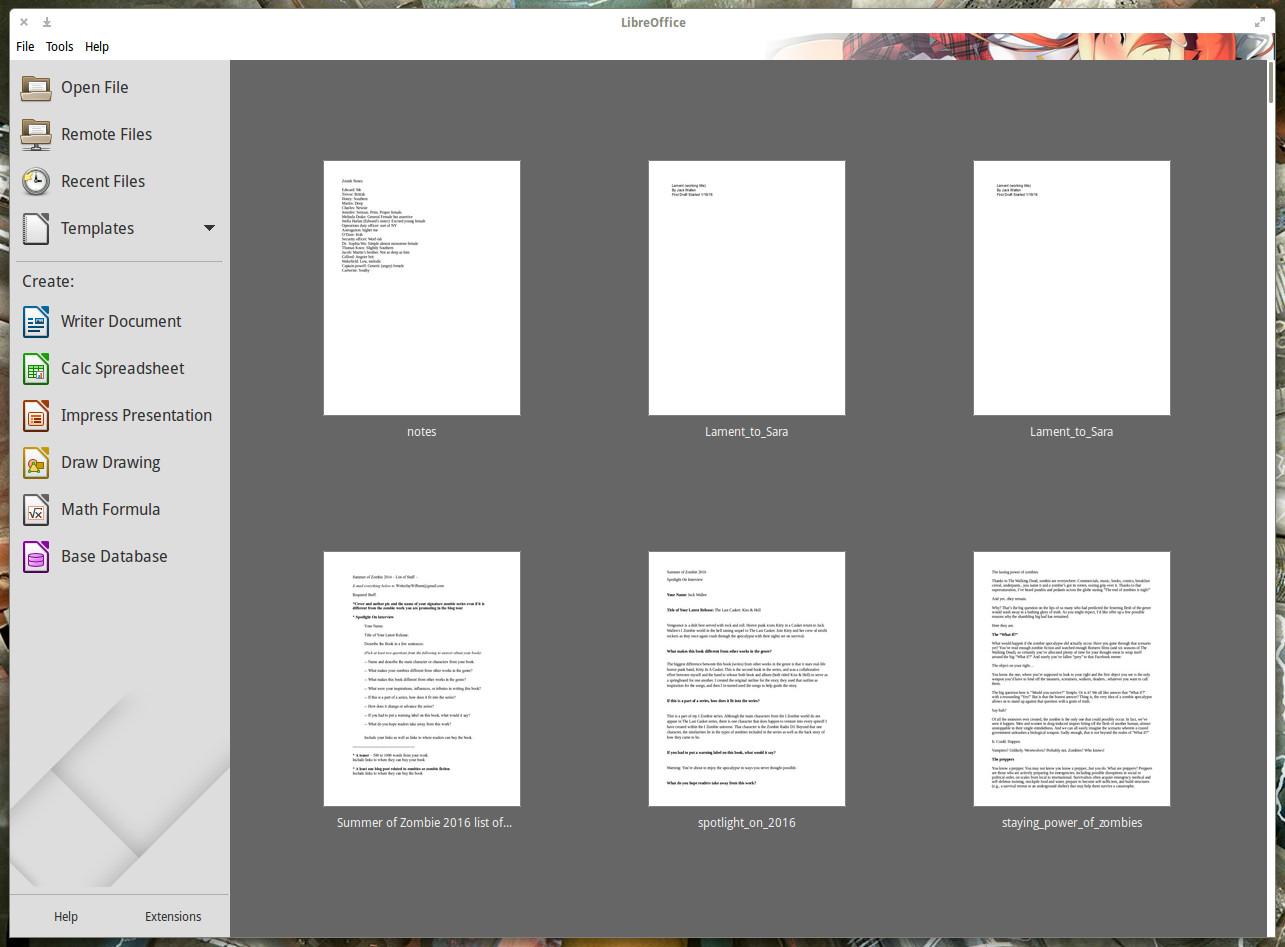
Figure 1: The LibreOffice Start Center.
Yes, some power users will complain that LibreOffice doesn’t stack up, feature for feature, to MS Office; but if you make the comparison from the other direction, the same conclusion can be drawn.

Google Keep

There are plenty of note-taking apps available for Linux. But, if you’re looking for a note-taking app that makes syncing to the cloud (so you can use your notes anywhere), you’d be hard-pressed to find a better tool than Google Keep. I know what you’re saying, “Google Keep is just a web page and not a Linux app.” To that, I would say you are only partially correct. If you happen to use Chrome on Linux, you can install the Google Keep extension and then open Keep in its own app window (Figure 2).
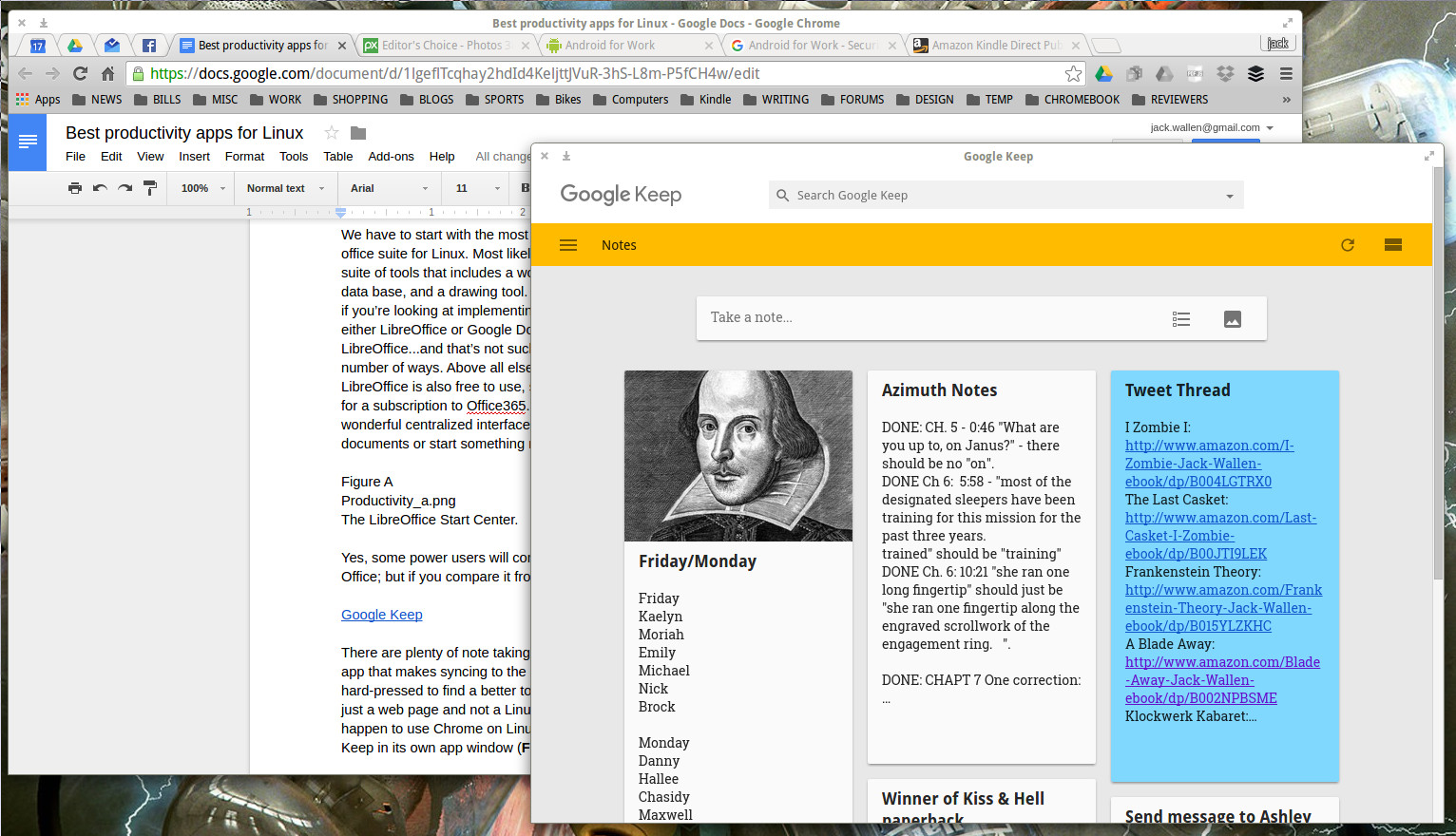
Figure 2: Google Keep running in its own app window.
Google Keep allows you to take notes, create bulleted lists, share notes, add images, extract text from images, and much more.

Evolution

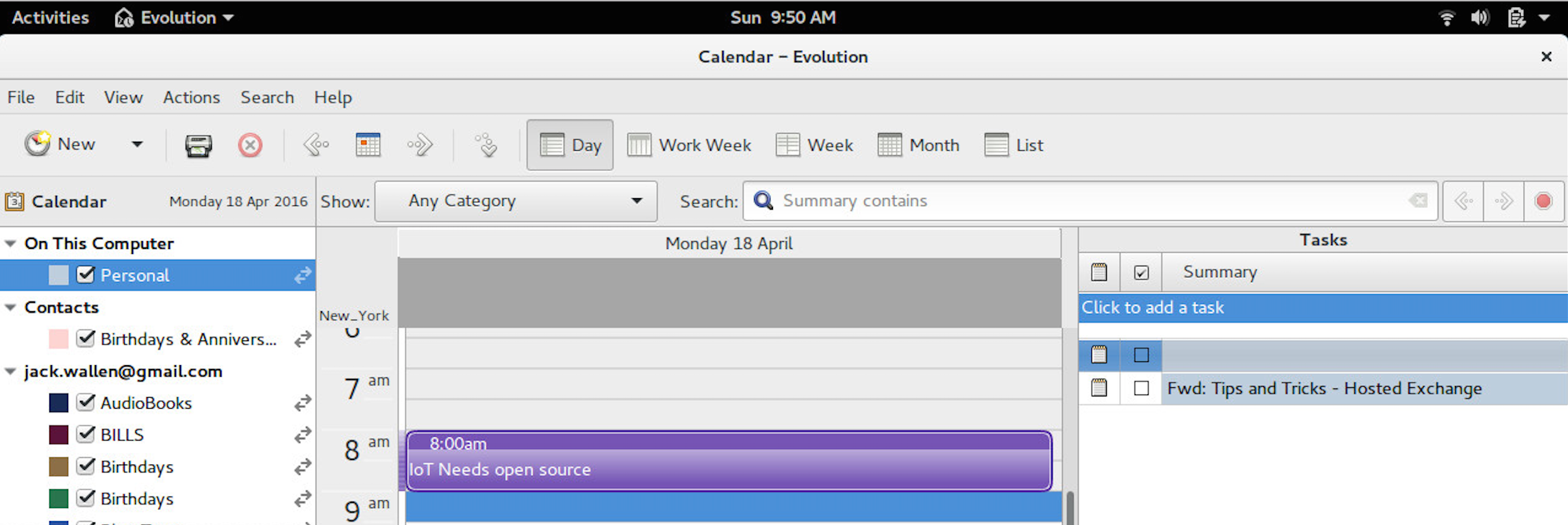
If you’re looking for a Personal Information Manager (PIM), and you’ve migrated from MS Outlook, you’ll want to give Evolution a look. Evolution has come a long, long way and when paired with the likes of Ubuntu GNOME, it makes for an amazing productivity tool. And, with an ease of integration into the likes of Google apps (Mail, Calendar, Contacts, Tasks), you won’t find a more productive PIM within the Linux landscape. When using Evolution with the latest iteration of GNOME, all you have to do is add your Google account to the On-Line Accounts section of Settings, and Evolution will automatically start syncing upon first run (Figure 3).
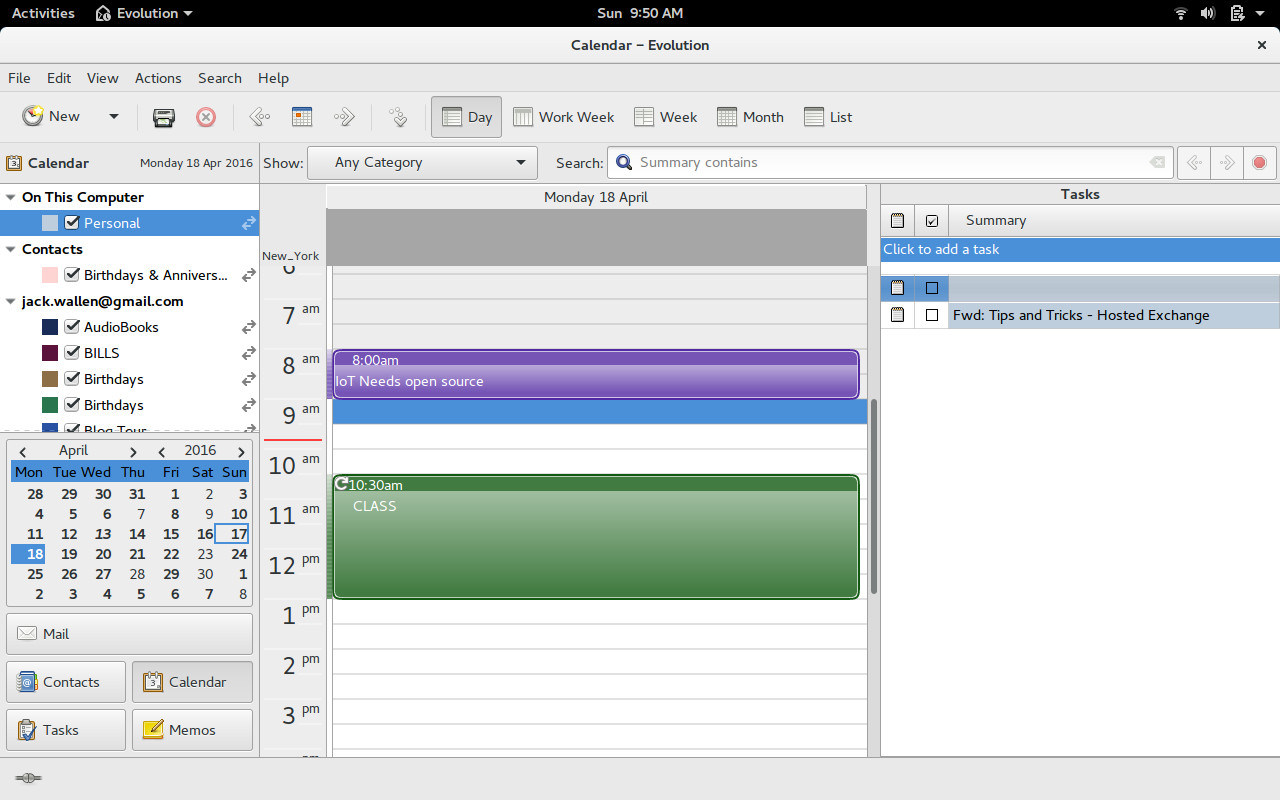
Figure 3: The Evolution UI should serve as a familiar tool for anyone who’s worked within an office environment.
For a very long time, Evolution was frowned upon for being buggy. The latest releases are quite stable and do an outstanding job of working with Google and Exchange 2007/2010.

GIMP

Another obvious choice for productivity happens to be the flagship image editor for the Linux platform. GIMP is a powerhouse image editing tool that will serve anyone (regardless of platform) needing to add this functionality to their productivity. GIMP can handle anything you throw at it…and more. If you’re looking for the Photoshop for Linux…this is it.
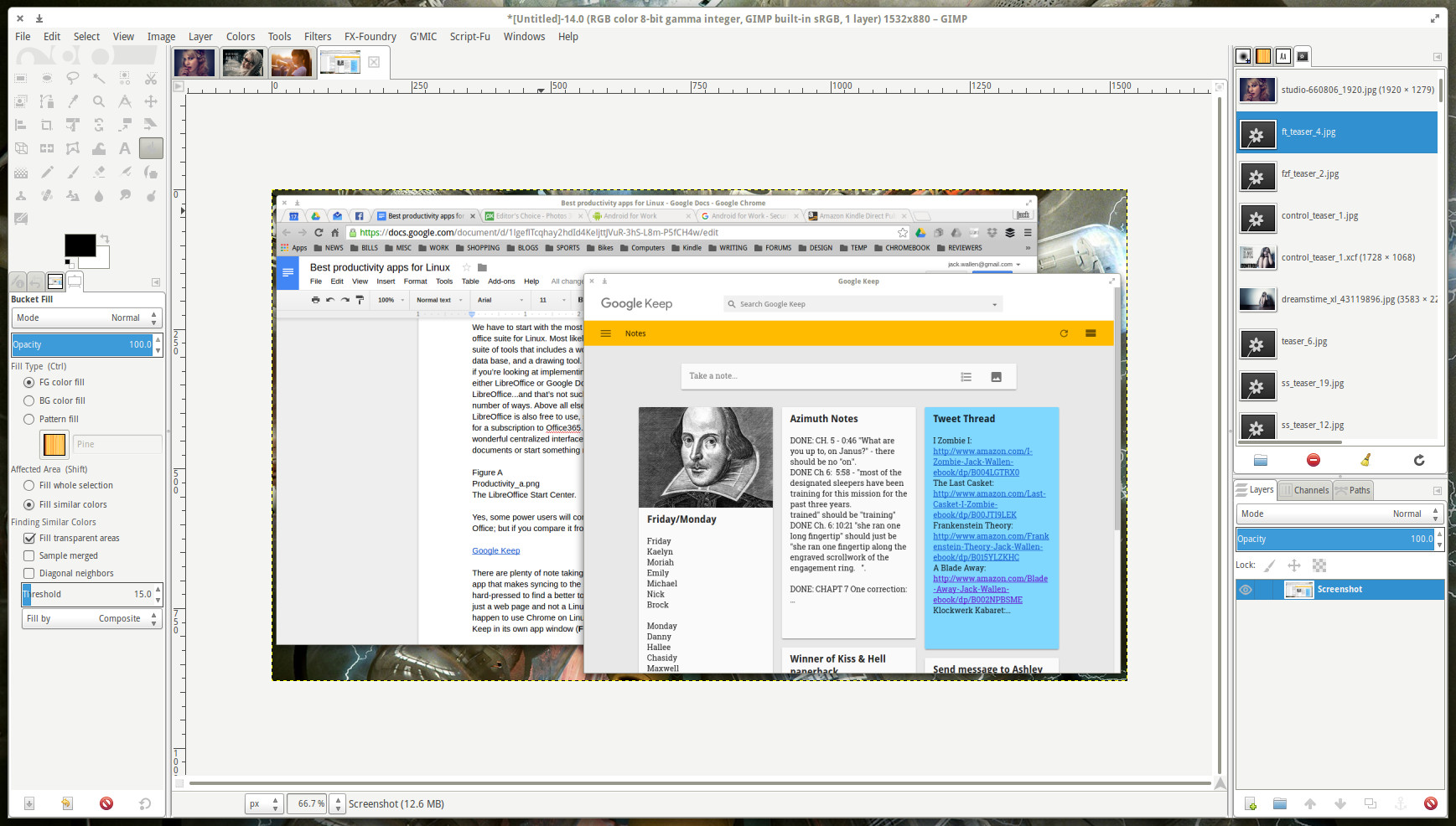
Figure 4: GIMP in Single Window Mode makes for a more familiar UI.
One of the wonderful things about GIMP is that the developers listen. For the longest time, the GIMP interface was a problem for many users. To change that, the developers created Single Window Mode (Figure 4). Even many of us long-time users decided it was a more efficient means of working with images.

GNOME Files

This one is tricky. Why? Because everyone uses a file manager and everyone’s idea of a good file manager varies, depending upon their needs. Even though I am an Elementary OS Freya user, I find the default file manager for GNOME to be superior…even if for only two features. Nautilus includes entries for Move to and Copy to in the context menus (Figure 5). This makes moving or copying files to a new location incredibly easy.
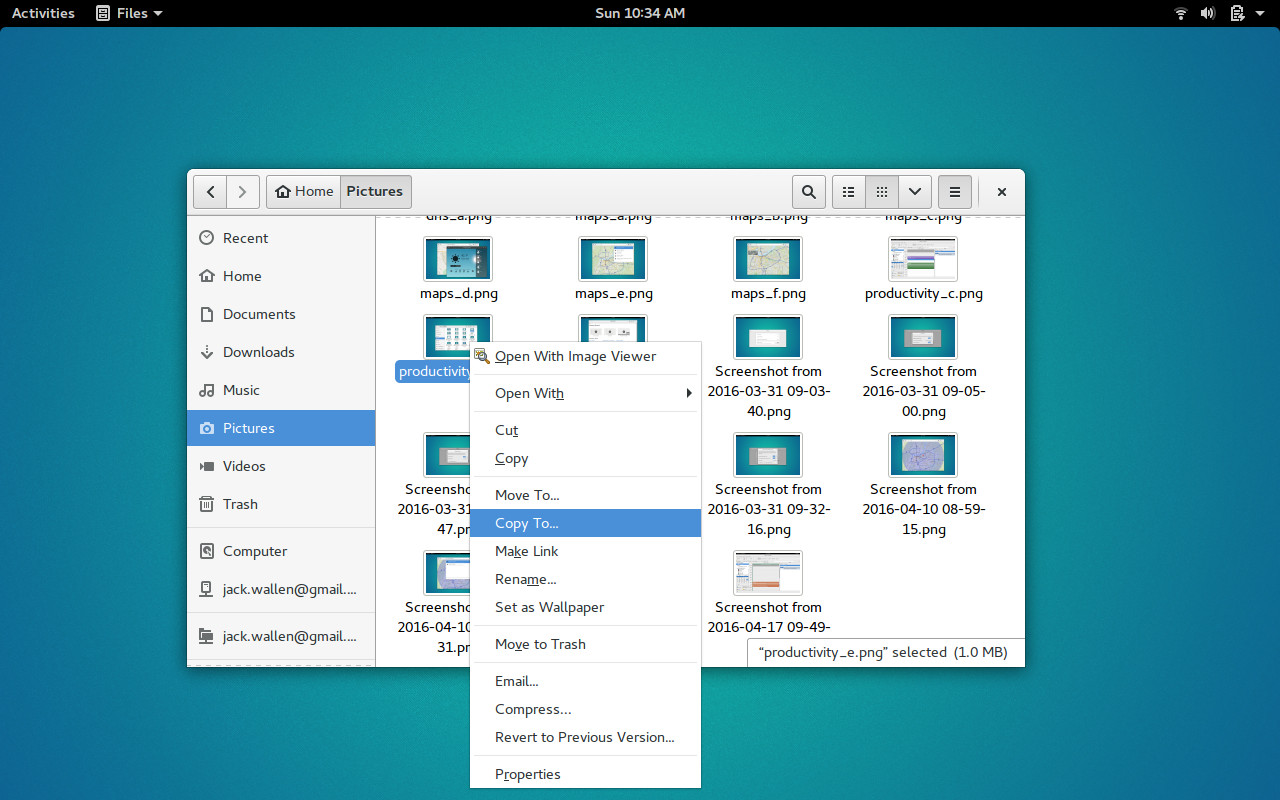
Figure 5: The Copy to function in action.
The second feature that helps GNOME Files rise above the rest is the ease of file/folder sharing. Getting some file managers to work with Samba requires significant work. GNOME Files works out of the box with Samba, so your network file sharing is simple.

Yes, there are tons of outstanding file managers for Linux, but if you’re looking for the one that will help boost your productivity, without requiring you to learn an entirely new interface or jump through hoops, GNOME Files might be the one.

More To Be Had

What I’ve done here is merely scratch the surface of productivity tools for Linux. If you search through your Software manager (GNOME Software, Synaptic, Ubuntu Software Center, etc), you’ll find a wealth of applications to make using Linux in the office a snap. These five applications, however, should be some of the first you get to know.


5 Features to Look For In A Next-Generation Firewall

Sure, the term next-generation firewall (NGFW) has been around since 2007 and the vendors have been hyping these products for a close to a decade. So what’s new this year?

Adam Hils, research director, network security, at Gartner, says what’s different about today’s NGFWs is the integration of features such as an IPS or URL filtering within the firewall itself.

“Many SMBs go with UTMs and they have all the features companies need, but there’s really not much integration,” he says. “For the enterprise, companies should think about a next-generation firewall and evaluate how well they integrate multiple features right within the firewall.”

While there are many vendors to choose from, the slideshow outlines the five main features IT that security managers should consider before selecting a product.

Read more at Dark Reading

This Week in Linux News: Hyperledger Project Could Help Solve Counterfeit Drug Problem, Linux Goals Have Changed, & More

This Week in Linux News: Hyperledger Project could help solve counterfeit drug problem, Linux goals have changed, and more. Get the latest on open source with the weekly news digest.

1) Management consulting services company, Accenture, proposed a blockchain-supported solution to the counterfeit drug problem at a recent Hyperledger Project meeting.

Blockchain Technology Could Help Solve $75 Billion Counterfeit Drug Problem– International Business Times

2) World domination is no longer the most important goal for Linux, writes Bruce Byfield.

Linux and the Second Goal- Datamation

3) The Linux Foundation’s Open Container Initiative is “in the perfect position to draft a standard that meets everyone’s needs,” writes James Darvell.

New Container Image Standard Promises More Portable Apps– Linux Journal

4) The latest Ubuntu release emphasizes a user-friendly experience.

Ubuntu 16.04 LTS Brings Big Changes to the Linux Desktop– PCWorld

5) Red Hat has embraced open source OpenStack infrastructure-as-a-service cloud.

Red Hat Doubles Down on OpenStack– ZDNet


Linux Expert Matthew Garrett: Ubuntu 16.04’s New Snap Format Is a Security Risk

Ubuntu’s supposedly secure app package format doesn’t do much to improve security on the desktop, according to a well-known Linux kernel developer. 

The new Snap app package format is a headline feature of the new Ubuntu 16.04, touted by Canonical as a secure way of developing software that makes it impossible for an app to steal your data. 

But that claim is only half true, according to Matthew Garrett, a well-known Linux kernel developer and security developer at CoreOS.

Read more at ZDNet

Converging Storage: CephFS Now Production Ready

Over four years in the making and arriving in the nick of time, the Ceph open source distributed object store now has all the components needed to offer enterprises a one-stop shop for block, object and now file storage.

The new “Jewell” edition of Ceph (v10.2.0), released Thursday,  includes a file system component (“CephFS”) that is now production ready, according to Greg Farnum, the Red Hat technical lead for the CephFS, who spoke at the Linux Foundation’s Vault storage conference, taking place in Raleigh, North Carolina this week. 

What “production-ready” means here is that CephFS will not break the one fundamental rule that all file systems must abide  —  to never lose any of the data that it is storing. And by offering a fully POSIX-compliant file system, Ceph can now support most Unix and Linux applications.

Read more at The New Stack