It’s an open secret: Tesla cars are powered not only by batteries but by open-source software. Until recently, though, Tesla hasn’t lived up to its obligations under open-source licenses, but now Tesla is finally releasing some of its Linux source code for the Model S and X cars.
The Tesla GitHub repository contains the code for the Model S/X 2018.12 software release. Specifically, it holds the system image on the Tesla Autopilot platform, the kernel sources for its underlying hardware, and the code for its Nvidia Tegra-based infotainment system.
Tesla will release additional open-source code for other systems in their cars soon. According to Tesla, “Work is underway on preparing sources in other areas as well, together with a more coordinated information page. We wanted to let you know about this material as it is available now while work continues on the other parts.”
It’s part of a growing trend to replace cent1rally hosted services with those that can be run on servers under an individual or organization’s control in their own legal jurisdictions—and customed to their specific needs.
“As a company, we don’t have any servers—we don’t do any hosting,” says Nextcloud founder and managing director Frank Karlitschek, speaking with Fast Company through his product’s video chat feature. “They put it on whatever hardware or hosting infrastructure they trust.” For a family or couple looking to share files or photos or keep their calendars in sync, that can be something as simple as a the low-cost Raspberry Pi.
The move to the self-hosted cloud isn’t limited to file-sharing tools. Mattermost, a workplace chat tool with features similar to Slack, is designed to be hosted on a company’s private servers, storing chat logs in the company’s databases.
The Node.js Foundation published its third annual user survey based on 1,626 members of the Node community. In the future, we will look at the package managers and languages these developers are using. For now, readers will be interested to see the types of infrastructure that are most often used by with Node.js.
It is not surprising that React is by far the most used front-end framework. In second place is jQuery, which is often not considered in the same category as Angular and Vue. It is noteworthy that 40 percent of respondents had used either Angular or Angular2.
No longer a sub-project under Kubernetes, Helm is a package manager that provides an easy way to find, share, and use software built for Kubernetes. Helm removes complexity from configuration and deployment, and enables greater developer productivity.
“Helm addresses a common user need of deploying applications to Kubernetes by making their configurations reusable,” said Brian Grant, TOC representative and project sponsor, Principal Engineer at Google, and Kubernetes SIG Architecture co-chair and Steering Committee member. “Both the Helm and Kubernetes projects have grown substantially. As Kubernetes shifts its focus to its own core in order to better manage this growth, CNCF is a great home for Helm to continue making it easier for developers and operators to streamline Kubernetes deployments.”
According to a recent Kubernetes Application Survey, 64 percent of the application developers, application operators, and ecosystem tool developers who answered the survey reported using Helm to manage apps on Kubernetes.
“As Kubernetes focuses more on stability, CNCF gives Helm a new home to ensure the community’s needs will be met,” said Chris Aniszczyk, COO of Cloud Native Computing Foundation. “Helm has scaled their community with hundreds of contributors to its core and community charts, and we look forward to growing their community even further.”
The project was started by Deis (now part of Microsoft) in 2015 and later evolved into Kubernetes Helm, the merged result of Helm Classic and the Kubernetes Deployment Manager (built by Google). The project has more than 300 contributors, and more than 800 contributors to the community charts, a successful conference based solely on Helm, and a unique culture in comparison to core Kubernetes.
“In building Helm, we set out to build a tool to serve as an onramp to Kubernetes – one that seasoned developers would not only use, but also contribute back to,” said Matt Butcher, co-creator of Helm and Principal Engineer at Microsoft. “By joining CNCF, we’ll benefit from the input and participation of the community and, conversely, Kubernetes will benefit when a community of developers provides a vast repository of ready-made charts for running workloads on Kubernetes.”
Conceptually, Helm is similar to OS-level package managers like Apt, Yum, and Homebrew in that it handles putting things in the right place for the running application – bringing all of the advantages of an OS package manager to a Kubernetes container platform. Helm’s packaging format, called charts, is a collection of files that describe a related set of Kubernetes resources. Charts are created as files laid out in a particular directory tree, which can then be packaged into versioned archives to be deployed.
Main Features:
Find and use popular software packaged as Kubernetes charts
Share applications as Kubernetes charts
Create reproducible builds of your Kubernetes applications
Intelligently manage Kubernetes manifest files
Manage releases of Helm packages
Notable Milestones:
330 contributors
5,531 GitHub stars
51 releases
4,186 commits
1,935 forks
As a CNCF hosted project – alongside Incubated technologies like Prometheus, OpenTracing, Fluentd, Linkerd, gRPC, CoreDNS, containerd, rkt, CNI, Envoy, Jaeger, Notary, TUF, Vitess, and NATS – Helm is part of a neutral foundation aligned with its technical interests, as well as the larger Linux Foundation, which provide the project with governance, marketing support and community outreach.
Every CNCF project has an associated maturity level: sandbox, incubating, or graduated project. For more information on what qualifies a technology for each level, please visit https://www.cncf.io/projects/graduation-criteria/.
For more on Helm, please visit https://helm.sh/, and read more from co-creator Matt Butcher on the Deis Blog. You can also watch this session from KubeCon + CloudNativeCon Austin on building Helm charts, and read this blog post to see how Helm can be used with other projects.
May was the month for learning at Linux.com and The Linux Foundation, and we covered a range of topics and offered an array of free resources to help you expand your knowledge of Linux and open source. Let’s take a look at some of the month’s most popular content.
With the rapid adoption of open source in the enterprise comes the need for sound security practices. This article by Sam Dean looks at various resources for securing your open source code, including links to free tools, checklists, and best practices.
Looking for more free training? Enrollment is now open for The Linux Foundation’s new Introduction to Open Source Networking Technologies training course (LFS165x). This online course, available for free on edX.org, teaches the fundamentals needed to understand and adopt SDN, NFV, network automation, and modern networking.
A new ebook Open Source AI: Projects, Insights, and Trends by Ibrahim Haddad covers 16 open source AI projects, including Acumos AI, Apache Spark, Caffe, and TensorFlow. This free, 100+ page ebook provides in-depth information on the projects’ histories, codebases, and GitHub contributions, and more.
Interested in more about AI? Check out these open source AI and machine learning articles and enter the Acumos AI developer challenge.
Chances are you’ve heard about Snap packages. These universal packages were brought into the spotlight with the release of Ubuntu 16.04 and have continued to draw attention as a viable solution for installing applications on Linux. What makes Snap packages so attractive to the end user? The answer is really quite easy: Simplicity. In this article, I’ll answer some common questions that arise when learning about Snaps and show how to start using them.
Exactly what are Snap packages? And why are they needed? Considering there are already multiple ways to install software on Linux, doesn’t this complicate the issue? Not in the slightest. Snaps actually makes installing/updating/removing applications on Linux incredibly easy.
How does it accomplish this? Essentially, a Snap package is a self-contained application that bundles most of the libraries and runtimes (necessary to successfully run an application) into a single, universal package. Because of this, Snaps can be installed, updated, and reverted without affecting the rest of the host system, and without having to first install dependencies. Snap packages are also confined from the OS (via various security mechanisms), yet can still function as if it were installed by the standard means (exchanging data with the host OS and other installed applications).
Are Snaps challenging to work with? In a word, no. In fact, Snaps make short work of installing apps that might otherwise challenge your Linux admin skills. Since Snap packages are self-contained, you only need to install one package to get an app up and running.
Although Snap packages were created by Ubuntu developers, they can be installed on most modern Linux distributions. Because the necessary tool for Snap packages is installed on the latest releases of Ubuntu out of the box, I’m going to walk you through the process of installing and using Snap packages on Fedora. Once installed, using Snap is the same, regardless of distribution.
Installation
The first thing you must do is install the Snap system, aka snapd. To do this on Fedora, open up the terminal window and issue the command:
sudo dnf install snapd
The above command will catch any necessary dependencies and install the system for Snap. That’s all there is to is. You’re ready to install your first Snap package.
Installing with Snap: Command-line edition
The first thing you’ll want to do is find out what packages are available to install via Snap. Although Snap has begun to gain significant momentum, not every application can be installed via Snap. Let’s say you want to install GIMP. First you might want to find out what GIMP-relate packages are available as Snaps. Back at the terminal window, issue the command:
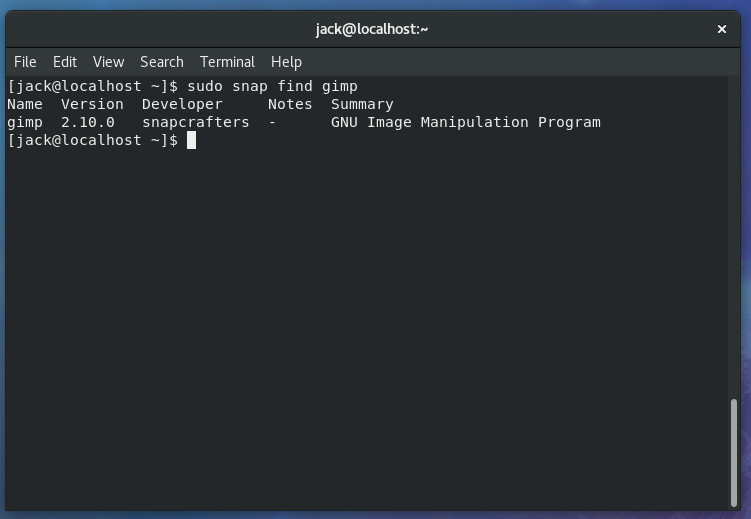
sudo snap find gimp
The command should report only one package available for GIMP (Figure 1).
Figure 1: GIMP is available to install via Snap.
To get a better idea as to what the find option can do for you, issue the command:
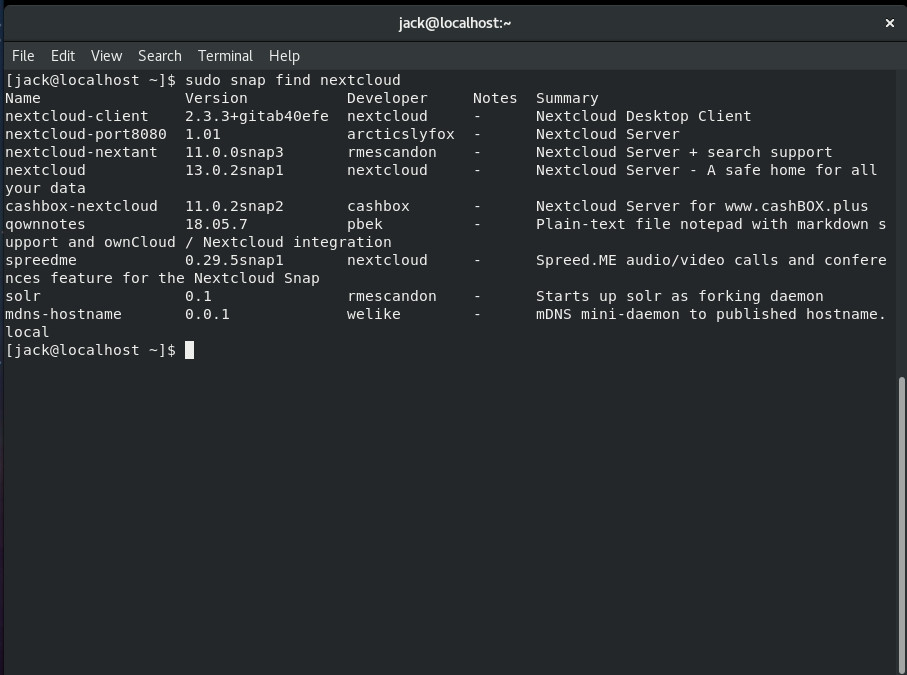
sudo snap find nextcloud
The output of that command (Figure 2) will report Snap packages related to Nextcloud.
Figure 2: Searching for Nextcloud-related Snap packages.
Let’s say you want to go ahead and install GIMP via Snap. To do this, issue the command:
sudo snap install gimp
The above command will download and install the Snap package. After the command completes, you’ll find GIMP in your desktop menu, ready to use.
Updating Snap packages
Once a Snap package is installed, it will not be updated by the normal method of system updating (via apt, yum, or dnf). To update a Snap package, the refresh option is used. Say you want to update GIMP, you would issue the command:
sudo snap refresh gimp
If an updated Snap package is available, it will be downloaded and installed. Say, however, you have a number of Snap packages installed, and you want to update them all. This is done with the command:
sudo snap refresh
The snapd system will check all installed Snap packages against what’s available. If there are newer versions, the installed Snap package will be updated. One thing to note is that Snap packages are automatically updated daily, so you don’t have to manually issue the refresh command, unless you want to do this manually.
Listing installed Snap packages
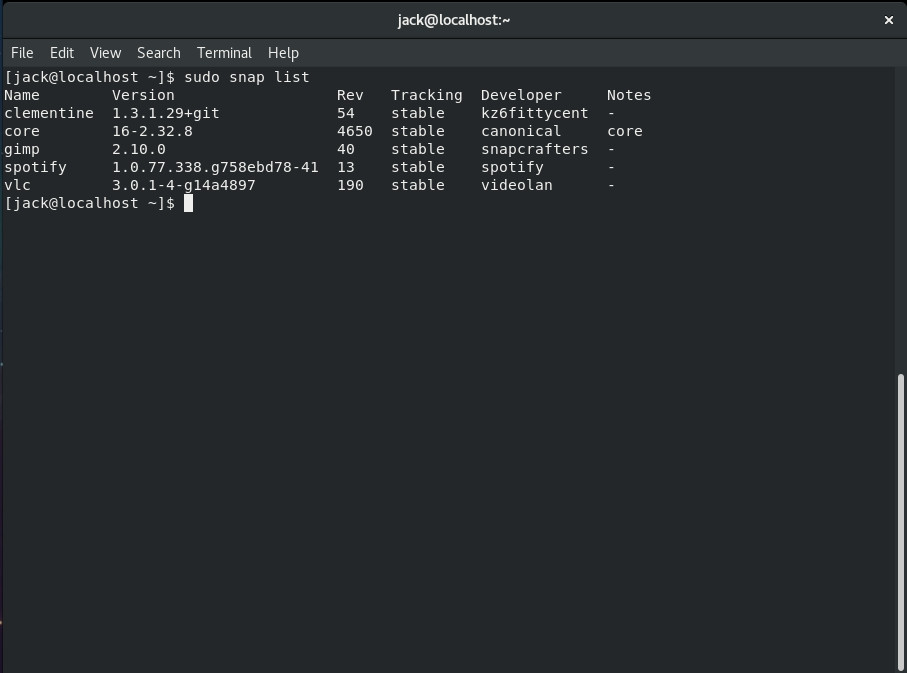
What if you’re not sure which Snap packages you’ve installed? Easy. Issue the command sudo snap list and all of your installed Snap packages will be listed for you (Figure 3).
Figure 3: Listing installed Snap packages.
Removing Snap packages
Removing a Snap package is just as simple as installing. We’ll stick with our GIMP example. To remove GIMP, issue the command:
sudo snap remove gimp
One thing you’ll notice is that removing a Snap package takes significantly less time than uninstalling via the standard method (i.e., sudo apt remove gimp or sudo dnf remove gimp). In fact, on my test Fedora system, installing, updating, and removing GIMP was quite a bit faster than doing so with dnf.
Installing with Snap: GUI edition
You can enable Snap support in GNOME Software with a quick dnf install command. That command is:
sudo dnf install gnome-software-snap
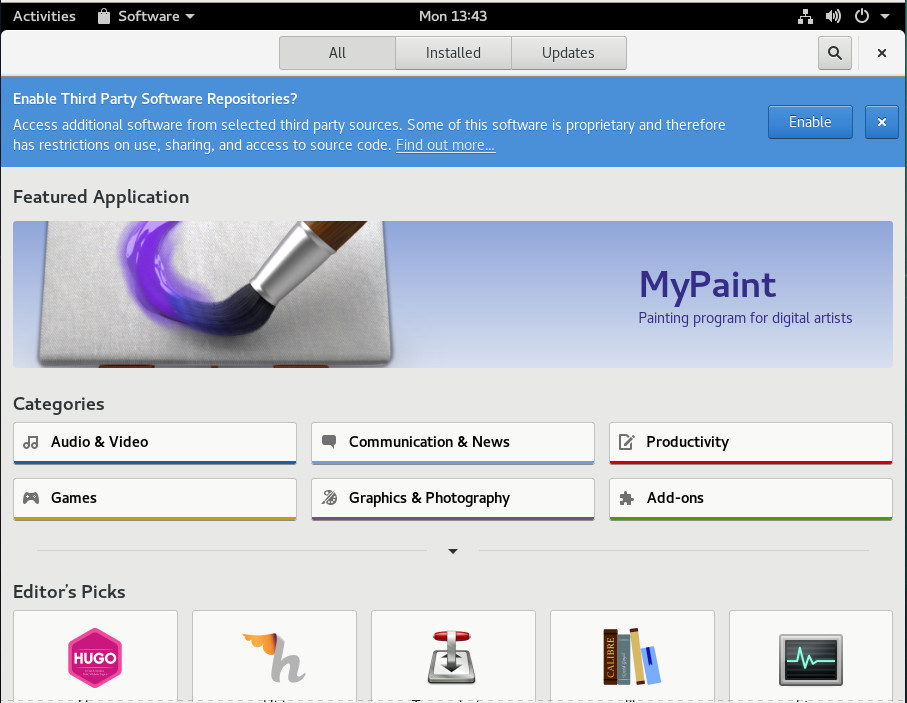
Once the command finishes, reboot your system and open up GNOME Software. You will be prompted to enable third party repositories (Figure 4). Click Enable and Snap packages are now ready to be installed.
Figure 4: Enabling the Snap repositories in GNOME Software.
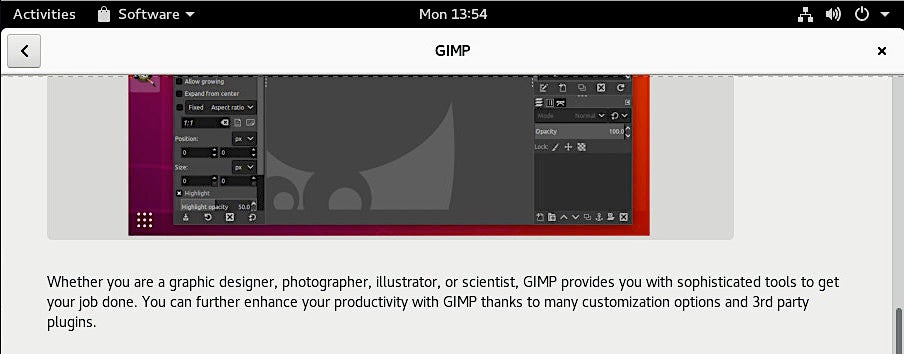
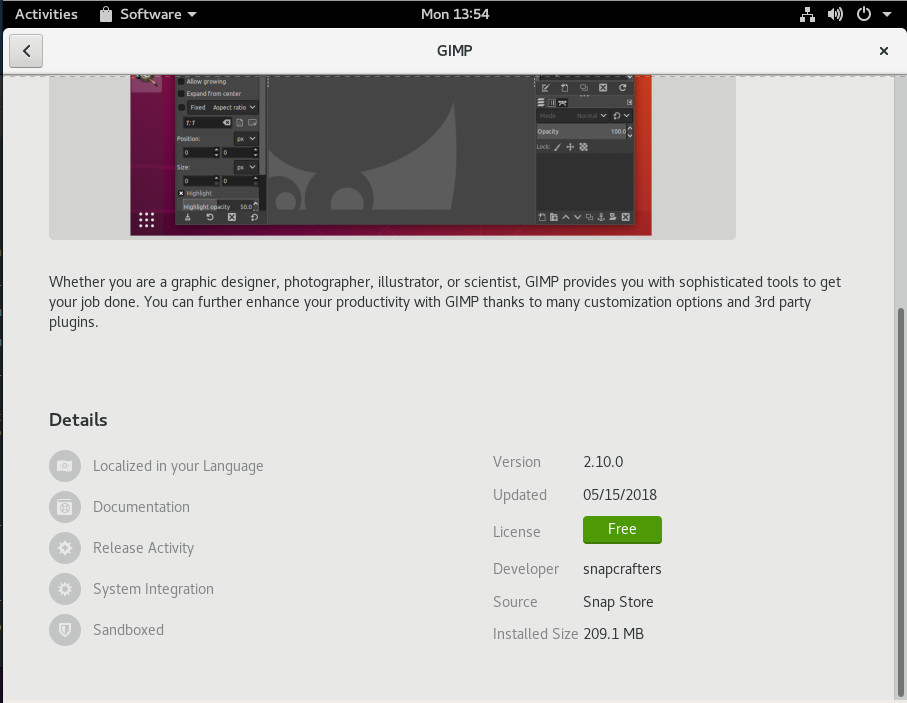
If you now search for GIMP, you will see two versions available. Click on one and if you see Snap Store as the source (Figure 5), you know that’s the Snap version of GIMP.
Figure 5: Installing a Snap package through GNOME Software.
Although I cannot imagine a reason for doing so, you can install both the standard and Snap version of the package. You might find it difficult to know which is which, however. Just remember, if you use a mixture of Snap and non-Snap packages, you must update them separately (which, in the case of Snap packages, happens automatically).
Get your Snap on
Snap packages are here to stay, of that there is no doubt. No matter if you administer or use Linux on the server or desktop, Snap packages help make that task significantly easier. Get your Snap on today and see if you don’t start defaulting to this universal package format, over the standard installation fare.
Learn more about Linux through the free “Introduction to Linux” course from The Linux Foundation and edX.
Vehicles are increasingly software-defined networks on wheels. In response, Automotive Grade Linux (AGL) has exploded in popularity. Dan Cauchy, a 2018 Top Embedded Innovator and Executive Director of AGL offers insight on trends in open source software and the automotive market.
Today, Linux is everywhere, including cars. What can you tell us about your vision for AGL in vehicles?
CAUCHY: The question implies that AGL is simply an operating system, when in fact it is much more than that. It is a complete software stack combined with a thriving ecosystem.
AGL is built from the ground up including the Linux kernel and hardware board support package, middleware, application framework and APIs, software-development kit (SDK), and reference applications. It is a complete system but offers the flexibility of being fully customizable.
With the rise of containers and virtual machines, some system administrators have been neglecting their system logs. That’s a mistake.
Even if your containerized applications spin up and down several times an hour, you still need to keep and analyze logs. To find the root cause of a failure or to track down a system attack, you must be able to review what happened, when it happened, and what components of your software and hardware stack were affected. Otherwise, you’ll waste time looking for problems in the wrong place — time that you don’t have to spare in an emergency. Or, worse still, you may miss hidden issues such as performance problems, security violations, or costly use of system resources.
Without system logs, you’re not administering a system; you’re running a black box and hoping for the best. That’s no way to run servers, whether they are physical, virtual, or containerized.
So, here are some of the basics to keep in mind as you approach server logging in the 21st century. These are all practices that I either use myself or picked up from other sysadmins, including many from the invaluable Reddit/sysadmin group.
Linux manages hardware peripherals using kernel modules. Here’s how that works.
A running Linux kernel is one of those things you don’t want to upset. After all, the kernel is the software that drives everything your computer does. Considering how many details have to be simultaneously managed on a live system, it’s better to leave the kernel to do its job with as few distractions as possible. But if it’s impossible to make even small changes to the compute environment without rebooting the whole system, then plugging in a new webcam or printer could cause a painful disruption to your workflow. Having to reboot each time you add a device to get the system to recognize it is hardly efficient.
To create an effective balance between the opposing virtues of stability and usability, Linux isolates the kernel, but lets you add specific functionality on the fly through loadable kernel modules (LKMs). As shown in the figure below, you can think of a module as a piece of software that tells the kernel where to find a device and what to do with it. In turn, the kernel makes the device available to users and processes and oversees its operation.
Unlike most other IoT threats, malware can survive reboot.
A new threat which targets a range of routers and network-attached storage (NAS) devices is capable of knocking out infected devices by rendering them unusable. The malware, known as VPNFilter, is unlike most other IoT threats because it is capable of maintaining a persistent presence on an infected device, even after a reboot. VPNFilter has a range of capabilities including spying on traffic being routed through the device. Its creators appear to have a particular interest in SCADA industrial control systems, creating a module which specifically intercepts Modbus SCADA communications.
While VPNFilter has spread widely, data from Symantec’s honeypots and sensors indicate that unlike other IoT threats such as Mirai, it does not appear to be scanning and indiscriminately attempting to infect every vulnerable device globally.
Q: What devices are known to be affected by VPNFilter?
A: To date, VPNFilter is known to be capable of infecting enterprise and small office/home office routers from Linksys, MikroTik, Netgear, and TP-Link, as well as QNAP network-attached storage (NAS) devices. These include:
Linksys E1200
Linksys E2500
Linksys WRVS4400N
Mikrotik RouterOS for Cloud Core Routers: Versions 1016, 1036, and 1072