Home Blog Page 740

OpsDev Is Coming

OpsDev means that the dependencies of the various application components must be understood and modeled first before the development process begins. 

Apple is continually aligning all products and apps so a user with multiple Apple products can have a seamless experience while switching from one device or app to another without losing the user’s context of what they are doing. Instead of focusing on the product features or product specs, the company focuses on its customers’ experiences. …

As you can see, the delivery of such personalized software services impacts the design paradigm and now must be inverted. While DevOps tends to start with the developer-led challenges (e.g., code review and code standards, build management and continuous integration), it ultimately sits in the wheelhouse of operations teams once the application is promoted into production; OpsDev begins with the end in mind. Once we understand the interdependencies of the different data sources and its availability, we can then design the component that ties everything together. Additionally, the smart fridge software is constantly updated. 

Read more at DZone

5 Sysadmin Horror Stories

Happy System Administration Appreciation Day!

The job ain’t easy. There are constantly systems to update, bugs to fix, users to please, and on and on. A sysadmin’s job might even entail fixing the printer (sorry). To celebrate the hard work our sysadmins do for us, keeping our machines up and running, we’ve collected five horror stories that prove just how scary / difficult it can be.

5 sys admin horror storiesRead more at OpenSource.com

Facebook Open Sources 17-Camera Surround360 Rig with Ubuntu Stitching Software

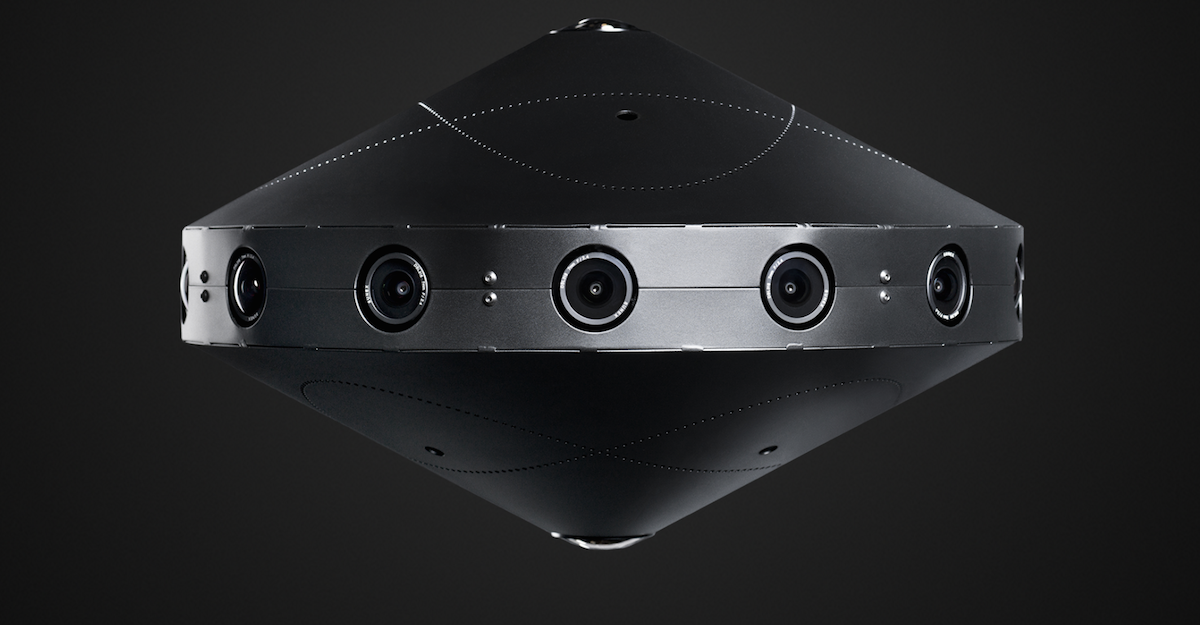
In April, Facebook announced it had built a “Surround360” 3D-360 video capture system, but that it did not plan to sell it. Instead, the social networking giant promised it would open source both the hardware and the Ubuntu Linux-based software used to stitch together images from the camera into stereoscopic 360 panoramas. This week, Facebook did just that, posting full specs and code for the device on GitHub.

The Surround360 incorporates 14 wide-angle cameras with 4-megapixel resolution and global shutters, arranged in a ring-like design. The cameras can output 4K, 6K, or 8K video resolution. There are also two fisheye lenses on the bottom and one on top to complete the 360-degree immersive experience. The rugged aluminum chassis sits on a pole, which is masked in software so it is invisible when you look down with your VR headset.

The device is built entirely with off-the-shelf hardware that can be ordered online. Facebook offers a cartoon-like manual that promises to help you build the device in as little as four hours.

Facebook is motivated by the need to create content not only for its Oculus Rift VR headset and Samsung’s lower-end, Oculus-infused Gear VR, but also its own Facebook.com ads and user-generated content. In its announcement, Facebook said it wanted to “accelerate the growth of the 3D-360 ecosystem,” and that “anyone will be able to contribute to, build on top of, improve, or distribute the camera based on these specs.”

Well, maybe not just anyone. The parts cost about $30,000 — much more than many 3D-360 cameras, such as the dual-fisheye, $350 Ricoh Theta S or the soon-to-ship, 16-camera GoPro Odyssey, which costs $15,000. Yet, it’s cheaper than most professional-level models, such as the spherical, eight-camera Nokia OZO, which sells for $60,000.

Linux Software Vastly Reduces Processing Time

The major benefit of the higher end cameras — and the Surround360 in particular — is not only quality and durability, but much shorter processing time stitching videos into a seamless whole. The open source Linux software “vastly reduces the typical 3D-360 processing time while maintaining the 8K-per-eye quality we think is optimal for the best VR viewing experience,” says Facebook.

The task is daunting considering the amount of RAW video data involved – the Surround360 can capture 120GB per minute at 30fps, or 240GB at 60fps. To stitch the disparate views together, the system uses an optical flow algorithm to compute left-right eye stereo disparity rather than using tedious, manual “hand stitching.”

Optical flow lets you synthesize views separately for the left and right eyes, as well as flow the top and bottom camera views into the side views, and flow pairs of cameras views to match objects appearing at different distances. As a result, the camera can maintain “image quality, accurate perception of depth and scale, comfortable stereo viewing, and increased immersion,” says Facebook.

The Surround360 can be controlled remotely from any device with a web browser. The Ubuntu Linux 14.04 desktop used for processing, however, must be top-of-the-line, and capable of a 17Gbps sustained transfer rate. An 8-way level-5 RAID SSD is required to keep up with the isochronous camera capture rates.

Playback is currently optimized for the Oculus Rift and smartphone-enabled GearVR. On the latter, 8K playback requires a “dynamic streaming” feature that adds a “noticeable lag,” but is still acceptable, according to a hands-on report from TechCrunch. Presumably, you could also use other headsets, and you can view panoramas on computers with 2D displays without the immersive vertical views.

Facebook is a major consumer and producer of open source, mostly Linux-based software, and has previously experimented with open source hardware in its Open Compute initiative for servers. It chose not to open source the Oculus Rift, however.

Razer’s OSVR HDK 2.0 headset is open source, as well as Google’s much lower end Cardboard. The other major open source VR effort is OpenVR, an open source version of Valve’s SteamVR software, which forms the basis for HTC’s commercial Vive headset.

The Surround360 is not the first open source panoramic video camera. Elphel’s $60,000 and up Eyesis4Pi is a panoramic, stereophotogrammetric rig that incorporates 24 Linux-driven Elphel cameras with 5-megapixel resolution. After stitching, this results in a panoramic image resolution of 64 megapixels, says Elphel. A similar Elphel panoramic camera was mounted on the first Google Streetview cars before being replaced with an in-house design.

Howdy, Ubuntu on Windows! Ubuntu Commands Every Windows User Should Learn

Some Windows desktop users will certainly be new to Bash and the new shell, Ubuntu on Windows.  In Part 1, I introduced the topic, and in Part 2, I showed how to get started by installing Windows. In this part of our series, I’ll describe a handful of essential commands to help get started.

1. <Tab>

Learn to love your <Tab> key!  Start typing any command and press <Tab> to complete the rest of your command.  When multiple matching options exist, you can press <Tab><Tab> to list all available options.  Watch a real Linux command line wizard at work, and you’ll marvel at how efficient, and accurate she is, deftly using the <Tab> key accomplish the most complex tasks in a minimum number of keystrokes.

2. man

Documentation!  Most commands in your Ubuntu shell will have excellent “manuals” or “manpages.”  Simply type man <command> and you’ll enter a page viewer, where you can learn all about whatever you’re trying to better understand.  All Ubuntu manpages are also rendered to HTML, and you can search and read them at manpages.ubuntu.com.  Heck, let’s read the manpage for man, itself!

  • man man

3. sudo

You’ll find that some commands refuse to work, unless you type sudo.  sudo stands for superuser do.  It’s exactly like Windows’ “Run as Administrator” action.  sudo is how you execute privileged instructions, like editing system configuration files, installing additional software, or making permanent changes to the system.  Read more about it in the manpage here, and try the following:

  • whoami

  • sudo whoami

4. apt

apt is the packaging system for Ubuntu.  It’s the command-line tool that enables you to add and remove software from your Ubuntu shell.  apt talks to archive.ubuntu.com,  which is much like the Windows Store or Apple iTunes store, except ALL of the software is free!  Moreover, the vast of majority of it is completely open source.  You can search for software, install packages, remove packages, update, and upgrade your system.  Read more about apt in the manpage here, and try the following:

  • sudo apt update

  • sudo apt upgrade

  • apt search tree

  • apt-cache search tree

  • sudo apt install tree

  • tree /etc

  • sudo apt purge tree

5. Pipes

While not strictly a “command”, perhaps the most fundamental concept to understand in Bash is that you can always “pipe” the output (stdout, or “standard out”) of one command, to another command as its input (stdin, or “standard in”).  In this manner, you can “pipeline” many different UNIX/Linux utilities together, with each one processing the output of the other.  To use a pipe, you simply add the | character to the end of your command, and then start typing your next command.  In the rest of the examples below, you will “build” more and more advanced processing on the command line, through the use of pipes.  You can learn more about pipes here.

6. grep

grep will quickly become your best friend, in your Ubuntu environment on Windows!  grep stands for “get regular expression,” which means that you can do some super fancy searching, if you speak in regexes.  You’ll want to learn that eventually, but let’s start simply.  Here’s a couple of examples to try, and make sure you read the manpage.

  • apt-cache search revision control

  • apt-cache search revision control | grep git

7. sed

sed is a simple “inline editor.”  Like piping text to grep, you can pipe data directly to sed, and using regular expressions, you can replace text.  This is super handy for automating lots of tasks, updating files, and countless other things.  Here’s a simple example — we’re going to print (cat) a file, and then replace all of the colons (:) with three whitespaces.  Note that we’re not going to actually edit the file (though we could).  We’re just going to print the output to the terminal.  Try this, and make sure you read the manpage!

  • cat /etc/passwd

  • cat /etc/passwd | sed “s/:/   /g”

8. awk

awk is amazing!  It is its own programming language and can do some pretty spectacular things, like advanced mathematics and text formatting with merely a couple of characters.  You can spend the next year of your life becoming an awk expert.  But let’s just look at a super simple example, that’s always handy!  Let’s say you want to split some text into a column, and only get the first column.  We’ll build on our previous example, to get a list of users on the local system.  Try this, and then read the manpage!

  • cat /etc/passwd

  • cat /etc/passwd | sed “s/:/   /g”

  • cat /etc/passwd | sed “s/:/   /g” | awk ‘{print $1}’

9. xargs

If you like to automate tasks, you definitely want to get to know xargs.  xargs provides, effectively, a “loop” that you can use on the command line.  Basically, you can run the same command over and over, against a variable that changes.  Let’s say that we wanted to say hello to each of those users we just listed.  Try this, and then read the manpage!

  • cat /etc/passwd

  • cat /etc/passwd | sed “s/:/   /g”

  • cat /etc/passwd | sed “s/:/   /g” | awk ‘{print $1}’

  • cat /etc/passwd | sed “s/:/   /g” | awk ‘{print $1}’ | xargs -i echo “Howdy, {}!”

10. less

Some commands produce very little or no output.  Others produce a lot more output than can fit on the screen.  In these cases, you should use the command less.  less will “page” the information, allowing you to scroll down, up, and even search in the text.  Let’s look at our system log, and then try piping it through less, moving up and down with the arrow keys and PgUp and PgDn keys.  Type q to quit, and then read the manpage!

  • cat /var/log/syslog

  • cat /var/log/syslog | less

11. ssh

ssh is how we get from one Linux machine, to another.  Ubuntu on Windows, of course, comes with the ssh client, enabling you to ssh directly to any other Linux system that has an ssh server (openssh-server, in Ubuntu) installed.  You’ll definitely want to read up on ssh in the manpage!

  • ssh example.com

12. rsync

rsync is the brilliant tool in Linux that we use to securely copy and synchronize directories from one place to another — perhaps on the local system, or even over an encrypted connection across the network.  More than a decade before Dropbox, OneDrive, or iCloud, Linux users have been efficiently backing up their data “to the cloud” using rsync.  Check out the manpage, and try this:

  • mkdir /tmp/test

  • rsync -aP /usr/share/doc/ /tmp/test/

  • ls /usr/share/doc

  • ls /tmp/test/

  • rm -rf /tmp/test

13. find / locate

Windows users are certainly familiar with the File Explorer’s file search mechanisms.  Let’s look at two ways to search your Linux filesystem, for files and directories.  We can use the find command, which has a ton of interesting options.  You should read more about find in its manpage and locate in its manpage, and try these commands:

  • find /etc/

  • find /etc/ -type d

  • find /etc/ -type f

  • find /etc/apt -name sources*

  • find /mnt/c/Program Files

  • sudo updatedb

  • locate bash.exe

This is merely the tip of the iceberg!  There are hundreds of commands.  List the ones installed in /usr/bin, and count them using:

  • ls /usr/bin

  • ls /usr/bin | wc -l

There, you just learned two more commands (ls and wc)!  And I’m sure, by now, you know to check their manpages 🙂

Cheers,

Dustin

Read the next article in this series: Howdy, Ubuntu on Windows! Write and Execute Your First Program

Learn more about Running Linux Workloads on Microsoft Azure in this on-demand webinar with guest speaker Ian Philpot of Microsoft. Watch Now >> 

 

How to Find the Best DevOps Tools

Automation and orchestration are key in any infrastructure setup. DevOps professionals need tools that can help them do their jobs more accurately and efficiently, but there isn’t one key to open all doors. According to a recent report from The New Stack, for example, more than 40 percent of survey respondents said an orchestration platform was the primary way they managed containers in their organization. However, “the actual products being used or planned for use were strongly influenced by a respondent’s stage of container adoption.”

Different organizations have different needs, and they use different DevOps tools to get the job done. I talked to some companies to learn more about various DevOps tools they use or recommend.

The Right Tool for the Task

There are many different software engineering approaches, and Amar Kapadia Senior Director, Product Marketing at Mirantis, breaks them down into the following four stages: continuous development, continuous integration and testing, continuous deployment, and continuous monitoring.

Different tools exist for these specific tasks, said Kapadia. For continuous development, there’s Git and Eclipse; for continuous Integration – Jenkins; and for continuous monitoring — a new class of application lifecycle management tools (ALM), such as New Relic.

Anything that provides automation of infrastructure setup is a great starting point, said Mike Fiedler, Director of Technical Operations at Datadog. Projects like Chef, Puppet, Ansible all provide the ability to treat “infrastructure as code,” bootstrapping hosts – whether they be cloud-based or hardware — in a repeatable, predictable fashion.

For monitoring, Fiedler said open source tools like Ganglia and Graphite are good, general purpose starter tools that can get any organization off the ground. In terms of build automation, he pointed at Jenkins, TeamCity, Travis CI, and CircleCI. And, as far as deployment is concerned, he said there are some good wrappers around executing remote commands, like Fabric, Capistrano, RunDeck. These also follow the model of automating some of the repeatable parts of a deployment pipeline with snippets of code.

Sam Guckenheimer, product owner and group product planner at Microsoft mentioned Spinnaker. This tool is hosted on GitHub and was originally developed by Netflix. According to the GitHub page, Spinnaker is an open source, multi-cloud continuous delivery platform for releasing software changes with high velocity and confidence. Guckenheimer described Spinnaker as a very promising multi-cloud delivery platform.

Thomas Hatch, the creator of Salt and CTO of SaltStack suggested SaltStack (no surprises there). He added, however, that there are many great tools that can assist DevOps pros in doing their jobs more accurately and efficiently. Each team needs to find the tools that work best for their own use case.

Amit Nayar, Vice President of Engineering at Media Temple, agreed that the DevOps tools that a company or a team will choose will depend on the problems they are trying to solve.

He identified three important factors in choosing the right tools:

  • The tech stack largely determines the tools, as the tools a LAMP stack team chooses may vary greatly from those of a Windows/.NET-based team, for example.

  • The budget will determine whether or not a company will go with open source self-service tools vs. proprietary hosted-SaaS based tools, for example.

  • The deployment target is also a large factor in choosing DevOps tools in relation to whether a team is deploying applications to their own bare-metal/virtualized infrastructure vs. deploying to public cloud infrastructures such as AWS and Azure.

Nayar also provided a list of some of the DevOps tools they like at Media Temple:

  • Source code repositories with Git and GitHub

  • Continuous integration and deployment with Jenkins and RunDeck

  • Container technology with Docker

  • Infrastructure automation with tools like Puppet, Ansible, AWS CloudFormation/CodeDeploy, etc.

  • Monitoring with Nagios, Prometheus, Graphite, ELK logfile analysis stack, etc.

Almost all VictorOps users are practitioners and heavy users of DevOps tools, said Jason Hand, DevOps Evangelist & Incident & Alerting specialist at VictorOps. He shared the following list of popular tools used by their customers: Icinga, Nagios, Jira, Trello, Hubot, Slack, Jenkins, Graphite, RayGun, Takipi, New Relic, Puppet, Chef, GitHub, Cassandra, Ansible, Grafana, ElasticSearch, Logstash, and Kibana.

Application provisioning is where most people are right now, according to Greg Bruno, VP Engineering, Co-Founder at StackIQ. Puppet, Chef, Ansible, and Salt are very popular because they fit the majority of use cases. Automated server provisioning is the next logical step: Get the machines deployed and preconfigured to use Puppet and Chef, and then complete your application provisioning through those tools.

Conclusion

Nothing’s better than getting a list of DevOps tools used by some of the major player themselves. Which of these do you use, or which ones do you suggest?

Sign up to receive one free Linux tutorial each week for 22 weeks from Linux Foundation Training. Sign Up Now »


Persistent vs. Non-Persistent Workloads: the Admin’s Conundrum

Virtualization isn’t the answer to every problem in IT. There are plenty of workloads where neither containers nor hypervisors are the answer. The old problems of being able to easily provision, utilize and make highly available bare-metal workloads remain, so what options exist for the modern sysadmin?

Solutions to this problem can be largely divided into two groups: persistent and non-persistent workloads. For all intents and purposes, these break down into OpEx and CapEx problems, respectively. 

Non-Persistent(ish) Workloads 
The simplest method of making a workload non-persistent(ish) is simply to disconnect the storage from the compute. Using Fibre Channel or iSCSI LUNs delivered from centralized storage has been used for ages. If the server dies, who cares? Attach the LUNs to another server and off you go.

Read more at Virtualization Review

Spark 2.0 Takes an All-In-One Approach to Big Data

Apache Spark, the in-memory processing system that’s fast become a centerpiece of modern big data frameworks, has officially released its long-awaited version 2.0. Aside from some major usability and performance improvements, Spark 2.0’s mission is to become a total solution for streaming and real-time data. This comes as a number of other projects — including others from the Apache Foundation — provide their own ways to boost real-time and in-memory processing.  

Most of Spark 2.0’s big changes have been known well in advance, which has made them even more hotly anticipated. One of the largest and most technologically ambitious additions is Project Tungsten, a reworking of Spark’s treatment for memory and code generation

Read more at InfoWorld

How Project Calico Transcends the Limits of Software-Defined Networking

Project Calico is an open source layer three virtual networking system for containers, which can be deployed across a variety of todays platforms and setups, including hybrid environments. While centralized control can quickly cause an underlying software-defined network (SDN) to reach load capacity, Project Calicos removal of a central controller helps ease this pain point for developers.

In this episode of The New Stack Makers embedded below, we explore how Project Calico hopes to streamline and evolve software-defined networking, as well as the Calico’s collaboration with Flannel to build the Canal policy-based secure networking software. With Project Calico, there is no centralized controller. It uses etcd as a high-level key value store. Then we have an agent that runs on every host, that has an algorithm that calculates in a distributed fashion exactly what a host has to do. This is good for horizontal scale, which becomes important with the move to containers, said Pollitt.

Read more at The New Stack

Cross-Platform Mobile Development with Xamarin

In Text Rendering with Xamarin, I drilled down into the countless ways and options that Xamarin provides you to display text on the screen of multiple mobile devices. In this article, I’ll focus on the cross-platform mechanisms and the support for per-platform code in Xamarin.

SAP vs. PCL

Xamarin Forms provides two different paths to cross-platform applications. The shared assets project (SAP) contains files that are included directly with each platform’s project at build time. The portable class library (PCL) is different and creates a share dynamic link library that is loaded at runtime by each platform’s application. The difference is important, as you’ll soon see, because there are different techniques you can use when you know at build time what platform the code is going to run on vs. at runtime only.

Code vs. XAML

Xamarin Forms exposes a cross-platform object model for laying out UI elements on the screen…

Read full article

NIST Declares the Age of SMS-Based 2-Factor Authentication Over

2-factor authentication is a great thing to have, and more and more services are making it a standard feature. But one of the go-to methods for sending 2FA notifications, SMS, is being left in the dust by the National Institute of Standards and Technology.

NIST creates national-level guidelines and rules for measurements, and among the many it must keep up to date are some relating to secure electronic communications. An upcoming pair of “special publications,” as its official communiques are called, update its recommendations for a host of authentication and security issues, and the documents are up for “public preview.” I put the phrase in quotes because technically, a “public draft” triggers formal responses from partners and, in fact, from NIST itself. 

Read more at TechCrunch